 Our first app, Migrato, is live on the Shopify App Store

Template Documentation
Migrato uses structured CSV, and XLSX files to import and export Shopify product data. A product file can contain product information along with supported variant, inventory, media, category, collection, metafield, and other product-related data.
Before importing products, it is recommended to use a Migrato-exported product file or the Product Demo CSV as a starting point. This helps ensure that the file follows the structure expected by Migrato.
Understanding the Migrato Product Template
A Migrato product file is organized around the Products resource.
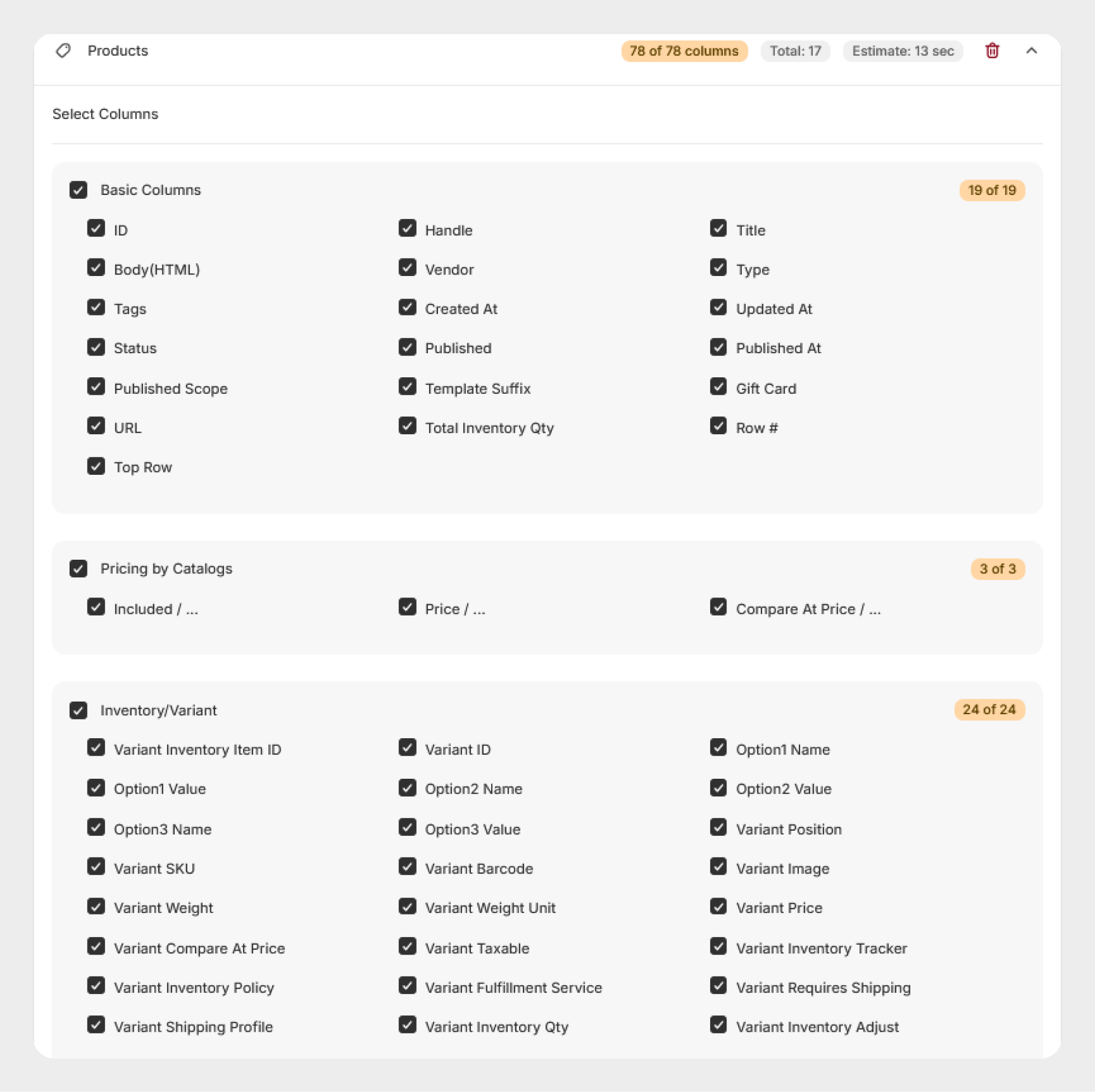
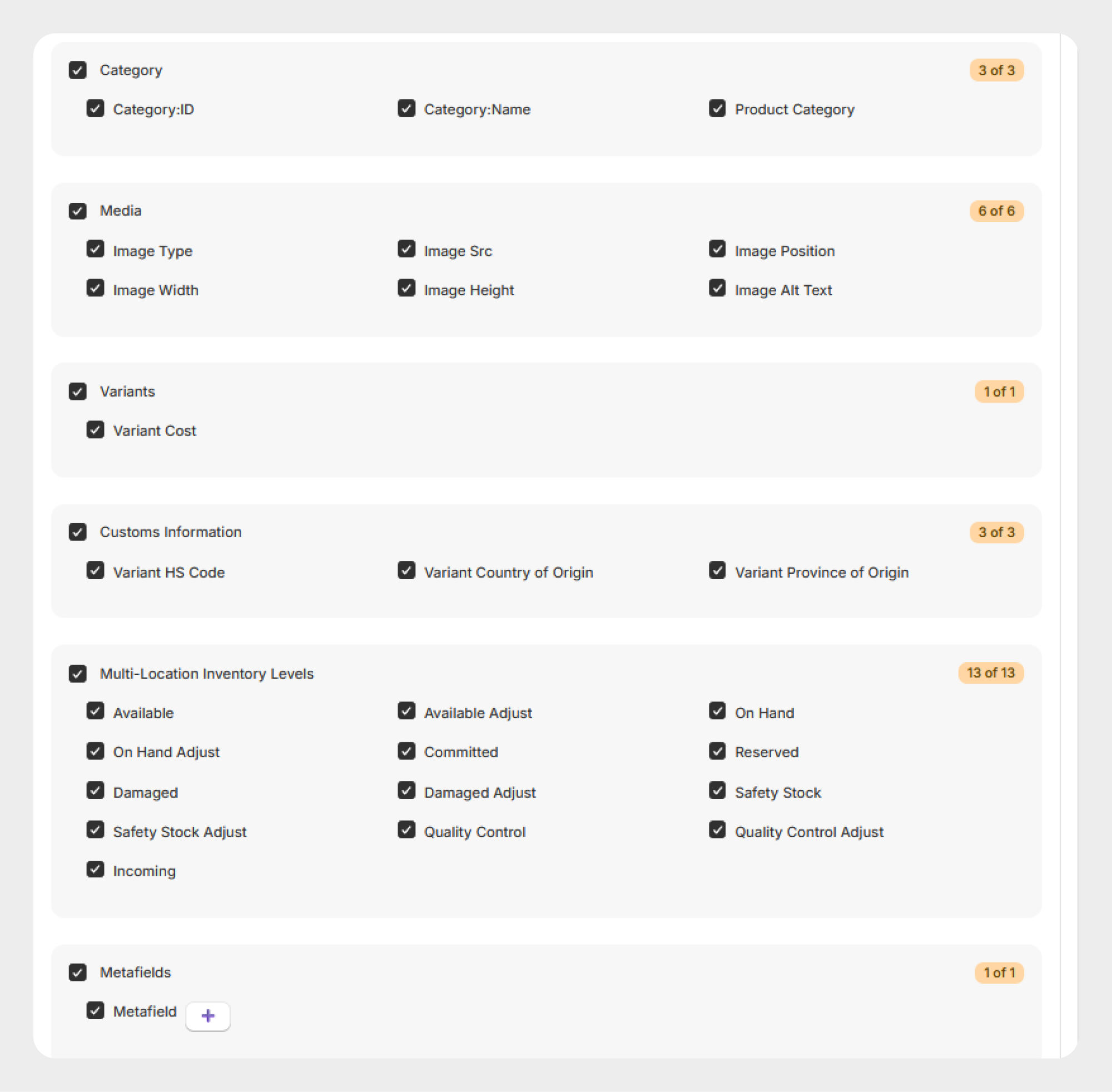
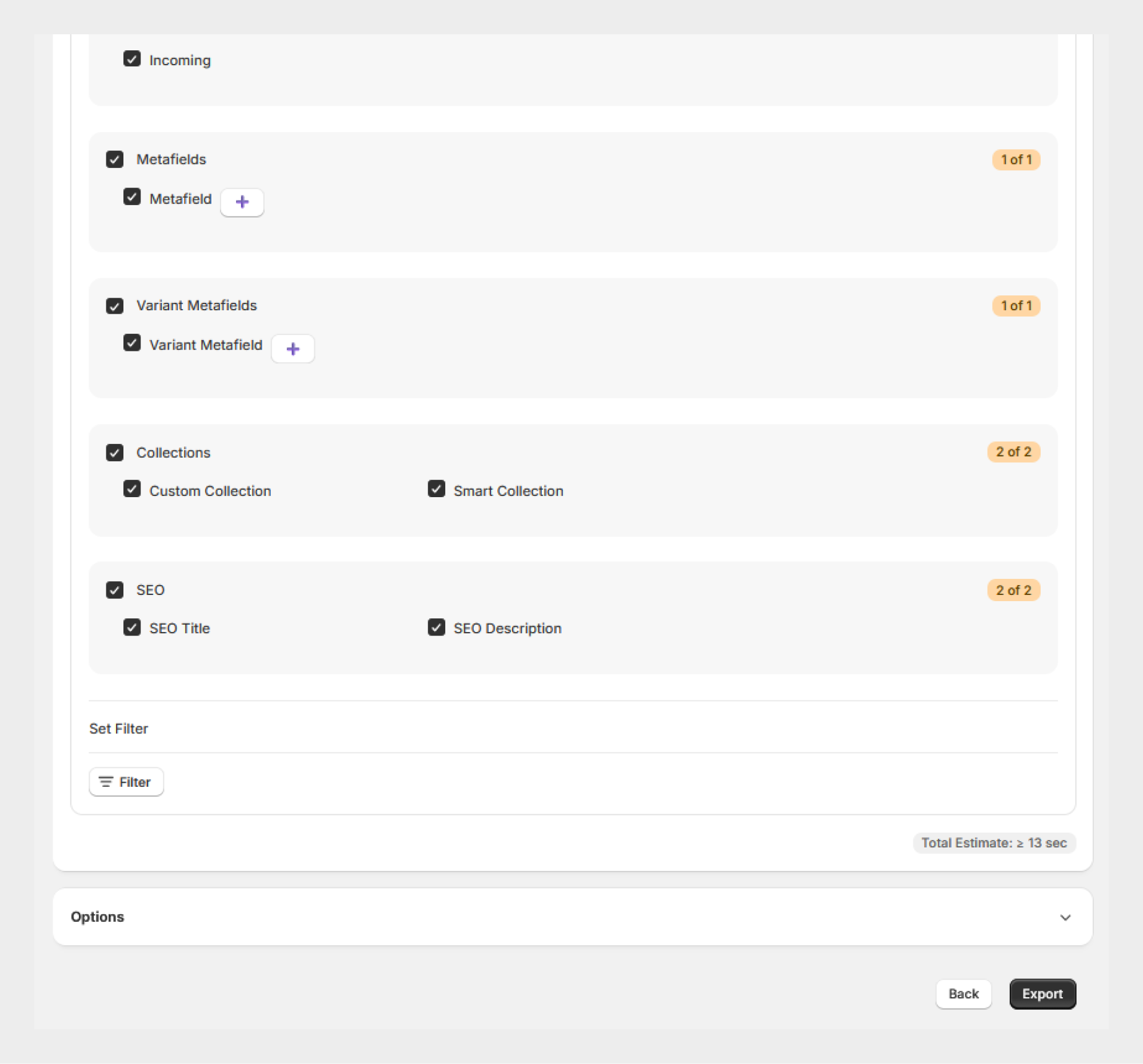
When you export products from Migrato, the exported file can contain different groups of product-related columns. These groups help organize the available product data and make it easier to identify the information you want to import or export.
Depending on the selected product data, the available groups may include:
-
 Basic Columns
-
Pricing by Catalogs
-
Inventory/Variant
-
Category
-
Media
-
Variants
-
Custom Information
-
Multi-Location Inventory Levels
-
Metafields
-
Variant Metafields
-
Collections
The exact columns available may vary depending on the Migrato version, Shopify store configuration, and supported product data.
File Formats Supported
Migrato supports the following file formats for product data:
-
CSV (.csv)
-
Excel (.xlsx)
These formats can be used when preparing product data for import or when downloading exported product data.
CSV
CSV files are useful for working with large datasets and can be edited using spreadsheet applications or text editors.
XLSX
XLSX files can be opened and edited using Microsoft Excel, Google Sheets, or other compatible spreadsheet applications.
Tip: For the best compatibility and easier handling of large product datasets, we recommend using CSV or XLSX.
How Migrato Identifies the Data Type
Migrato automatically detects the entity type from the file name when importing data.
For example:
| File Name | Detected Entity |
|---|---|
products.csv |
Products |
customers.csv |
Customers |
orders.csv |
Orders |
draft_orders.csv |
Draft Orders |
shop.csv |
Shop |
discounts.csv |
Discounts |
collections.csv |
Custom Collections |
smart_collections.csv |
Smart Collections |
pages.csv |
Pages |
blogs.csv |
Blogs |
menus.csv |
Menus |
redirects.csv |
Redirects |
companies.csv |
Companies |
files.csv |
Files |
metaobjects.csv |
Metaobjects |
For product imports, make sure the file name clearly identifies the file as a product file, such as:
products.csv or products.xlsx or my-products.csv
Important: Use the appropriate entity name in the filename so Migrato can automatically identify the resource you want to import.
Preparing a Product Import File
Before importing product data, prepare your file according to the Migrato product structure.
You can create your file using one of the following approaches:
Option 1: Use a Migrato Exported File
Export existing products from your Shopify store using Migrato.
The exported file provides a practical example of the product structure and supported columns.
You can then:
- Export your existing products.
- Open the exported CSV/XLSX file.
- Review the available product columns.
- Add or modify the required product information.
- Save the file.
- Import the file back into Migrato.
This is generally the easiest way to understand the expected product structure.
Option 2: Use the Product Demo File
Migrato provides a demo product file that can be used as a reference when preparing your own product import.
The demo file helps you understand:
-
Product column structure
-
Product-related fields
-
Variant information
-
Inventory information
-
Media-related information
-
Category information
-
Collection information
-
Metafields
-
Other supported product data
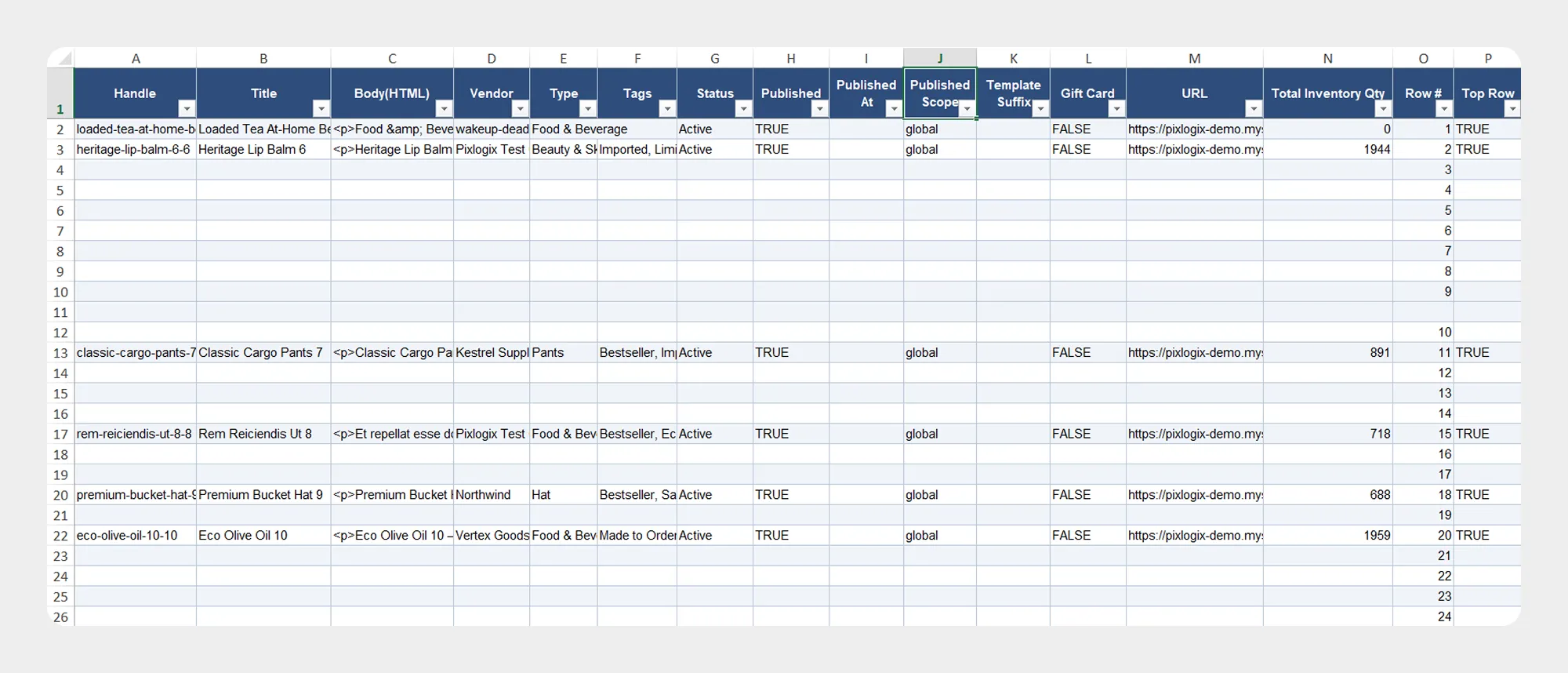
Recommended: If you are creating a product import file for the first time, start with the Migrato Product Demo CSV or an exported product file rather than creating the structure from scratch.
Product Template Structure
The product template can contain different groups of columns depending on the data being managed.
1. Basic Columns
The Basic Columns group contains the primary product information.
These fields represent the core product data required to identify and manage products.
Examples may include information such as:
-
Product ID
-
Product handle
-
Product title
-
Product description
-
Product status
-
Product vendor
-
Product type
-
Tags
-
Other supported basic product attributes
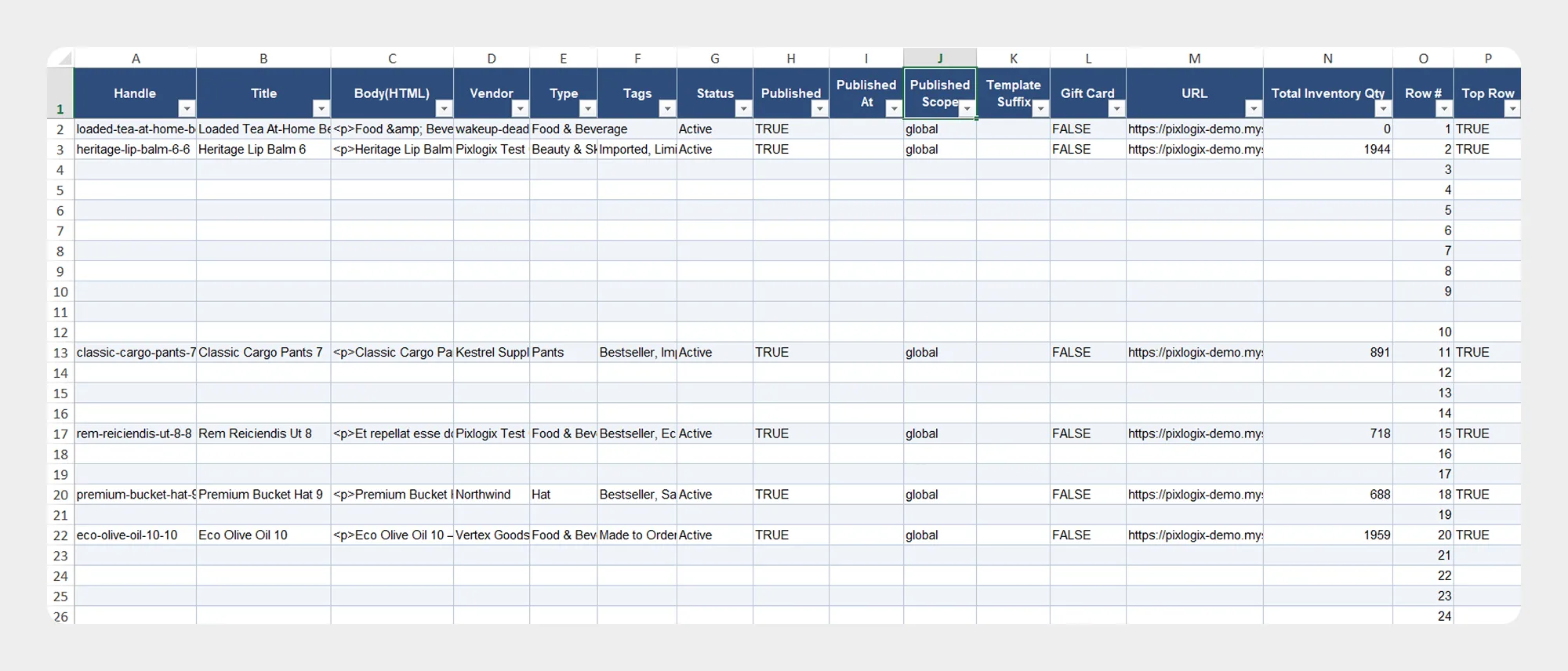
These columns contain the core information used to create and manage Shopify products.
| Column | Description | Allowed Values / Example |
|---|---|---|
| ID | Unique Shopify identifier for the product. | Number / Shopify Product ID |
| Handle | URL-friendly identifier used in the product URL. | Text — mens-t-shirt |
| Title | Product name displayed in Shopify. | Text — Men's T-Shirt |
| Body(HTML) | Product description, including supported HTML content. | HTML / Text |
| Vendor | Manufacturer, supplier, or brand associated with the product. | Text — Nike |
| Type | Product type assigned to the product. | Text |
| Tags | Tags associated with the product. Multiple tags can be provided according to Migrato's supported format. | Text — Red, T-Shirt, Summer |
| Created At | Date and time when the product was created. | Date & Time |
| Updated At | Date and time when the product was last updated. | Date & Time |
| Status | Current product status. | ACTIVE, DRAFT, ARCHIVED |
| Published | Indicates whether the product is published. | TRUE / FALSE |
| Published At | Date and time associated with product publication. | Date & Time |
| Published Channels | Sales channels where the product is published. | Channel names supported by Shopify |
| Published Scope | ||
| Template Suffix | Theme template suffix assigned to the product, where supported. | Text |
| Gift Card | Indicates whether the product is a gift card. | TRUE / FALSE |
| URL | Product URL. | URL |
| Total Inventory Qty | ||
| Row # | ||
| Top Row |
The exact fields available in your Migrato version should be checked against the exported product file or current Product Demo CSV.
2. Pricing by Catalogs
The Pricing by Catalogs group contains supported pricing information associated with catalogs.
| Column | Description | Allowed Values / Example |
|---|---|---|
| Included / … | Indicates whether the product or variant is included in the applicable catalog pricing configuration. | TRUE / FALSE |
| Price / … | Specifies the product or variant price configured for the applicable catalog. | Numeric value, e.g. 49.99 |
| Compare At Price / … | Specifies the compare-at price configured for the applicable catalog. | Numeric value, e.g. 59.99 |
This section should be used when your Shopify store requires supported catalog-specific pricing data.
3. Inventory/Variant
The Inventory/Variant group contains product variant and inventory-related information.
Depending on the supported fields, this may include:
-
Variant information
-
SKU
-
Price
-
Inventory information
-
Inventory-related identifiers
-
Variant-specific settings
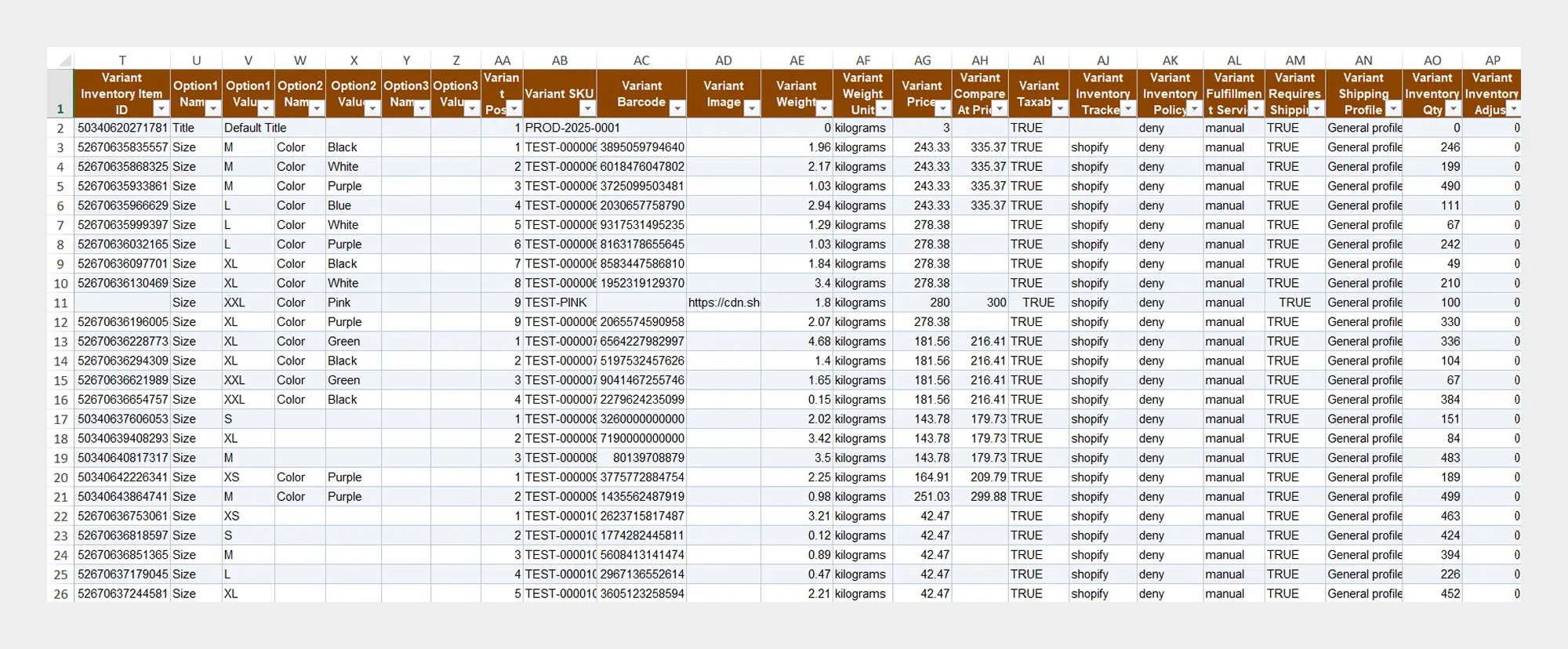
| Column | Description | Allowed Values / Example |
|---|---|---|
| Variant Inventory Item ID | Unique identifier of the inventory item associated with the variant. | Shopify inventory item ID, e.g. gid://shopify/InventoryItem/123456789 |
| Variant ID | Unique identifier of the product variant. | Shopify variant ID, e.g. gid://shopify/ProductVariant/123456789 |
| Option1 Name | Name of the first variant option. | Size, Color, etc. |
| Option1 Value | Value assigned to the first variant option. | Small, Red, etc. |
| Option2 Name | Name of the second variant option. | Color, Material, etc. |
| Option2 Value | Value assigned to the second variant option. | Blue, Cotton, etc. |
| Option3 Name | Name of the third variant option. | Style, Size, etc. |
| Option3 Value | Value assigned to the third variant option. | Regular, Large, etc. |
| Variant Position | Defines the position/order of the variant within the product's variant list. | Numeric value, e.g. 1, 2, 3 |
| Variant SKU | Stock Keeping Unit assigned to the product variant. | Text, e.g. TSHIRT-RED-M |
| Variant Barcode | Barcode associated with the product variant. | Barcode value, e.g. 8901234567890 |
| Variant Image | Image associated with the product variant. | Image URL |
| Variant Weight | Weight of the product variant. | Numeric value, e.g. 0.5 |
| Variant Weight Unit | Unit used for the variant weight. | g, kg, oz, lb |
| Variant Price | Selling price of the product variant. | Numeric value, e.g. 29.99 |
| Variant Compare At Price | Compare-at price of the product variant. | Numeric value, e.g. 39.99 |
| Variant Taxable | Indicates whether the variant is subject to tax. | TRUE / FALSE |
| Variant Inventory Tracker | Specifies the inventory tracking configuration for the variant. | Supported Shopify inventory tracking value |
| Variant Inventory Policy | Defines how inventory is handled when the available quantity reaches zero. | deny / continue |
| Variant Fulfillment Service | Identifies the fulfillment service used for the variant. | Fulfillment service identifier/name |
| Variant Requires Shipping | Indicates whether the variant requires shipping. | TRUE / FALSE |
| Variant Shipping Profile | Specifies the shipping profile associated with the variant. | Supported Shopify shipping profile value/identifier |
| Variant Inventory Qty | Specifies the available inventory quantity for the variant. | Numeric value, e.g. 100 |
| Variant Inventory Adjust | Specifies the inventory quantity adjustment to apply to the product variant. The value is used to increase or decrease the existing inventory quantity. | Positive or negative number. Example:10, -5, 25 |
This group is particularly useful when managing products that contain multiple variants.
4. Category
The Category group contains supported Shopify product category information.
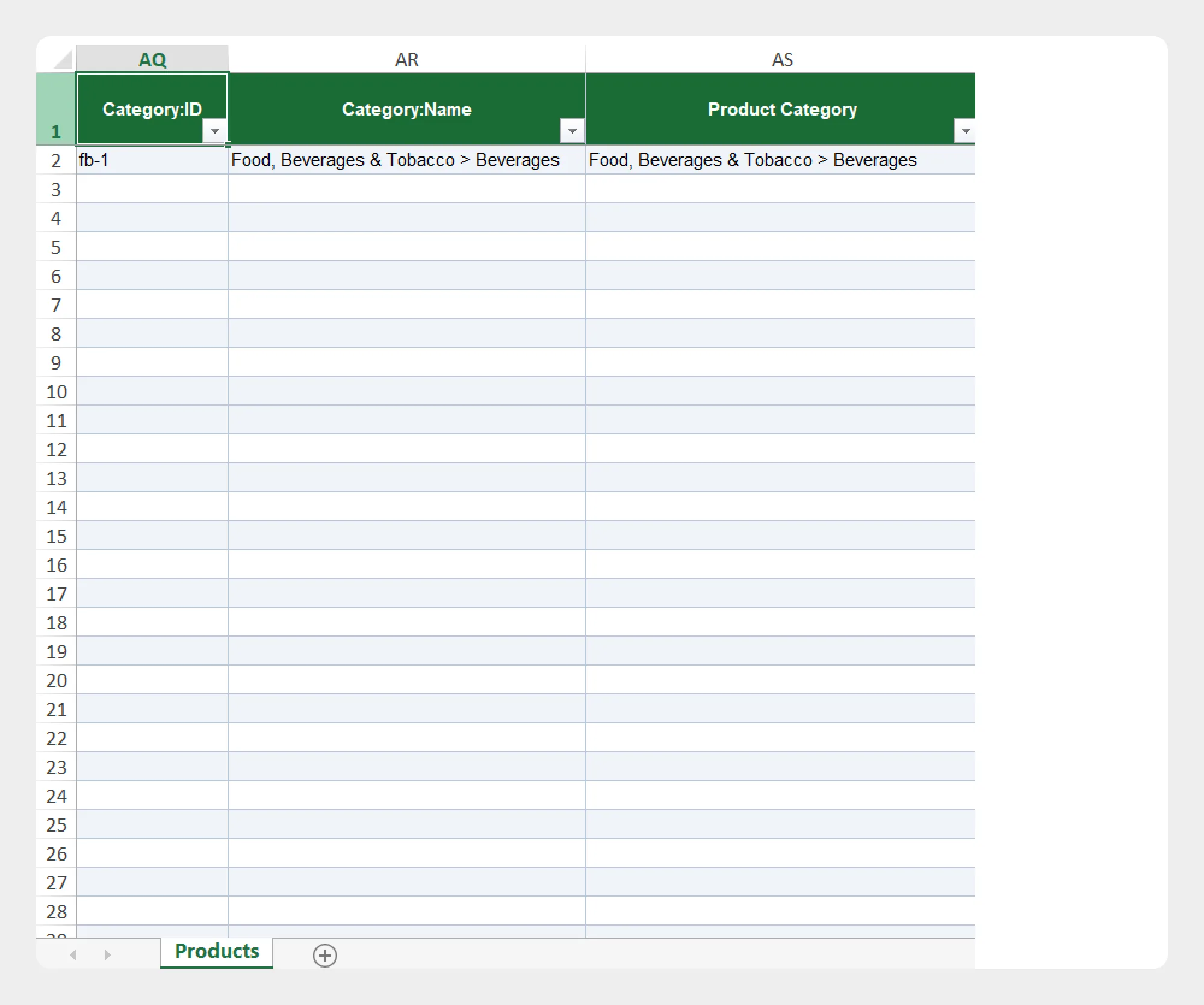
| Column | Description | Allowed Values / Example |
|---|---|---|
| Category:ID | The unique identifier of the Shopify category. | Shopify category ID, e.g. gid://shopify/TaxonomyCategory/... |
| Category:Name | The name of the product category. | Category name, e.g. Shirts |
| Product Category | Specifies the category assigned to the product. | Product category value |
When importing category information, make sure the values in your file follow the structure supported by Migrato and Shopify.
5. Media
The Media group contains supported product media information.
This can be used for managing product images and other supported media data.
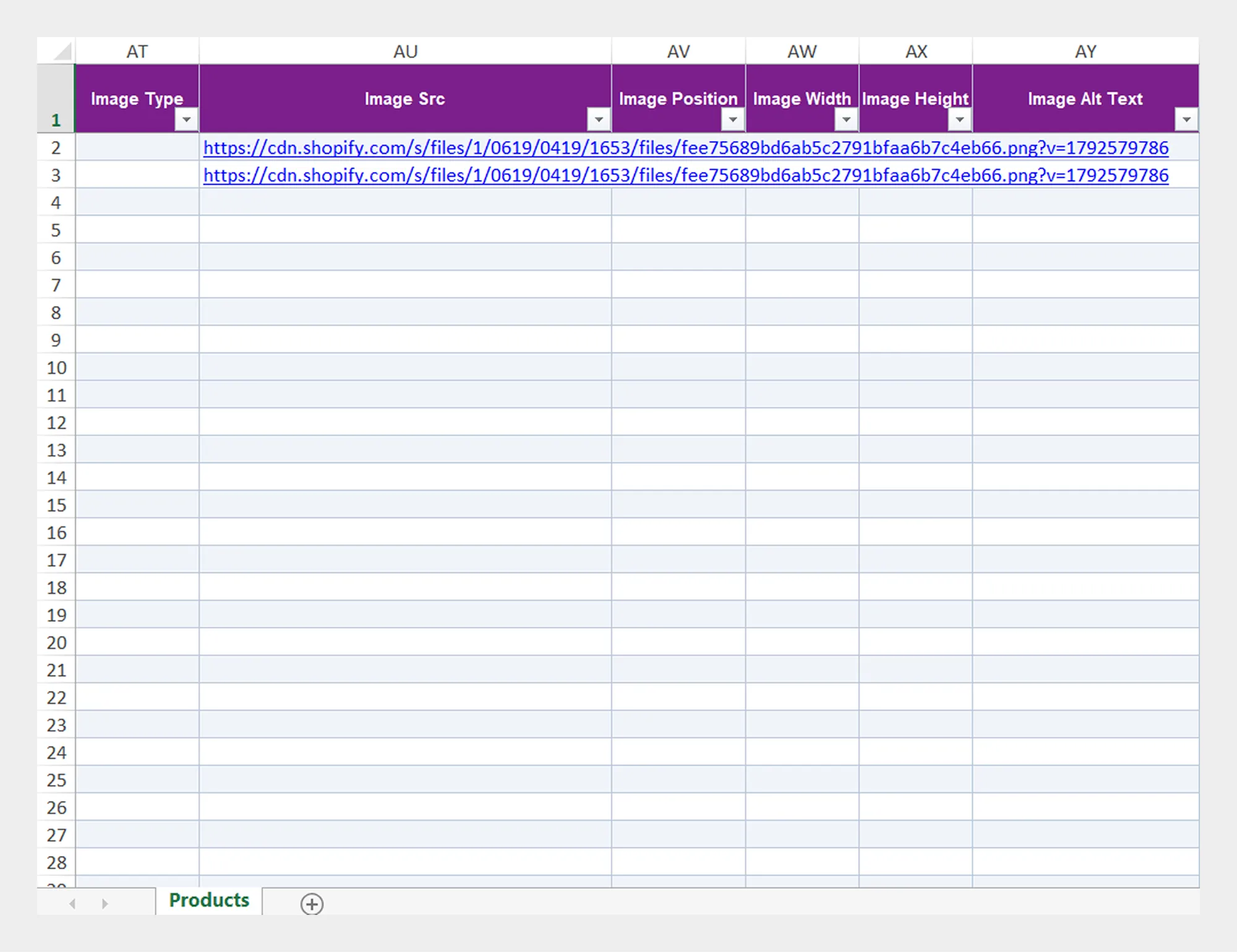
| Column | Description | Allowed Values / Example |
|---|---|---|
| Image Type | Specifies the type of media associated with the product. | Image |
| Image Src | The source URL of the product image. The URL should be publicly accessible so Shopify can retrieve the image. | https://example.com/product-image.jpg |
| Image Position | Defines the display position/order of the image among the product's media. | 1, 2, 3 |
| Image Width | Specifies the width of the image in pixels. | 800 |
| Image Height | Specifies the height of the image in pixels. | 800 |
| Image Alt Text | Defines the alternative text associated with the product image. | Text value, e.g. Blue cotton shirt front view |
When preparing media-related data, make sure the referenced media information is accessible and follows the format expected by Migrato.
6. Variants
The Variants group contains additional supported variant information.
Products with multiple variants can use the relevant variant fields to represent the product’s variant-level data.
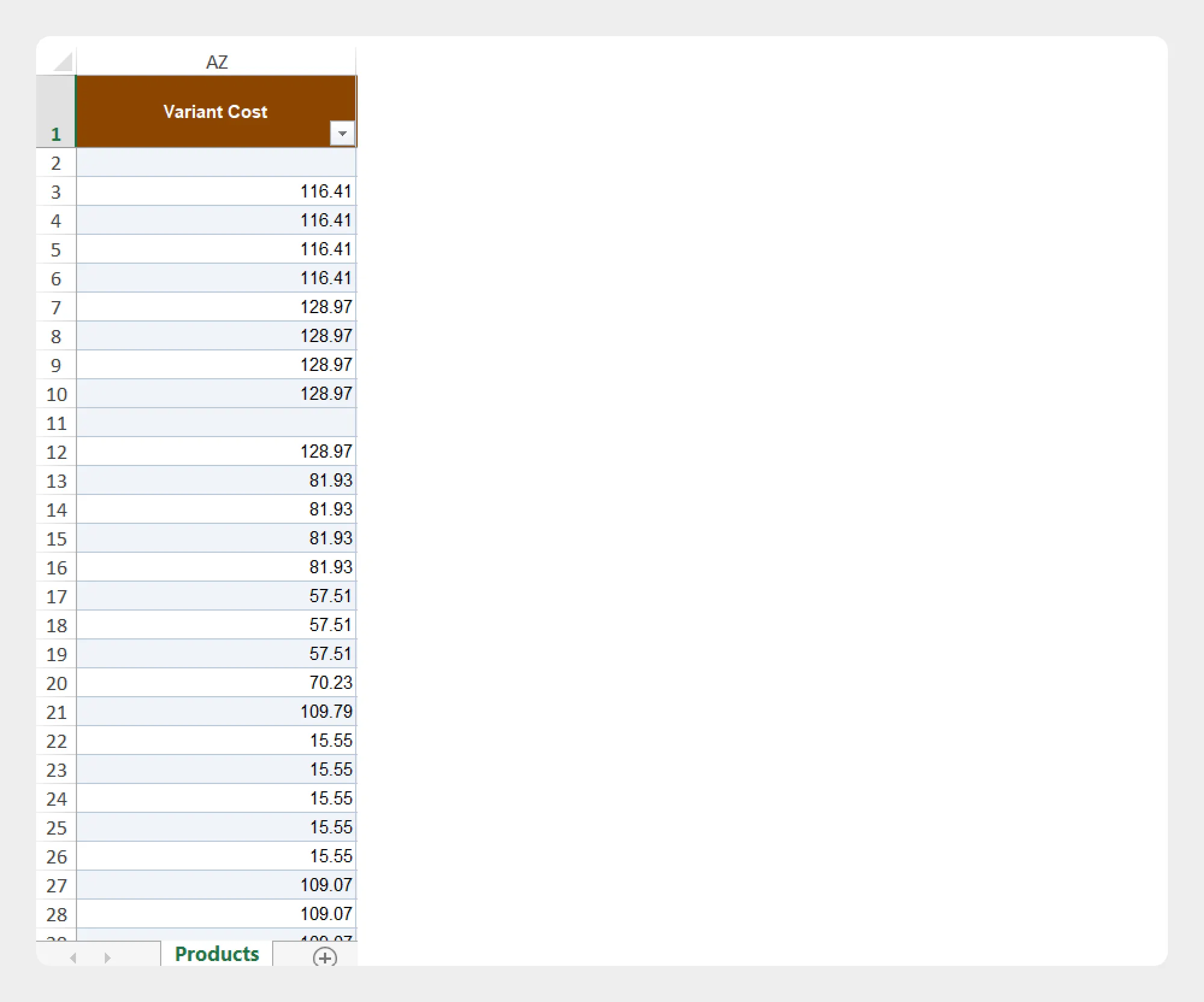
| Column | Description | Allowed Values / Example |
|---|---|---|
| Variant Cost | Specifies the cost associated with the product variant. This can be used to maintain the variant's cost information when managing product data. | Numeric value, e.g. 25.00 |
Tip: When importing products with variants, carefully review the relationship between the product and its variant information before running the import.
7. Customs Information
The Customs Information group contains supported custom product information.
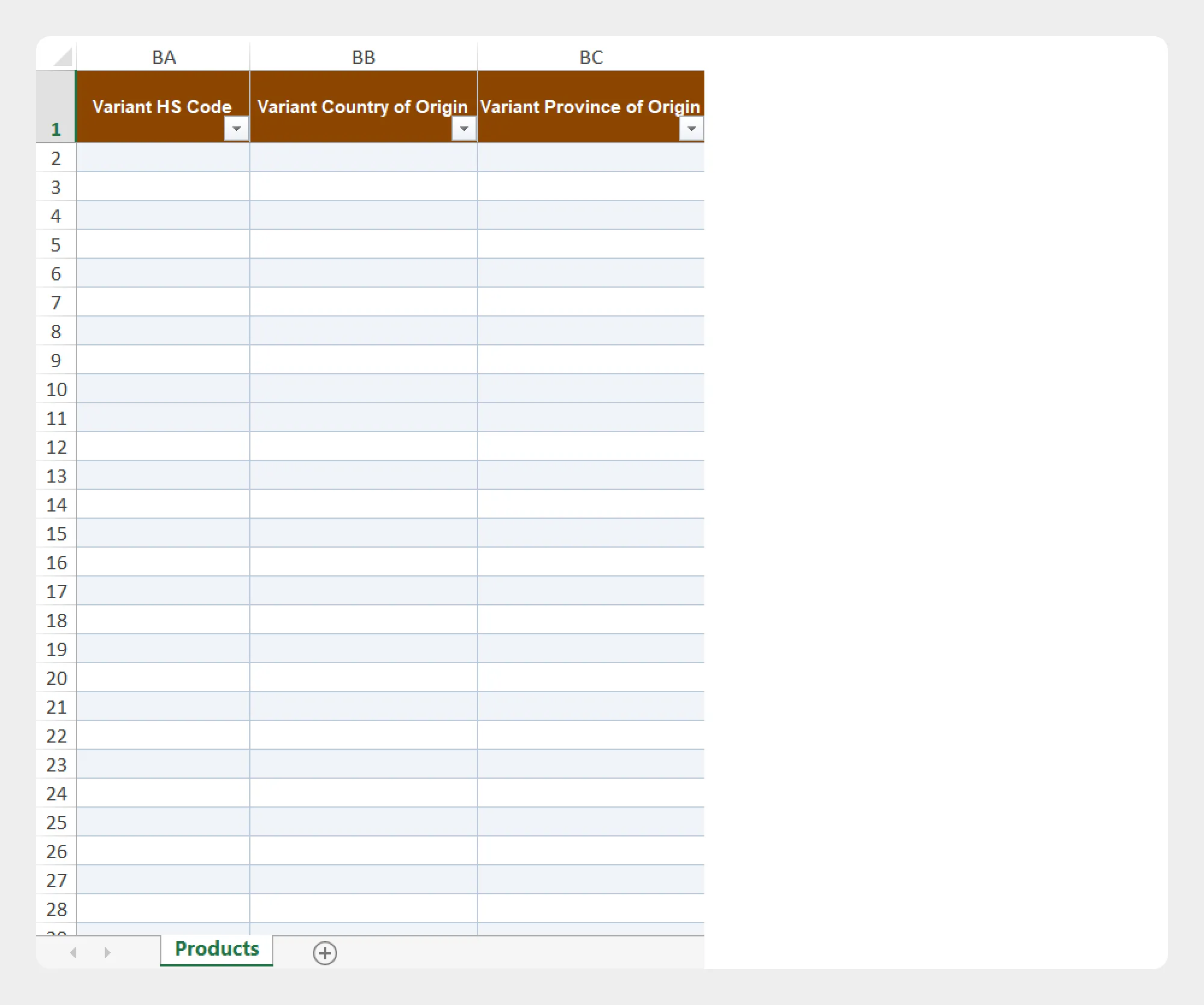
| Column | Description | Allowed Values / Example |
|---|---|---|
| Variant HS Code | Specifies the Harmonized System (HS) code associated with the product variant for customs and international shipping purposes. | HS code, e.g. 610910 |
| Variant Country of Origin | Specifies the country where the product variant was manufactured or produced. | Country code/name, e.g IN or India |
| Variant Province of Origin | Specifies the province, state, or region of origin associated with the product variant. | Province/state name or code, e.g. Gujarat |
The available fields depend on the product data supported by Migrato and the configuration of your Shopify store.
8. Multi-Location Inventory Levels
The Multi-Location Inventory Levels group is used for supported inventory information across multiple Shopify locations.
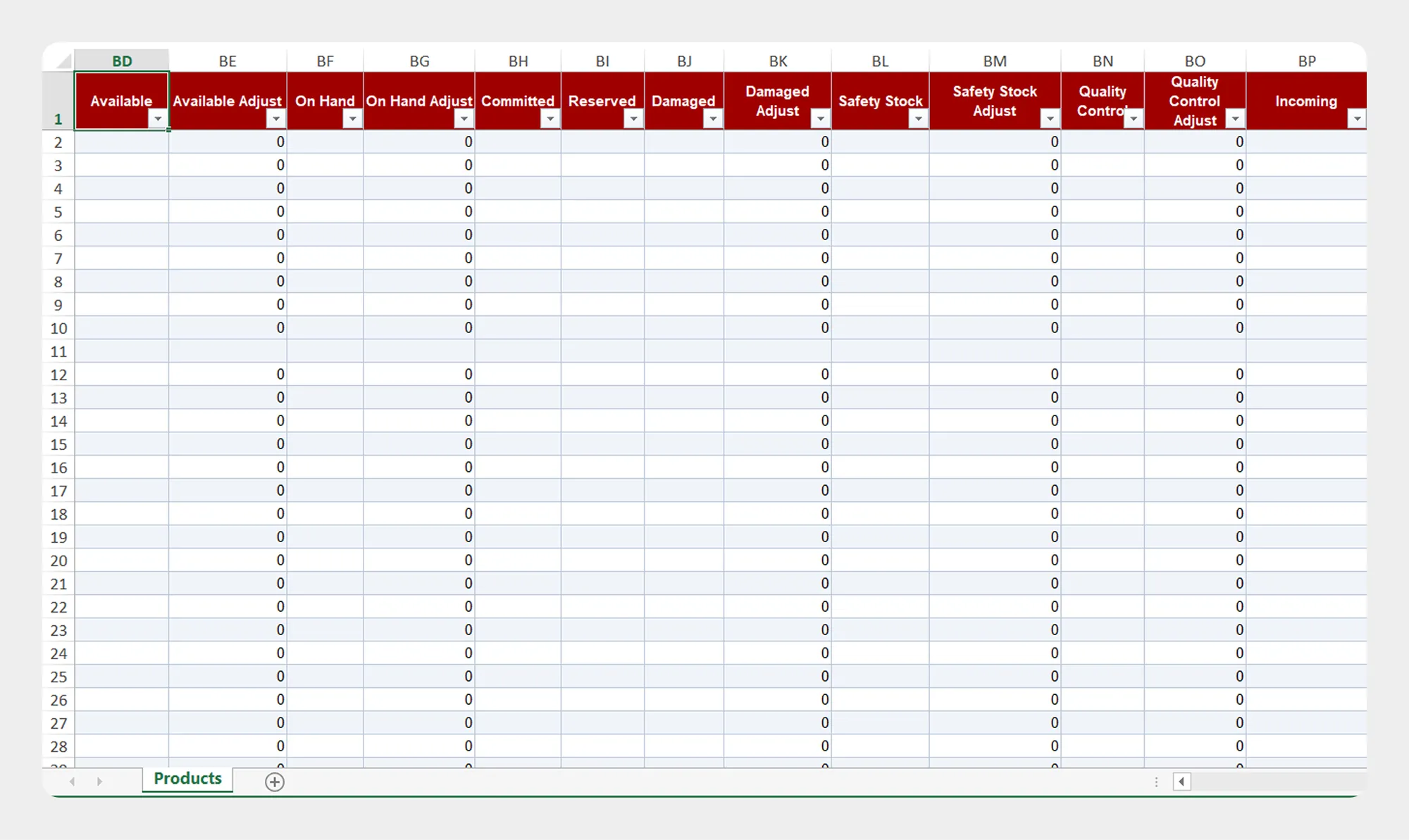
| Column | Description | Allowed Values / Example |
|---|---|---|
| Available | Specifies the quantity of inventory currently available for sale at the applicable location. | Numeric value, e.g. 100 |
| Available Adjust | Specifies the amount by which the available inventory quantity should be adjusted. | Positive or negative number, e.g. 10 or -5 |
| On Hand | Specifies the total physical inventory quantity currently on hand at the applicable location. | Numeric value, e.g. 120 |
| On Hand Adjust | Specifies the adjustment to apply to the current on-hand inventory quantity. | Positive or negative number, e.g. 20 or -10 |
| Committed | Specifies the quantity of inventory committed to existing orders. | Numeric value, e.g. 15 |
| Reserved | Specifies the quantity of inventory reserved for applicable orders or processes. | Numeric value, e.g. 5 |
| Damaged | Specifies the quantity of inventory identified as damaged. | Numeric value, e.g. 2 |
| Damaged Adjust | Specifies the adjustment to be applied to the damaged inventory quantity. | Positive or negative number, e.g. 1 or -1 |
| Safety Stock | Specifies the quantity maintained as safety stock at the applicable location. | Numeric value, e.g. 10 |
| Safety Stock Adjust | Specifies the adjustment to the safety stock quantity. | Positive or negative number, e.g. 5 or -2 |
| Quality Control | Specifies the quantity of inventory currently assigned to quality control. | Numeric value, e.g. 8 |
| Quality Control Adjust | Specifies the adjustment to the quantity assigned to quality control. | Positive or negative number, e.g. 2 or -1 |
| Incoming | Specifies the quantity of inventory expected to arrive at the applicable location. | Numeric value, e.g. 50 |
If your store manages inventory across multiple locations, review this section carefully before importing inventory data.
9. Metafields
The Metafields group contains supported product metafield information.
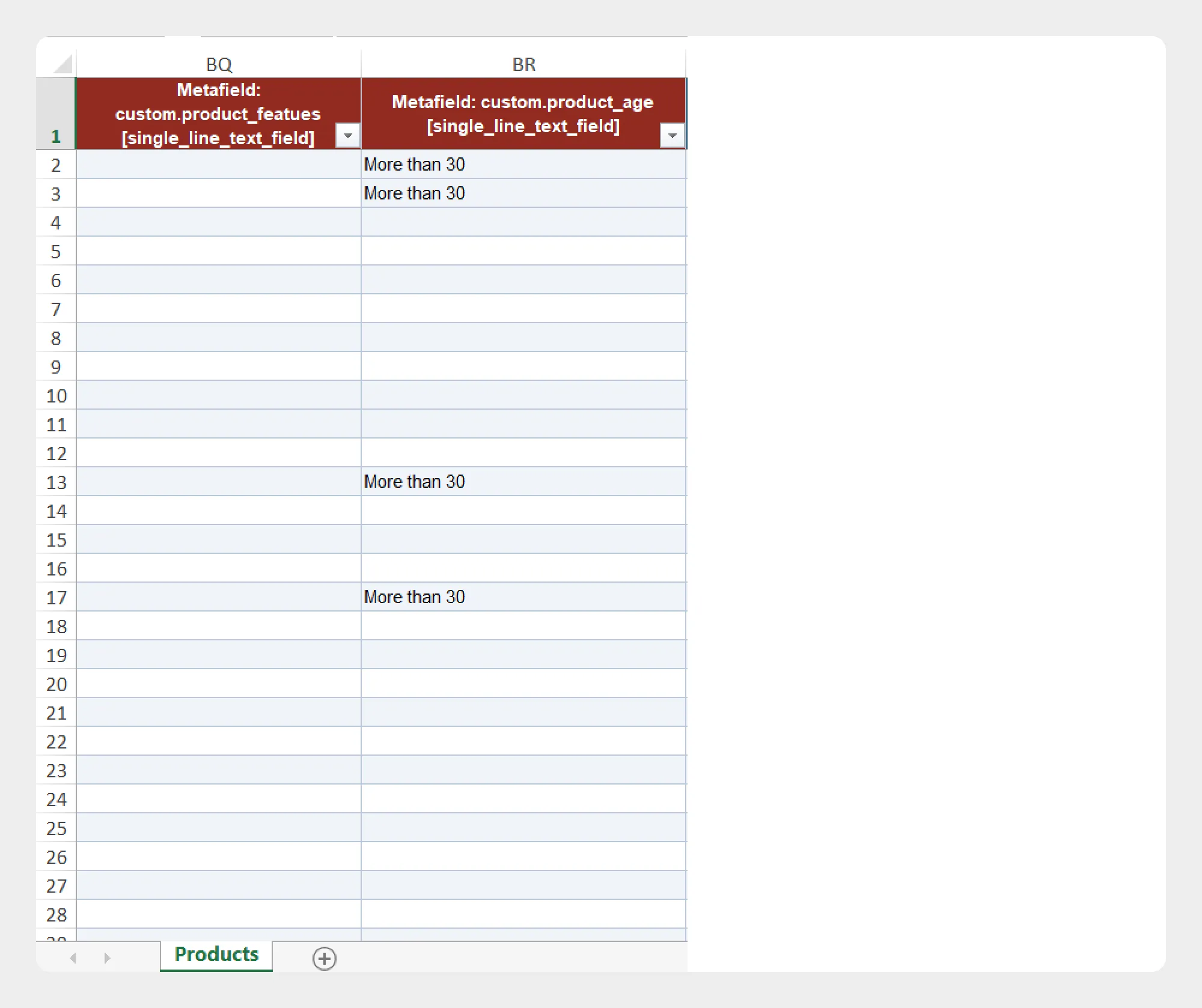
Metafields can be used to manage additional product information beyond Shopify’s standard product fields.
| Column | Description | Allowed Values / Example |
|---|---|---|
| Metafield Namespace | Specifies the namespace in which the product metafield is defined. | Text, e.g. custom |
| Metafield Key | Specifies the unique key used to identify the metafield within its namespace. | Text, e.g. material |
| Metafield Value | Specifies the value stored in the product metafield. | Text, number, URL, or other value based on the metafield definition |
Important: The metafield structure should match the metafield definitions configured in your Shopify store.
10. Variant Metafields
The Variant Metafields group contains supported metafield information associated with product variants.
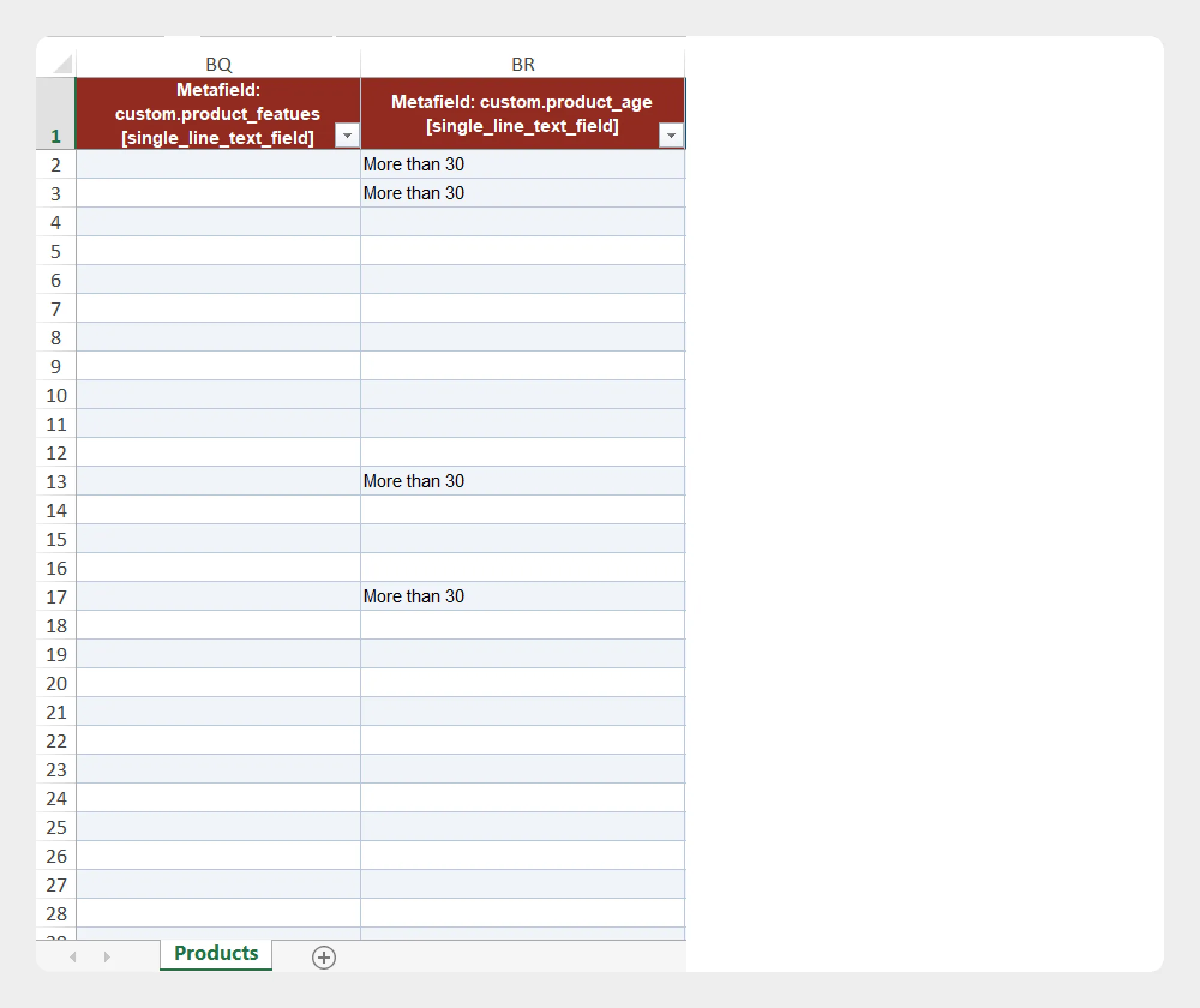
| Column | Description | Allowed Values / Example |
|---|---|---|
| Variant Metafield Namespace | Specifies the namespace in which the variant metafield is defined. | Text, e.g. custom |
| Variant Metafield Key | Specifies the unique key used to identify the variant metafield within its namespace. | Text, e.g. material |
| Variant Metafield Value | Specifies the value stored in the variant metafield. | Text, number, URL, or another value based on the metafield definition |
When importing variant metafields, make sure the values correspond to the appropriate variant and supported metafield definitions.
11. Collections
The Collections group contains supported collection information associated with products.
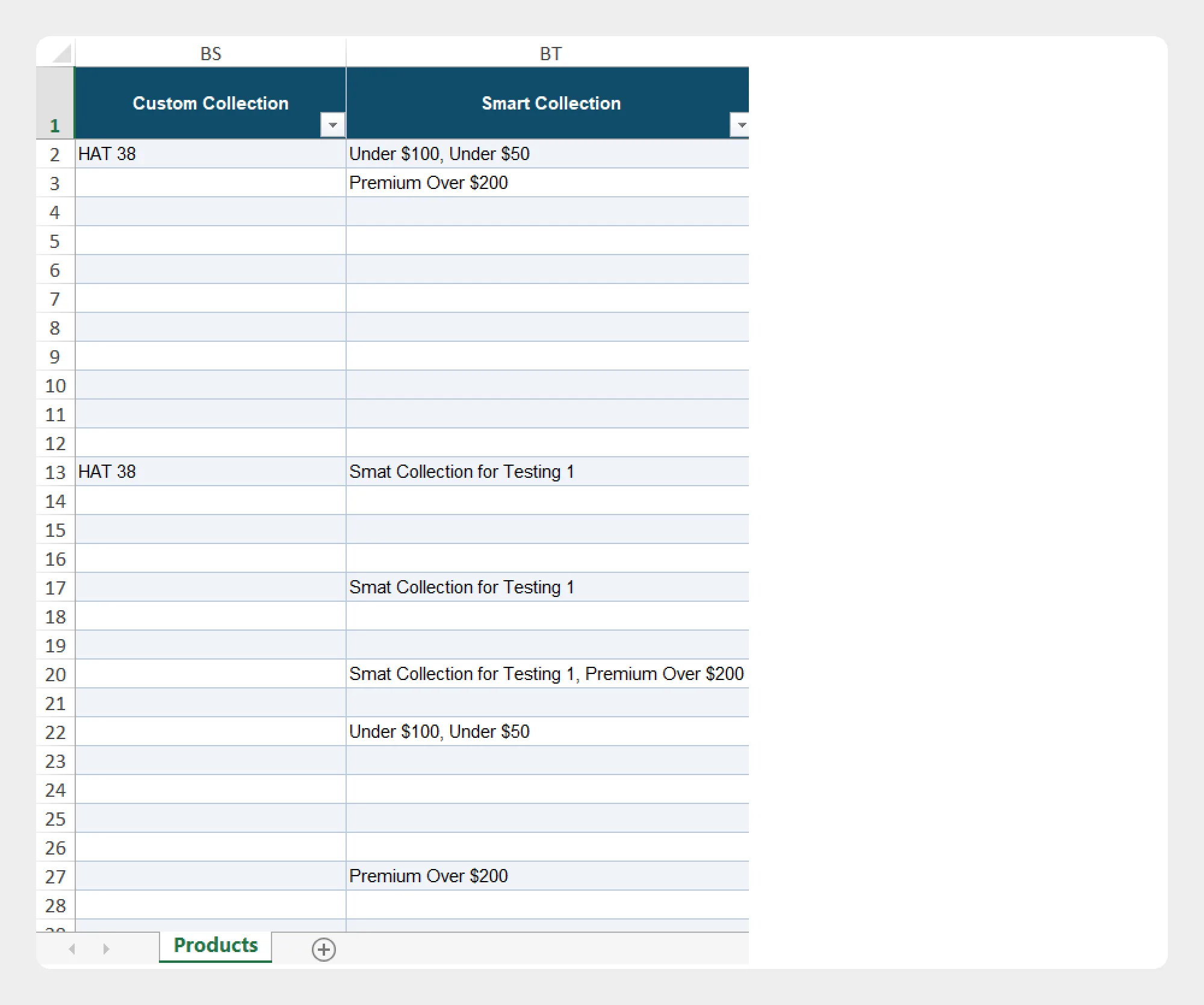
| Column | Description | Allowed Values / Example |
|---|---|---|
| Custom Collections | Specifies the custom collections where the product appears. Multiple collection names can be provided as a comma-separated list. | Text, e.g. daily-picks, bestsellers |
| Smart Collections | Specifies the smart collections where the product appears. Multiple collection names can be provided as a comma-separated list. | Text, e.g. red-t-shirts, discounted-items |
This can be used when product-to-collection relationships need to be managed as part of the product import/export process.
Product File Naming
Migrato uses the filename to identify the entity being imported.
For product imports, use a filename that clearly identifies the resource as products.
Recommended examples
-
products.csv -
products.xlsx
You may also use a descriptive filename while retaining the product entity identifier where supported, for example:
-
products_update.csv -
products_migration.xlsx -
products_catalog.csv
Important: Make sure the filename allows Migrato to identify the intended entity as Products.
Importing a Prepared Product Template
Once your product file is ready:
- Open Migrato from your Shopify Admin.
- Go to the Import section.
- Upload or drag and drop your product file.
- Alternatively, provide the publicly accessible URL of the product file.
- Migrato detects the entity type from the filename.
- Review the imported product data.
- Select the required import operation.
- Review the available options.
- Start the import.
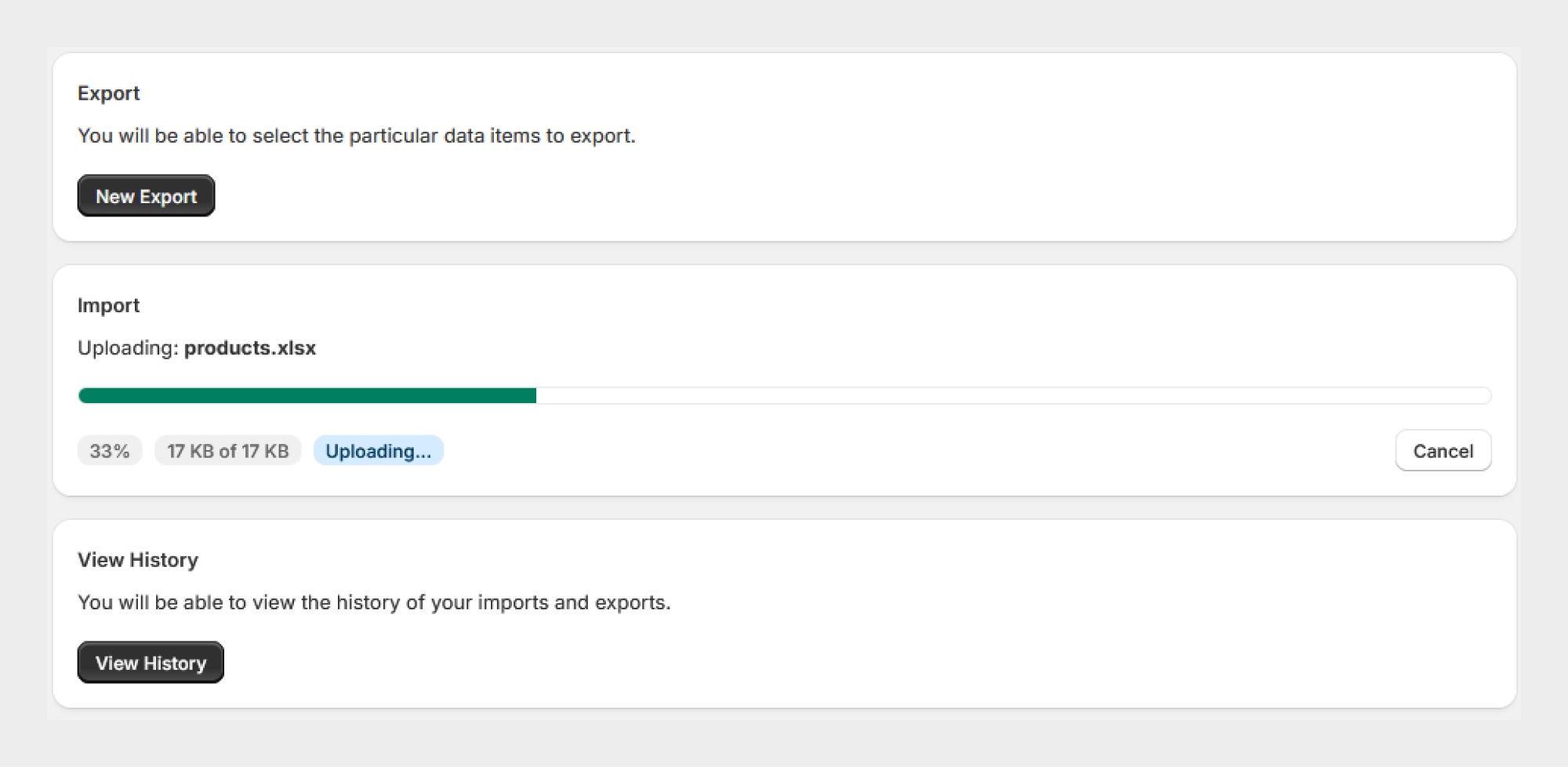
Product Import Operations
After uploading a product file, Migrato provides different operations for processing the data.
The available operations include:
Merge — Update Existing, Create New
Updates existing products and creates new products when they do not already exist.
This is useful when you want to synchronize a product file with your Shopify catalog.
Create Only
Creates new products and skips products where the corresponding product already exists.
Update Only
Updates existing products and skips products that cannot be matched to an existing product.
Replace
Deletes the existing product and creates the product again using the information from the imported file.
Use this operation carefully, especially when working with an existing production catalog.
Delete
Deletes the product if it already exists.
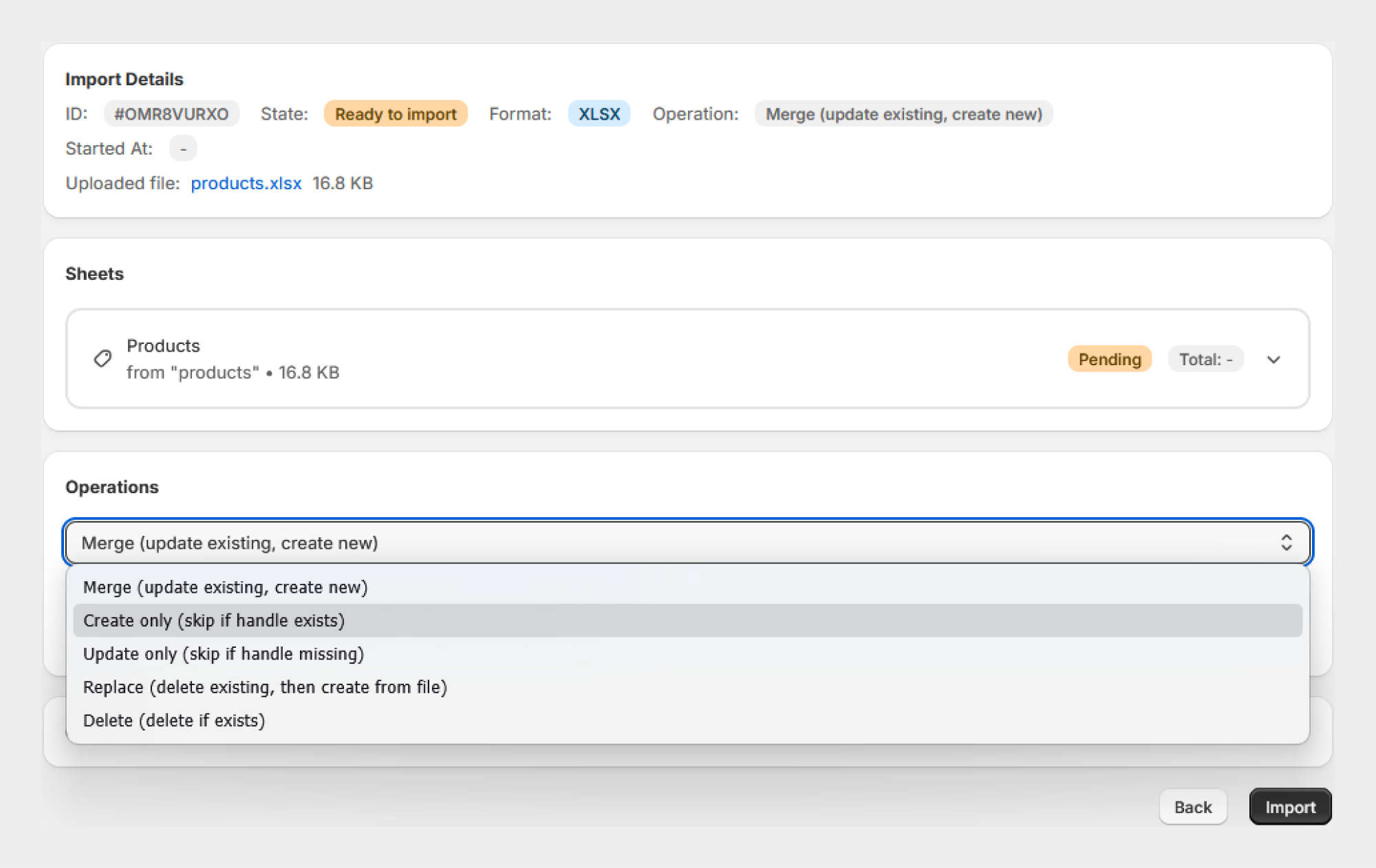
Product Template and Import Options
After selecting the import operation, Migrato may provide additional options for the import job.
These options can include scheduling and result-file settings.
For example, Migrato can allow you to:
-
Schedule the import for a specific date and time.
-
Repeat the import at a selected interval.
-
Configure the generated results file.
-
Select the file format for the results.
-
Upload the results file to a configured server location where supported.
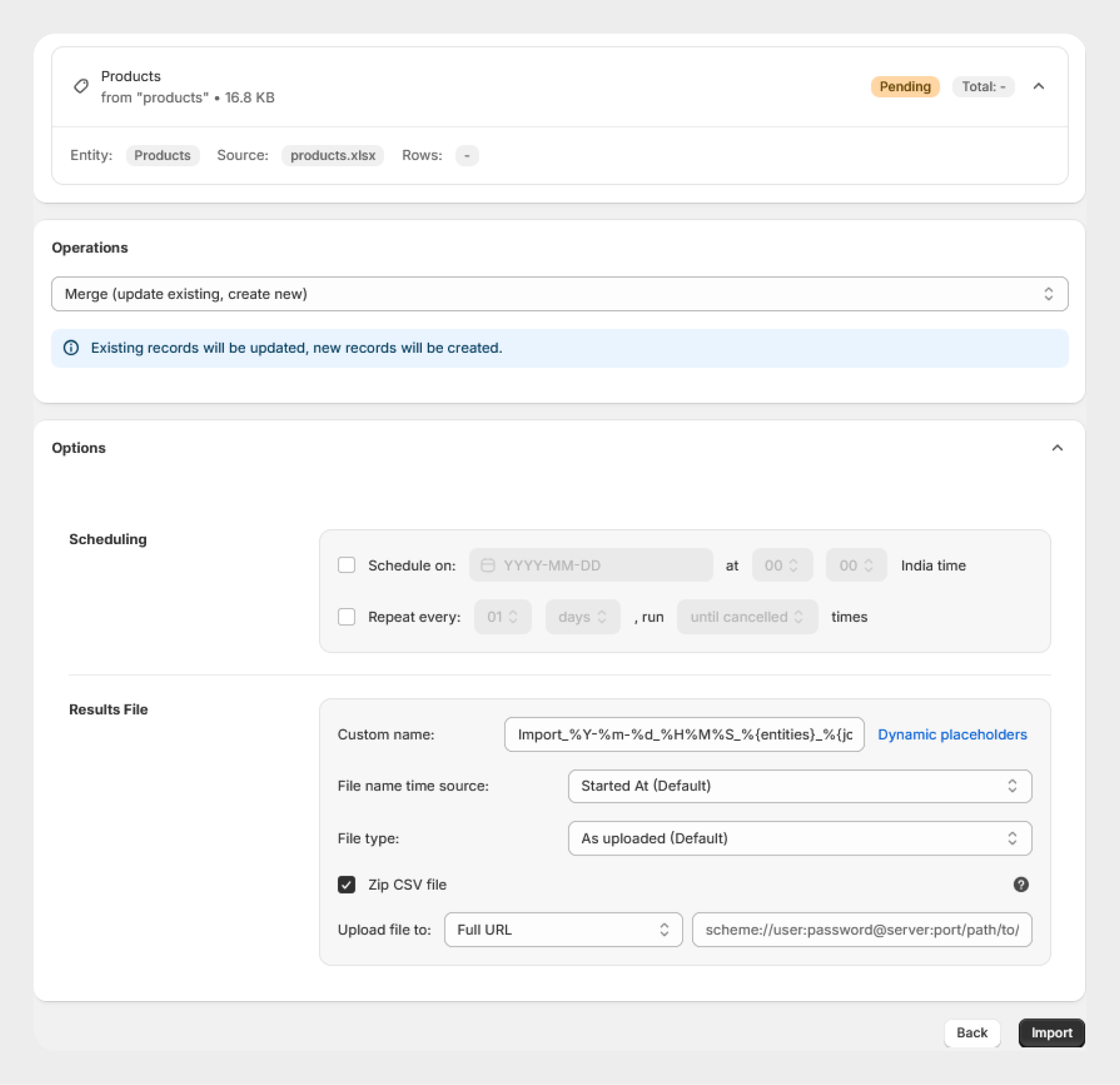
The options available may vary depending on the selected operation and current Migrato functionality.
Using a Product Export as an Import Template
One of the easiest ways to create a compatible product import file is to use Migrato's product export functionality.
Recommended workflow
Export Products → Edit the File → Save the File → Import Products
For example:
- Export your existing Shopify products from Migrato.
- Select the required product columns/groups.
- Download the exported CSV or XLSX file.
- Make the required changes.
- Keep the existing column structure.
- Save the file.
- Import the updated file through Migrato.
- Select the appropriate operation, such as Merge or Update Only.
- Review the import results.
This approach helps minimize formatting and structural issues.
Product Template Best Practices
For a successful import, follow these recommendations:
1. Start with a Migrato-generated file
Use an exported product file or the Product Demo CSV as your starting point.
2. Keep the column structure consistent
Avoid unnecessarily renaming, removing, or restructuring columns from a Migrato-generated file.
3. Use the correct filename
Make sure the filename identifies the file as a Products file so Migrato can detect the entity correctly.
4. Test with a small dataset
Before importing a large catalog, test the file with a small number of products.
5. Back up important data
Before performing Replace or Delete operations, make sure you have an appropriate backup/export of your existing product data.
6. Review variants carefully
When working with products containing multiple variants, verify the product and variant information before importing.
7. Verify media information
When importing product images or other supported media, make sure the required media references are correctly prepared.
8. Check metafield definitions
For metafield imports, make sure the corresponding metafield definitions exist and that the values follow the supported structure.
CSV/XLSX Import Sources
Migrato provides two ways to provide a product file for import.
Upload a File
You can:
-
Click Add files and select your file.
-
Drag and drop the file into the upload area.
Supported formats include:
-
.csv -
.xlsx
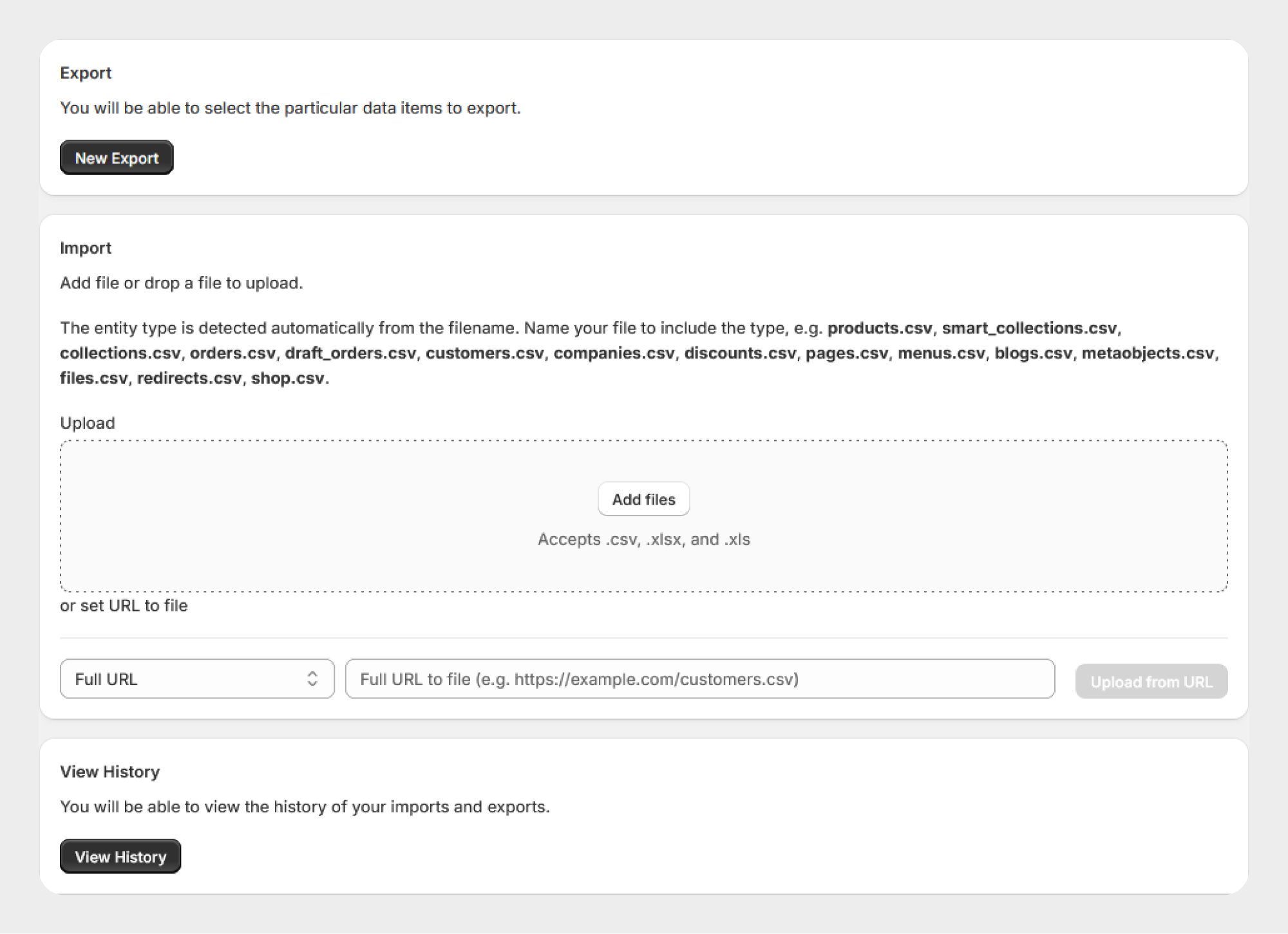
Import from a URL
Instead of uploading a file manually, you can provide a publicly accessible URL pointing to the file.
For example: https://example.com/products.csv
Select the appropriate URL/source option, enter the file URL, and use Upload from URL.
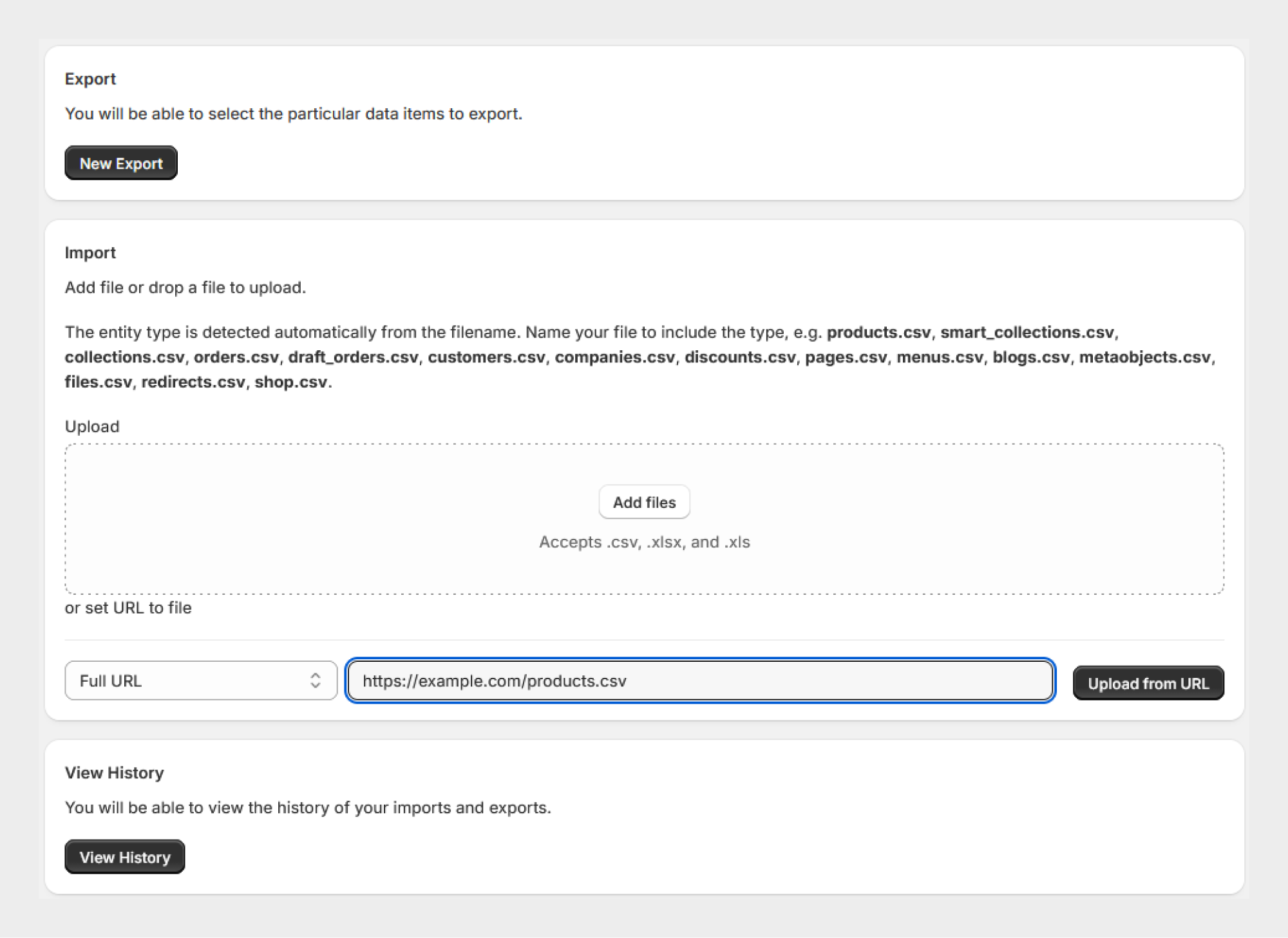
This option is particularly useful when product files are generated or hosted by an external system.
Using Templates for Recurring Data Updates
If product data is generated regularly by an external system, you can combine the product template with Migrato's scheduling and server-based workflows where supported.
A typical workflow can be:
External System → Product File → Migrato → Shopify
For example:
- An external system generates a product CSV/XLSX file.
- The file is made available through a supported server location.
- Migrato retrieves the file.
- The product import operation is configured.
- The job can be scheduled according to your requirements.
- Migrato processes the product data.
- The job history can be reviewed after processing.
This is useful for recurring catalog updates, supplier feeds, inventory updates, and other data synchronization workflows.
Important Notes
-
Migrato supports CSV, and XLSX file formats for supported import workflows.
-
The entity type is detected from the filename, so use an appropriate product filename.
-
A Migrato-exported product file is recommended as a reference for preparing an import file.
-
The available product columns and groups may change as Migrato's supported Shopify data evolves.
-
Always test a new template with a small dataset before processing a large catalog.
-
Review the selected operation carefully before starting an import.
-
Use extra caution with Replace and Delete operations because they can affect existing Shopify product data.
-
For advanced product data such as variants, inventory, media, multi-location inventory, metafields, and collections, review the corresponding exported structure before preparing the import file.
 Install Migrato free
 Free plan forever