 Our first app, Migrato, is live on the Shopify App Store

Installation
How to install Migrato on your Shopify store from the Shopify App Store. 3 min read
 Updated 9 October 2026
 Applies to Migrato on all plans
You can install Migrato – Shopify Bulk Data Import, Export, Update and Migrate directly from the Shopify App Store. Follow the steps below to install Migrato on your Shopify store.
How to install Migrato on Shopify
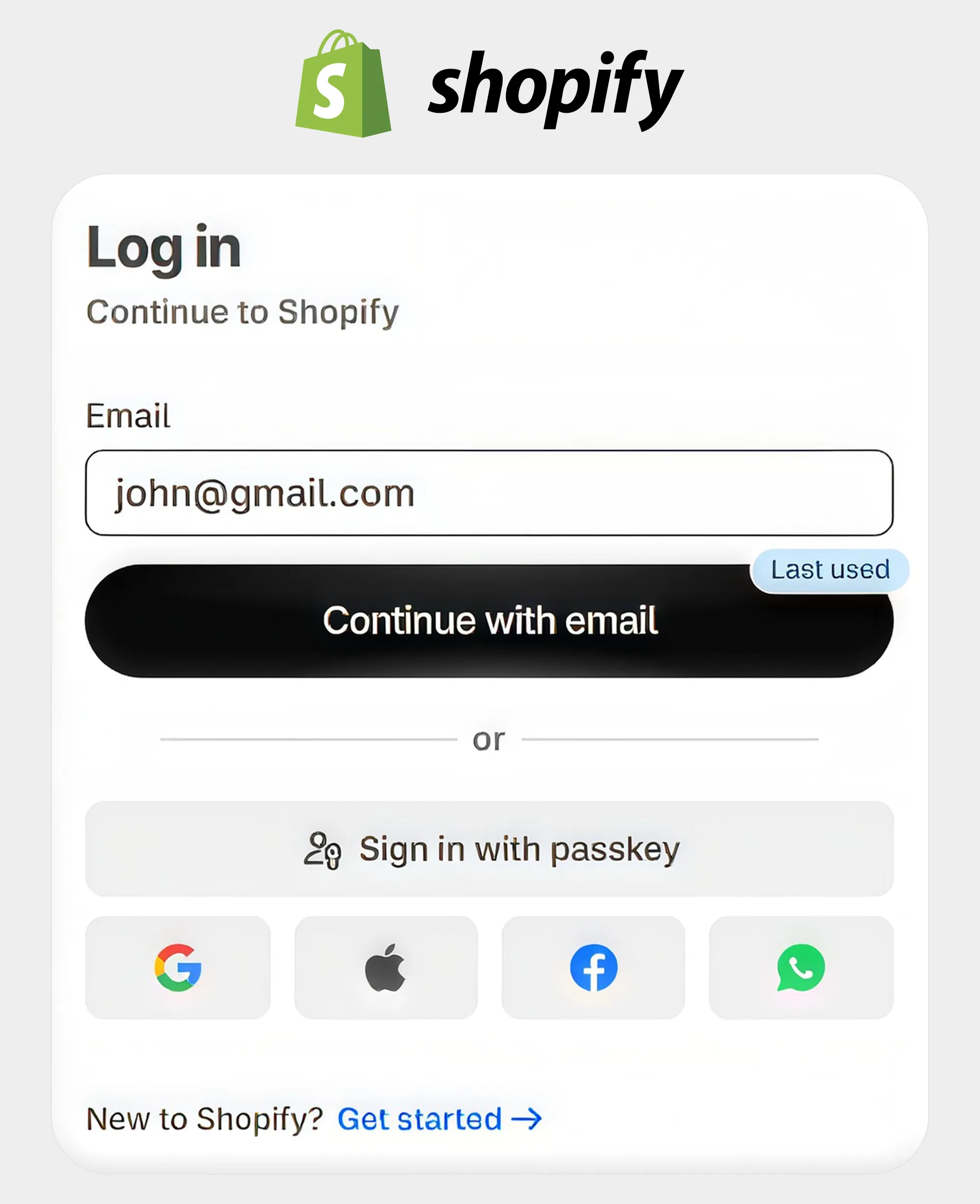
Log in to your Shopify Admin using your Shopify account credentials.
Go to Apps, click Shopify App Store and search for Migrato.
Open the Migrato app listing from the search results and click Install.
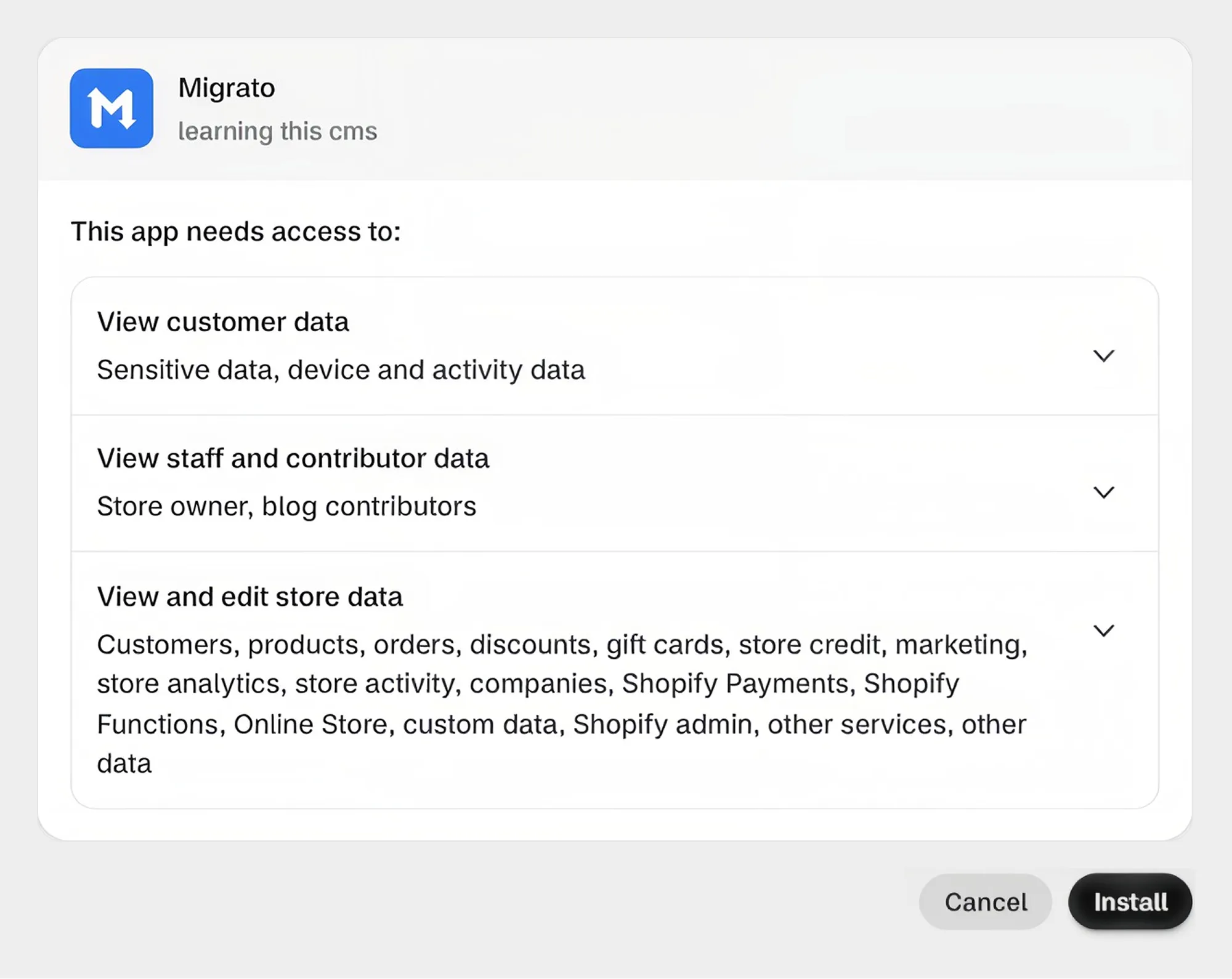
Review the requested permissions and click Install app.
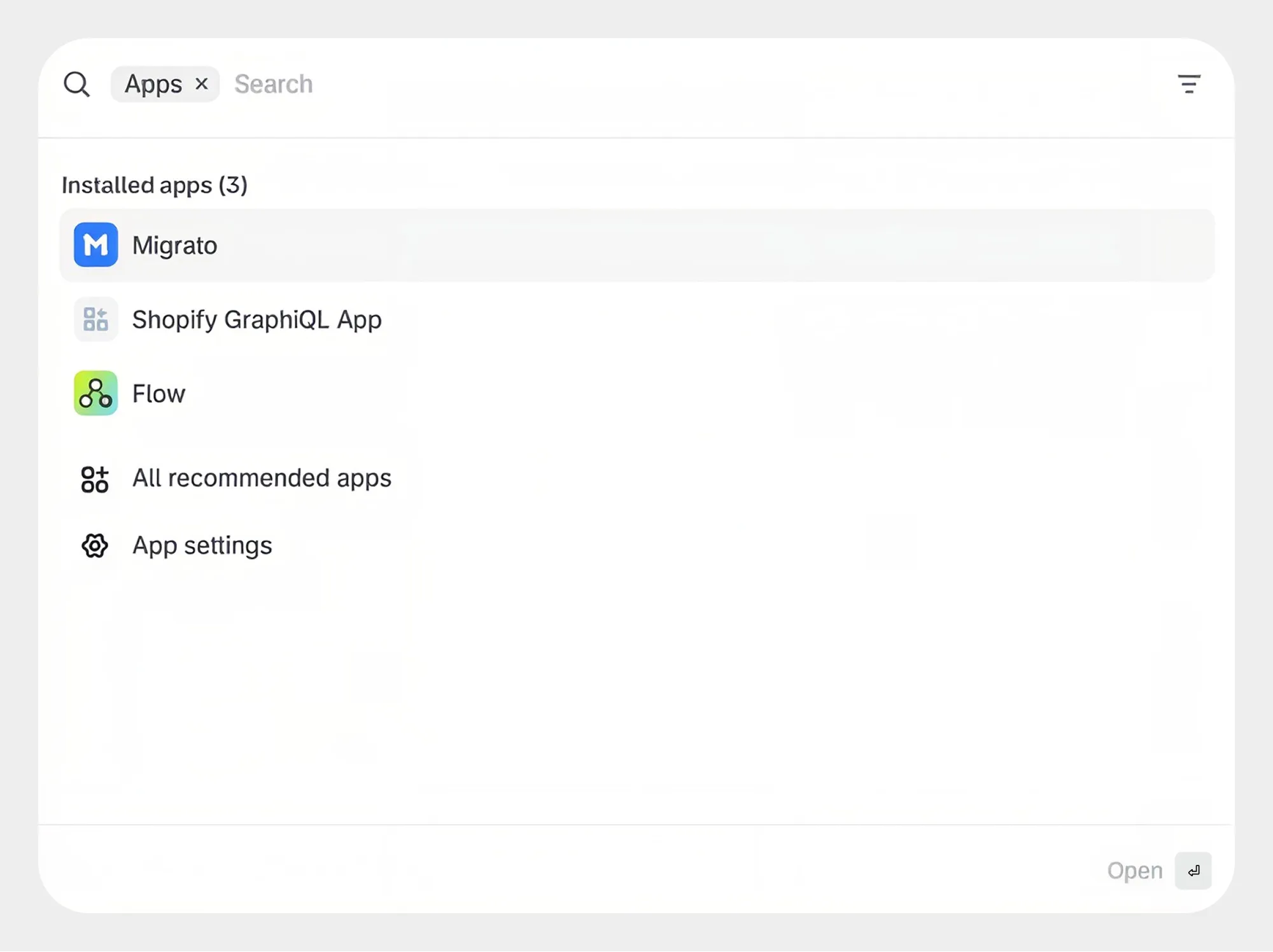
Open Apps → Migrato and start managing your store data.
Migrato is installed and opened from inside your Shopify Admin – each step is shown in detail below.
Step 1: Log in to Shopify
Log in to your Shopify Admin using your Shopify account credentials.
Step 2: Open the Shopify App Store
From your Shopify Admin, navigate to Apps. Click Shopify App Store and search for Migrato.
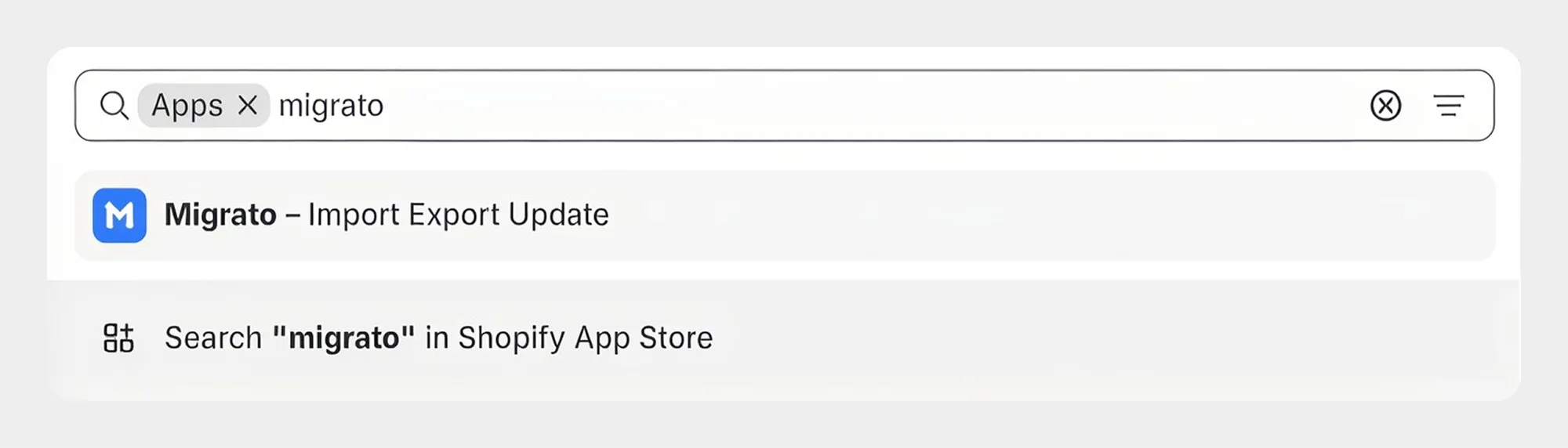
Step 3: Select Migrato
From the search results, click Migrato – Shopify Bulk Data Import, Export, Update and Migrate to open the Migrato app listing. Click Install to continue.
Step 4: Install the app
Shopify displays the permissions required by Migrato. Review the requested permissions and click Install app to approve the installation.
Step 5: Start using Migrato
Once the installation is completed successfully, Migrato is added to the Apps section of your Shopify Admin. Click Migrato to open the app and start managing your Shopify store data.
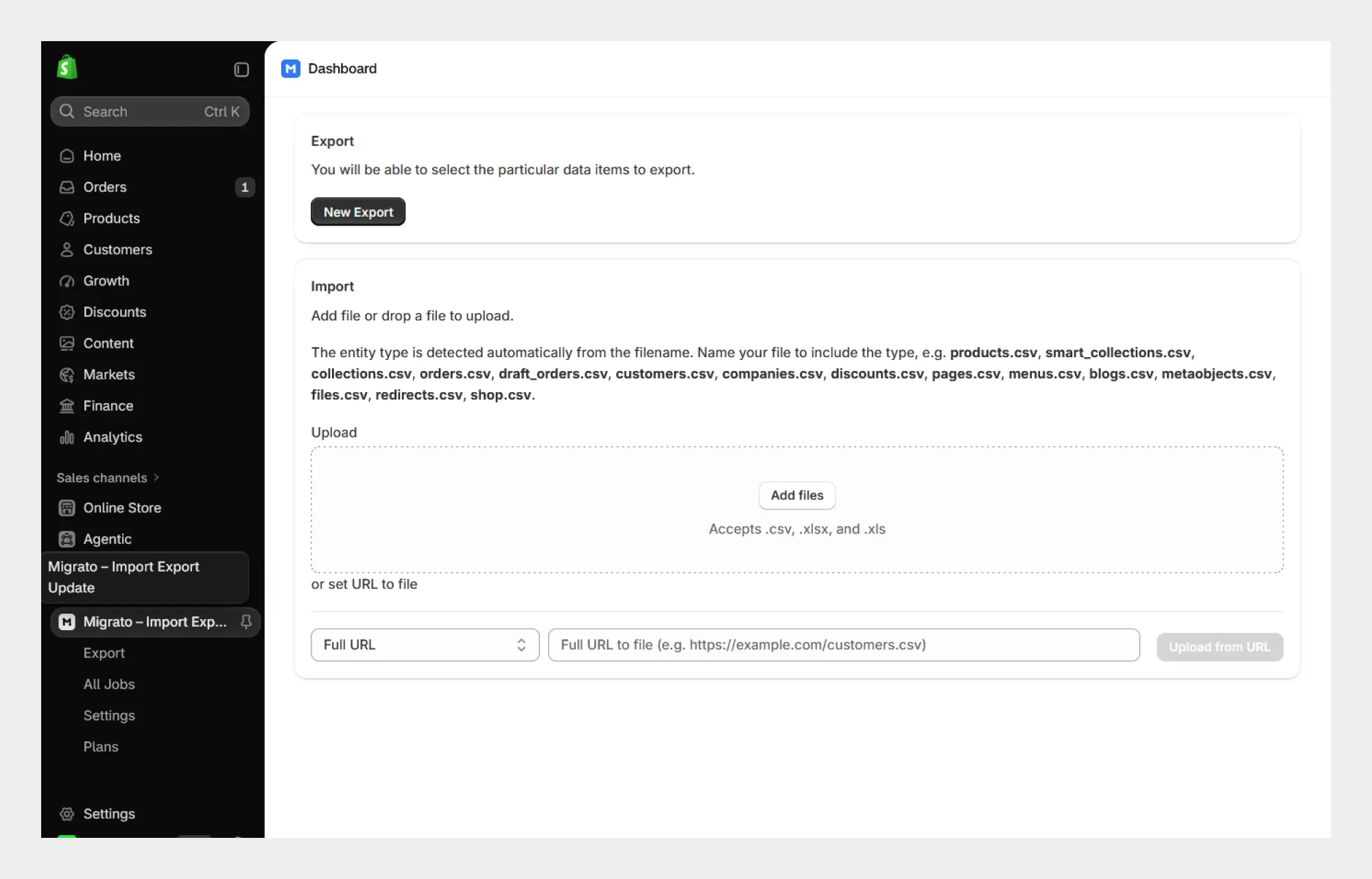
You're ready to go!
Migrato is now installed and ready to use. You can start importing, exporting, updating, deleting, replacing, merging or migrating your Shopify store data.
-
 Take the feature walkthrough to see each area of the app
-
Download a demo CSV file to prepare your first import
 Free plan forever