 Our first app, Migrato, is live on the Shopify App Store

Import / Export Companies Data
How to import and export B2B companies in bulk with CSV and XLSX files. 5 min read
 Updated 14 October 2026
 Applies to Migrato on all plans
Migrato allows you to import and export Shopify Companies using CSV or XLSX files. You can select the required Company fields, export existing Company data, prepare Company data for import, and use filters to export only the Companies that match specific conditions.
You can use Company import/export to transfer, manage, update, or migrate Company data in bulk instead of managing Companies individually through Shopify Admin.
Migrato also supports importing Company data from a publicly accessible file URL, making it possible to work with files hosted on external systems.

We recommend reviewing the Company Template Documentation and downloading the Company Demo CSV/XLSX file, if available, to understand the supported fields and expected data structure.
Import Companies
Migrato allows you to bulk import Shopify Company data using CSV or XLSX files.
You can upload a prepared Company file directly to Migrato or provide a publicly accessible URL to the file.
Step 1: Open Company Import
From your Shopify Admin:
- Go to Apps → Migrato.
- Open the Import section.
- Select Companies as the entity to import.
- Add the Company file you want to import.
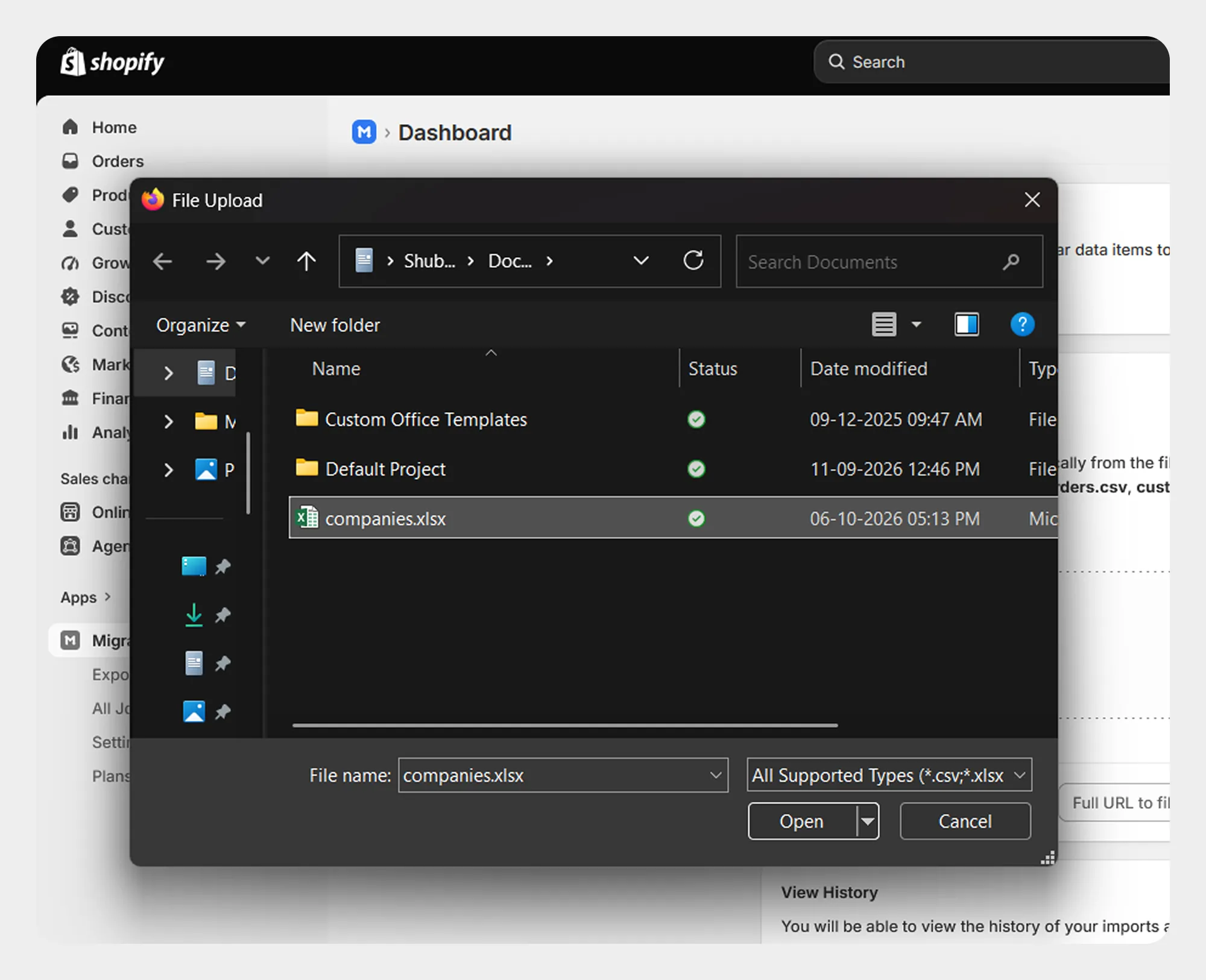
Step 2: Upload or Provide the Company File
Migrato provides two ways to provide the Company file.
Option 1: Upload a File
You can upload or drag and drop your Company file into the upload area.
Migrato supports:
-
 CSV
-
XLSX
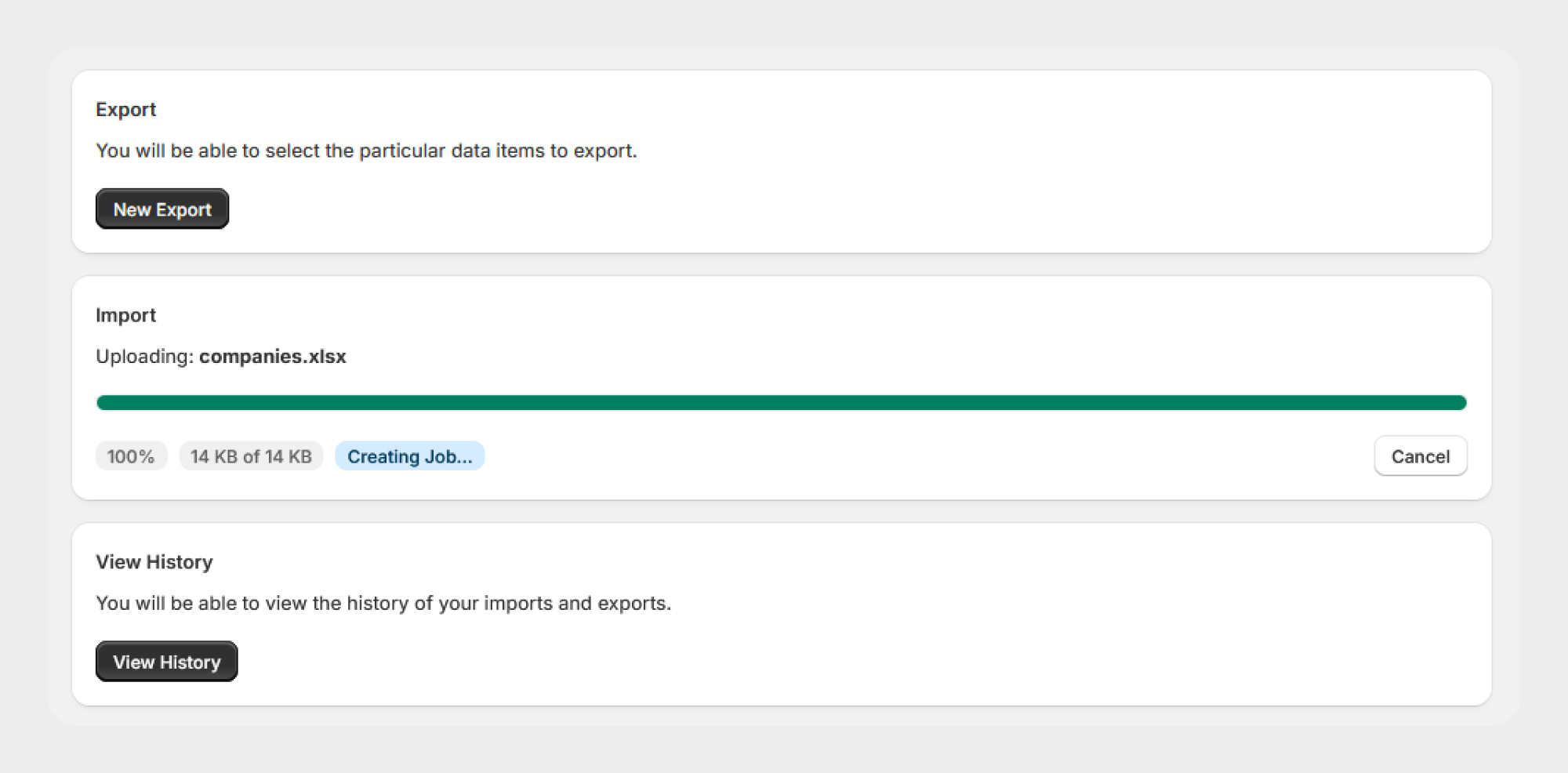
Option 2: Import from a Public URL
Instead of uploading the file manually, you can provide the full publicly accessible URL of the Company file.
For example:
https://example.com/companies.csv
Enter the URL and select Upload from URL.
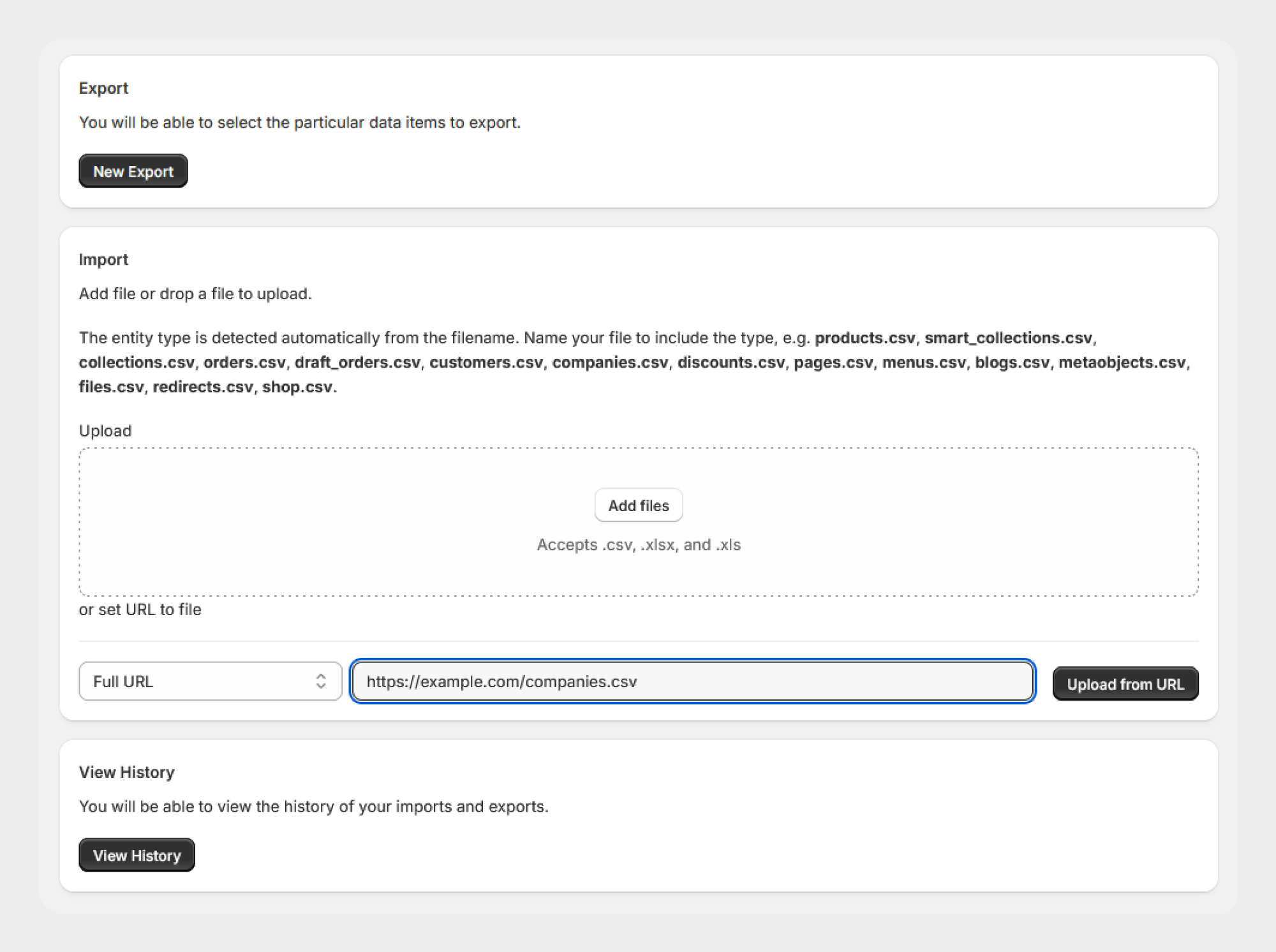
The file URL must be accessible to Migrato. Make sure the file can be accessed without authentication or a login requirement.
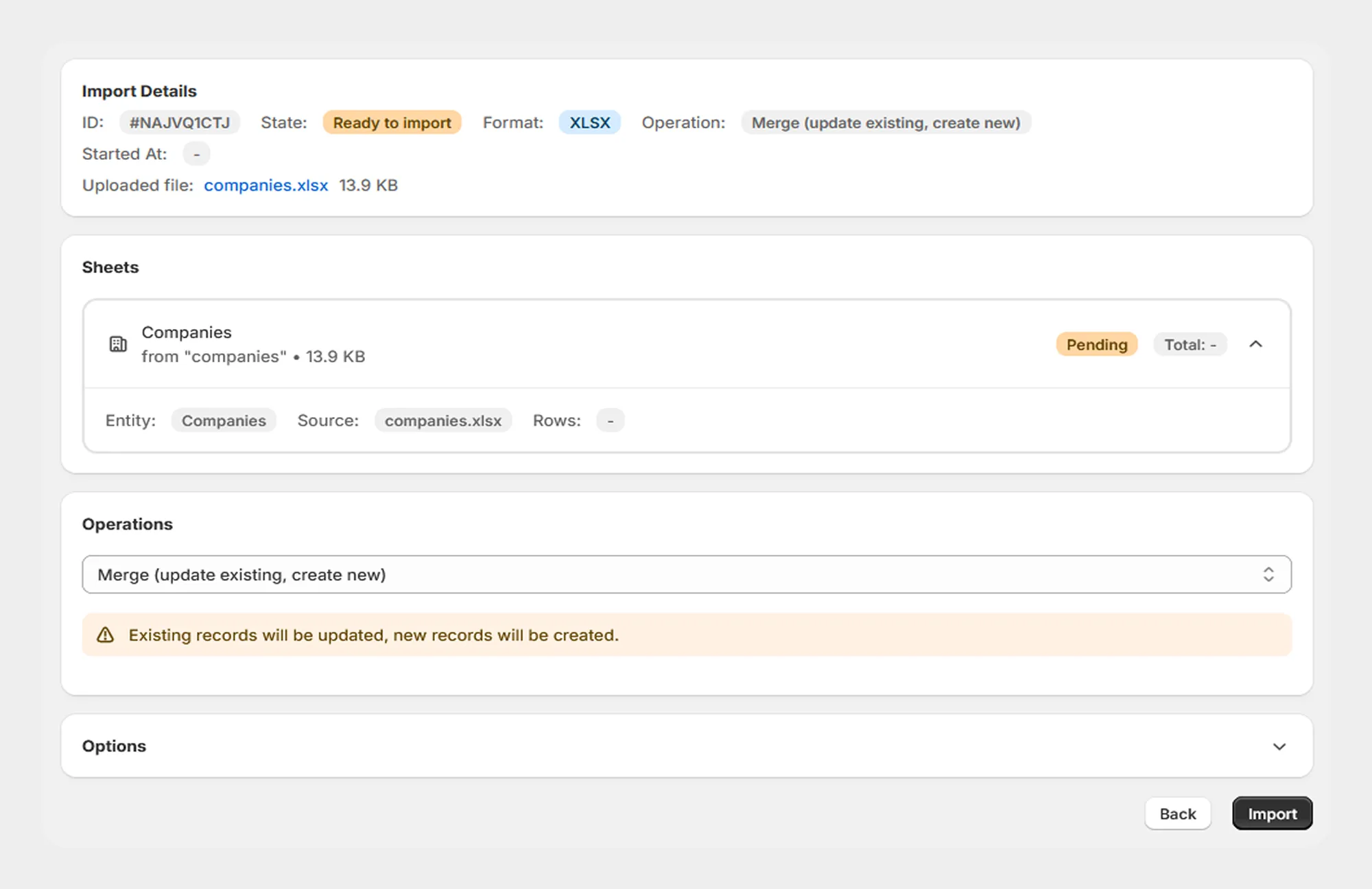
Step 3: Review the Import Details
After the file is uploaded or retrieved from the provided URL, Migrato creates an import job and displays the import details.
The import details can include:
-
Import ID
-
Import state
-
File format
-
Operation
-
Uploaded file
-
Import start information
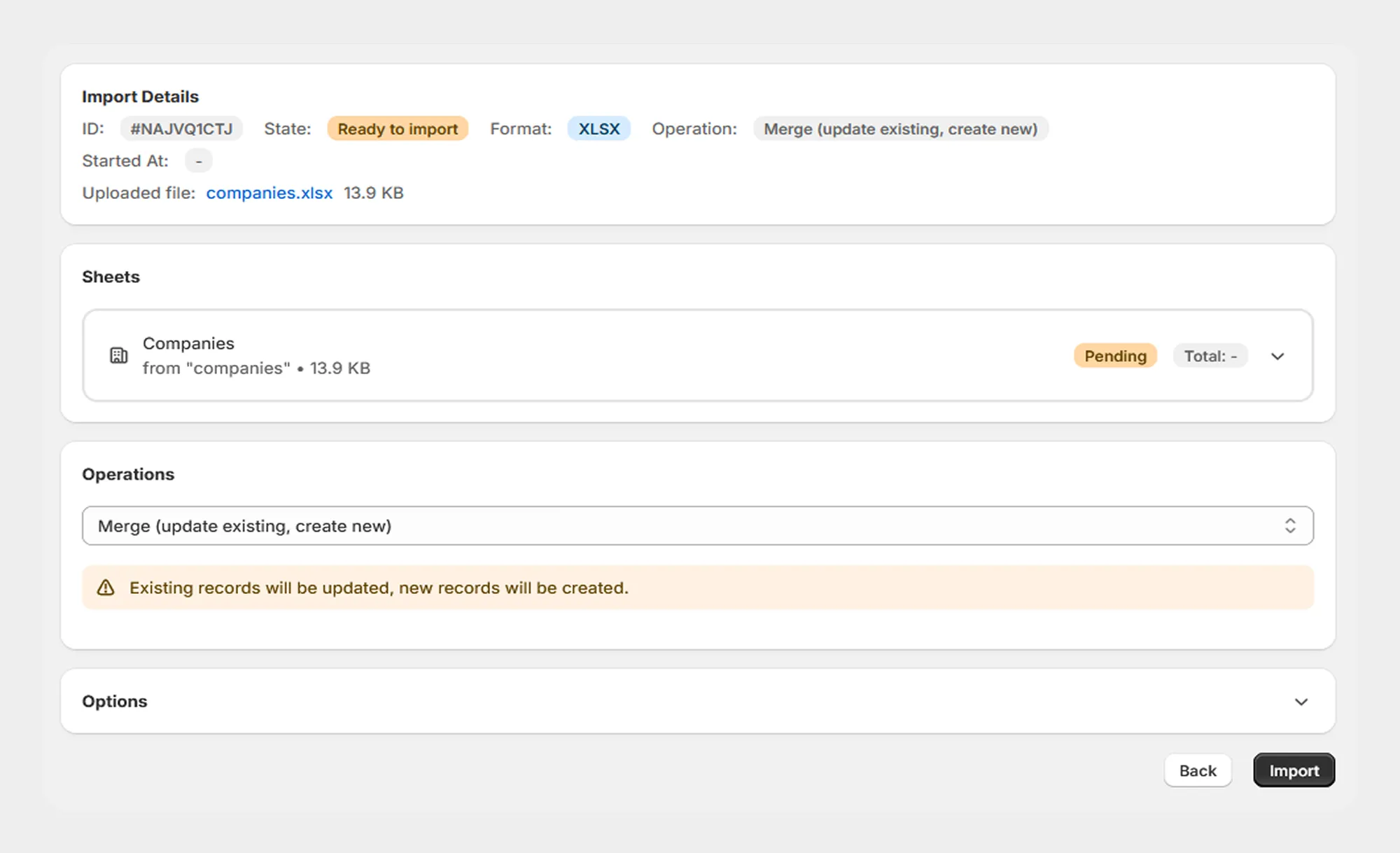
Review the displayed information before continuing with the import.
Step 4: Review the Company Sheet
Migrato identifies the Company data contained in the uploaded file and displays it under the Sheets section.
Review the detected Company sheet before selecting the import operation.
Step 5: Select an Import Operation
Migrato allows you to select the operation to perform on the Company data.
Depending on the supported Company operations, the available options can include:
-
Merge – Update existing Companies and create new Companies.
-
Create only – Create new Companies and skip Companies that already exist.
-
Update only – Update existing Companies and skip records that cannot be matched.
-
Replace – Replace an existing Company using the imported data.
-
Delete – Delete the matching Company if it exists.
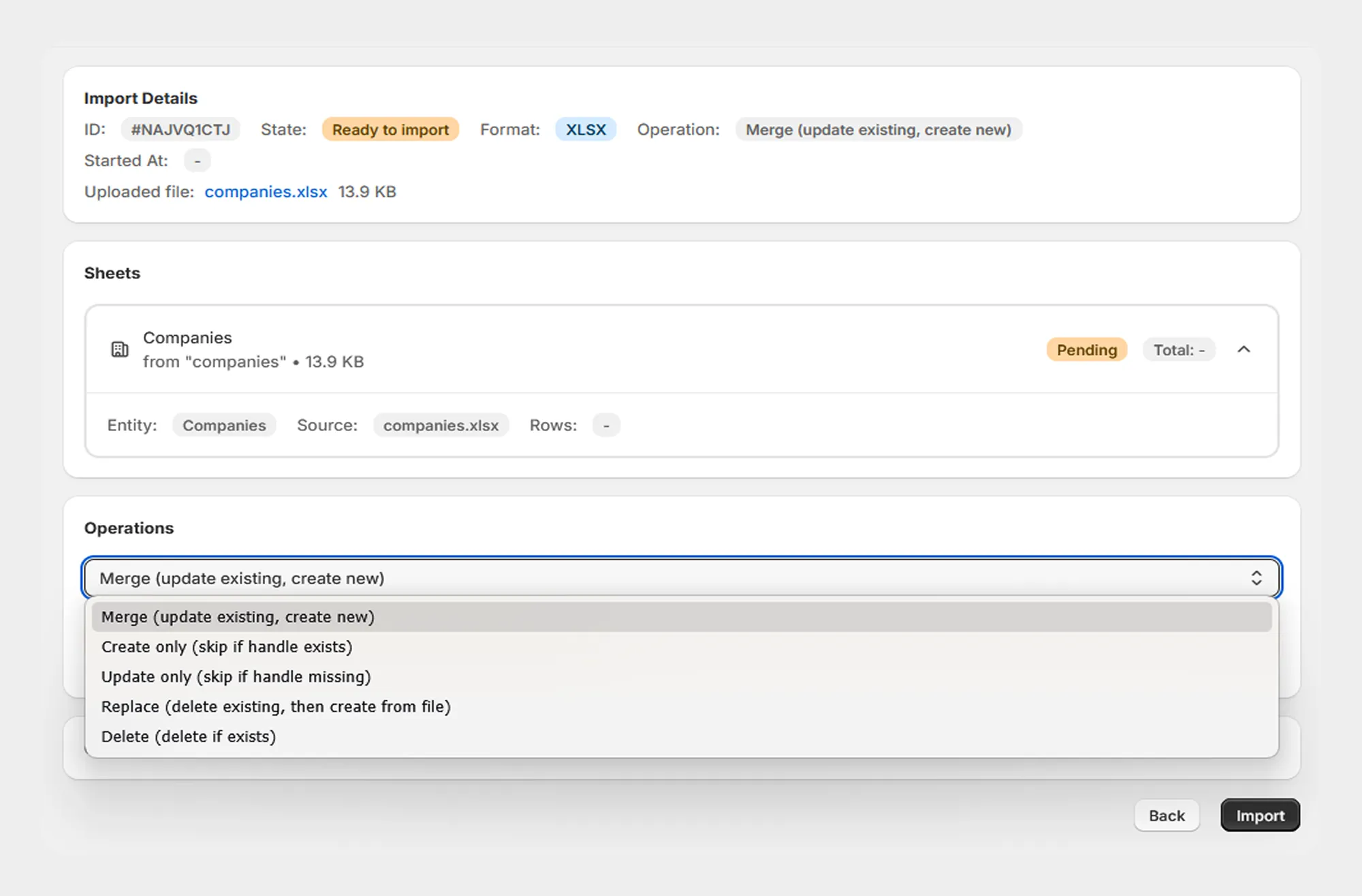
The selected operation determines how Migrato handles existing and new Company records.
Carefully select the operation before starting a Company import, particularly when using Replace or Delete.
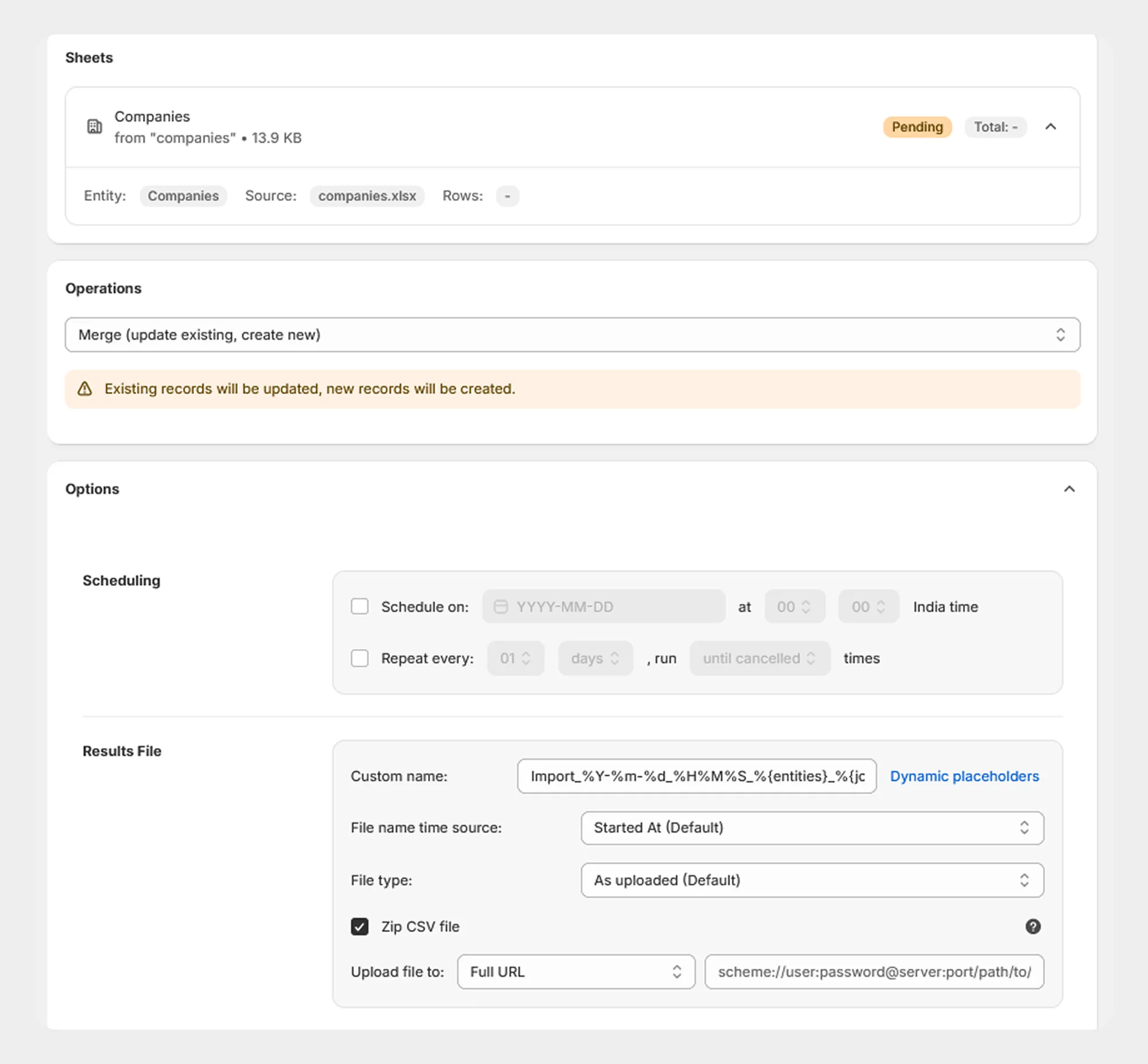
Step 6: Configure Import Options
Open the Options section to configure additional settings available for the Company import.
Depending on the Migrato Company import configuration, this section may include options such as scheduling and result-file settings.
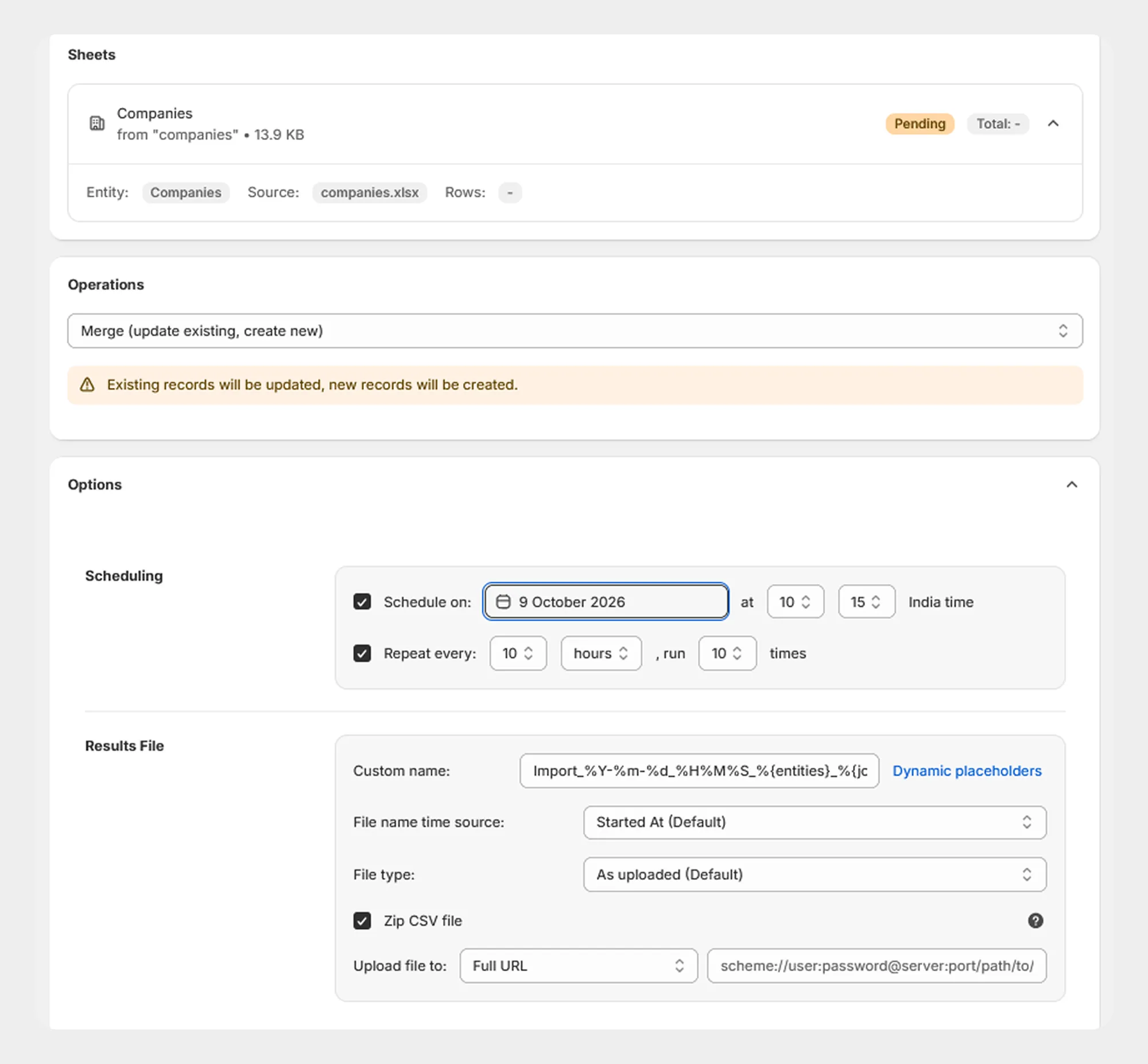
Step 7: Schedule the Company Import
Migrato can schedule an import job when scheduling is enabled for the operation.
You can configure:
-
Schedule date
-
Schedule time
-
Repeat interval
-
Number of repetitions or run until cancelled
This is useful when Company data needs to be imported repeatedly from an external source.
Step 8: Start the Company Import
After reviewing the file and selecting the required operation:
- Review the import details.
- Confirm the selected operation.
- Review the available options.
- Click Import.
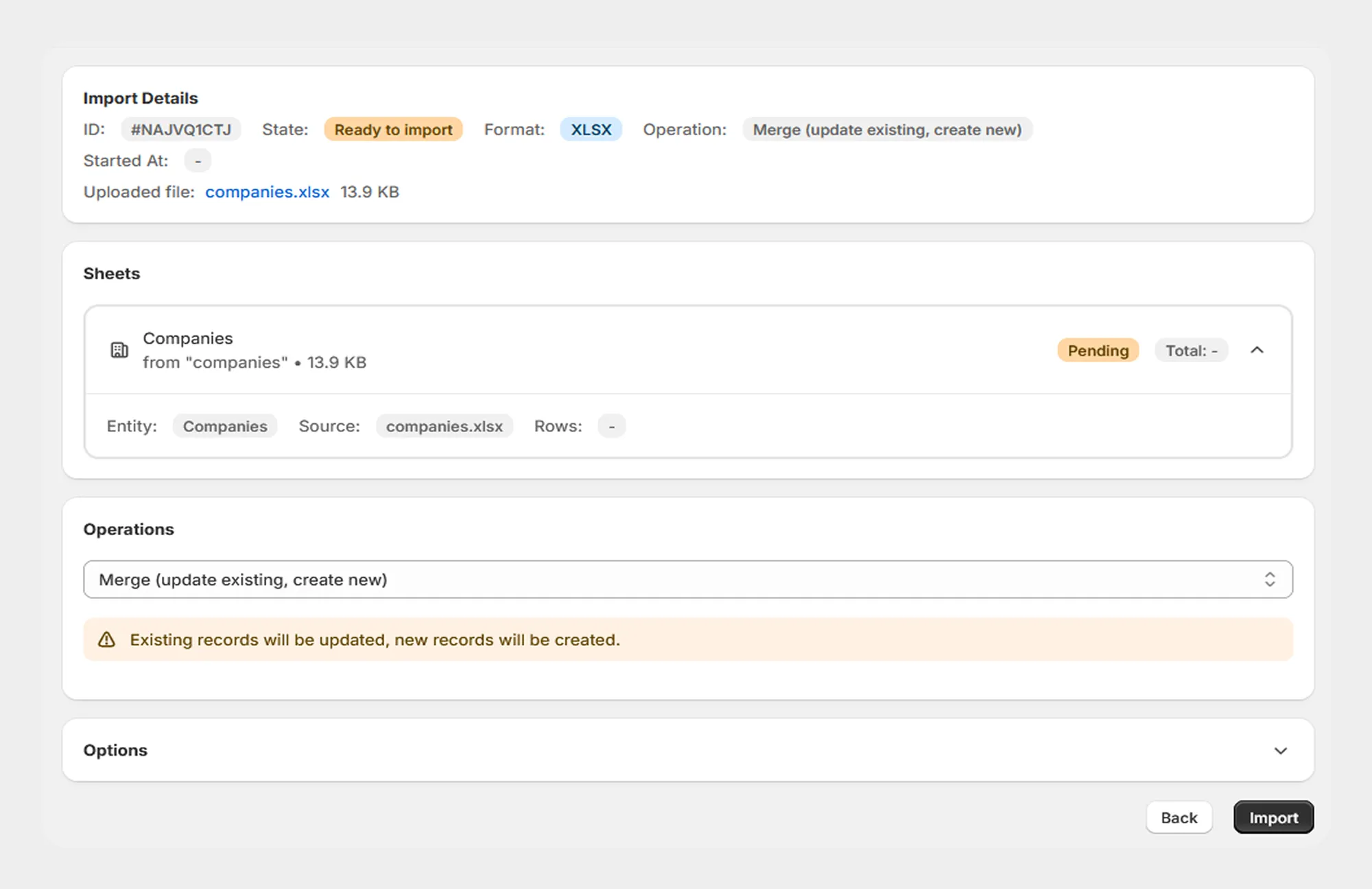
Migrato will begin processing the Company import.
Step 9: Monitor the Import
Migrato processes the Company import as a job and displays the current processing status.
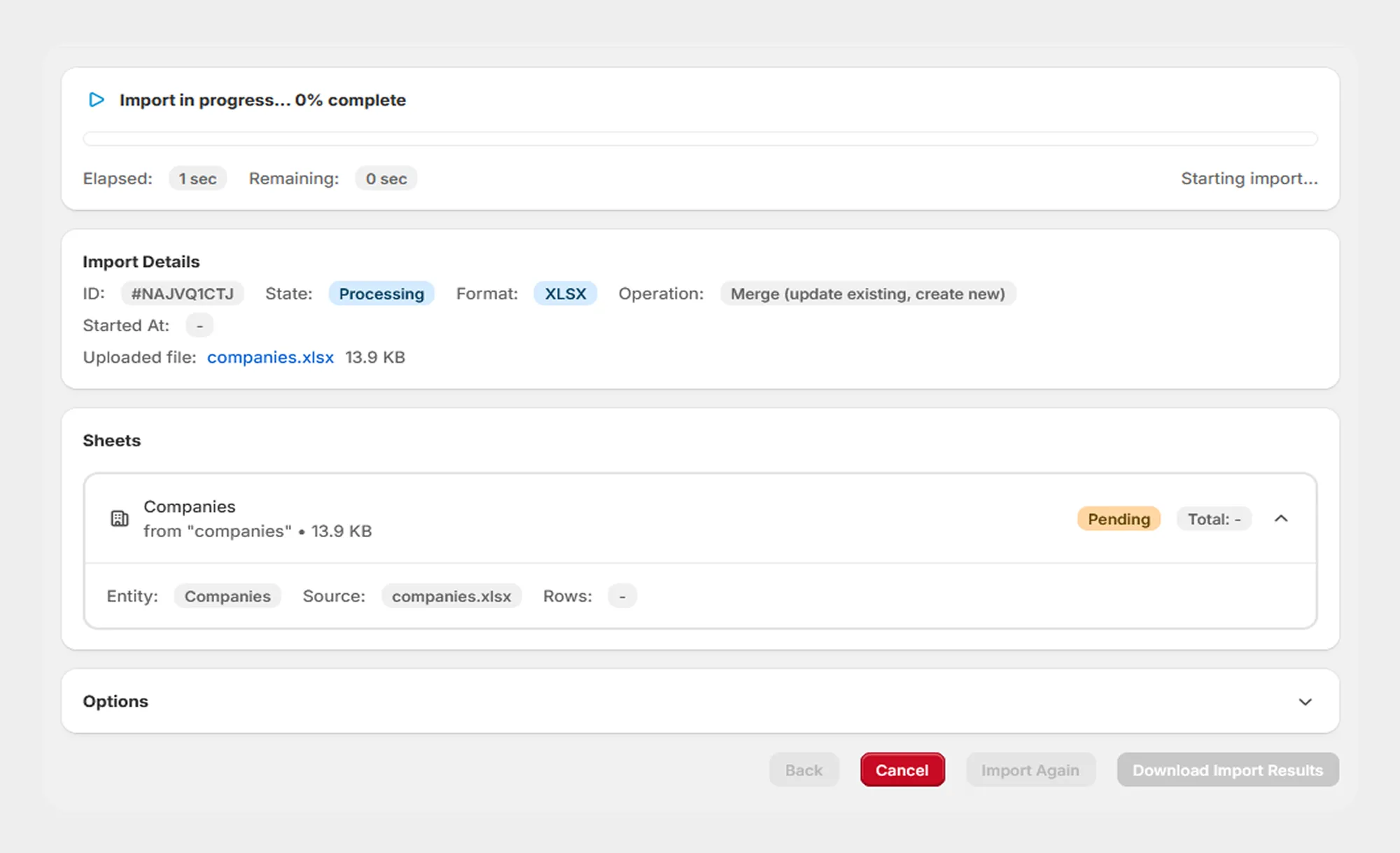
You can use the job information to track the progress of the import.
Step 10: Review Import Results
After processing is completed, review the import results.
The result information can include:
-
Import status
-
Total records
-
Successfully processed records
-
Failed records
-
Skipped records
-
Processing duration
-
Error information
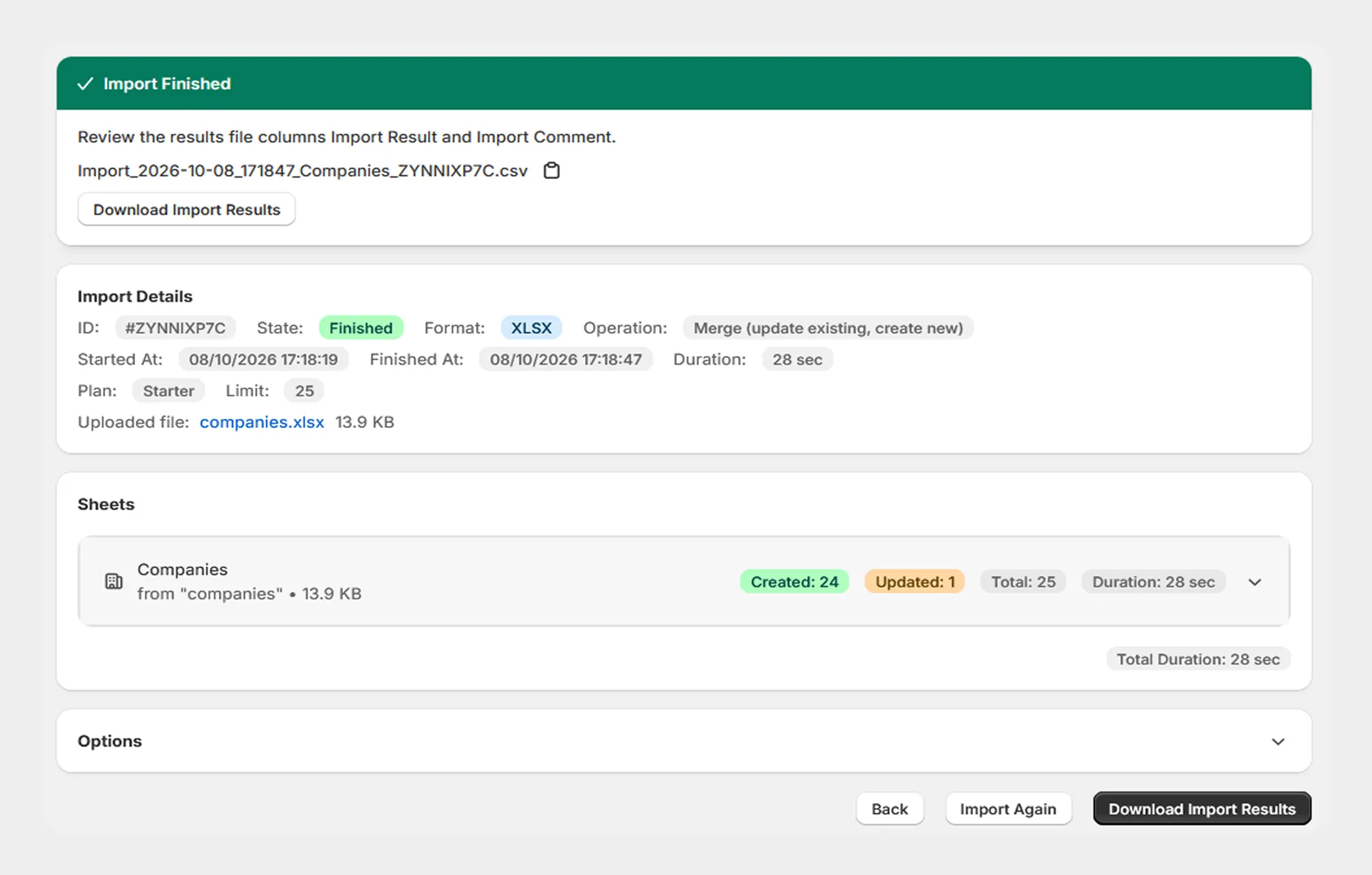
If any Companies fail to import, review the reported errors, correct the source file where required, and run the import again.
Export Companies
Migrato also allows you to export Shopify Company data into a downloadable CSV or XLSX file.
Company exports can be useful for:
-
B2B data management
-
Company data reporting
-
Data analysis
-
Backup
-
Store migration
-
External system integration
-
Record keeping
Step 1: Open Company Export
From your Shopify Admin:
- Go to Apps → Migrato.
- Open the Export section.
- Select Companies.
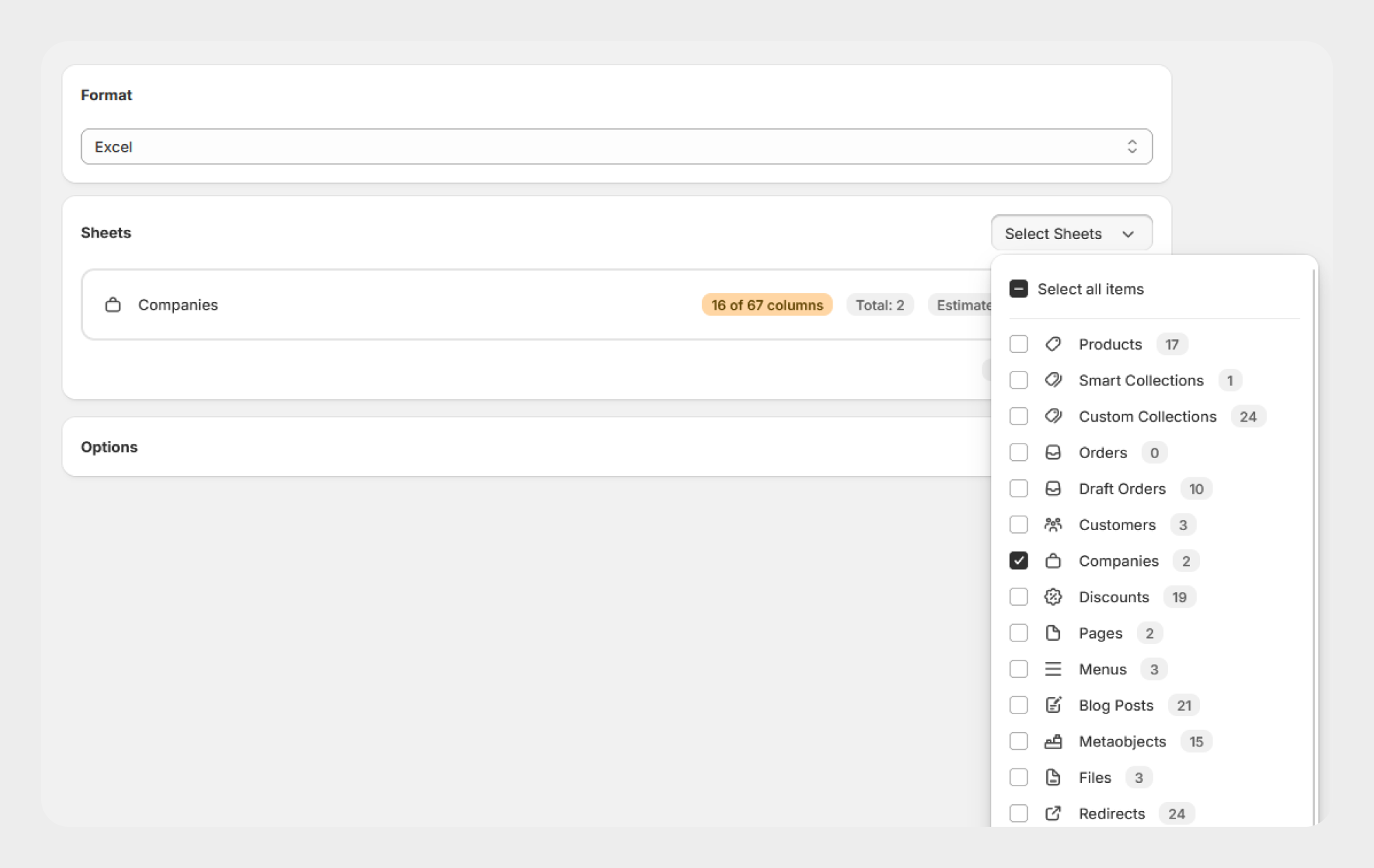
Step 2: Select Company Fields
Select the Company fields you want to include in the export.
Migrato organizes Company information into groups such as:
-
Basic Columns
-
First and Last Order
-
Locations
-
Location Catalogs
-
Linked Customers
-
Metafields
-
Location Metafields
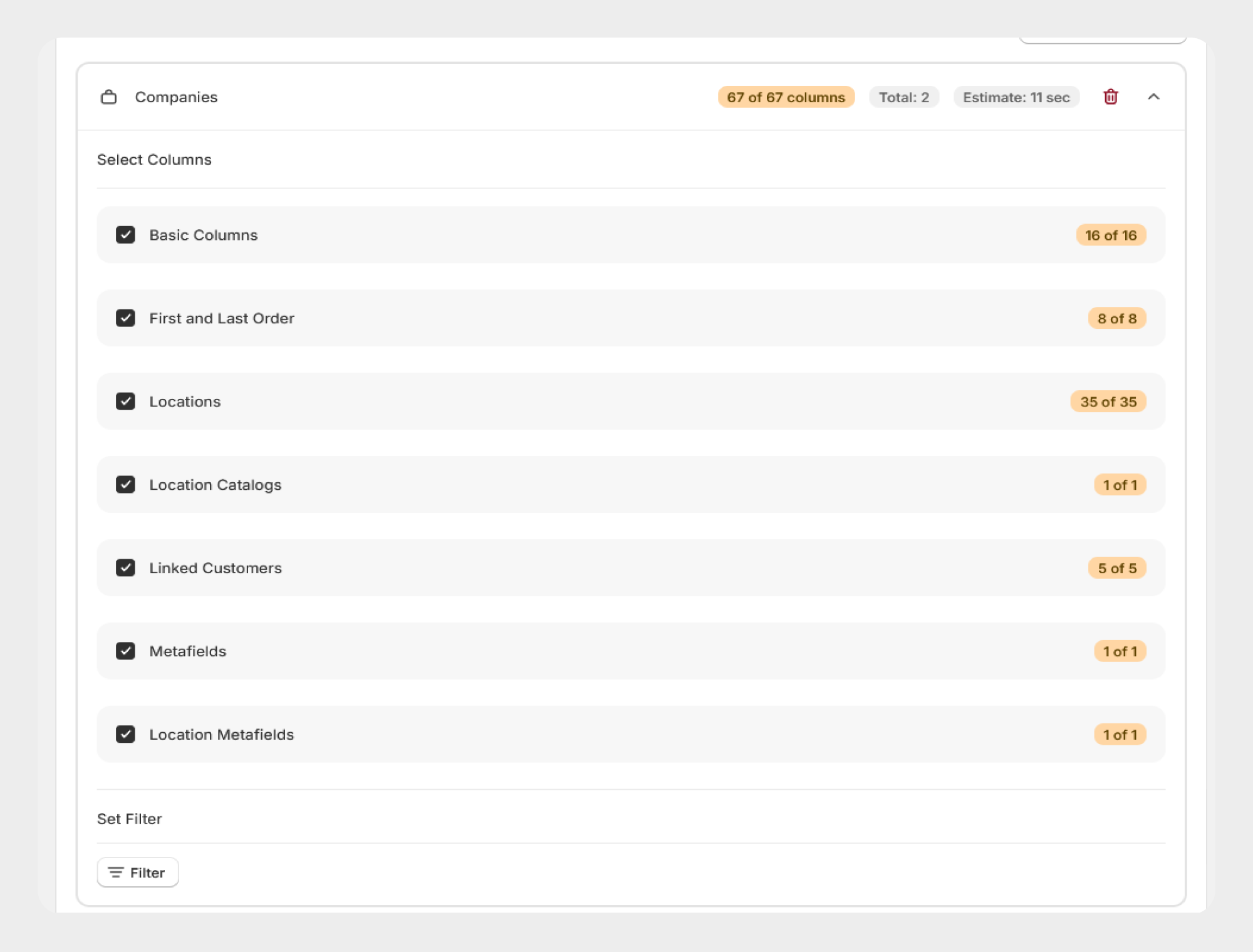
Select only the fields required for your export to keep the resulting file focused and easier to work with.
Step 3: Apply Company Filters
If you only need specific Companies, use the Filters section to narrow down the export.
Migrato currently provides the following Company filters:
-
ID
-
Name
-
External ID
-
Created At
-
Updated At
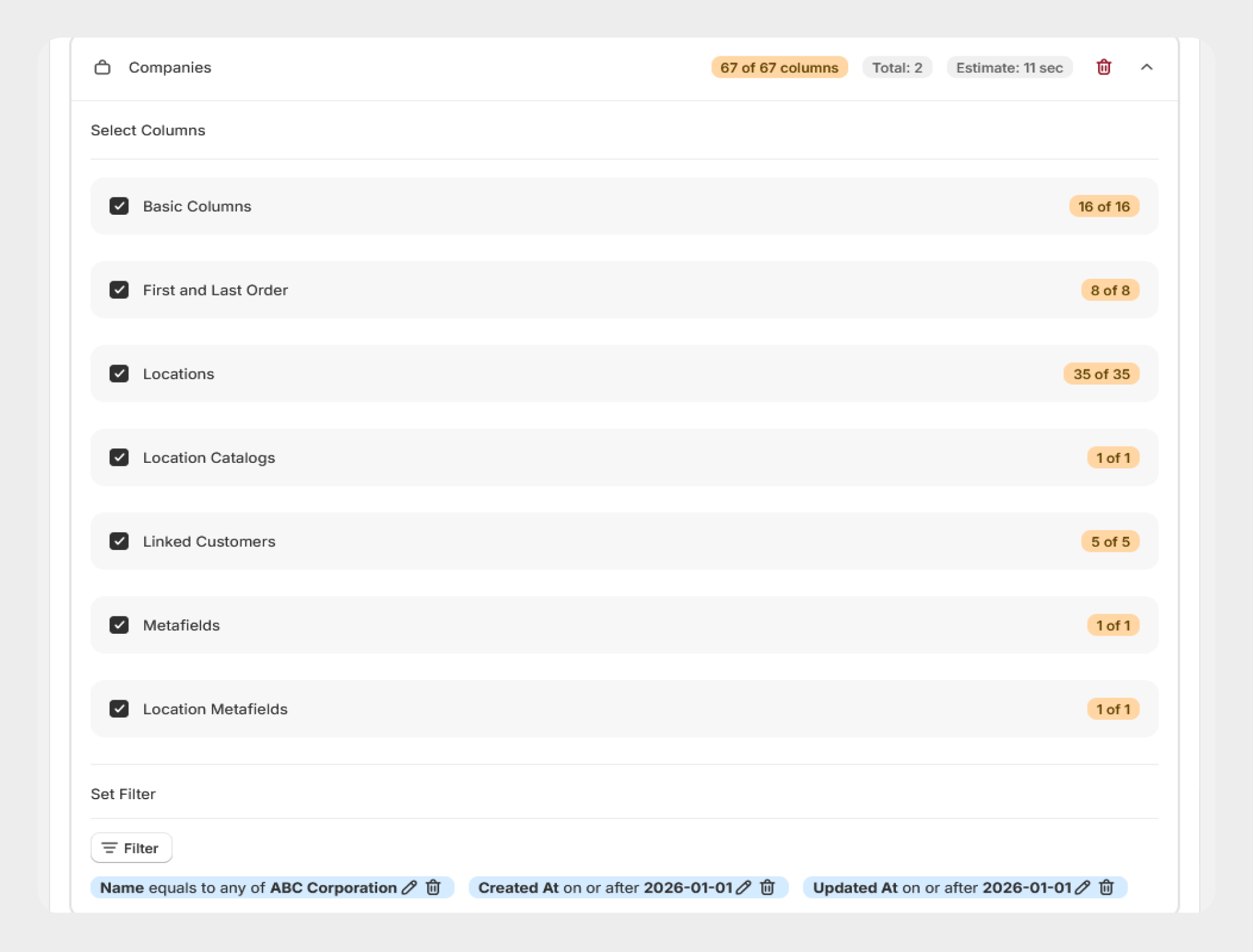
For complete information about available filters, see 15.3 Filter Companies.
Step 4: Start the Export
After selecting the required fields and filters, start the export.
Migrato processes the selected Company data and creates the export file.
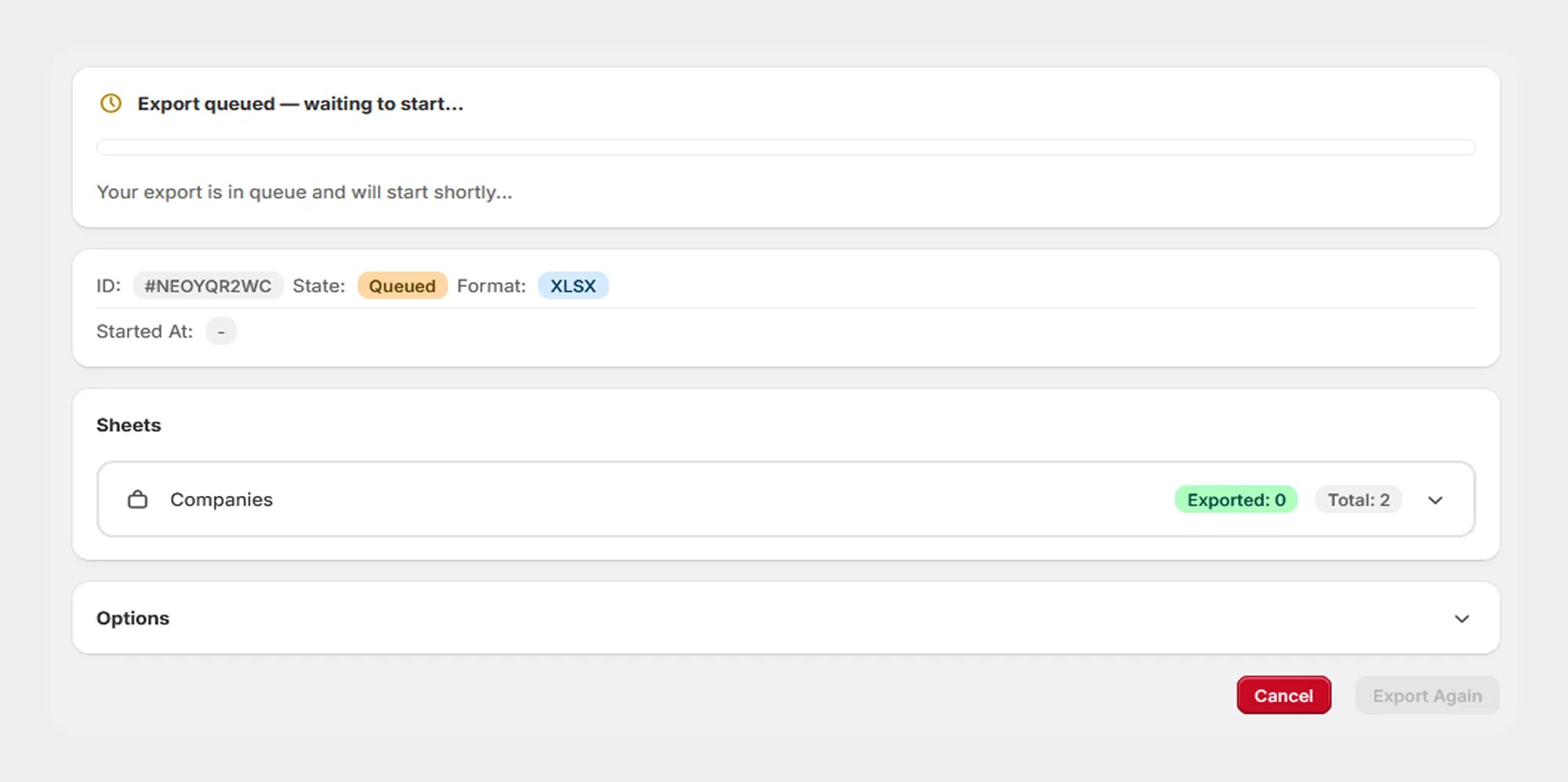
Step 5: Review the Export Result
After the export is completed, Migrato displays the export result.
The result page can display information such as:
-
Export status
-
Exported file name
-
File format
-
Number of Companies exported
-
Processing duration
-
Selected Company fields
-
Applied filters
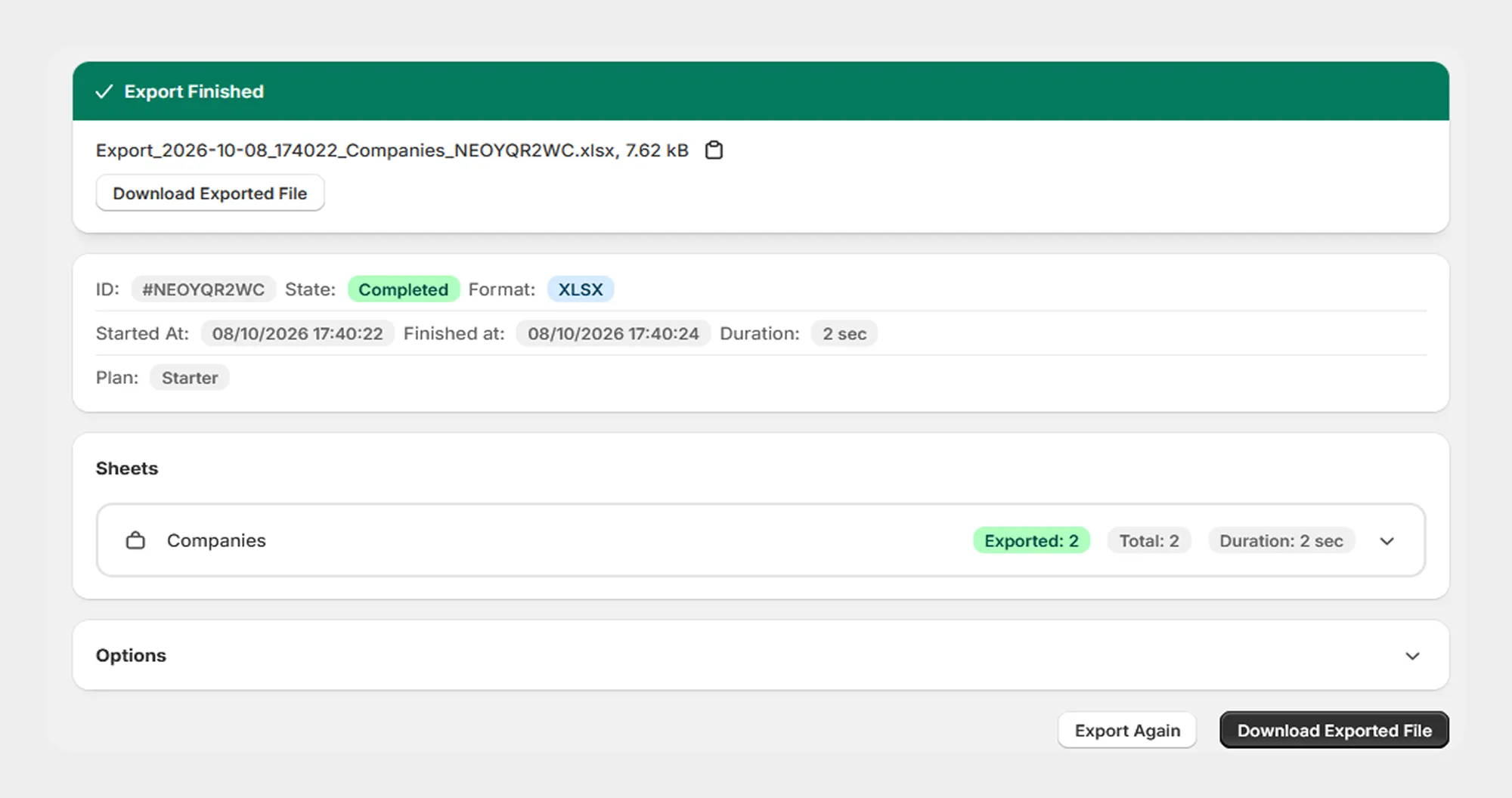
You can download the generated export file from the completed export screen.
Supported Company Data
Migrato's Company import/export functionality supports Company information organized into the following template groups:
| Group | Number of Columns |
|---|---|
| Basic Columns | 16 |
| First and Last Order | 8 |
| Locations | 35 |
| Location Catalogs | 1 |
| Linked Customers | 5 |
| Metafields | 1 |
| Location Metafields | 1 |
| Total | 67 |
The supported data includes Company details, order information, Company locations, linked customers, catalogs, and metafields.
The exact fields available for import and export depend on the current Migrato Company Template. Refer to 15.2 Template Documentation for the complete field reference.
 Free plan forever