 Our first app, Migrato, is live on the Shopify App Store

Import and Migrate products via FTP and SFTP Files
Migrate product files kept on an external FTP or SFTP server without downloading and uploading them by hand. 6 min read
 Updated 13 October 2026
 Applies to Migrato on all plans
When to use FTP/SFTP migration
Migrato can be used to process product files stored on an external FTP or SFTP server when the applicable file-source functionality is available.
This method is useful when product data is generated or maintained by an external system and needs to be migrated to Shopify without manually downloading and uploading the file each time.
Typical use cases include:
-
 Product catalog migration
-
Supplier product feeds
-
ERP-generated product files
-
Regular product data transfers
-
Large product catalogs
-
Automated file-based migrations
Step 1: Prepare the product file
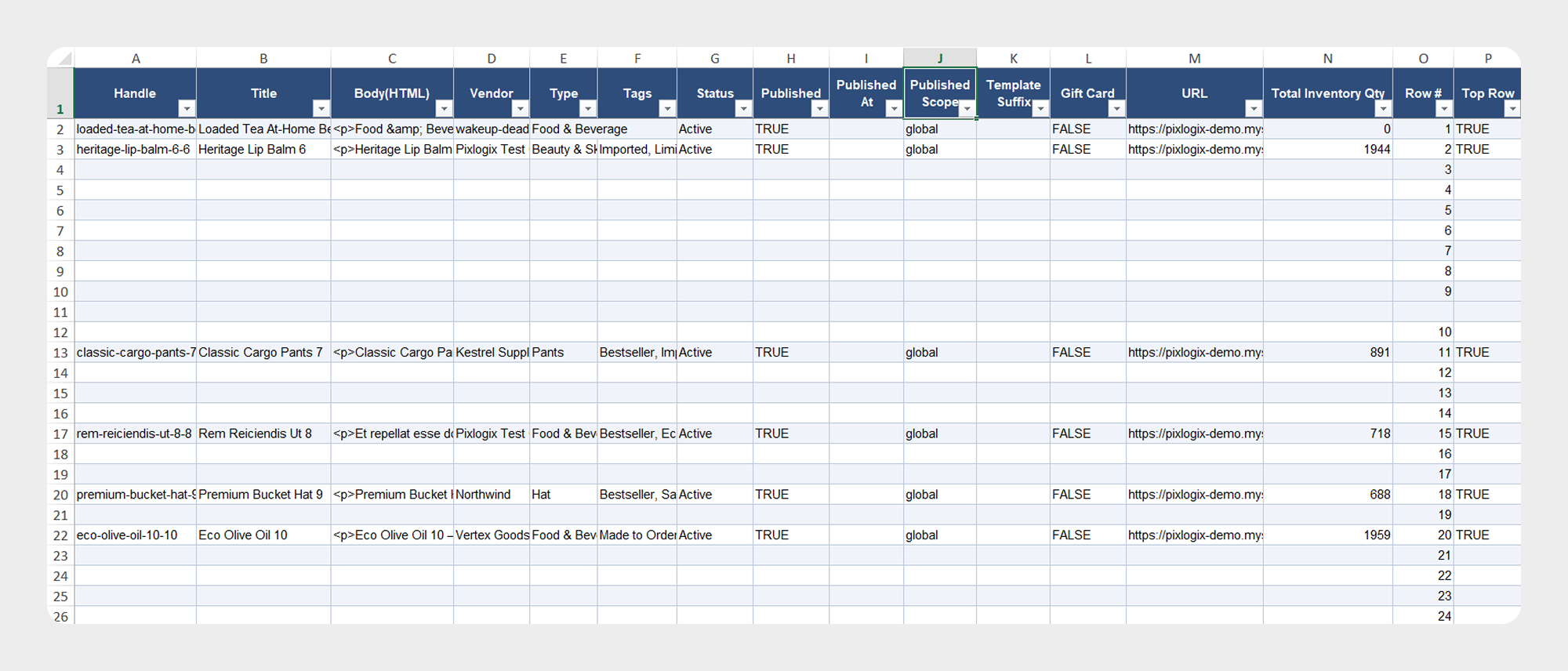
Prepare the product data using the Migrato Product Template. The product file should contain the required product information and use a supported file format.
Common file formats include:
-
CSV
-
XLSX
Step 2: Prepare the FTP or SFTP location
Store the product file on the FTP or SFTP server. Make sure the server provides the connection information required by Migrato.
Depending on the supported connection configuration, this may include:
| Information | Example |
|---|---|
| Protocol | FTP / SFTP |
| Host | ftp.example.com |
| Port | FTP/SFTP server port |
| Username | FTP/SFTP username |
| Password | FTP/SFTP password |
| File path | /products/products.csv |
Use the connection and authentication details required by your FTP/SFTP provider and Migrato configuration.
Step 3: Configure the file source
In Migrato, configure the FTP or SFTP file source according to the available import options. Provide the required server and file information.
Verify that Migrato can access the specified file before starting the migration.
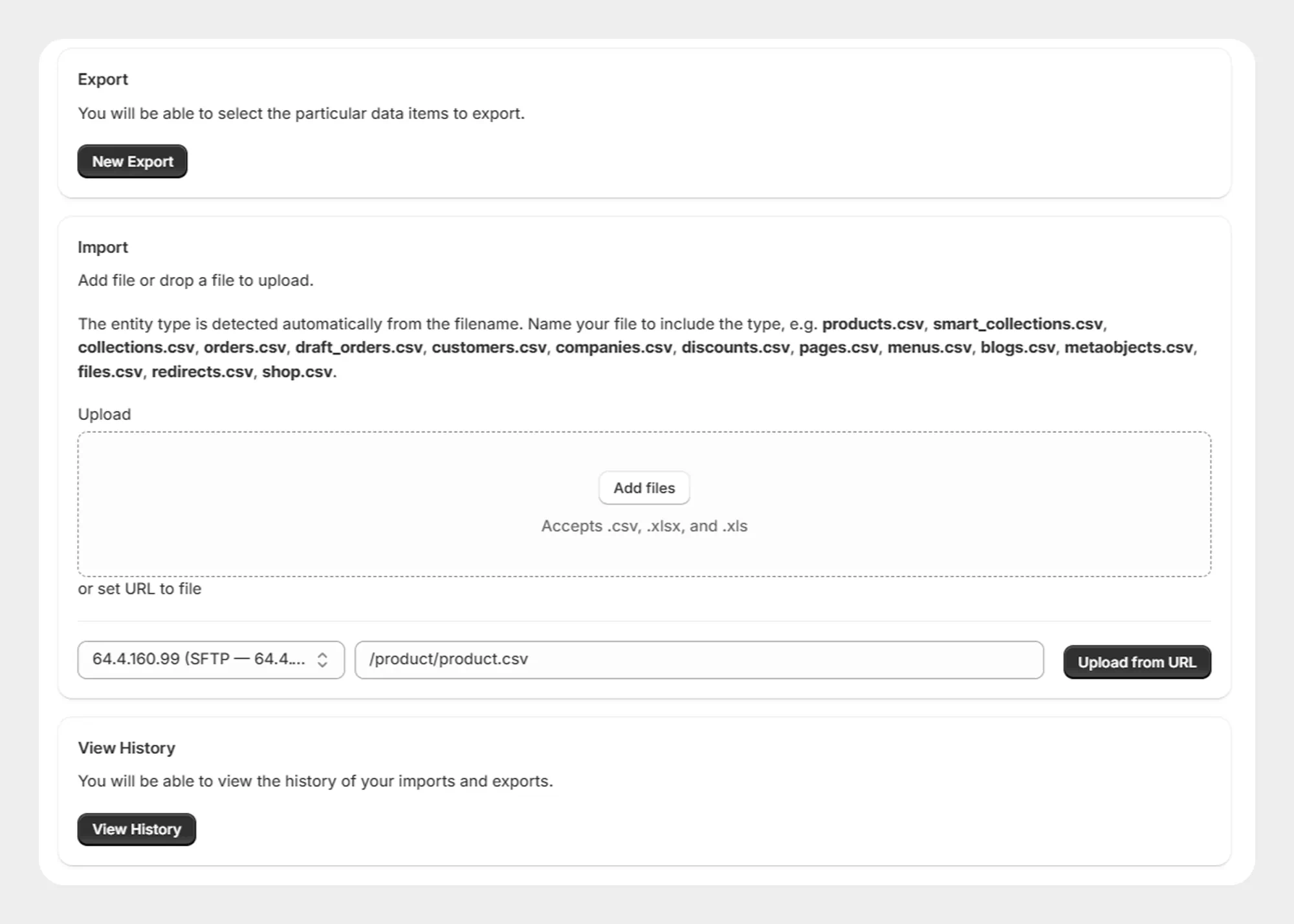
Step 4: Select the product import
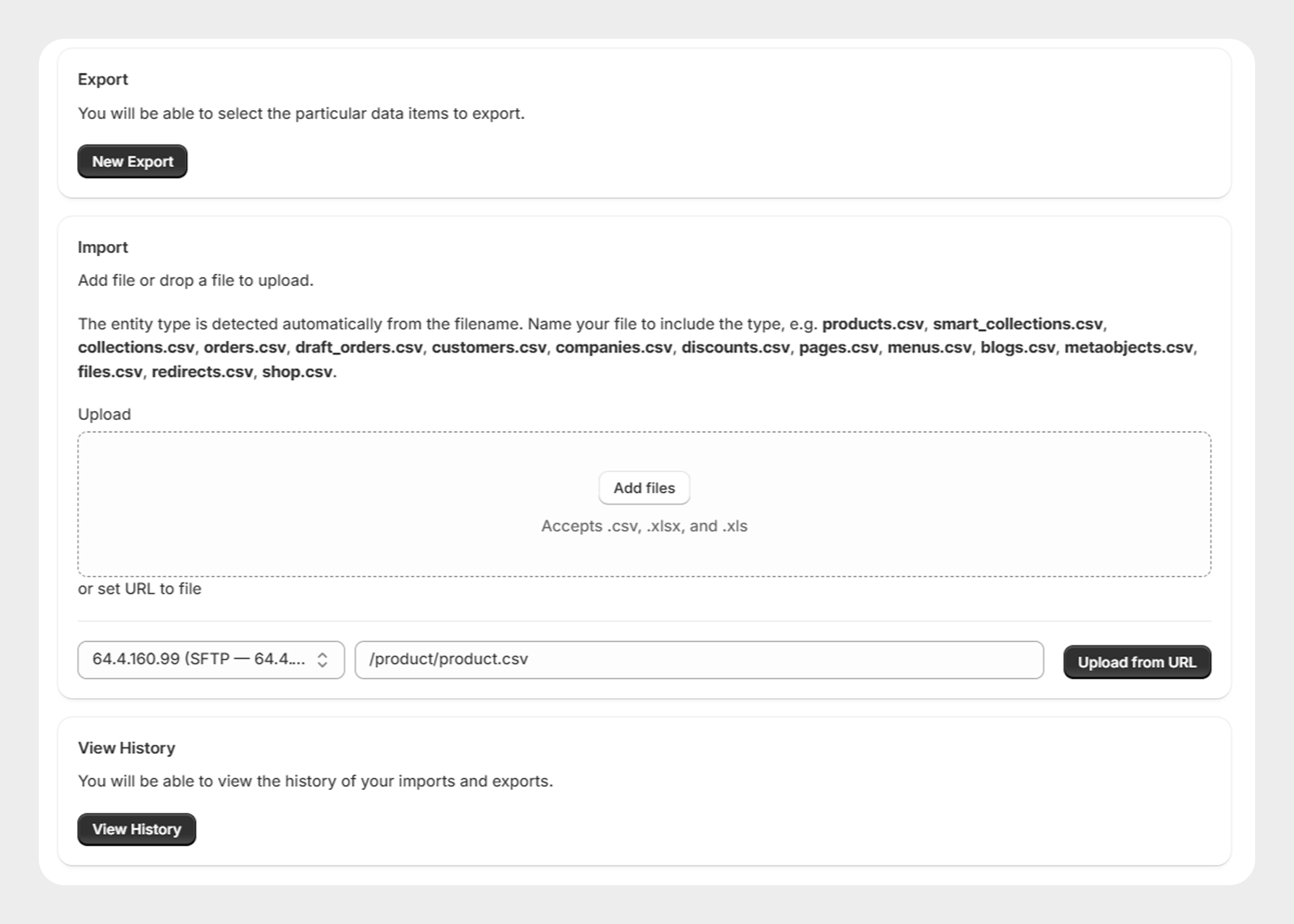
- Open Shopify Admin.
- Go to Apps → Migrato.
- Open Import.
- Select Products.
- Select the FTP/SFTP file source.
Step 5: Review the product file
After Migrato retrieves the file, review the detected product data.
Check:
-
Headers
-
Product records
-
Variant records
-
Images
-
Prices
-
Inventory
-
Handles
-
Other required fields
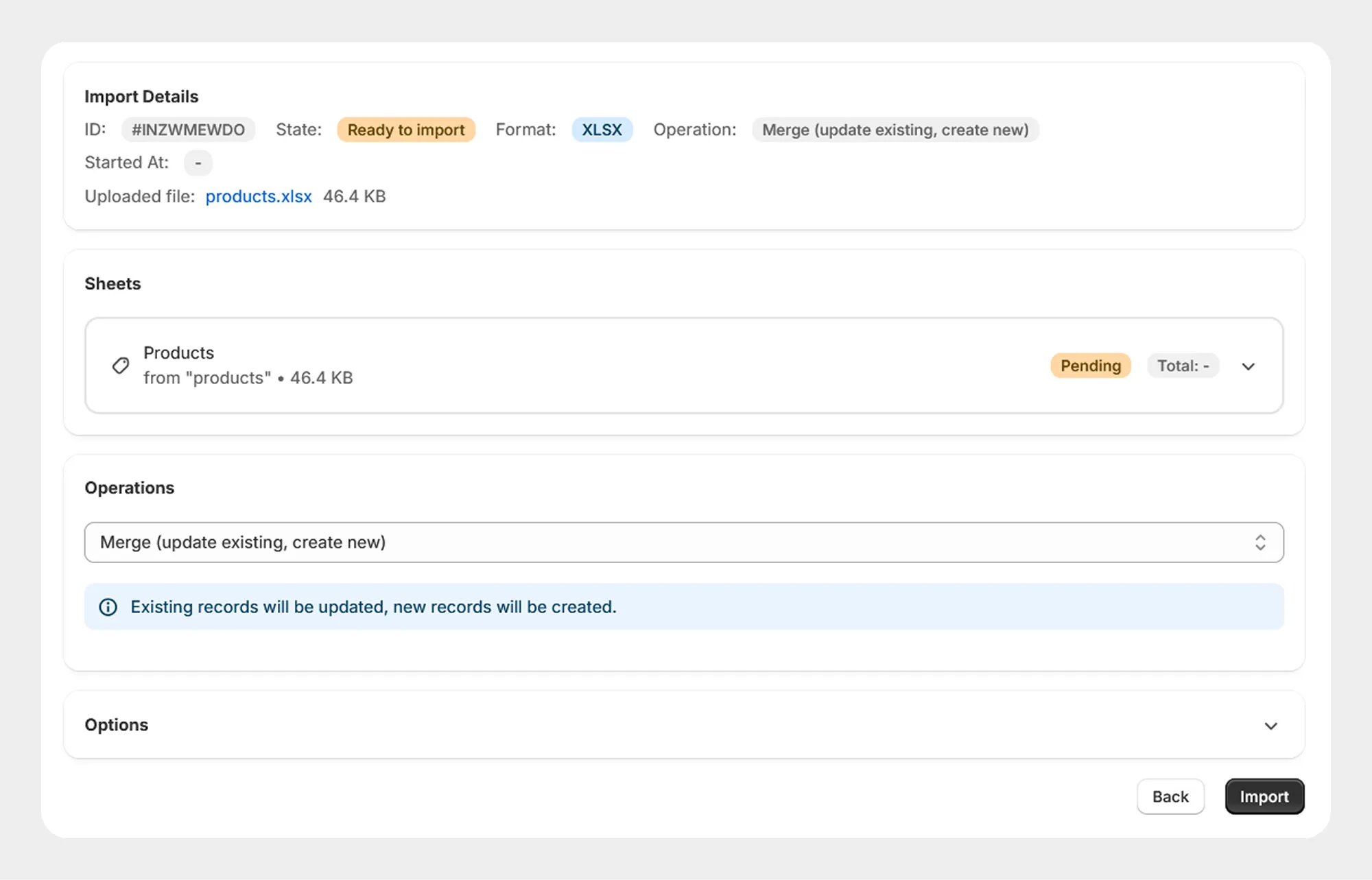
Step 6: Select the import operation
Select the required operation for the product migration. For example:
Step 7: Configure scheduling if required
If the FTP/SFTP product file is updated regularly, the migration can be configured as a recurring process when scheduling is available for the import.
For example:
/products/products.csvThis allows the same product feed to be processed according to the configured schedule.
Step 8: Start the migration
Review the connection, source file, import operation, and available options.
Click Import to start the migration.
Step 9: Review the results
After the migration is completed, review the job results from All Jobs.
Check:
-
Imported records
-
Failed records
-
Skipped records
-
Processing duration
-
Error details
-
Result files
Example: Supplier product feed
A supplier can maintain a product file on an SFTP server:
/feeds/products.csv

# Workflow
# SFTP → Product File → Migrato → Shopify Products
Migrato retrieves the file, processes the product records, and imports the supported information into Shopify.
Test the FTP/SFTP connection and migration using a small product file before processing a complete product catalog.
 Free plan forever