 Our first app, Migrato, is live on the Shopify App Store

Manage Scheduled Jobs
Find, filter and review every import and export job from the All Jobs page. 7 min read
 Updated 13 October 2026
 Applies to Migrato on all plans
Migrato provides an All Jobs page where you can view and manage import and export jobs from one location.
The All Jobs page provides a centralized view of jobs created through Migrato, including completed, cancelled, and currently processing jobs.
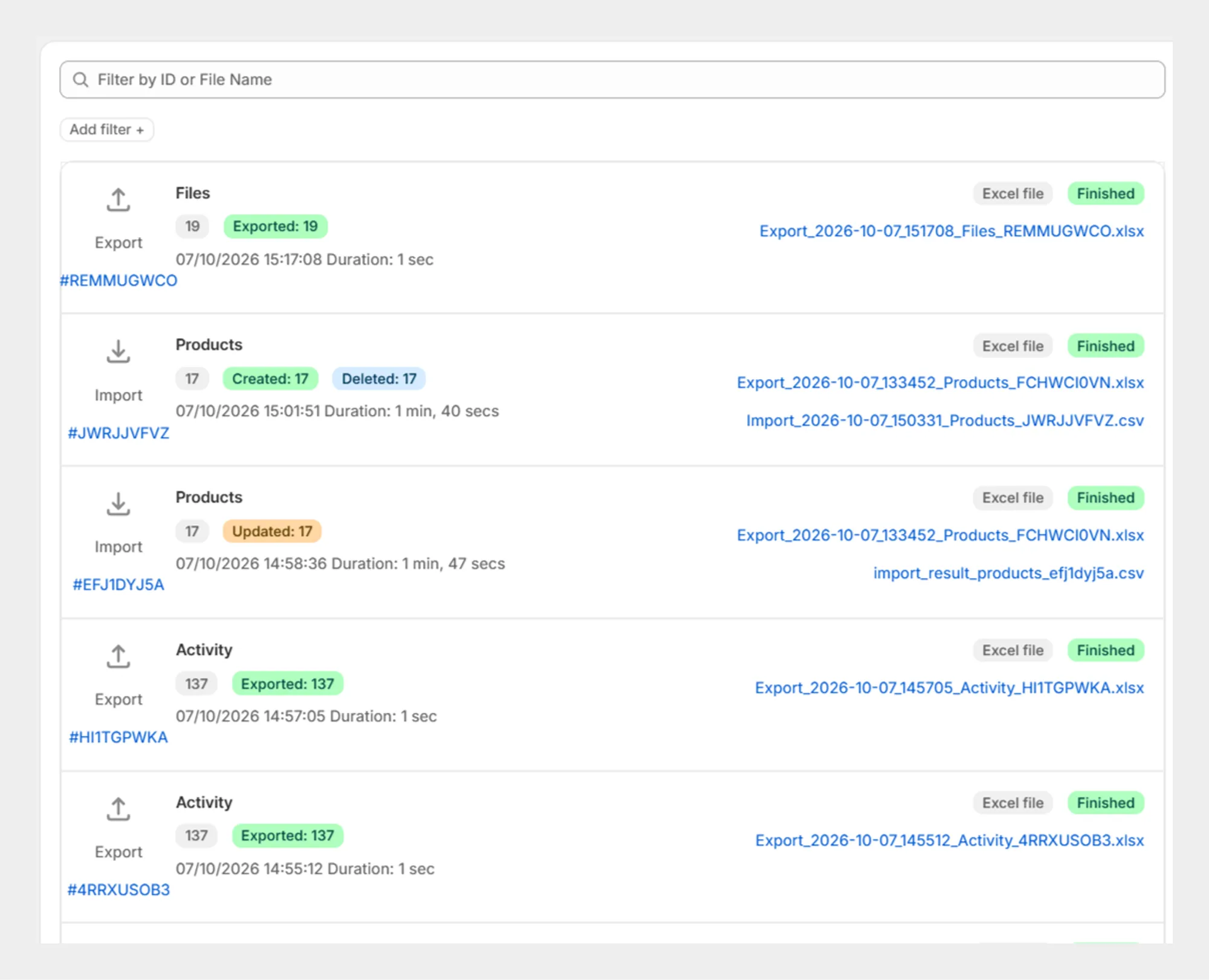
Open All Jobs
To view your Migrato jobs:
- Open Shopify Admin.
- Go to Apps → Migrato.
- Select All Jobs.
- Review the available import and export jobs.
The job list displays information about each processed job.
Job information
Each job entry can display information such as:
| Information | Description |
|---|---|
| Entity | The Shopify entity processed by the job, such as Products, Customers, Orders, or Draft Orders. |
| Operation | Indicates whether the job was an Import or Export. |
| Job ID | Unique identifier assigned to the job. |
| Record Count | Number of records processed by the job. |
| Status | Current state of the job, such as Finished, Cancelled, or Processing. |
| Date and Time | Date and time associated with the job. |
| Duration | Time taken to process the job. |
| File | Generated or uploaded file associated with the job, when available. |
| Result File | Import result file generated after processing, when available. |
For example, a completed export job can display the exported record count, completion status, processing date and time, duration, and generated export file.
Search jobs
The All Jobs page provides a search field labeled Filter by ID or File Name.
You can use this field to locate a specific job using:
-
 Job ID
-
File name
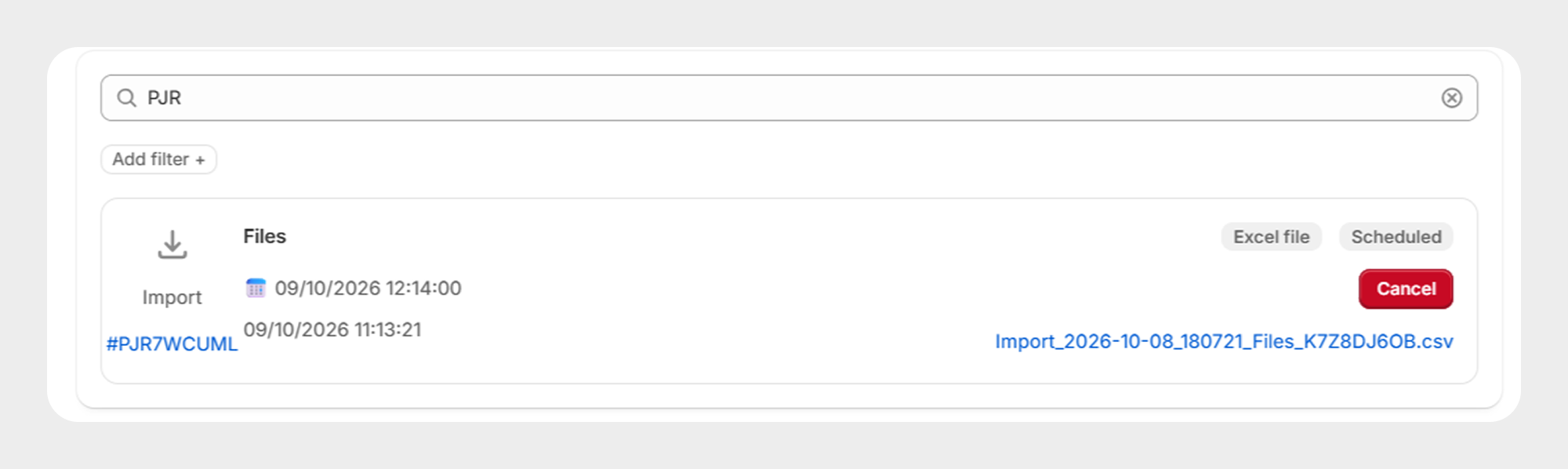
Example
If the job ID is:
#PTTOZTPVW
Enter the ID in the search field to locate the corresponding job. Similarly, you can search using the name of an import or export file.
Filter jobs
Migrato provides an Add filter option on the All Jobs page to narrow down the list of jobs.
The available job filters are:
| Filter | Description |
|---|---|
| State | Filters jobs based on their current processing state. |
| Entity | Filters jobs based on the Shopify entity processed by the job. |
| Queue | Filters jobs based on whether the job is an Import or Export operation. |
| Date | Filters jobs based on the job date. |
Filter by state
The State filter allows you to display jobs according to their processing state. Available states shown in Migrato include:
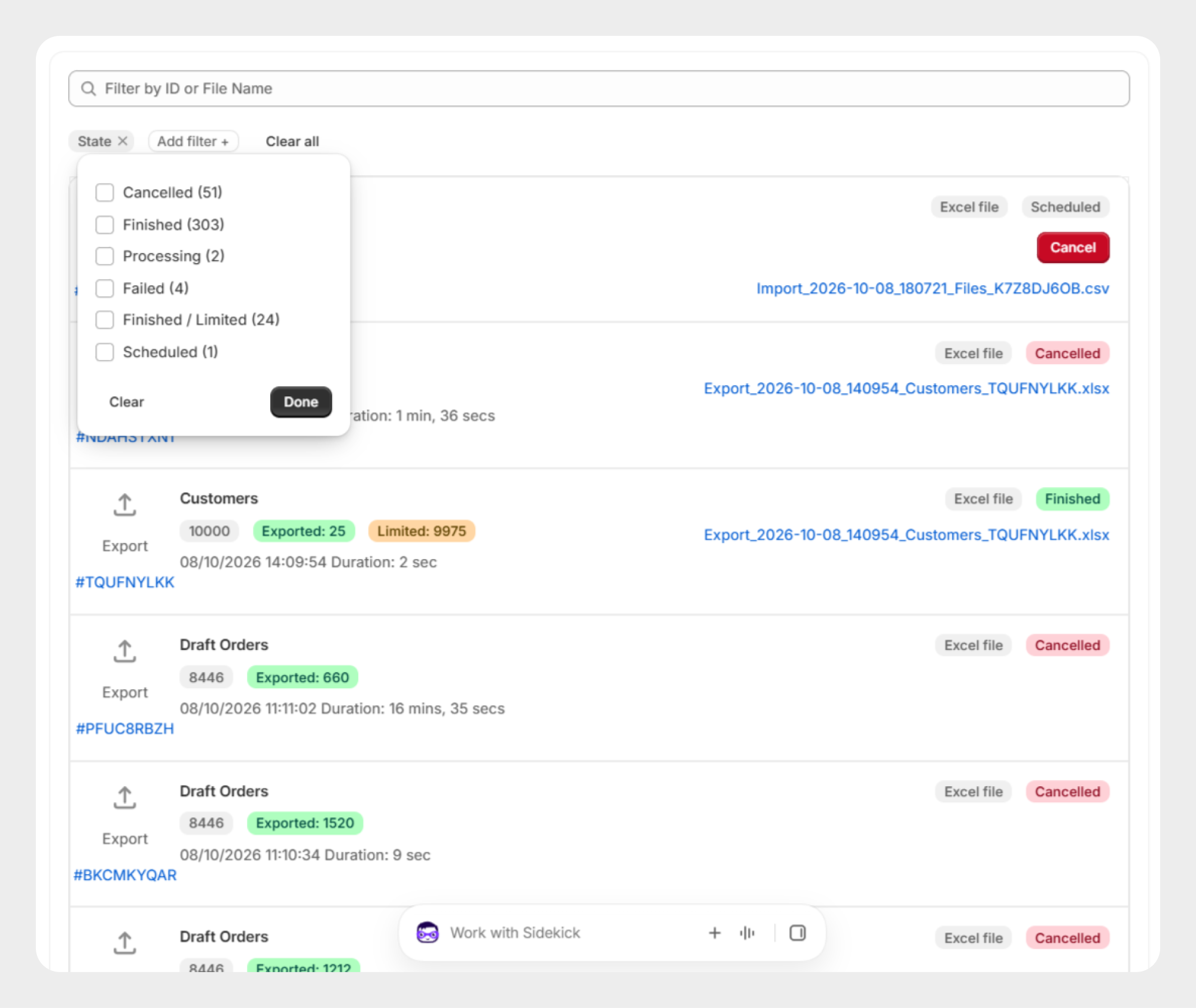
Example: to view only completed jobs:
- Click Add filter.
- Select State.
- Select Finished.
- Click Done.
Migrato will display only jobs with the Finished state.
Filter by entity
The Entity filter allows you to view jobs for a specific Shopify entity. The available entity options shown in Migrato include:
-
Products
-
Smart Collections
-
Custom Collections
-
Customers
-
Companies
-
Discounts
-
Draft Orders
-
Orders
-
Payouts
-
Pages
-
Blog Posts
-
Redirects
-
Activity
-
Files
-
Metaobjects
-
Menus
-
Shop
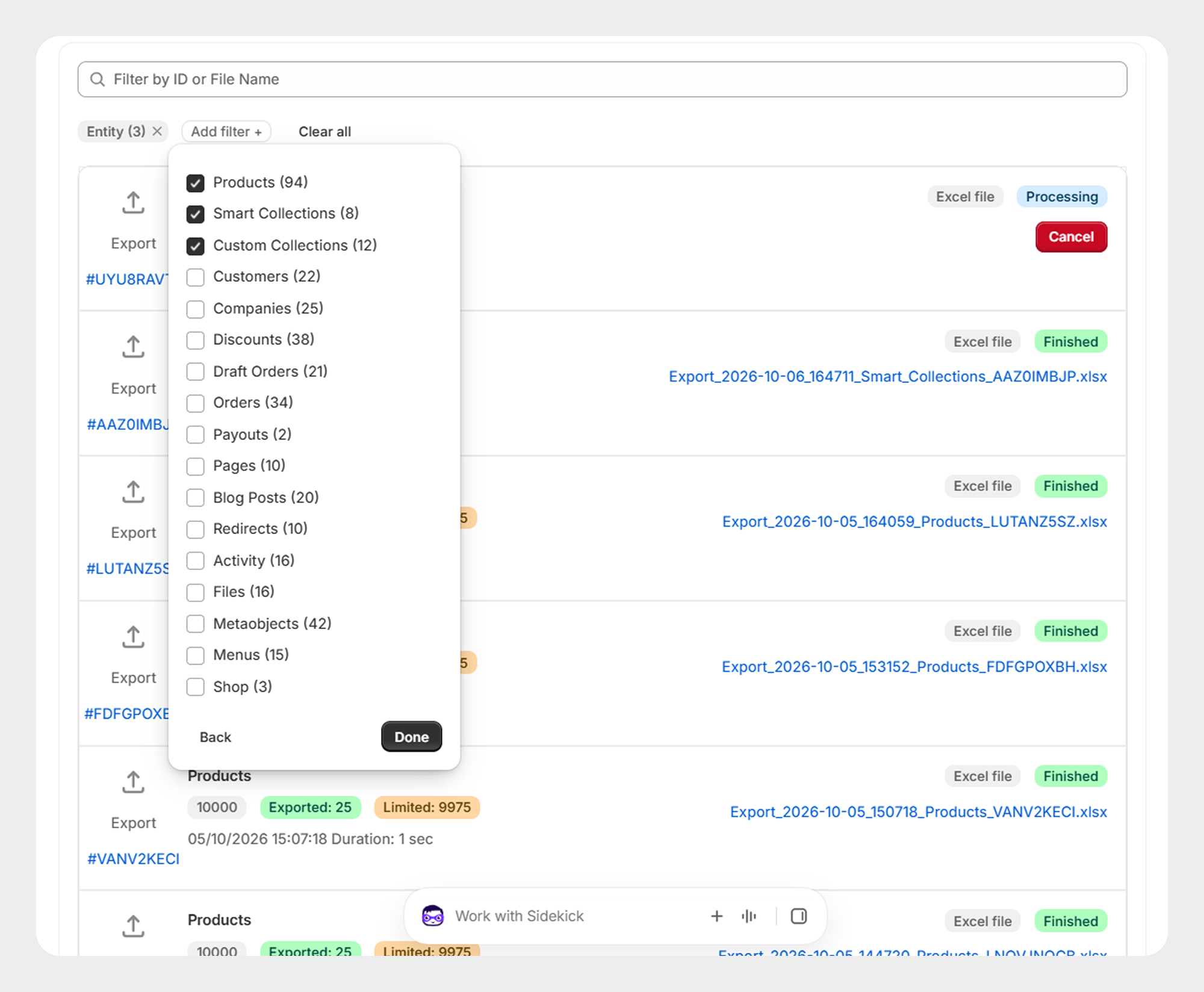
Example: to view only Draft Order jobs:
- Click Add filter.
- Select Entity.
- Select Draft Orders.
- Click Done.
Migrato will display the jobs associated with Draft Orders.
Filter by queue
The Queue filter allows you to separate jobs based on the operation type. The available options are:
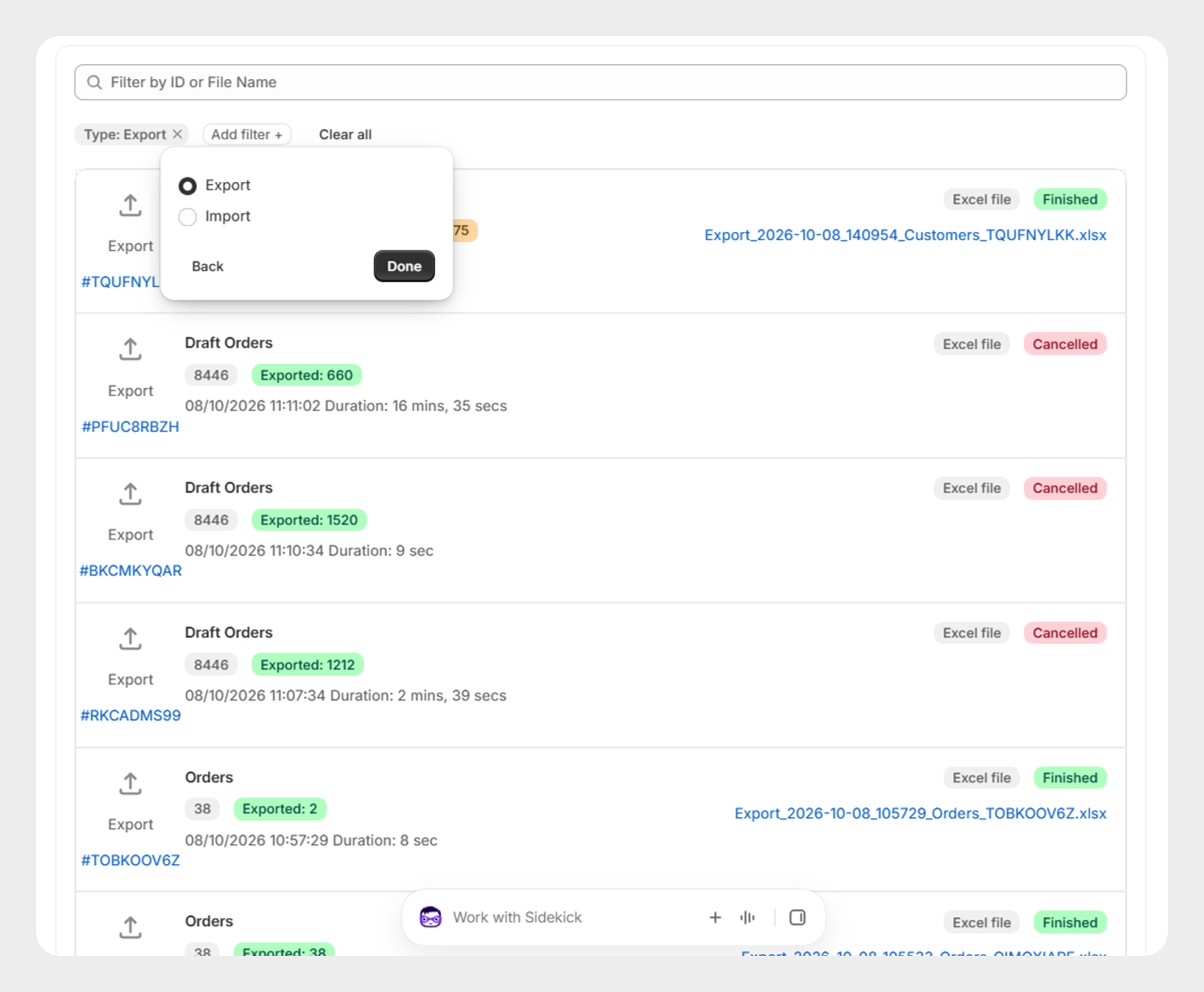
Example: to view only export jobs:
- Click Add filter.
- Select Queue.
- Select Export.
- Click Done.
Migrato will display only export jobs.
Filter by date
The Date filter allows you to find jobs based on a specific date or a date range. Migrato provides the following date options:
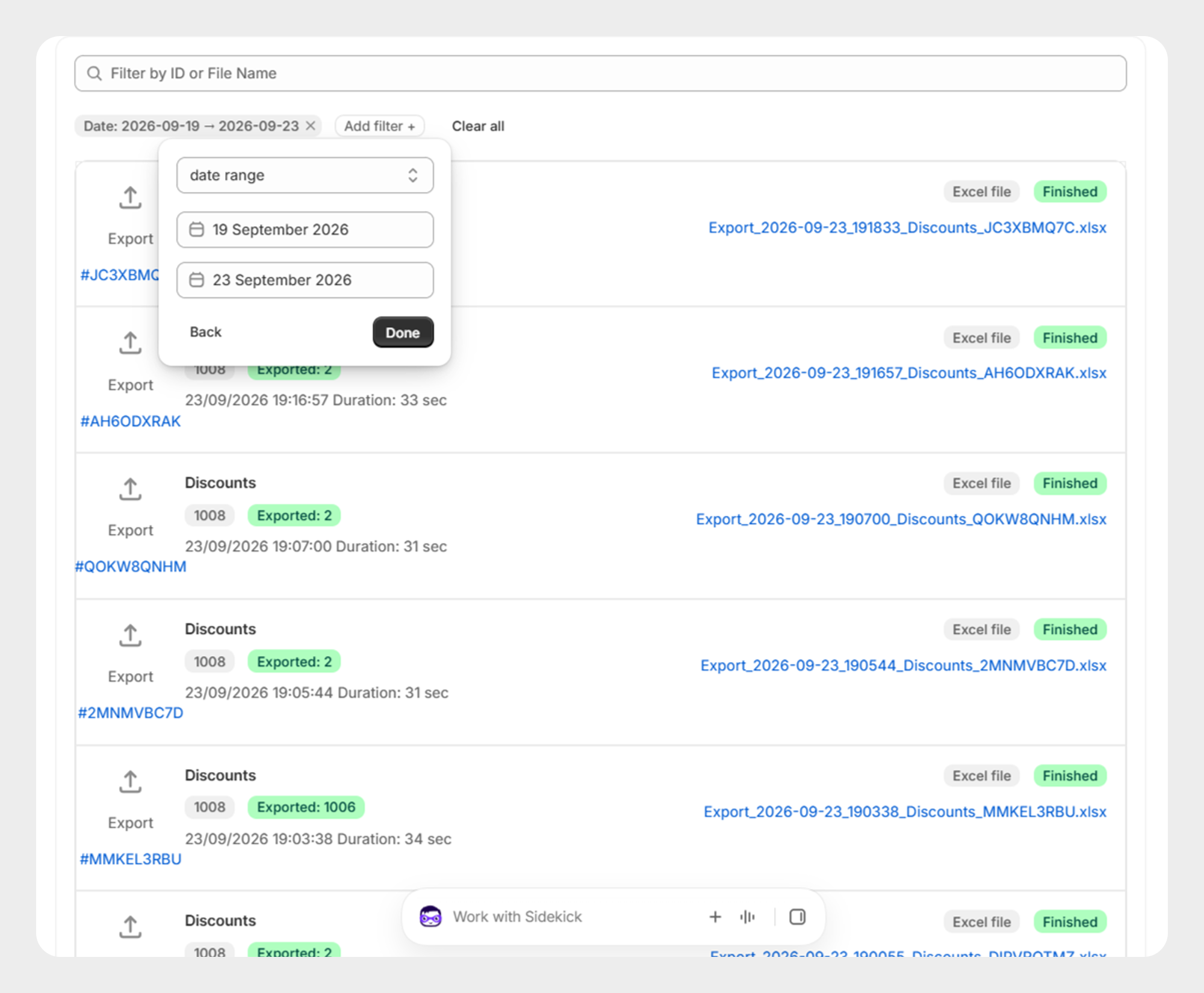
Example: exact date. To find jobs from a specific date:
- Click Add filter.
- Select Date.
- Select Exact date.
- Select the required date.
- Apply the filter.
Migrato will display jobs matching the selected date.
Example: date range. To find jobs within a period:
- Click Add filter.
- Select Date.
- Select Date range.
- Enter the required date range.
- Apply the filter.
Migrato will display jobs within the selected date range.
Using multiple job filters
You can apply multiple filters at the same time to narrow down the job list.
For example, you can combine:
-
State = Finished
-
Entity = Products
-
Queue = Export
-
Date = Exact date
This allows you to locate completed Product export jobs from a specific date.
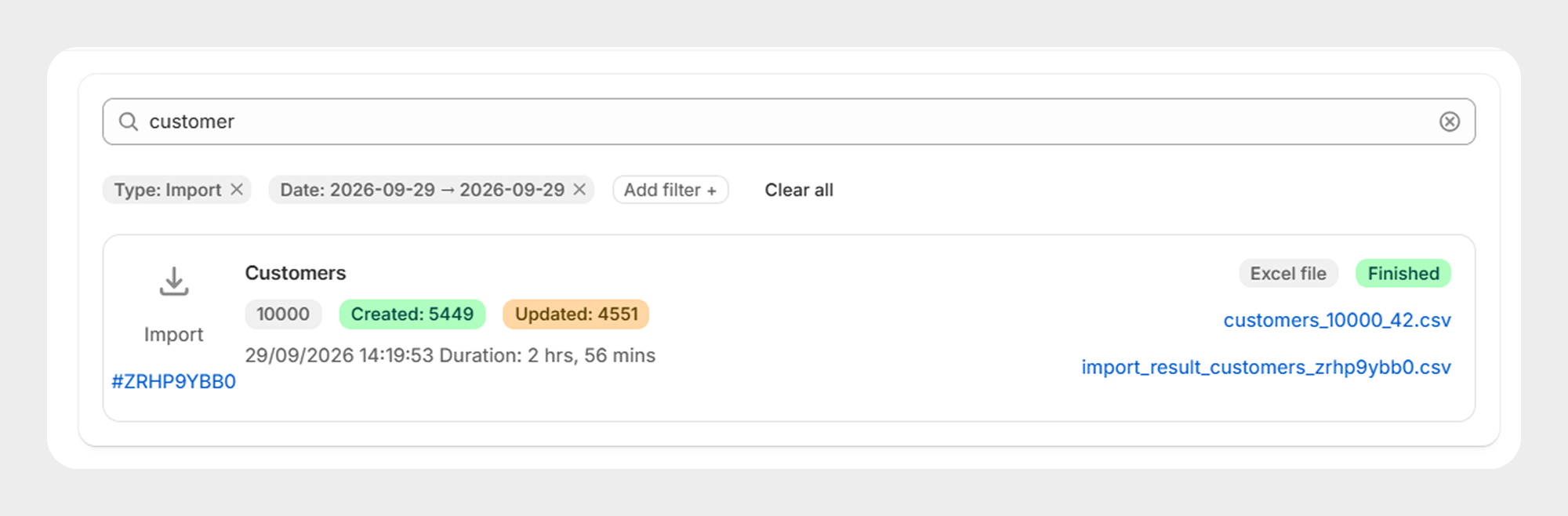
Example: Find completed customer imports
You can use:
Migrato will display finished Customer import jobs matching the selected filters.
Example: Find processing product exports
You can use:
This helps identify Product export jobs that are currently being processed.
Example: Find jobs within a date range
You can use:
This allows you to review Order export jobs generated during the selected period.
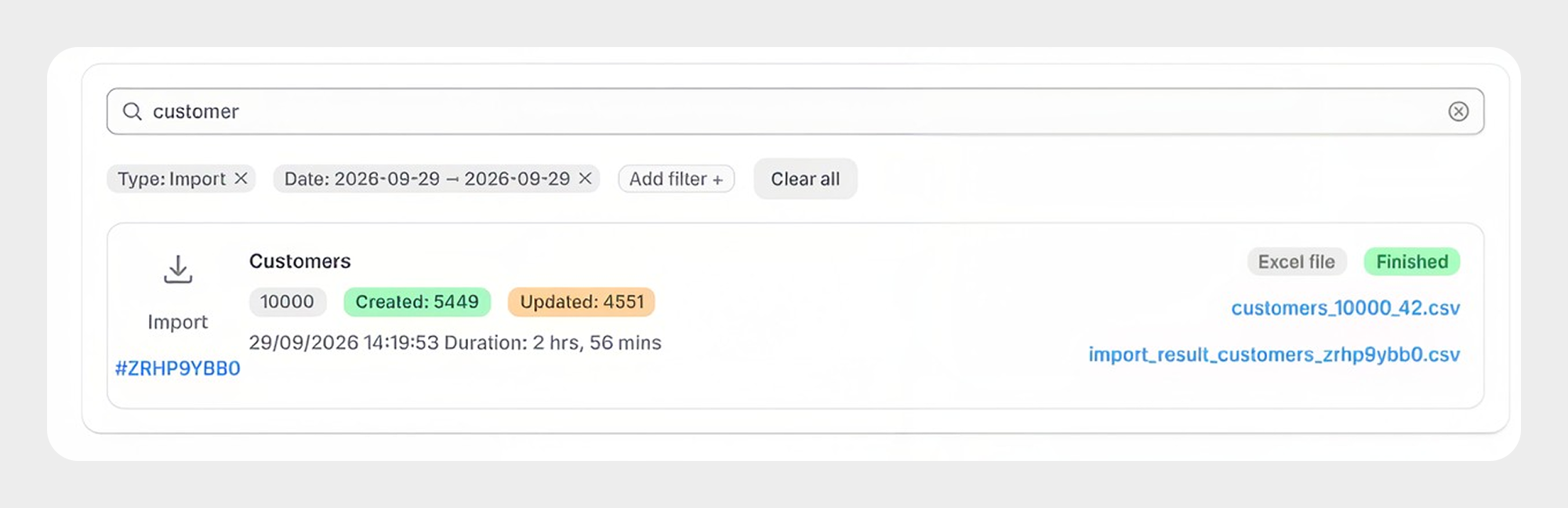
Clear job filters
When filters are applied, the selected filters are displayed above the job list.
To remove filters:
- Click the X on an individual filter to remove that filter.
- Use Clear all to remove all currently applied filters.
After clearing the filters, Migrato displays the available jobs without the removed filtering criteria.
Review import and export results
The All Jobs page can also be used to review files associated with completed jobs.
For example, an export job may display a generated Excel file, while an import job may display both the uploaded file and an import result file. You can use these files to:
-
Review exported data.
-
Review imported records.
-
Check import results.
-
Identify records that require attention.
-
Keep a record of completed import/export operations.
Managing scheduled jobs
Scheduled import and export operations appear in the job management area when they are created and processed by Migrato.
Use the All Jobs page to:
-
Search for jobs by ID or file name.
-
Filter jobs by state.
-
Filter jobs by entity.
-
Filter jobs by Import or Export queue.
-
Filter jobs by exact date.
-
Filter jobs by date range.
-
Review processing counts.
-
Review job duration.
-
Access available job files and result files.
For recurring import or export operations, use the scheduling options during job configuration and use All Jobs to monitor the resulting jobs and review their processing status.
 Free plan forever