 Our first app, Migrato, is live on the Shopify App Store

Filter Companies
Export only the B2B companies you need, using filters and conditions. 5 min read
 Updated 14 October 2026
 Applies to Migrato on all plans
Migrato allows you to export specific Shopify Companies by applying filters before starting an export. This is especially useful when working with a large B2B Company dataset and you only need Companies that match specific conditions.
You can filter Companies using supported Company information such as ID, Name, External ID, Created At, and Updated At.
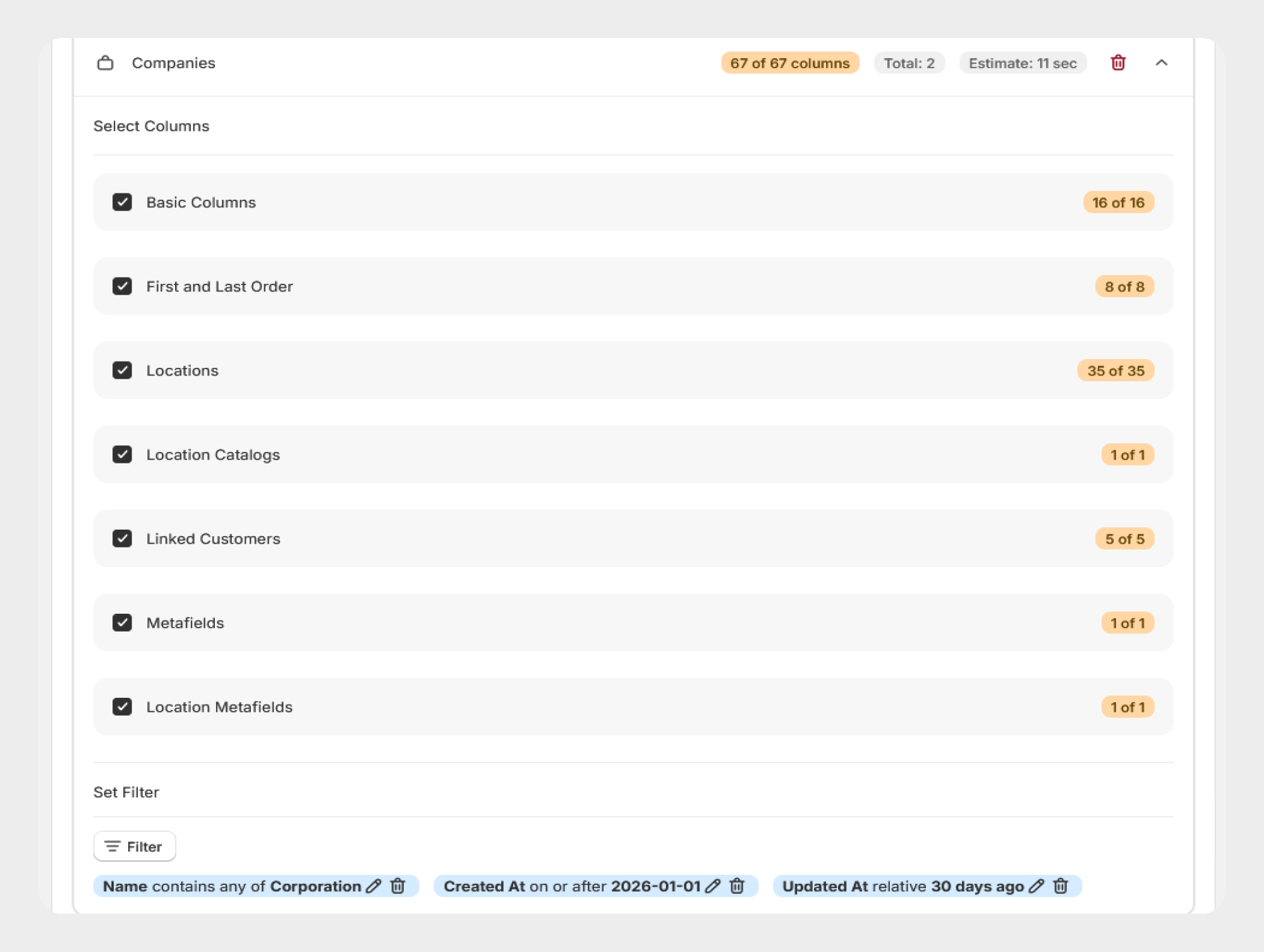
How to Filter Companies for Export
Follow these steps to export Companies based on specific conditions.
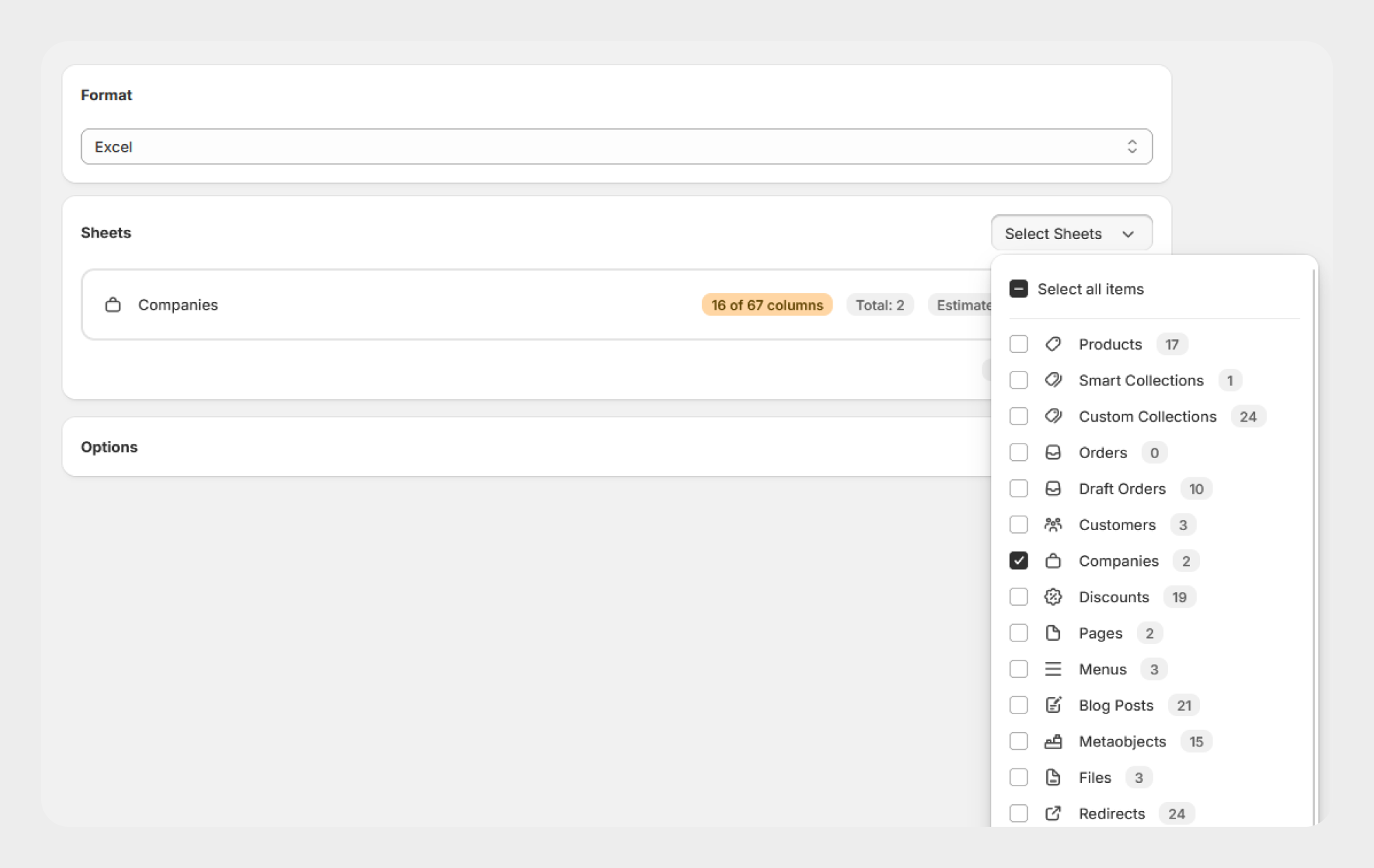
Step 1: Open Company Export
- Open Shopify Admin.
- Go to Apps → Migrato.
- Open the Export section.
- Select Companies as the entity you want to export.
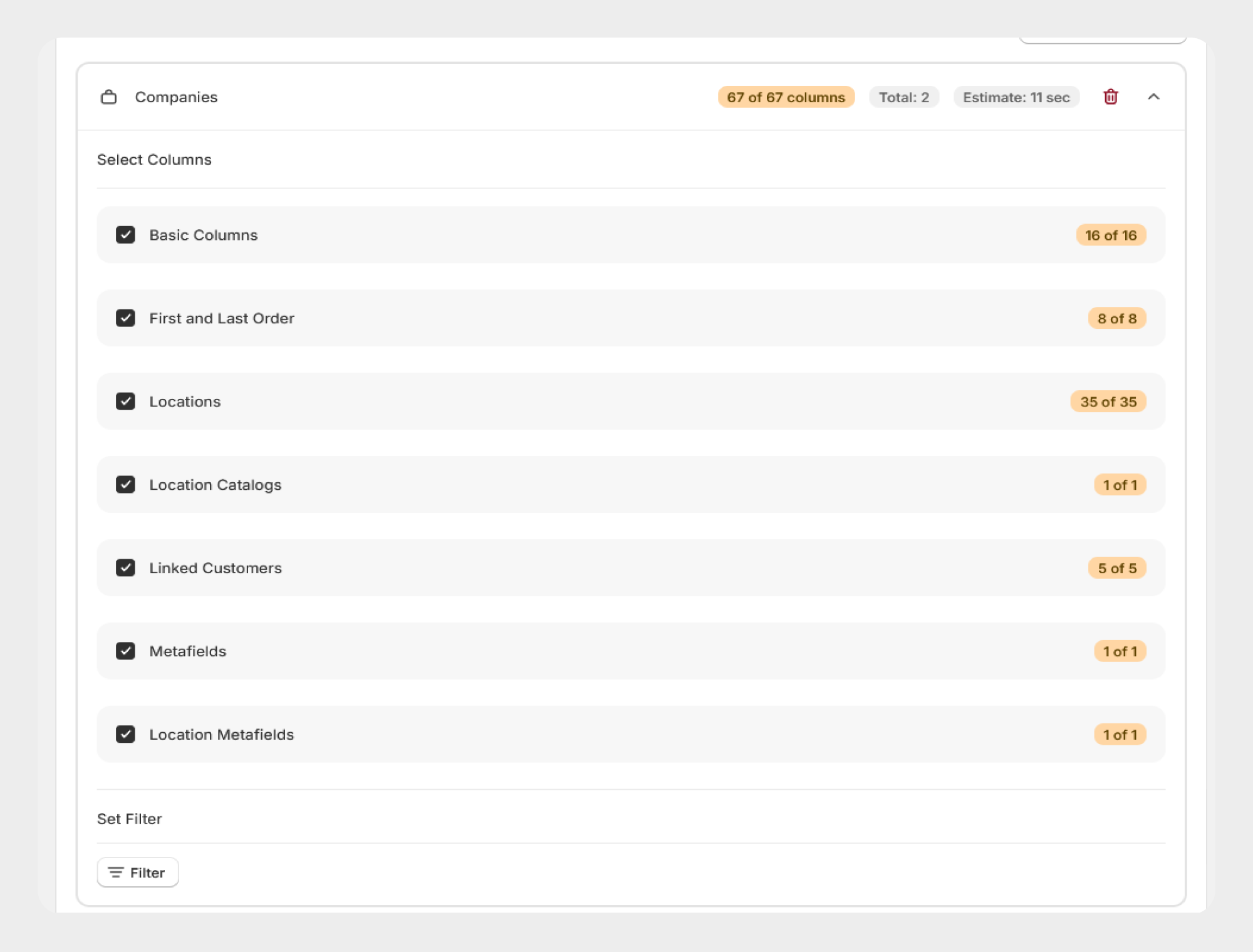
Step 2: Select Company Fields
Select the Company fields and information you want to include in the export file.
You can select the required fields based on your export requirements.
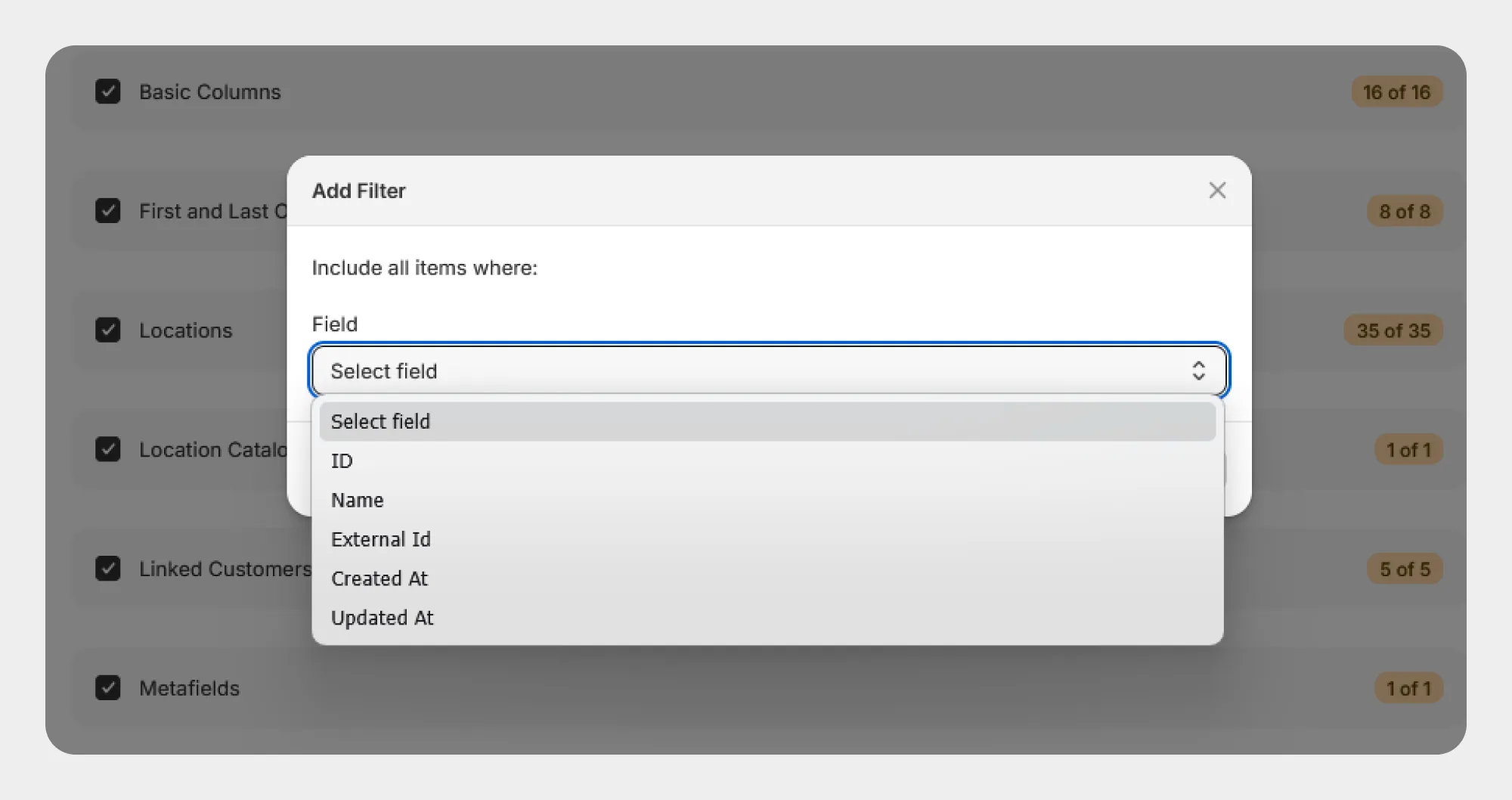
Step 3: Add Company Filters
Open the Filters section and click Add New Filter.
- Select the Company field you want to use as a filter.
- Select the required condition.
- Enter or select the filter value.
- Add additional filters if required.
Step 4: Review the Filters
Review all selected filter conditions before starting the export.
For example, you can create an export using:
-
 Name = ABC Corporation
-
Created At = On or after January 1, 2026
-
Updated At = On or after January 1, 2026
Step 5: Start the Export
Once the filters have been configured:
- Review the selected Company fields.
- Review the filter conditions.
- Confirm the export settings.
- Start the export.
Migrato will process the export based on the selected filter conditions.
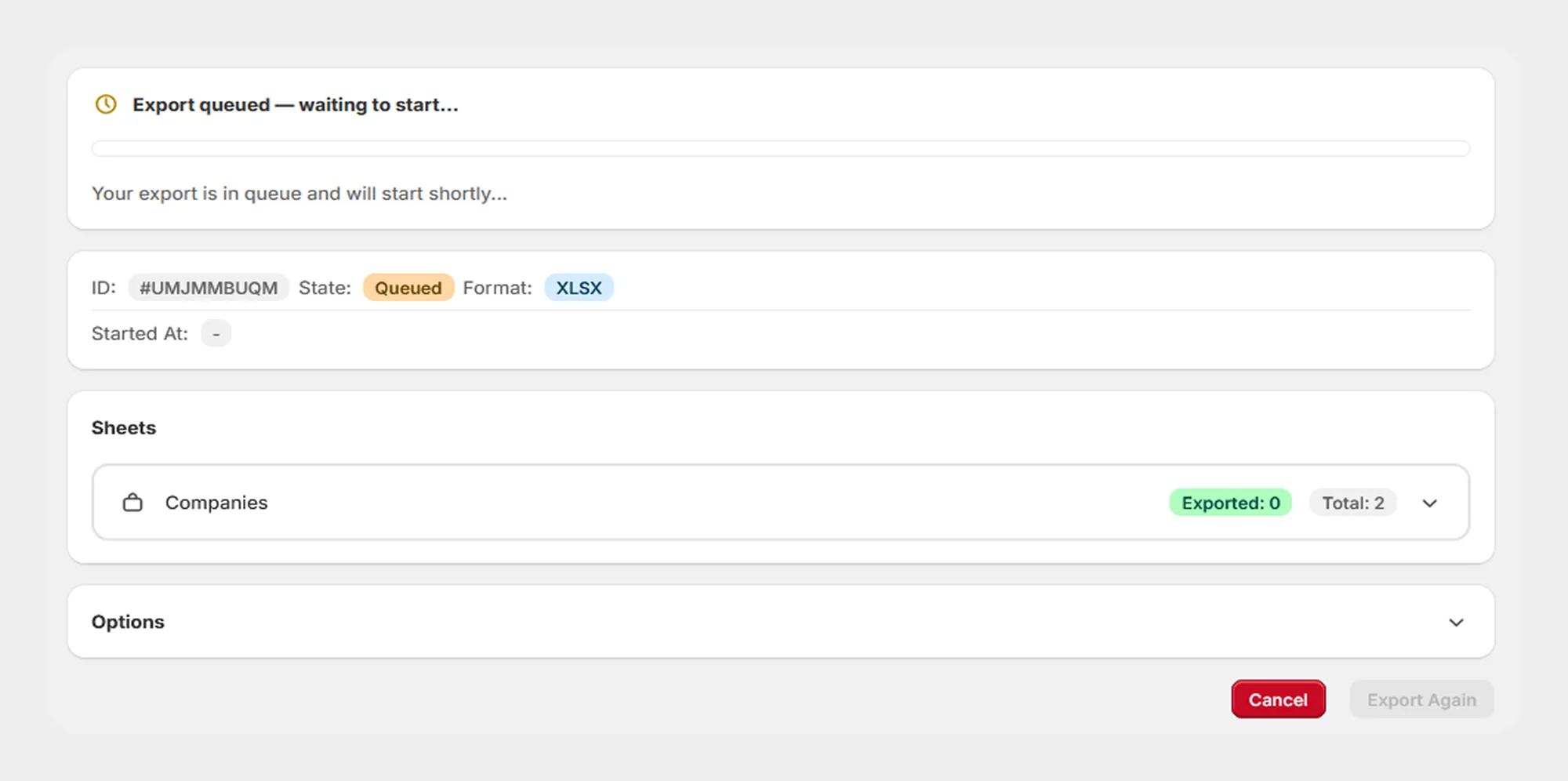
Available Company Filters
Migrato currently provides the following fields in the Company Filter dropdown.
| Filter | Description | Available Conditions |
|---|---|---|
| ID | Filter Companies using their Shopify Company ID. | Equals to any of; Not equal to any of |
| Name | Filter Companies based on their Company name. | Equals to any of; Not equal to any of; Contains any; Contains none |
| External ID | Filter Companies based on their external identifier. | Equals to any of; Not equal to any of; Contains any; Contains none |
| Created At | Filter Companies based on when they were created. | On or after; On or before; Date range; Relative date |
| Updated At | Filter Companies based on when they were last updated. | On or after; On or before; Date range; Relative date |
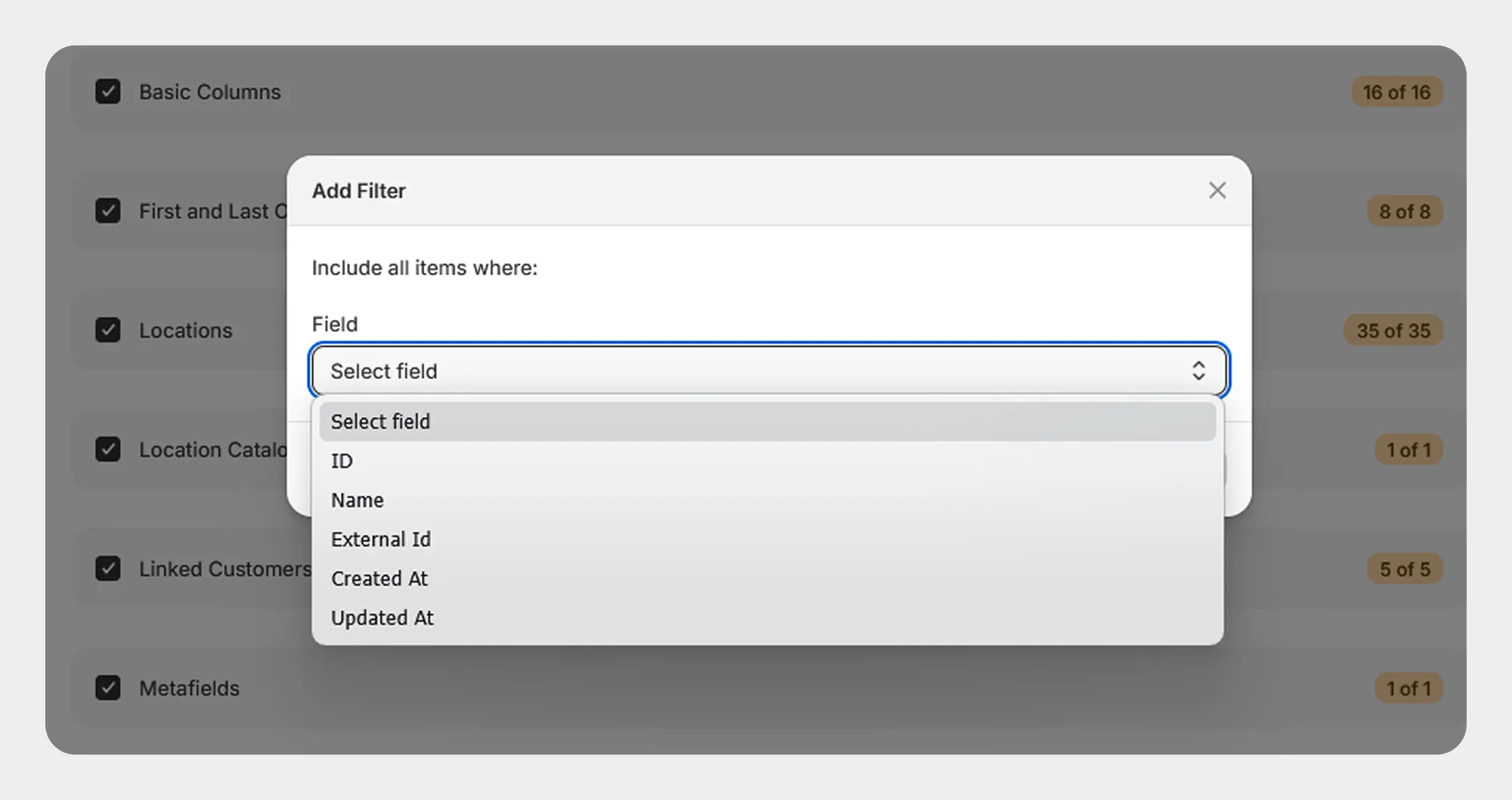
The exact conditions displayed for each filter depend on the selected field and the current Migrato implementation.
Filter Conditions
Migrato provides different conditions depending on the selected Company field.
Text-Based Conditions
| Condition | Description |
|---|---|
| Equals to any of | Exports Companies where the selected field matches any of the specified values. |
| Not equal to any of | Exports Companies where the selected field does not match any of the specified values. |
| Contains any | Exports Companies where the selected field contains any of the specified values. |
| Contains none | Exports Companies where the selected field does not contain any of the specified values. |
Date-Based Conditions
| Condition | Description |
|---|---|
| On or after | Exports Companies created or updated on or after the selected date. |
| On or before | Exports Companies created or updated on or before the selected date. |
| Date range | Exports Companies whose relevant date falls within the selected date range. |
| Relative date | Exports Companies based on a relative time period, such as the last few days, weeks, or months. |
Filter Examples
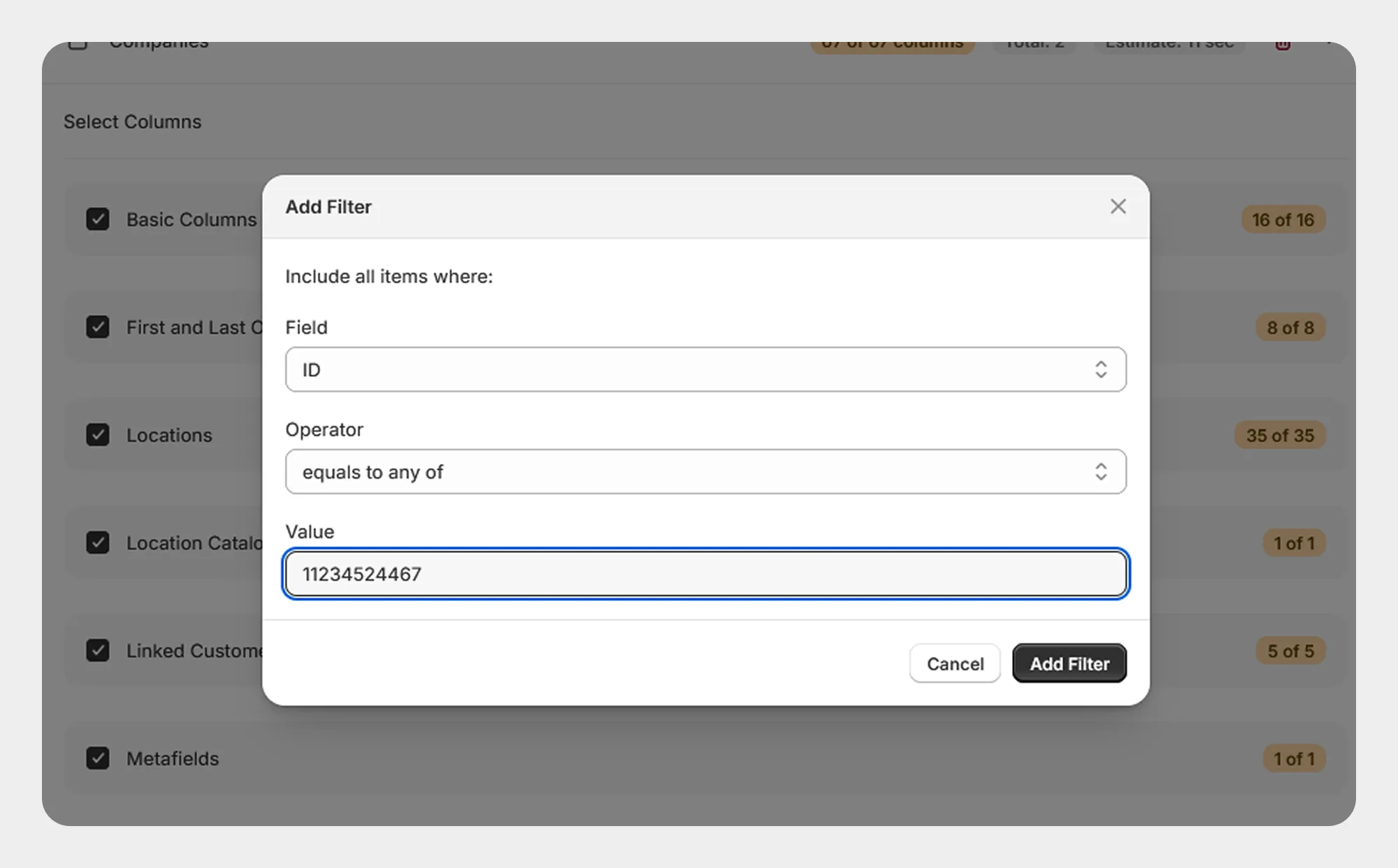
Example 1: Export a Specific Company by ID
To export a specific Company, use the ID filter.
Select:
ID → Equals to any of
Enter the required Company ID.
For example:
123456789
Migrato will export the Company matching the specified ID.
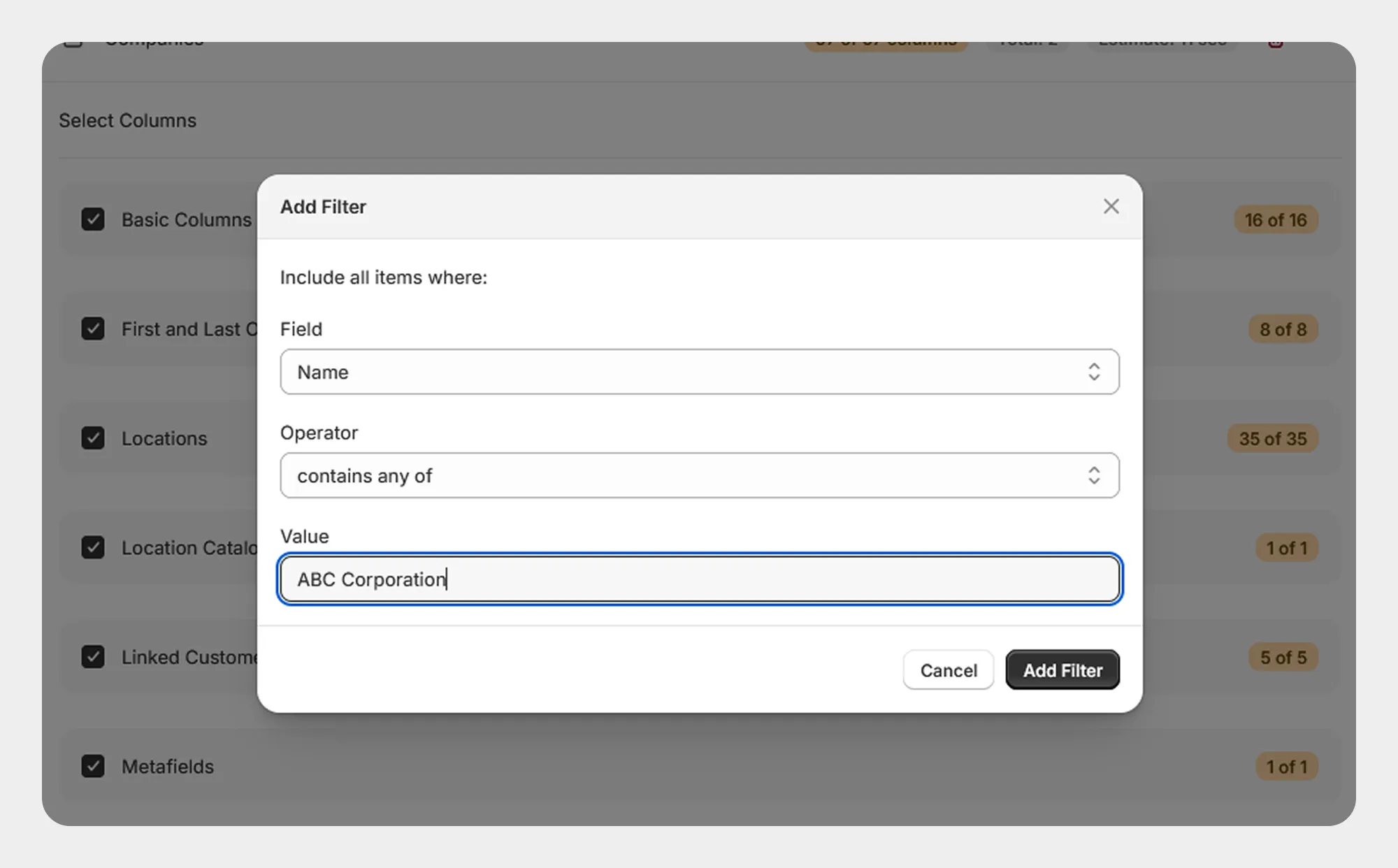
Example 2: Export Companies by Name
To export Companies with a specific name:
Name → Equals to any of
For example:
ABC Corporation
XYZ Industries
Migrato will export Companies whose names match the specified values.
Example 3: Export Companies Containing Specific Text
To find Companies whose names contain specific text:
Name → Contains any
For example:
Industries
Group
This can be useful when you want to export multiple Companies with similar names.
Example 4: Export Companies Created After a Specific Date
To export Companies created on or after a specific date:
Created At → On or after
For example:
January 1, 2026
Migrato will export Companies created on or after the selected date.
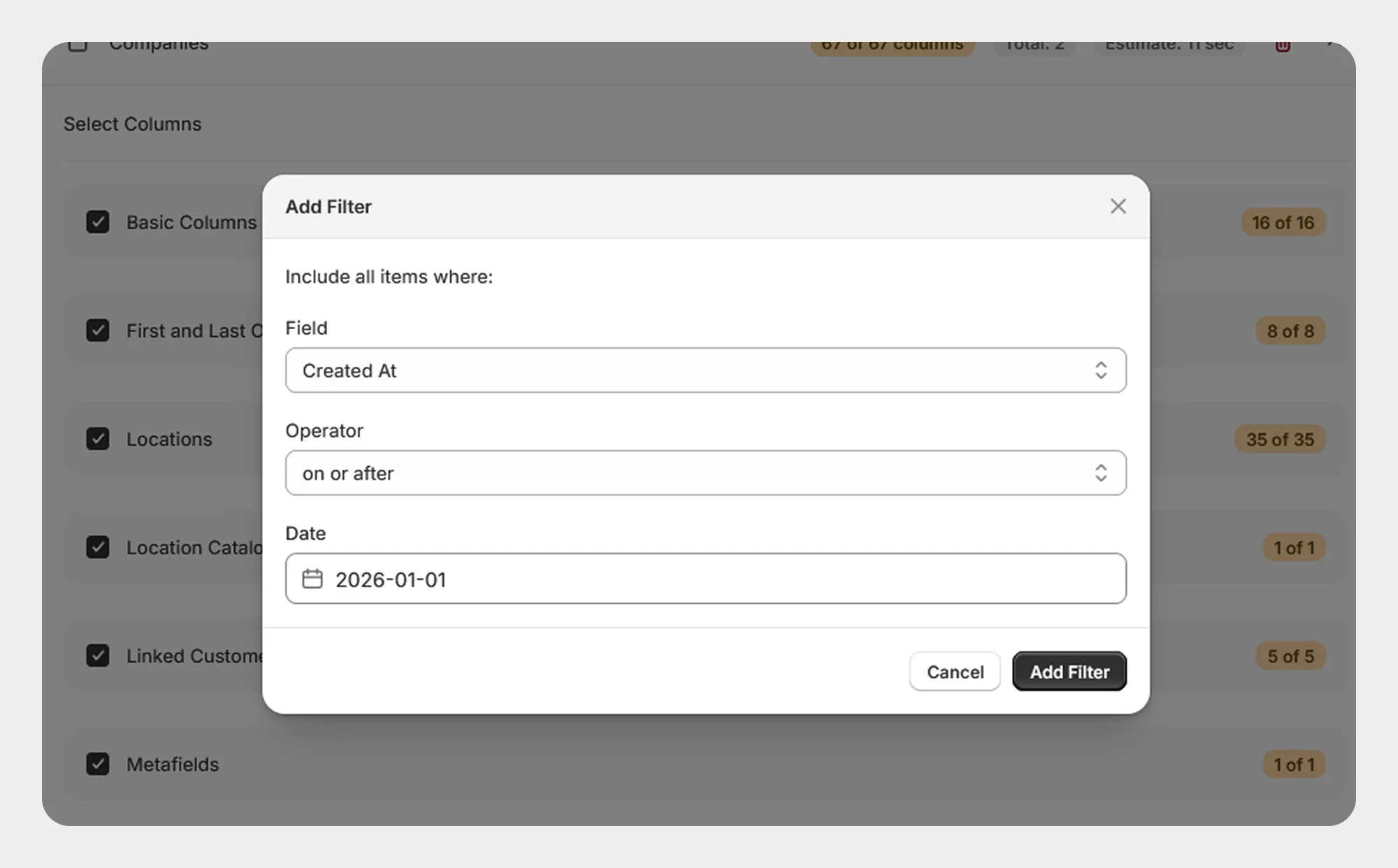
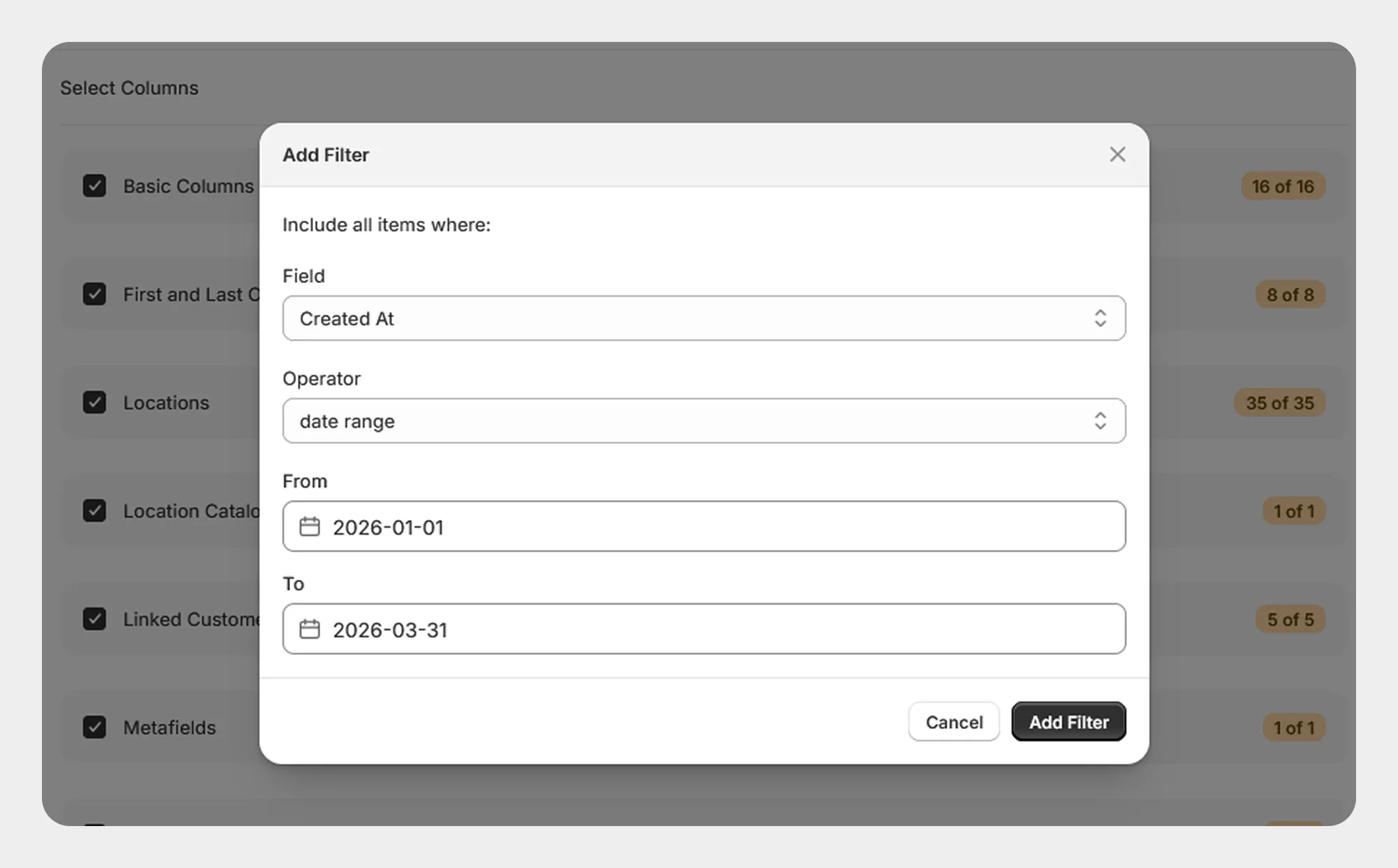
Example 5: Export Companies Created Within a Date Range
To export Companies created during a specific period:
Created At → Date range
For example:
January 1, 2026 → March 31, 2026
Migrato will export Companies created within the selected date range.
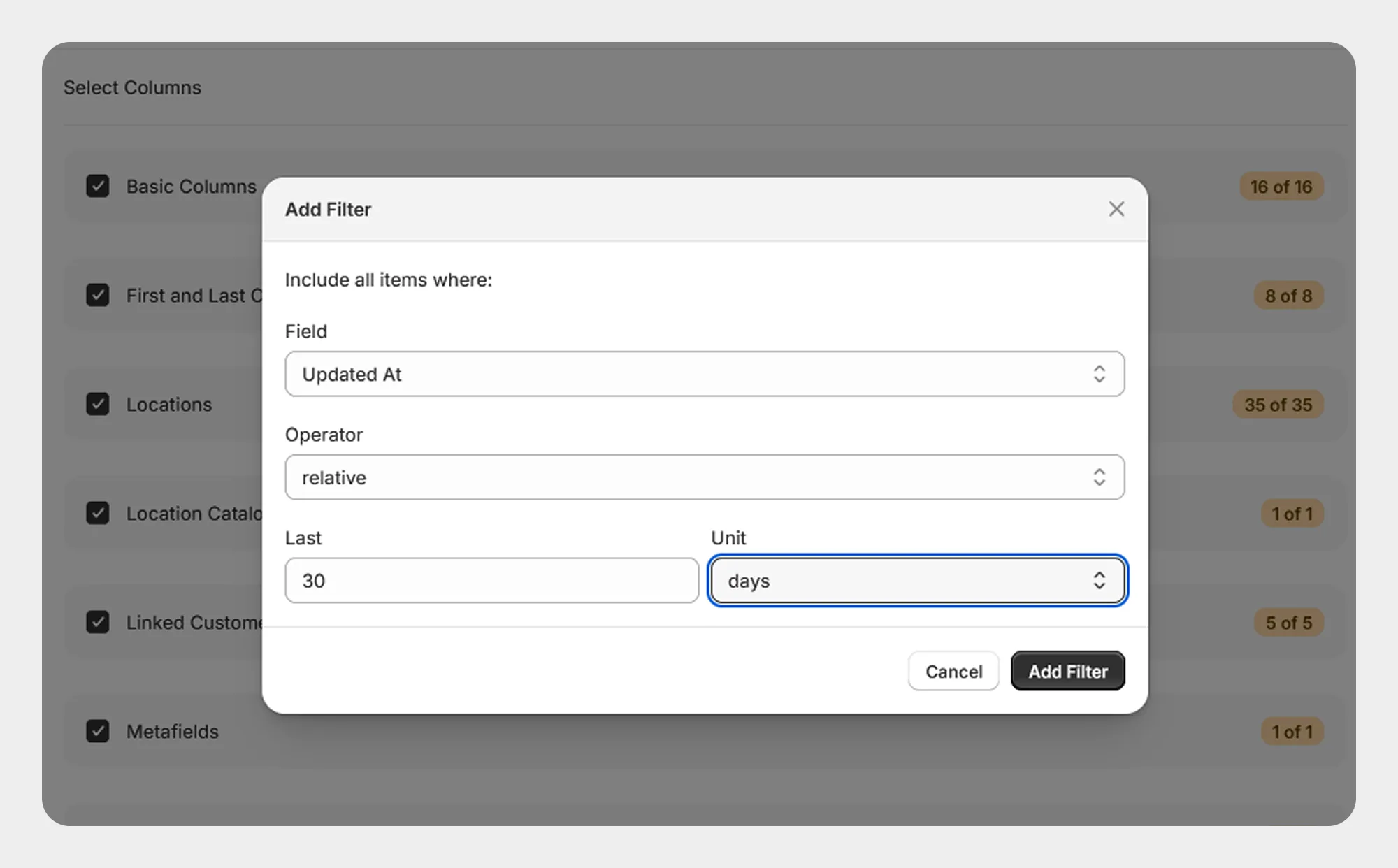
Example 6: Export Recently Updated Companies
You can use the Updated At filter with a relative date condition to export recently updated Companies.
For example:
Updated At → Relative date → Last 30 Days
This can be useful when regularly exporting recently changed Company information.
Using Multiple Filters
Migrato allows you to add multiple filters to create more targeted Company exports.
For example, you can combine:
-
Name → Contains any → Corporation
-
Created At → On or after → January 1, 2026
-
Updated At → Relative date → Last 30 Days
This allows you to export only Companies that match the selected criteria.
When using multiple filters, review each condition carefully before starting the export to ensure the resulting Company dataset matches your requirements.
Important Notes for Company Import/Export
-
Review the Company Template Documentation before preparing an import file.
-
Keep the supported column names unchanged.
-
Use a test file with a small number of Companies before processing a large dataset.
-
Carefully review the selected import operation before starting an import.
-
Take extra care when using Replace or Delete operations.
-
Make sure Company location and linked customer information follows the expected template structure.
-
When importing from a URL, make sure the file is publicly accessible.
-
Review the import results and error information after processing.
-
For exports, select only the Company fields required for your intended use.
-
Use filters when you need to export only a specific subset of Companies.
 Free plan forever