 Our first app, Migrato, is live on the Shopify App Store

Template Documentation
Every column in the Files template, what it holds and the values it accepts. 3 min read
 Updated 14 October 2026
 Applies to Migrato on all plans
File Template Documentation
Migrato uses a structured template for importing and exporting Shopify Files data.
The template defines the columns that can be used to transfer file information between Migrato and Shopify.
You can use the template to:
-
 Prepare File data for import.
-
Understand exported File data.
-
Modify exported File data before re-importing.
-
Migrate supported File information.
-
Review file properties in bulk.
-
Maintain a consistent File data structure.
Download the available File Demo CSV/XLSX file or export a sample File from Migrato to understand the current template structure.
File Template Structure
The current Migrato File template contains 15 columns, organized into two groups:
| Group | Number of Columns |
|---|---|
| Basic Columns | 12 |
| Size | 3 |
| Total | 15 |
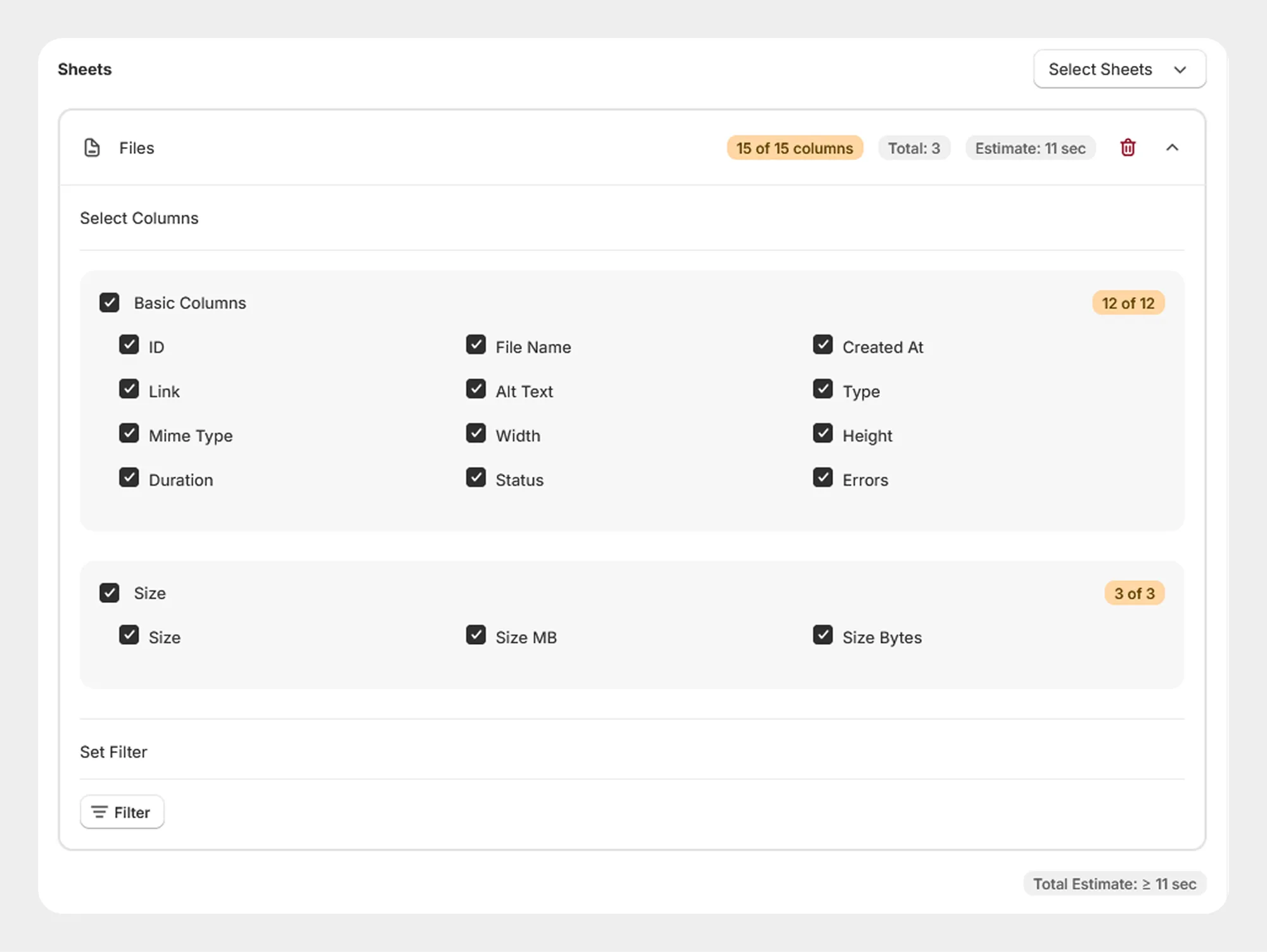
1. Basic Columns
The Basic Columns group contains the primary information associated with a Shopify File.
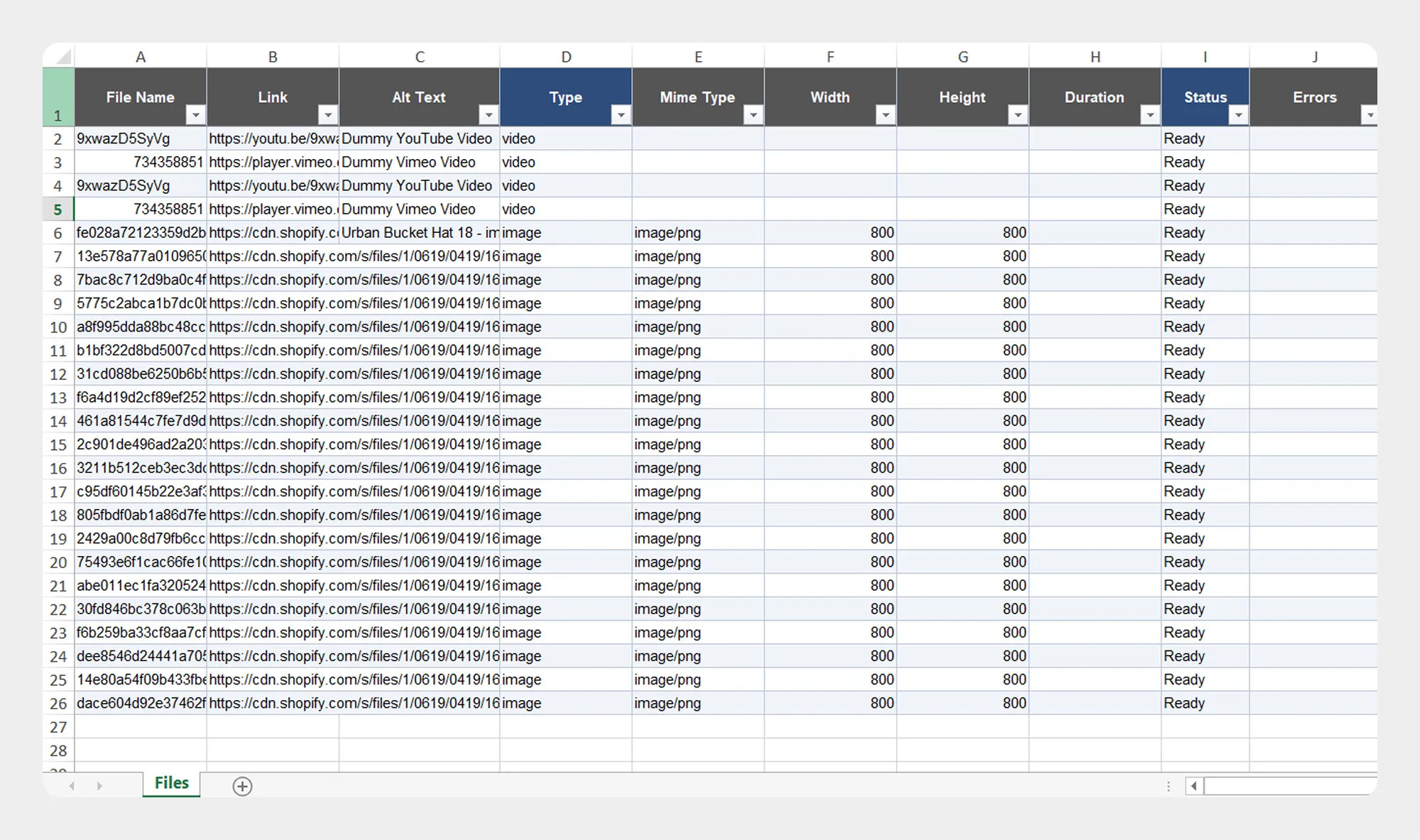
| Column | Description | Allowed Values / Examples |
|---|---|---|
| ID | Unique Shopify identifier assigned to the file. | Number / Shopify File ID |
| File Name | Name of the file. | Text — product-banner.jpg |
| Created At | Date and time when the file was created. | Date/time |
| Link | URL associated with the file. | URL |
| Alt Text | Alternative text associated with the file. | Text — Product banner image |
| Type | Type of file. | Supported Shopify file type |
| Mime Type | MIME type associated with the file. | image/jpeg, image/png |
| Width | Width of the file or image, where applicable. | Numeric value — 1200 |
| Height | Height of the file or image, where applicable. | Numeric value — 800 |
| Duration | Duration of the file, where applicable. | Numeric value |
| Status | Current status of the file. | Supported Shopify file status |
| Errors | Error information associated with the file, where applicable. | Text / Error details |
2. Size
The Size group contains information about the size of the file.
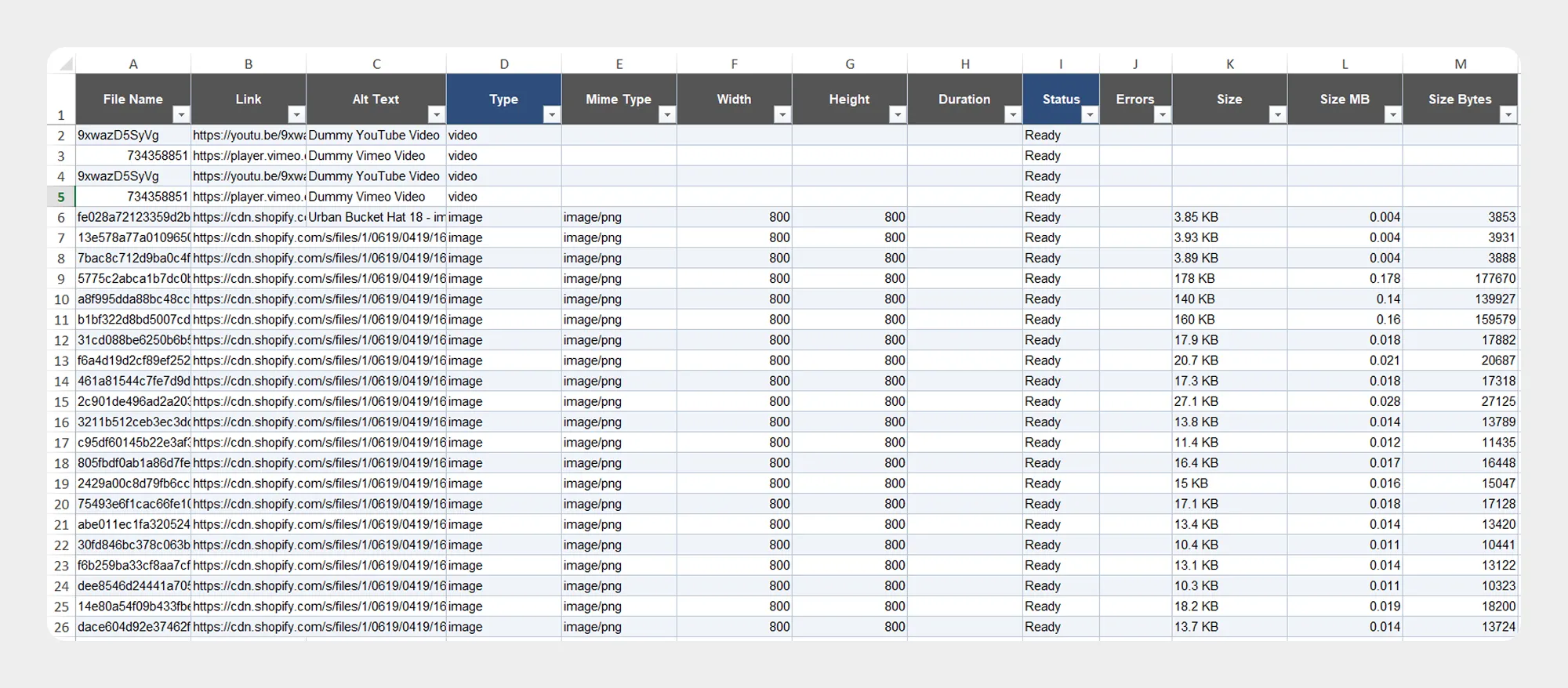
| Column | Description | Allowed Values / Examples |
|---|---|---|
| Size | File size information. | Numeric value |
| Size MB | File size expressed in megabytes. | Numeric value — 2.45 |
| Size Bytes | File size expressed in bytes. | Numeric value — 2569012 |
File Template Example
A File import/export file can contain the supported columns in the following structure:
| Column | Example value |
|---|---|
| ID | 123456789 |
| File Name | product-banner.jpg |
| Created At | 2026-01-15 10:30:00 |
| Link | https://example.com/product-banner.jpg |
| Alt Text | Product banner |
| Type | IMAGE |
| Mime Type | image/jpeg |
| Width | 1200 |
| Height | 800 |
| Duration | – |
| Status | READY |
| Errors | – |
| Size | 2.45 MB |
| Size MB | 2.45 |
| Size Bytes | 2569012 |
The example demonstrates the structure of the Migrato File template. The actual values available for import or export depend on the current Migrato implementation.
Preparing a File Import
When preparing a File import file:
- Download the File Demo CSV/XLSX file, if available.
- Review the File Template Documentation.
- Keep the supported column names unchanged.
- Enter the File data according to the expected format.
- Save the file as CSV or XLSX.
- Upload the file to Migrato or provide its publicly accessible URL.
- Select the required import operation.
- Review the imported data before starting the job.
For the safest workflow, use a Migrato-generated File export as a reference when preparing data for a subsequent import.
Important Notes
-
ID identifies the Shopify File record.
-
File Name contains the name of the file.
-
Link contains the URL associated with the file.
-
Alt Text can contain descriptive alternative text where supported.
-
Width and Height apply where the file type provides dimensional information.
-
Duration applies where the file type provides duration information.
-
Status and Errors provide information about the current state or processing of the file.
-
Size, Size MB, and Size Bytes provide file-size information.
-
Some fields may be system-generated or read-only depending on the current Migrato implementation.
-
Always review the current Migrato template before preparing a large import.
 Free plan forever