 Our first app, Migrato, is live on the Shopify App Store

Filter Customers
Export only the customers you need, using filters and conditions. 6 min read
 Updated 14 October 2026
 Applies to Migrato on all plans
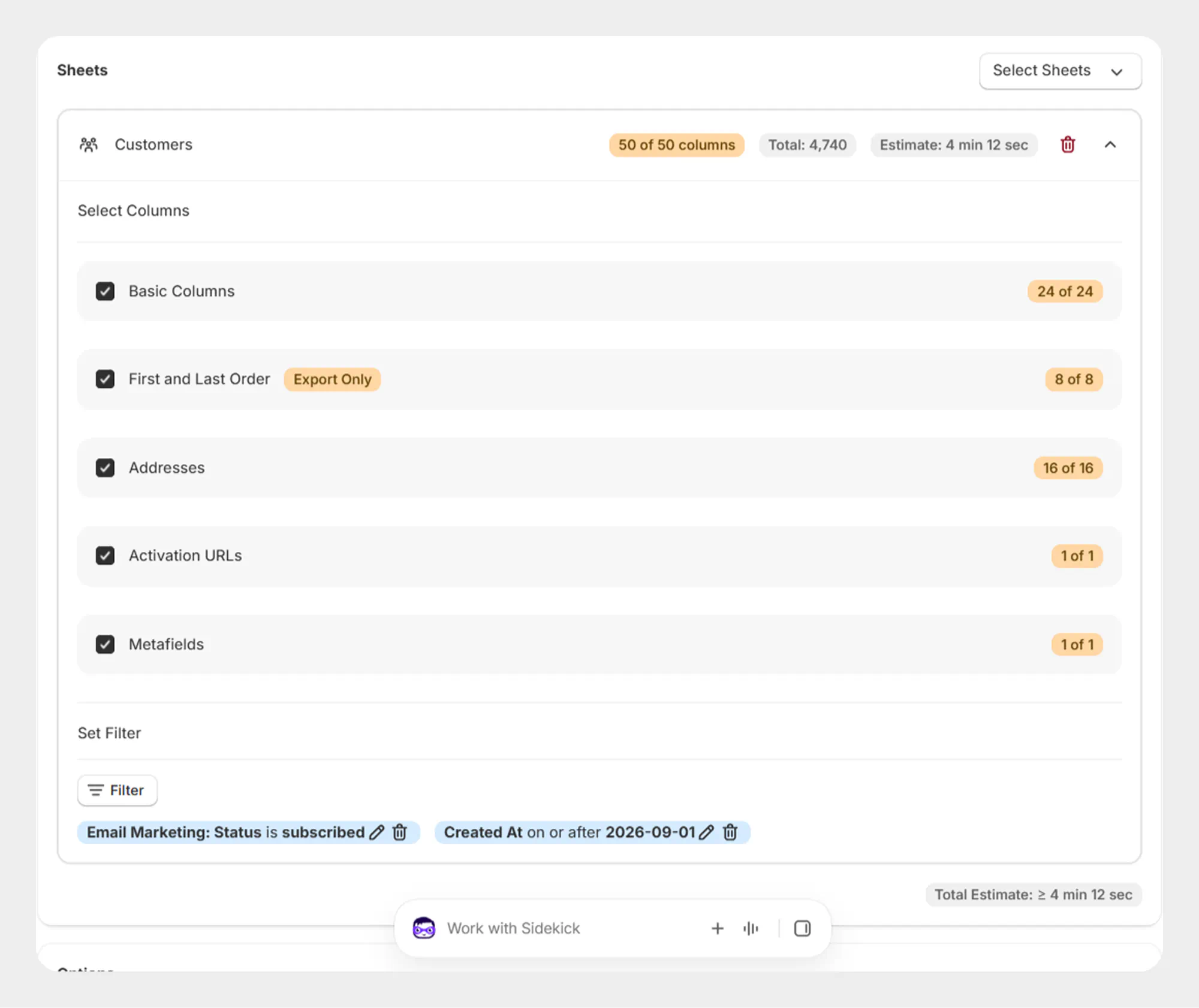
Migrato allows you to export specific Shopify customers by applying filters before starting an export.
This is particularly useful when working with a large customer database and you only need to export customers that match specific conditions.
You can filter customers using supported customer information such as Customer ID, email address, creation date, update date, tags, address country, email marketing status, and tax exemption status.
Available Customer Filters
Migrato currently provides the following fields in the Customer Filter dropdown.
| Filter | Description | Available Conditions |
|---|---|---|
| ID | Filters customers using their Shopify customer ID. | Equals to any of; Not equal to any of |
| Filters customers based on their email address. | Equals to any of; Not equal to any of; Contains any; Contains none | |
| Created At | Filters customers based on when they were created. | On or after; On or before; Date range; Relative date |
| Updated At | Filters customers based on when they were last updated. | On or after; On or before; Date range; Relative date |
| Tags | Filters customers based on tags assigned to them. | Equals to any of; Not equal to any of; Contains any; Contains none |
| Address: Country | Filters customers based on the country associated with their address. | Equals to any of; Not equal to any of; Contains any; Contains none |
| Email Marketing: Status | Filters customers based on their email marketing subscription status. | Supported Shopify marketing status values |
| Tax Exempt | Filters customers based on whether they are tax exempt. | Yes; No |
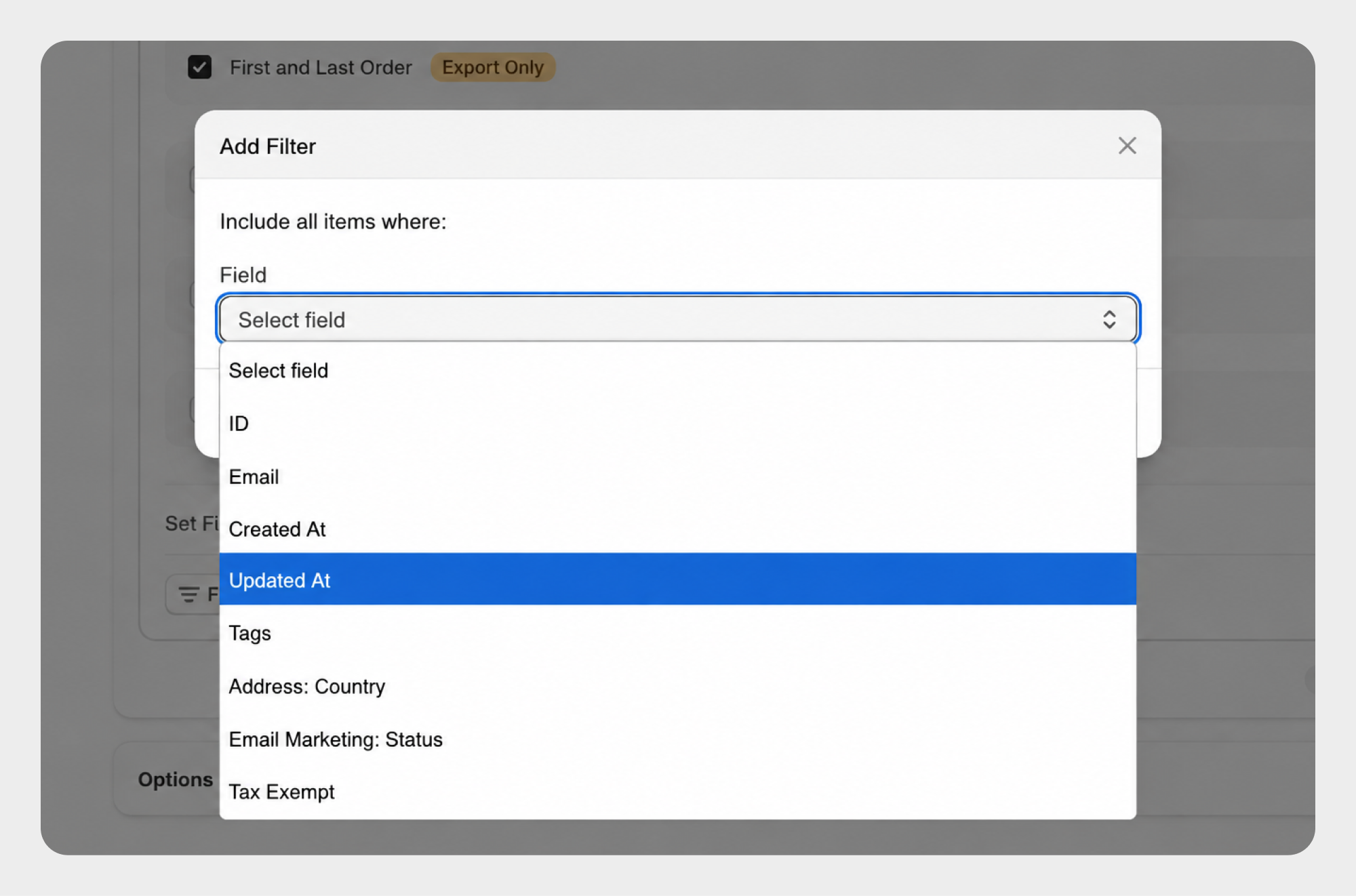
The exact conditions and values available for a filter may depend on the selected field and the current Migrato version.
Filter Conditions
Migrato provides different conditions depending on the selected customer field.
Text-Based Conditions
| Condition | Description |
|---|---|
| Equals to any of | Exports customers where the selected field matches any of the specified values. |
| Not equal to any of | Exports customers where the selected field does not match any of the specified values. |
| Contains any | Exports customers where the selected field contains any of the specified values. |
| Contains none | Exports customers where the selected field does not contain any of the specified values. |
| Contains | Exports customers where the selected field contains the specified text. |
| Does not contain | Exports customers where the selected field does not contain the specified text. |
Date-Based Conditions
| Condition | Description |
|---|---|
| On or after | Exports customers created or updated on or after the selected date. |
| On or before | Exports customers created or updated on or before the selected date. |
| Date range | Exports customers whose creation or update date falls within the selected date range. |
| Relative date | Exports customers based on a relative time period, such as the last few days, weeks, or months. |
Marketing Status Conditions
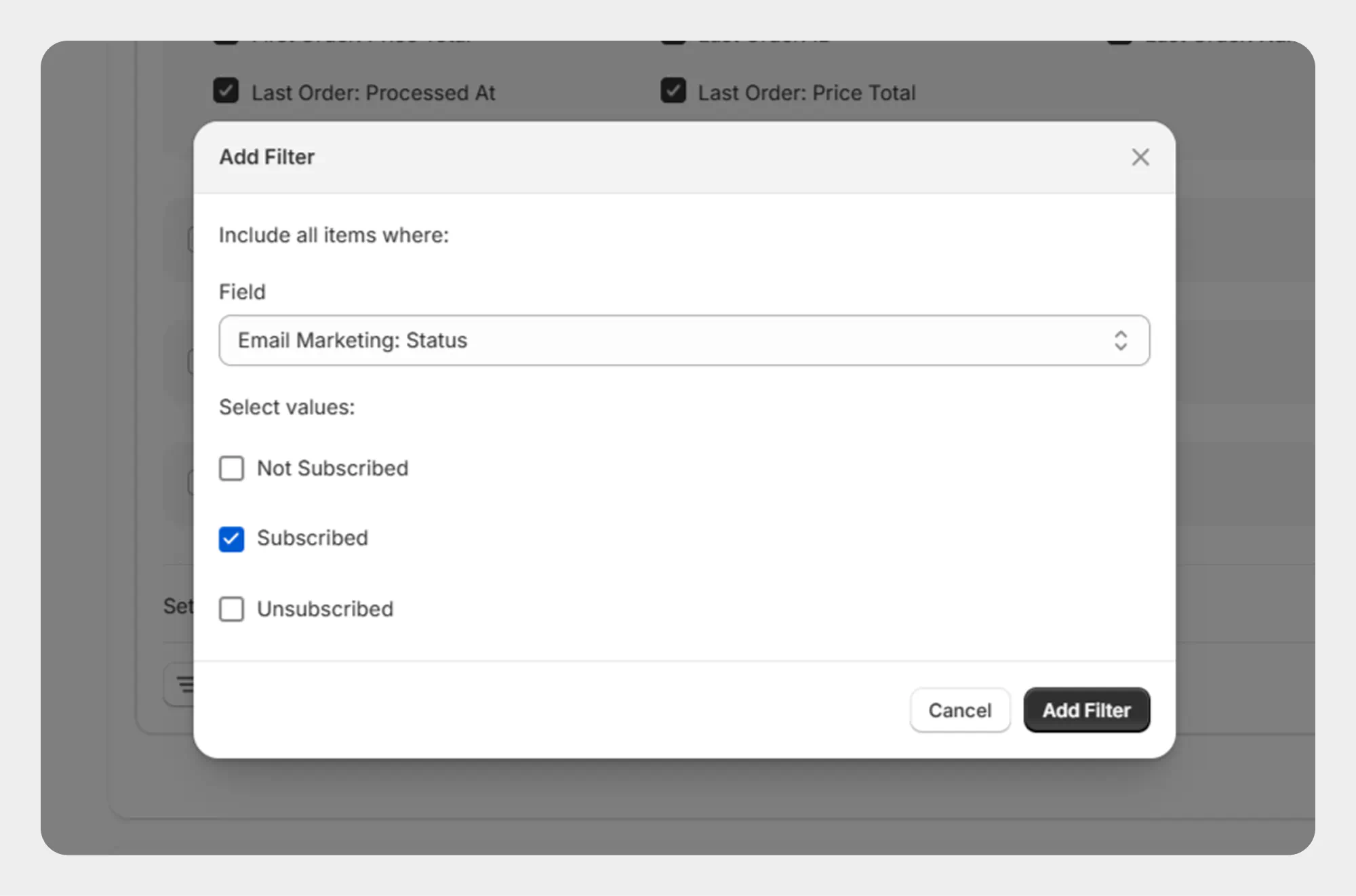
The available values for Email Marketing: Status depend on the customer marketing status supported by Shopify and Migrato.
| Condition / Value | Description |
|---|---|
| Supported Marketing Status | Exports customers whose email marketing status matches the selected value. |
Boolean Conditions
| Condition | Description |
|---|---|
| Yes | Exports customers where the selected setting is enabled or true. |
| No | Exports customers where the selected setting is disabled or false. |
The Tax Exempt filter uses these Boolean conditions.
How to Filter Customers for Export
Follow these steps to export customers based on specific conditions.
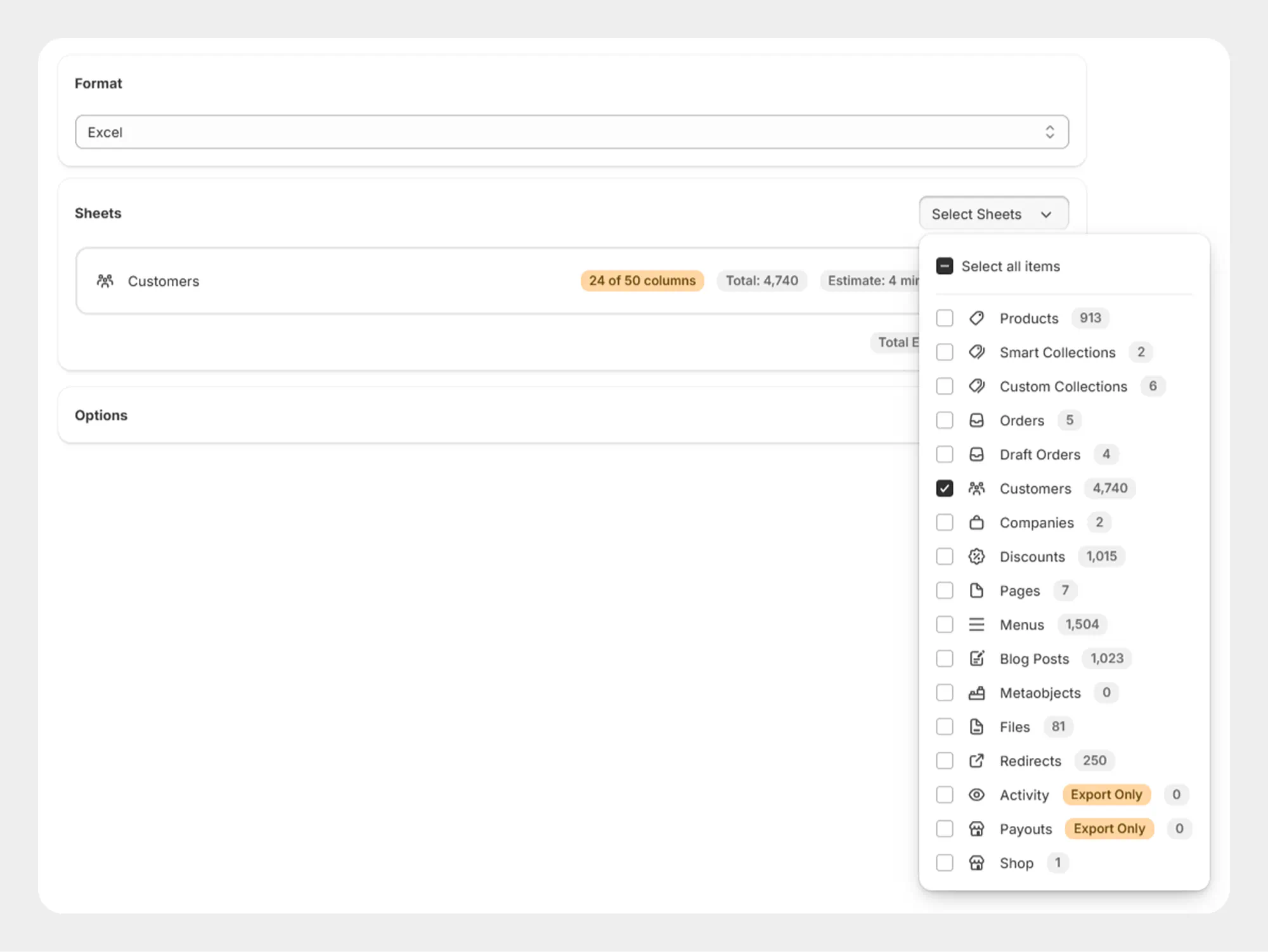
Step 1: Open Customer Export
- Open Shopify Admin.
- Go to Apps → Migrato.
- Open the Export section.
- Select Customers as the entity you want to export.
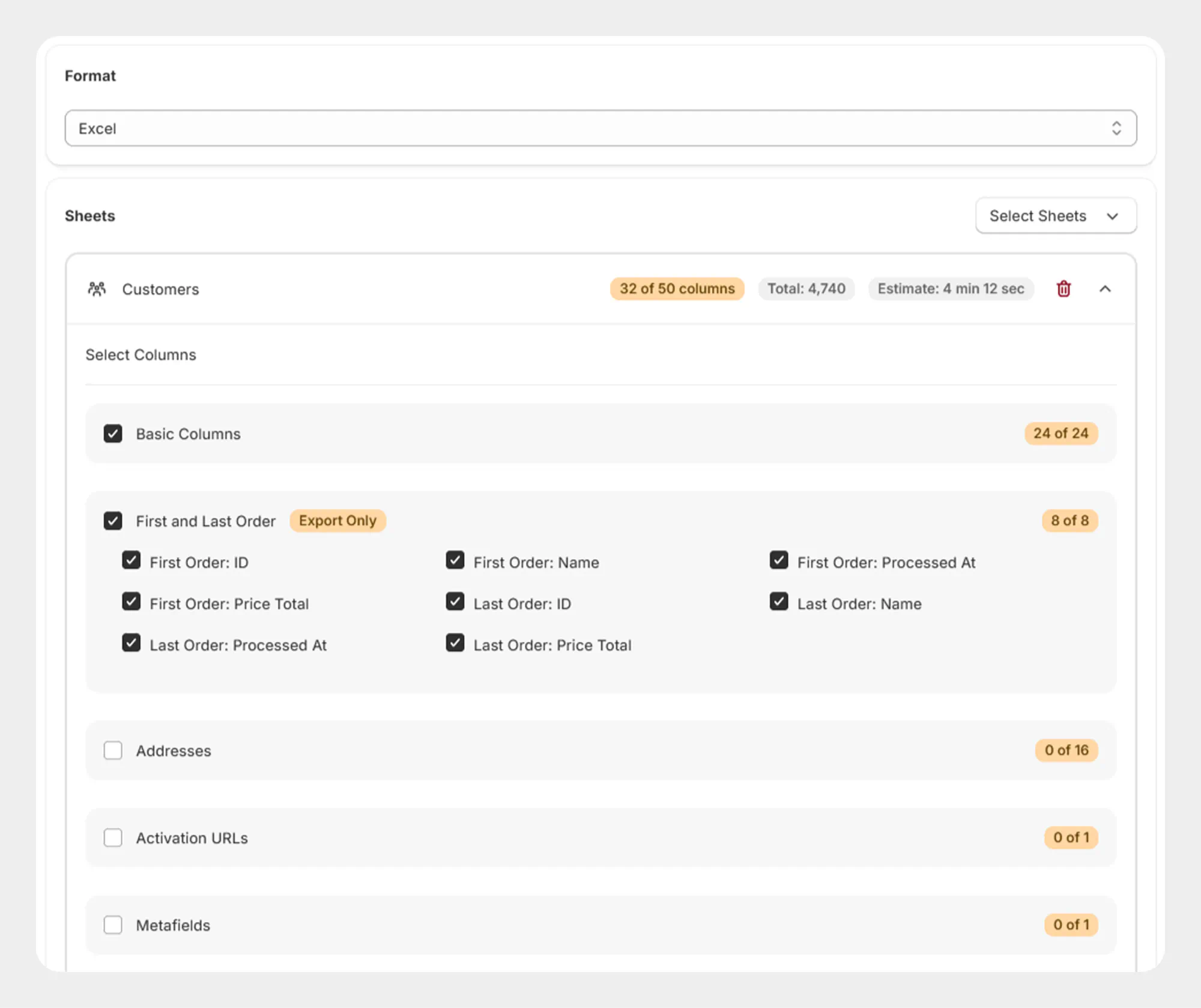
Step 2: Select Customer Fields
Select the customer fields and information you want to include in the export file.
You can select the required fields based on your export requirements.
Step 3: Add Customer Filters
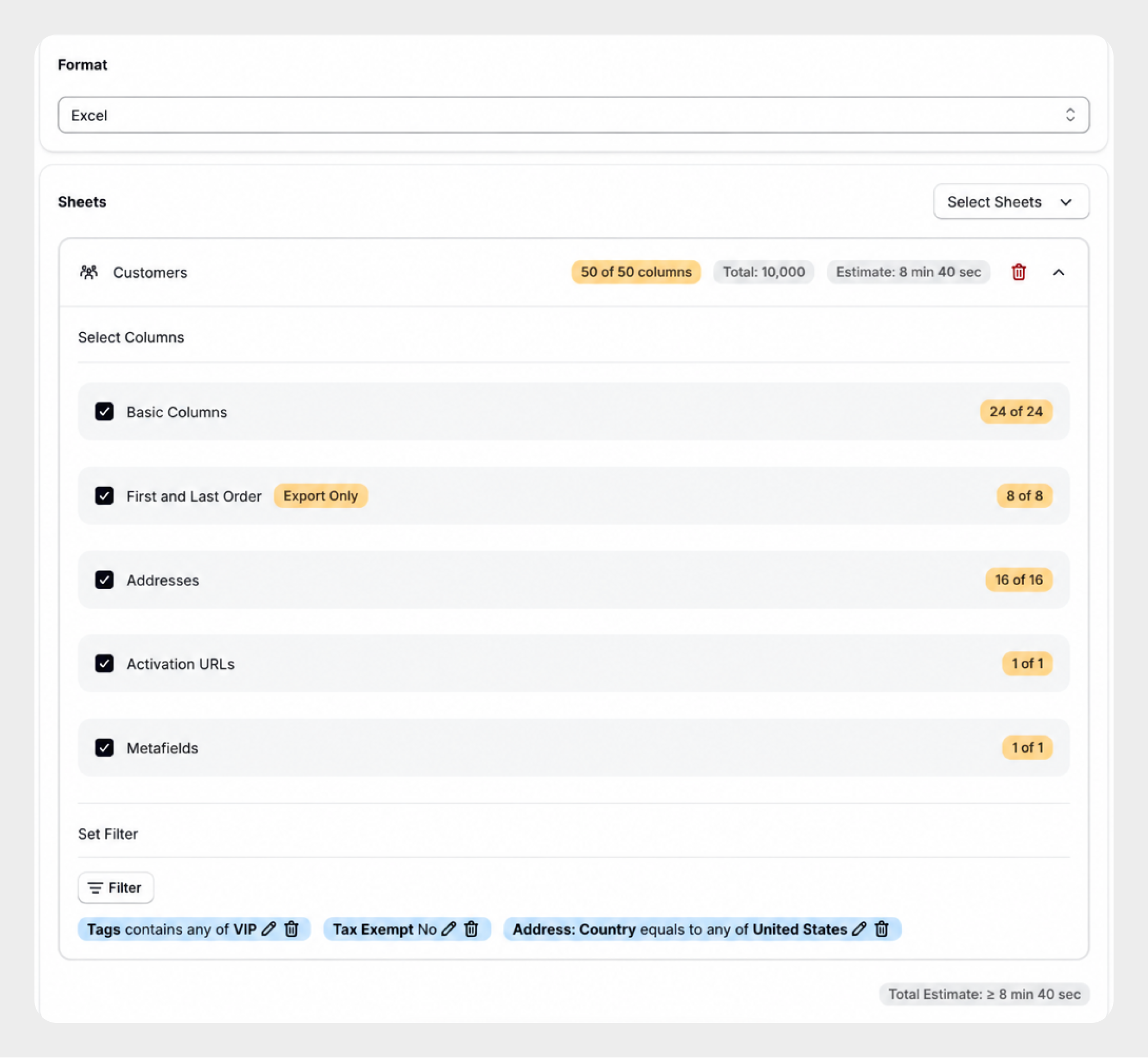
Open the Filters section and click Add New Filter.
- Select the customer field you want to filter.
- Select the required condition.
- Enter or select the filter value.
- Add additional filters if required.
Step 4: Review the Filters
Review all selected filter conditions before starting the export.
For example, you can create an export using:
-
 Email Marketing: Status = Subscribed
-
Tax Exempt = No
-
Tags = VIP
This allows you to export only customers matching the selected criteria.
Step 5: Start the Export
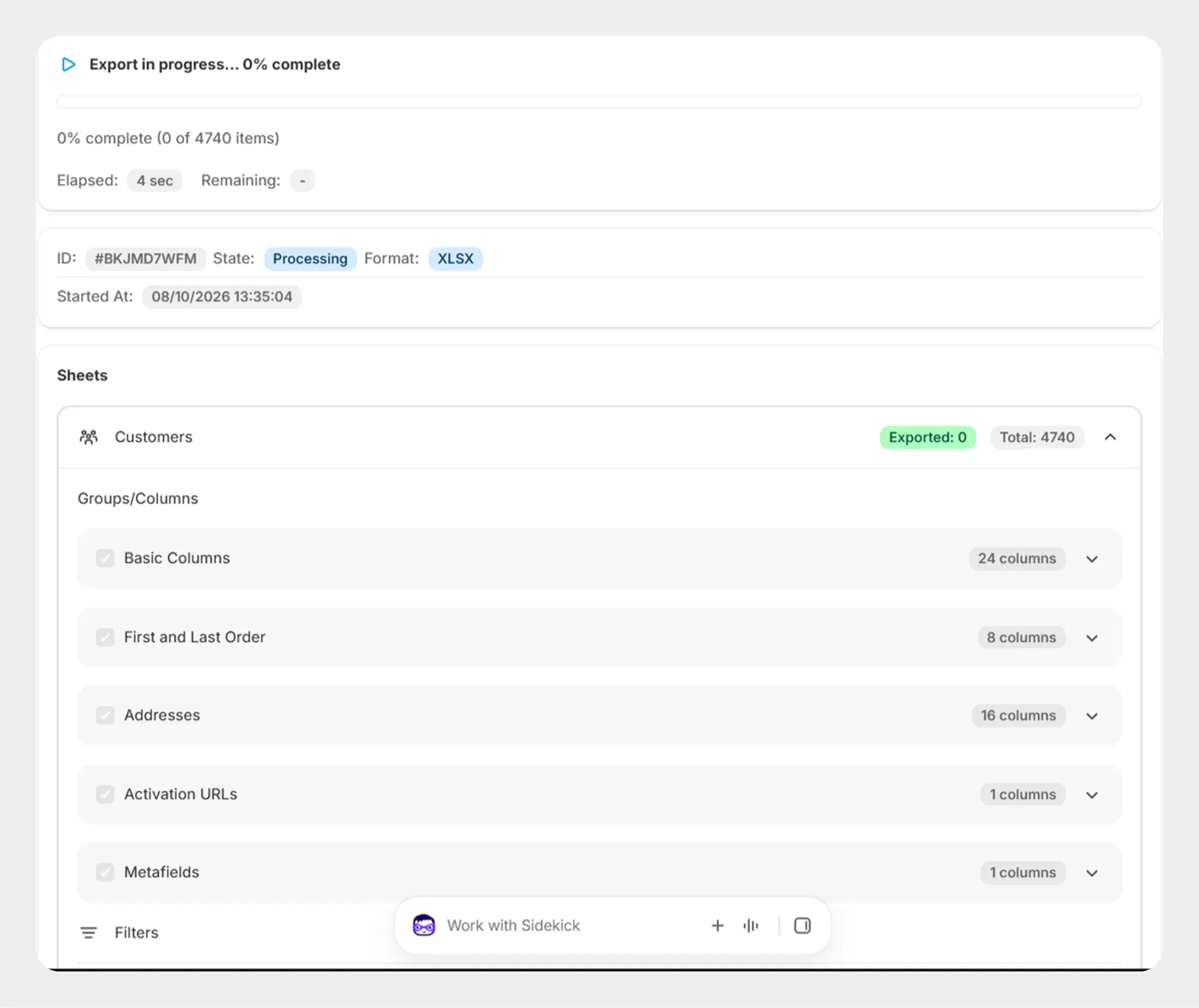
Once the filters have been configured:
- Review the selected customer fields.
- Review the filter conditions.
- Confirm the export settings.
- Start the export.
Migrato will process the customer export based on the selected filter conditions.
Customer Filter Examples
Example 1: Export Customers by Customer ID
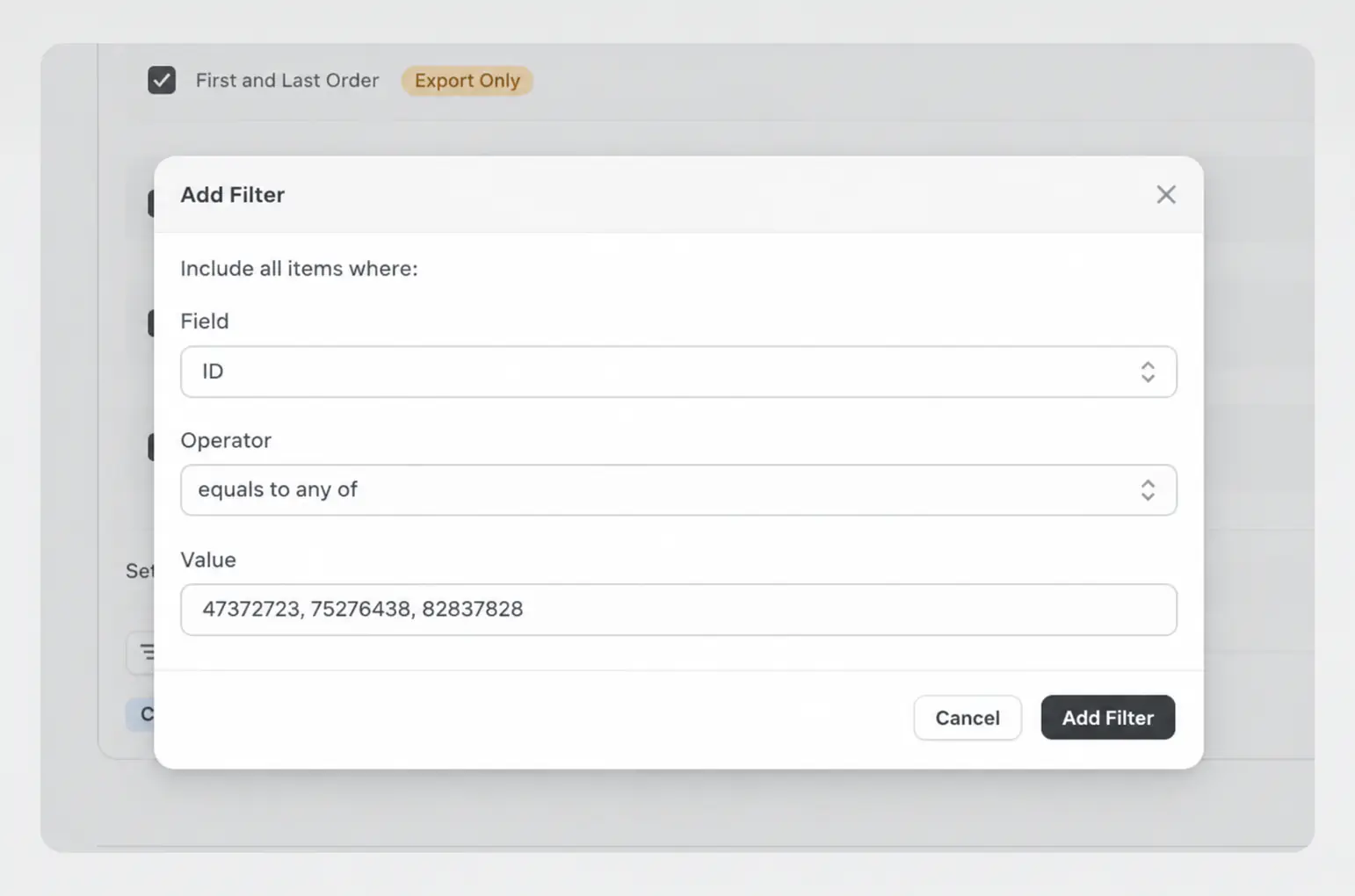
To export selected customers, use the ID filter.
Select:
ID → Equals to any of
Enter the required customer IDs.
For example:
47372723, 75276438, 82837828
Migrato will export customers matching the specified IDs.
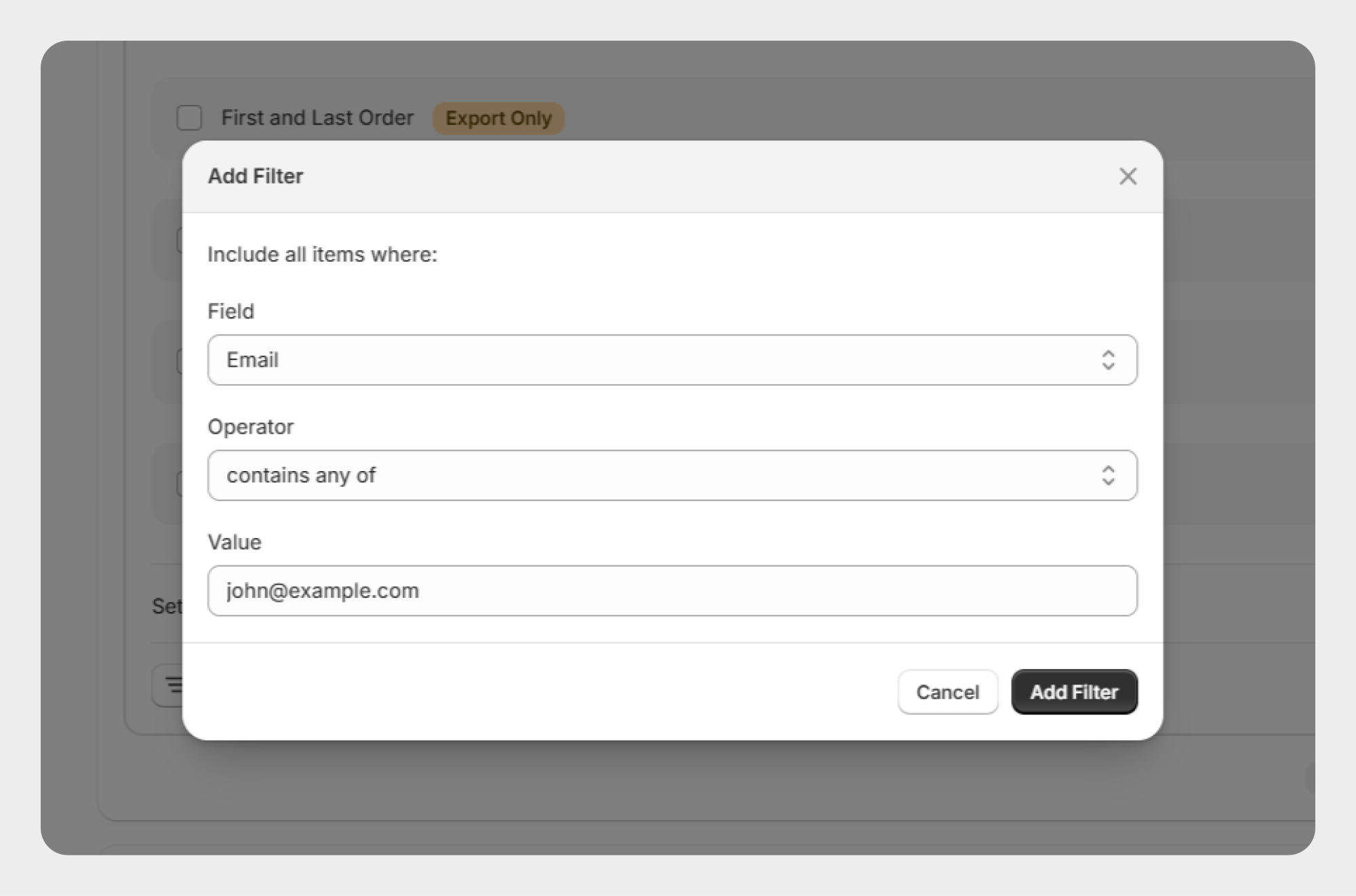
Example 2: Export Customers by Email
To export customers using specific email addresses:
Email → Equals to any of
Enter the required email addresses.
For example:
john@example.com, jane@example.com
Migrato will export customers whose email addresses match the specified values.
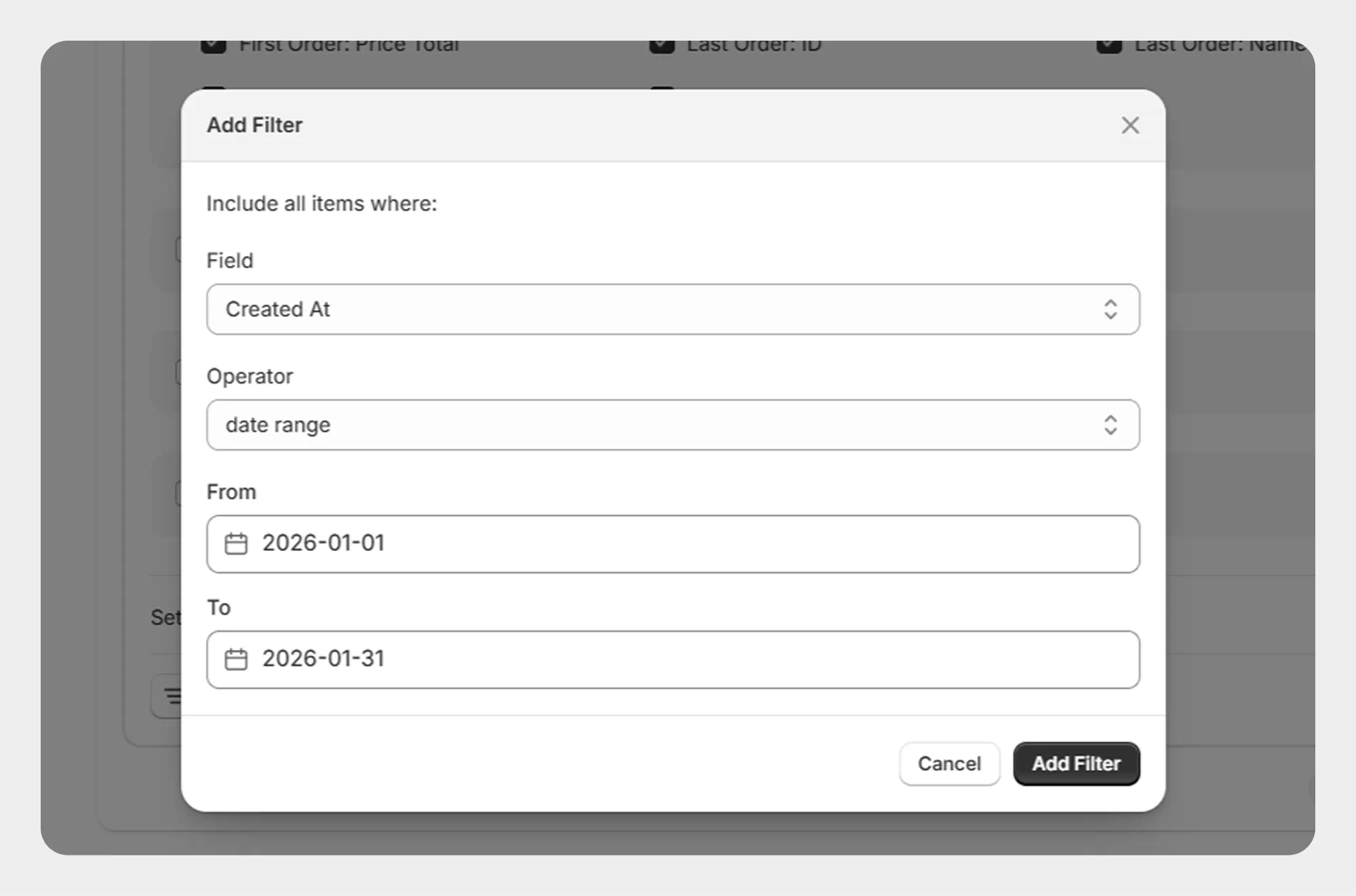
Example 3: Export Customers Created Within a Date Range
To export customers created during a specific period:
Created At → Date Range
For example:
January 1, 2026 → January 31, 2026
Migrato will export customers created within the selected date range.
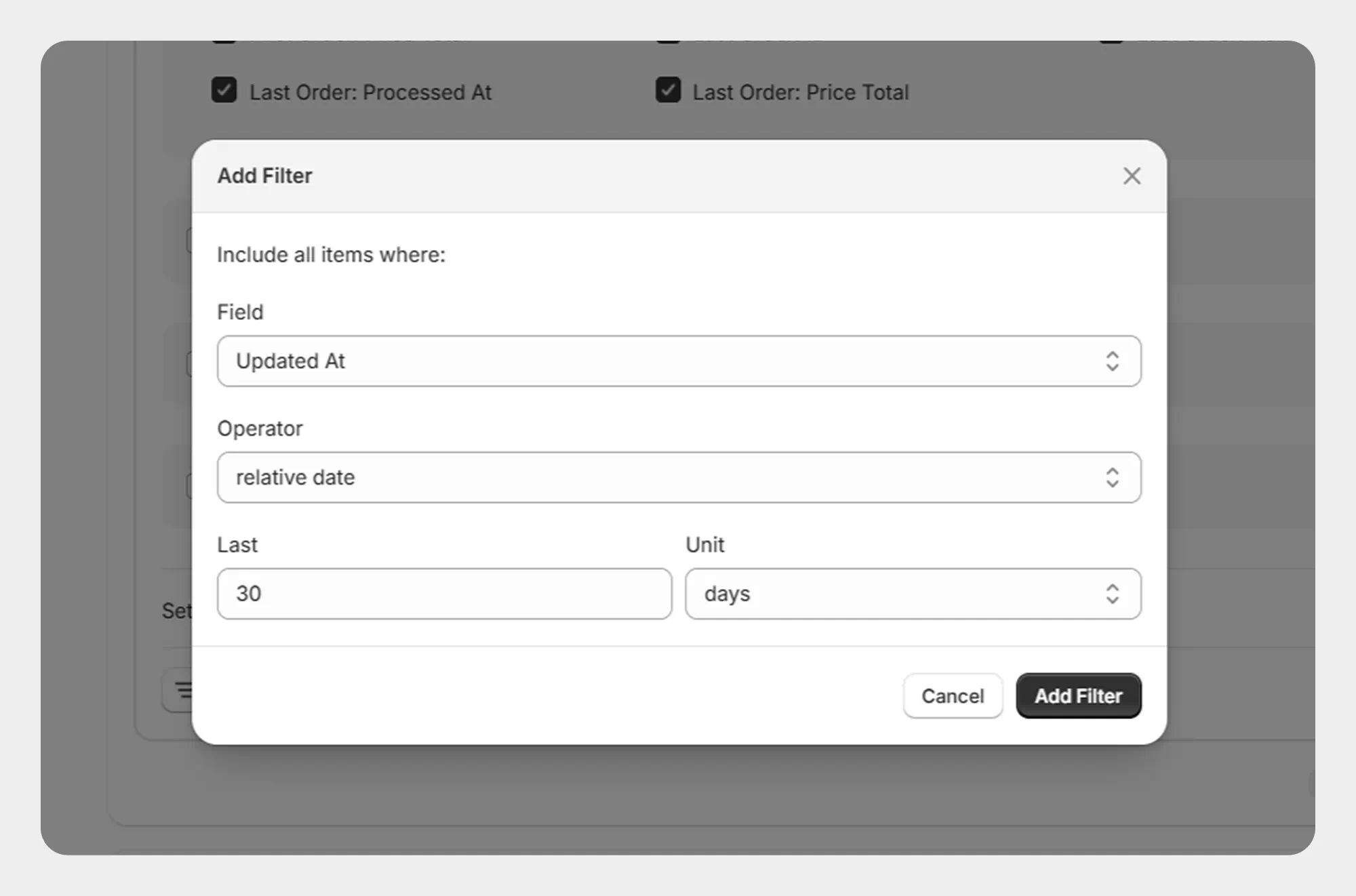
Example 4: Export Recently Updated Customers
You can use a relative date filter to export customers updated recently.
For example:
Updated At → Relative Date → Last 30 Days
This can be useful when you need to export customers who have recently changed.
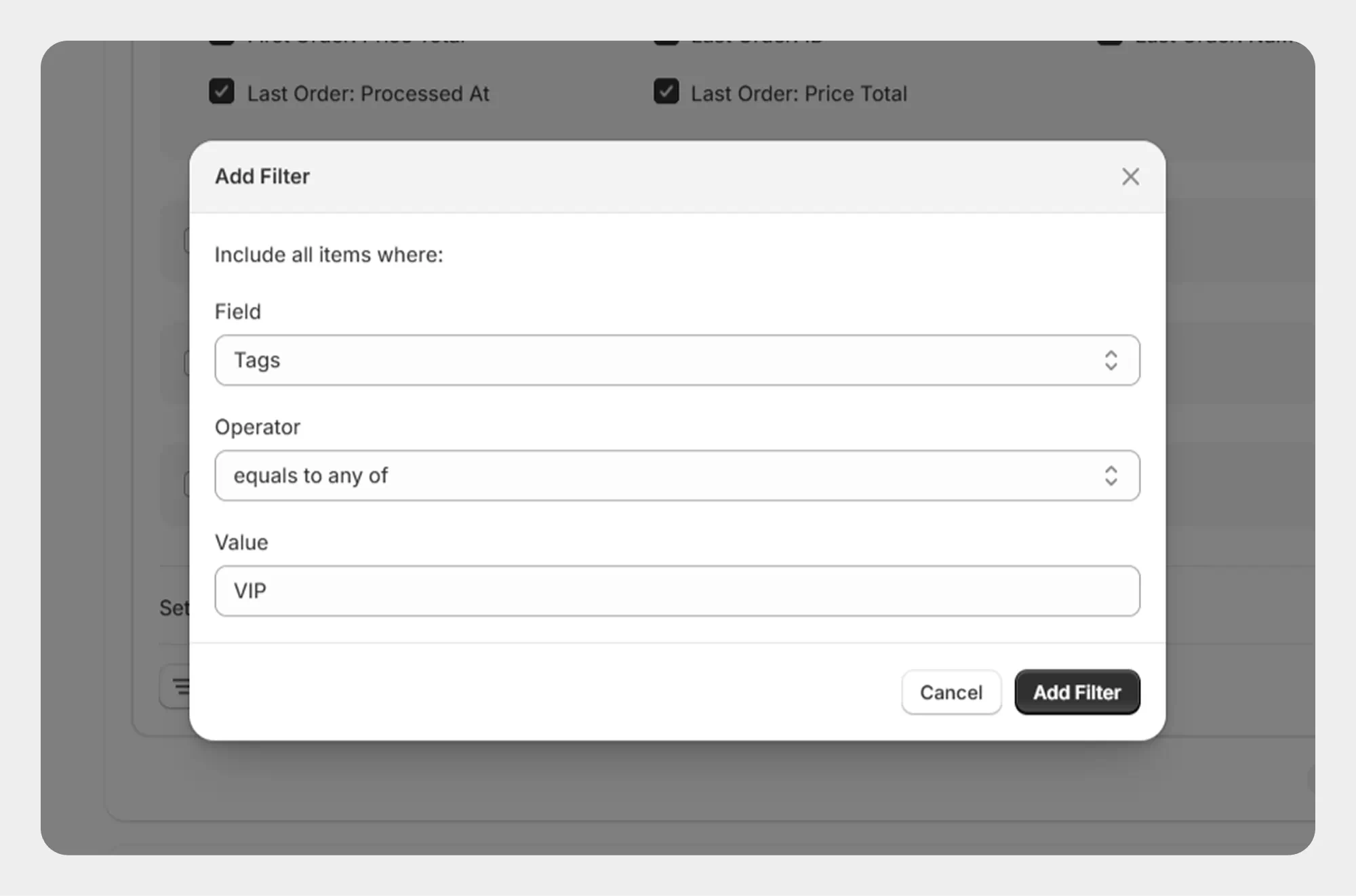
Example 5: Export Customers by Tags
To export customers with specific tags:
Tags → Equals to any of
Enter the required tag values.
For example:
VIP, Wholesale
Migrato will export customers matching the selected tags.
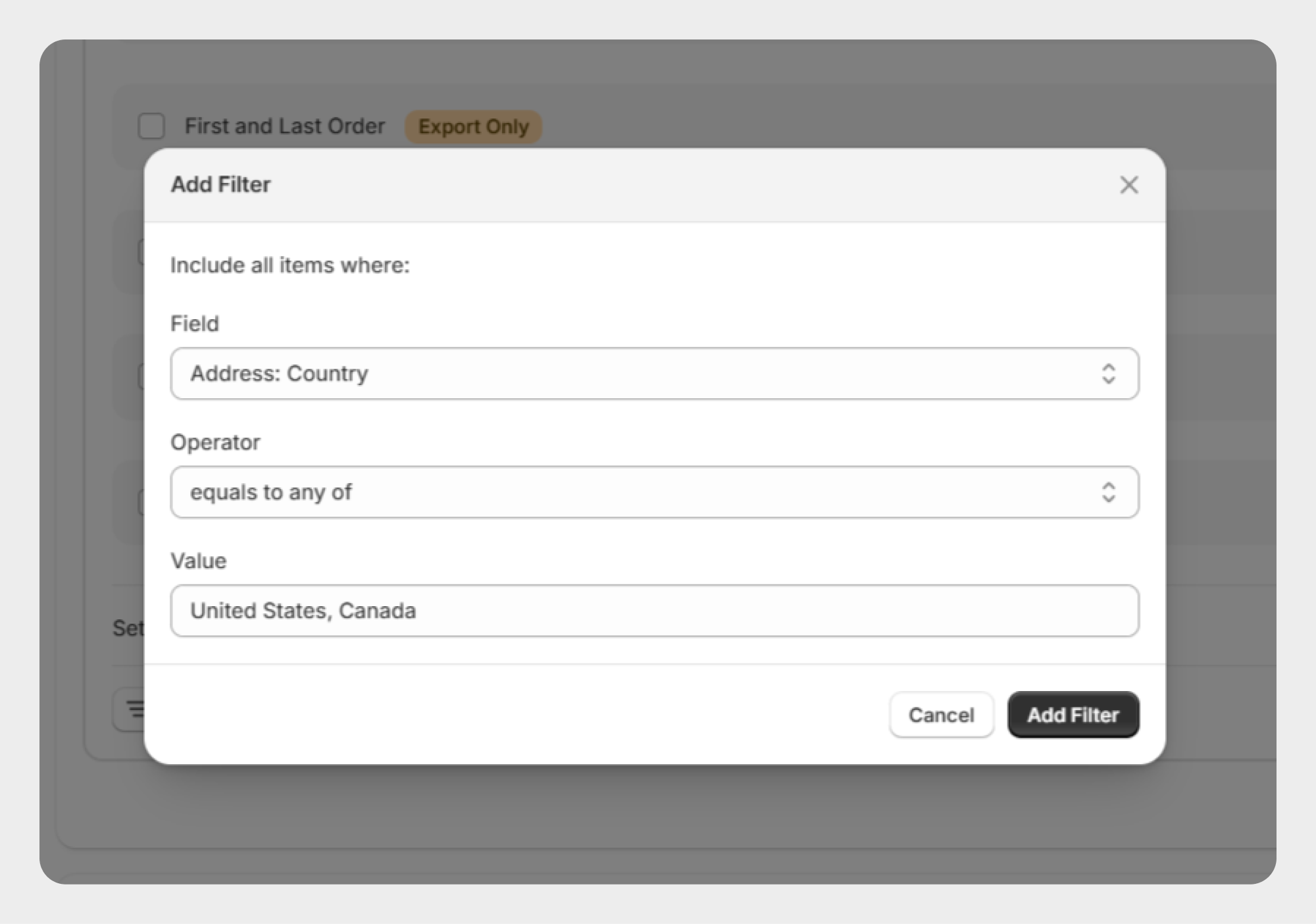
Example 6: Export Customers by Country
To export customers associated with a particular country:
Address: Country → Equals to any of
For example:
United States, Canada
Migrato will export customers whose address country matches the selected values.
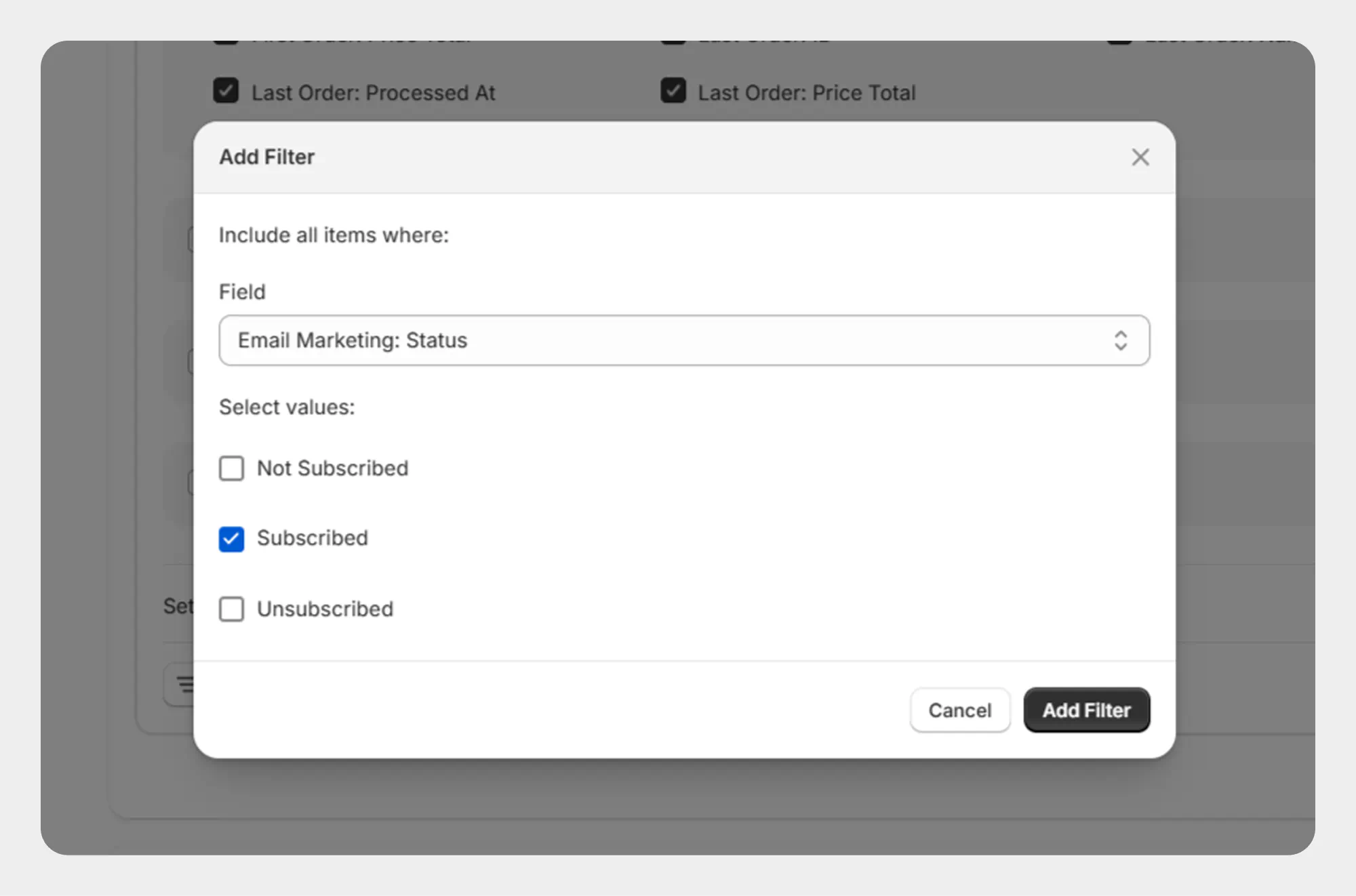
Example 7: Export Customers by Email Marketing Status
To export customers based on their email marketing status:
Email Marketing: Status → [Select supported status]
Migrato will export customers matching the selected email marketing status.
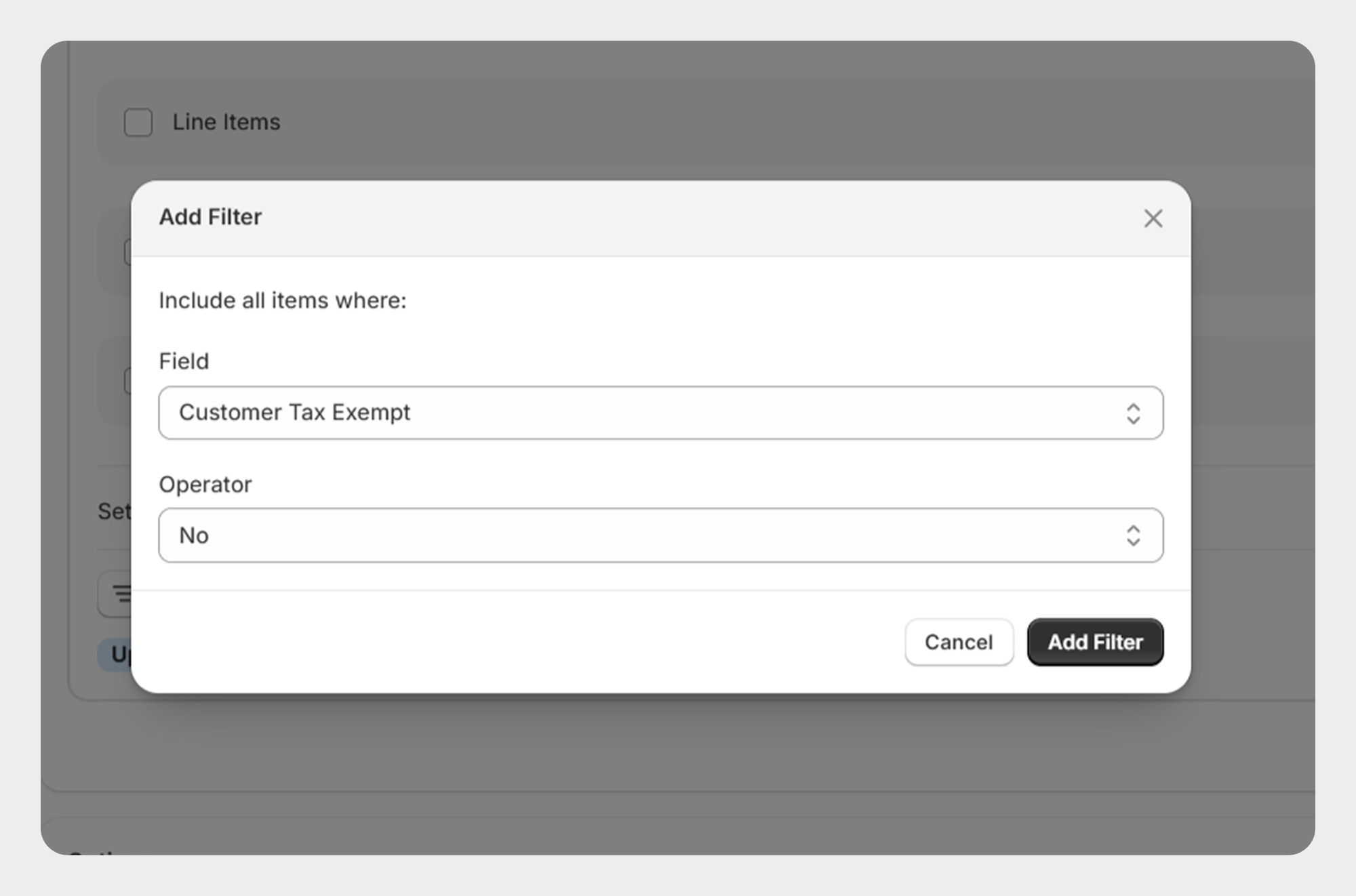
Example 8: Export Tax-Exempt Customers
To export only tax-exempt customers:
Tax Exempt → Yes
Migrato will export customers for whom the tax-exempt setting is enabled.
Using Multiple Filters
Migrato allows you to combine multiple filters to create a more targeted customer export.
For example, you could combine:
-
Tags = VIP
-
Address: Country = United States
-
Tax Exempt = No
This allows you to export customers who match all the selected criteria.
When using multiple filters, review each condition carefully before starting the export to ensure the resulting customer dataset matches your requirements.
Best Practices for Customer Import and Export
-
Review the Customer Template Documentation before preparing an import file.
-
Use the Customer Demo CSV/XLSX file as a reference.
-
Export a small sample before processing a large customer database.
-
Use filters to reduce unnecessary data in large exports.
-
Verify customer email addresses before importing.
-
Review address information carefully.
-
Handle account activation URLs securely.
-
Verify metafield definitions before importing metafield data.
-
Test customer imports with a small dataset before processing the complete file.
-
Always review the Migrato job history and processing results after an import or export.
 Free plan forever