 Our first app, Migrato, is live on the Shopify App Store

Template Documentation
Every column in the Discounts template, what it holds and the values it accepts. 7 min read
 Updated 14 October 2026
 Applies to Migrato on all plans
Discount Template Documentation
Migrato uses a structured template for importing and exporting Shopify Discount data.
The template defines the columns that can be used to transfer discount information between Migrato and Shopify.
You can use the template to:
-
 Prepare Discount data for import.
-
Understand exported Discount data.
-
Modify exported Discount data before re-importing.
-
Migrate Discount information between Shopify stores.
-
Maintain a consistent Discount data structure.
Manage discount rules, eligibility, purchase types, combinations, and shareable links.
Before preparing your file: Download the available Discount Demo CSV/XLSX file or export a sample Discount file from Migrato to understand the current template structure.
Discount Template Structure
Migrato organizes Discount fields into logical groups to make it easier to understand and prepare your import/export file.
The available Discount template groups are:
| Group | Number of Columns | Description |
|---|---|---|
| Basic Columns | 24 | Contains the primary Discount information, status, dates, usage limits, applicability, and summary details. |
| Type-Specific | 5 | Contains fields specific to Buy X Get Y and Free Shipping discounts. |
| Eligibility | 2 | Defines the customers or customer groups eligible to use the discount. |
| Purchase Type | 2 | Defines the purchase type and recurring subscription limitations. |
| Combinations | 3 | Defines whether the discount can be combined with other product, order, or shipping discounts. |
| Shareable Links | 4 | Contains information for shareable discount links. |
Total: 40 columns
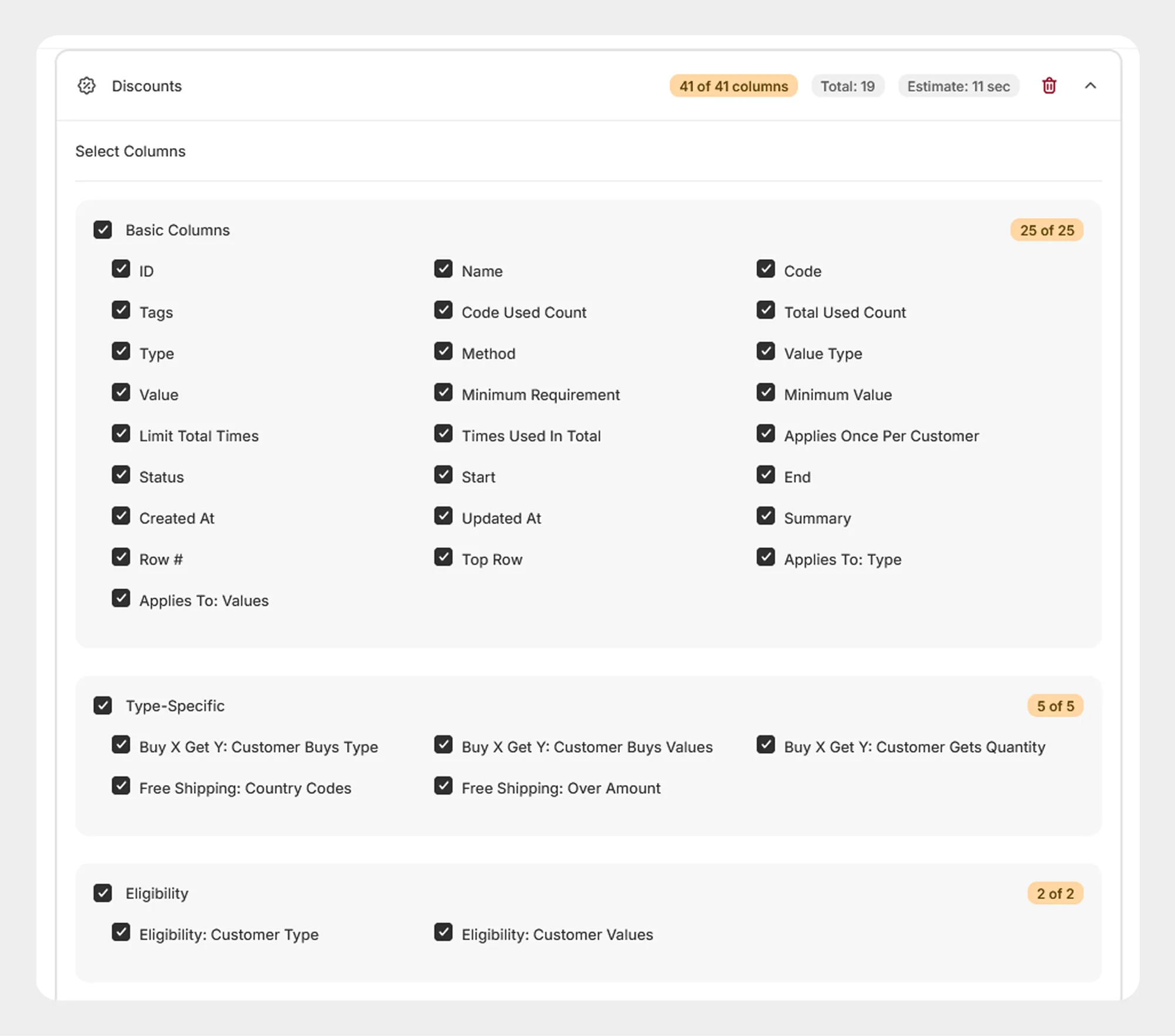
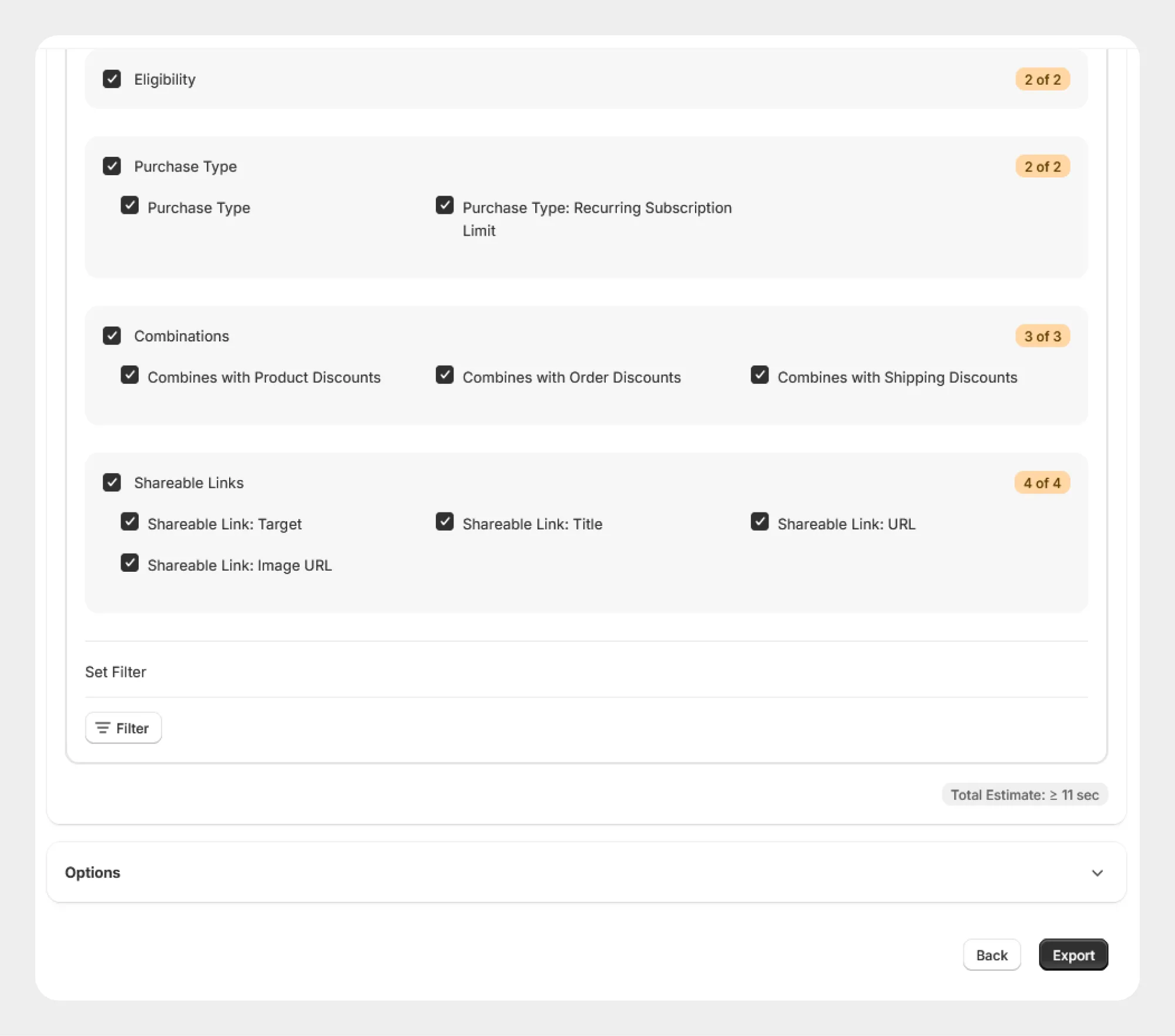
1. Basic Columns
The Basic Columns group contains the primary information required to identify and configure a Shopify discount.
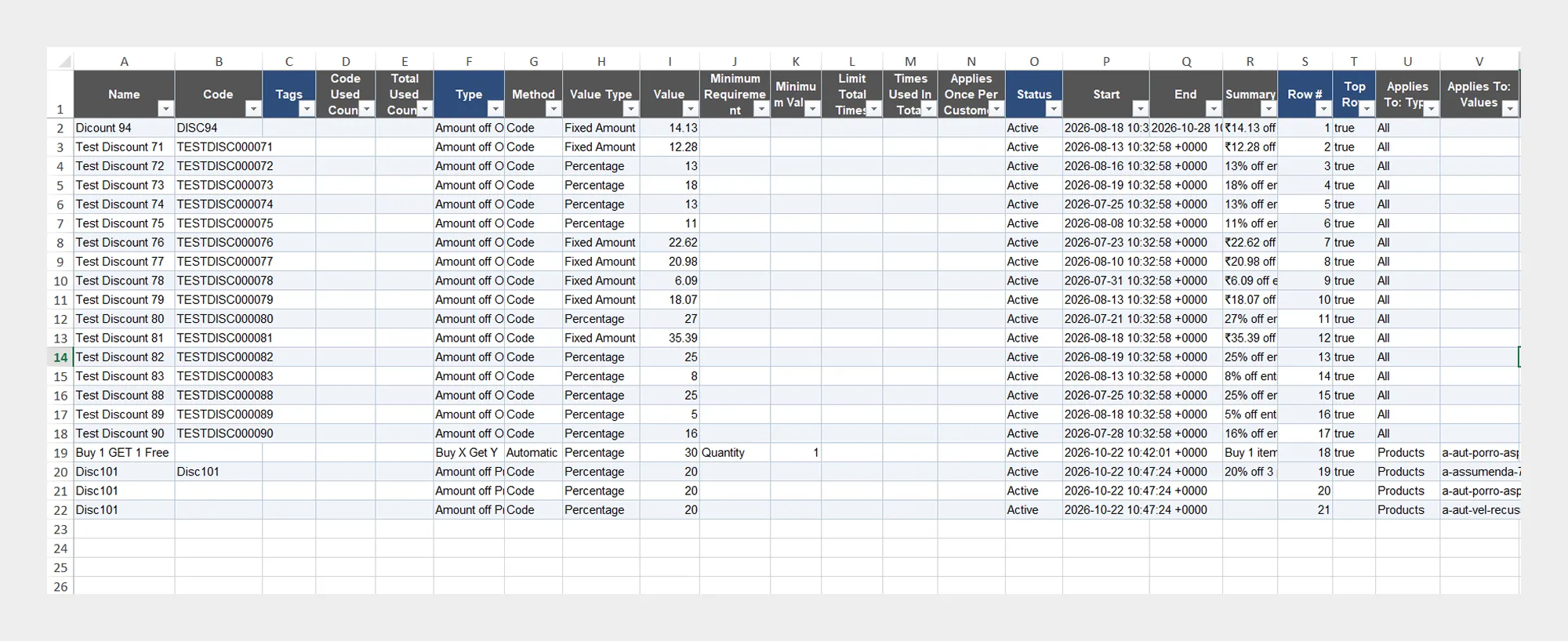
| Column | Description | Allowed Values / Examples |
|---|---|---|
| ID | Unique Shopify identifier for the discount. | Number / Shopify Discount ID |
| Name | Name used to identify the discount. | Text — Summer Sale |
| Code | Discount code customers can use when applicable. | Text — SUMMER20 |
| Code Used Count | Number of times the discount code has been used. | Number |
| Total Used Count | Total number of times the discount has been used. | Number |
| Type | Defines the type of discount. | Text / Supported Shopify discount type |
| Method | Defines how the discount is applied. | Supported Shopify discount method |
| Value Type | Defines how the discount value is calculated. | Percentage / Fixed amount / Other supported value type |
| Value | Discount value associated with the discount. | Number — 20 |
| Minimum Requirement | Defines the minimum purchase requirement for the discount. | Supported requirement type |
| Minimum Value | Minimum value required when a minimum purchase requirement is configured. | Number |
| Limit Total Times | Indicates whether the discount has a total usage limit. | Yes / No |
| Times Used In Total | Number of times the discount has been used in total. | Number |
| Applies Once Per Customer | Defines whether the discount can be used only once per customer. | Yes / No |
| Status | Current status of the discount. | Supported Shopify discount status |
| Start | Date and time when the discount becomes active. | Date/time |
| End | Date and time when the discount expires. | Date/time |
| Created At | Date and time when the discount was created. | Date/time |
| Updated At | Date and time when the discount was last updated. | Date/time |
| Summary | Summary information describing the discount configuration. | Text |
| Row # | Identifies the row position in the template. | Number |
| Top Row | Indicates the top/header row information used by the template. | Template value |
| Applies To: Type | Defines the type of resources to which the discount applies. | Supported Shopify applicability type |
| Applies To: Values | Contains the IDs or values associated with the selected applicability type. | IDs / Values |
The exact accepted values for fields such as Type, Method, Value Type, Minimum Requirement, and Applies To: Type should follow the values supported by the current Migrato Discount template.
2. Type-Specific
The Type-Specific group contains fields used for discount types that require additional configuration, including Buy X Get Y and Free Shipping discounts.
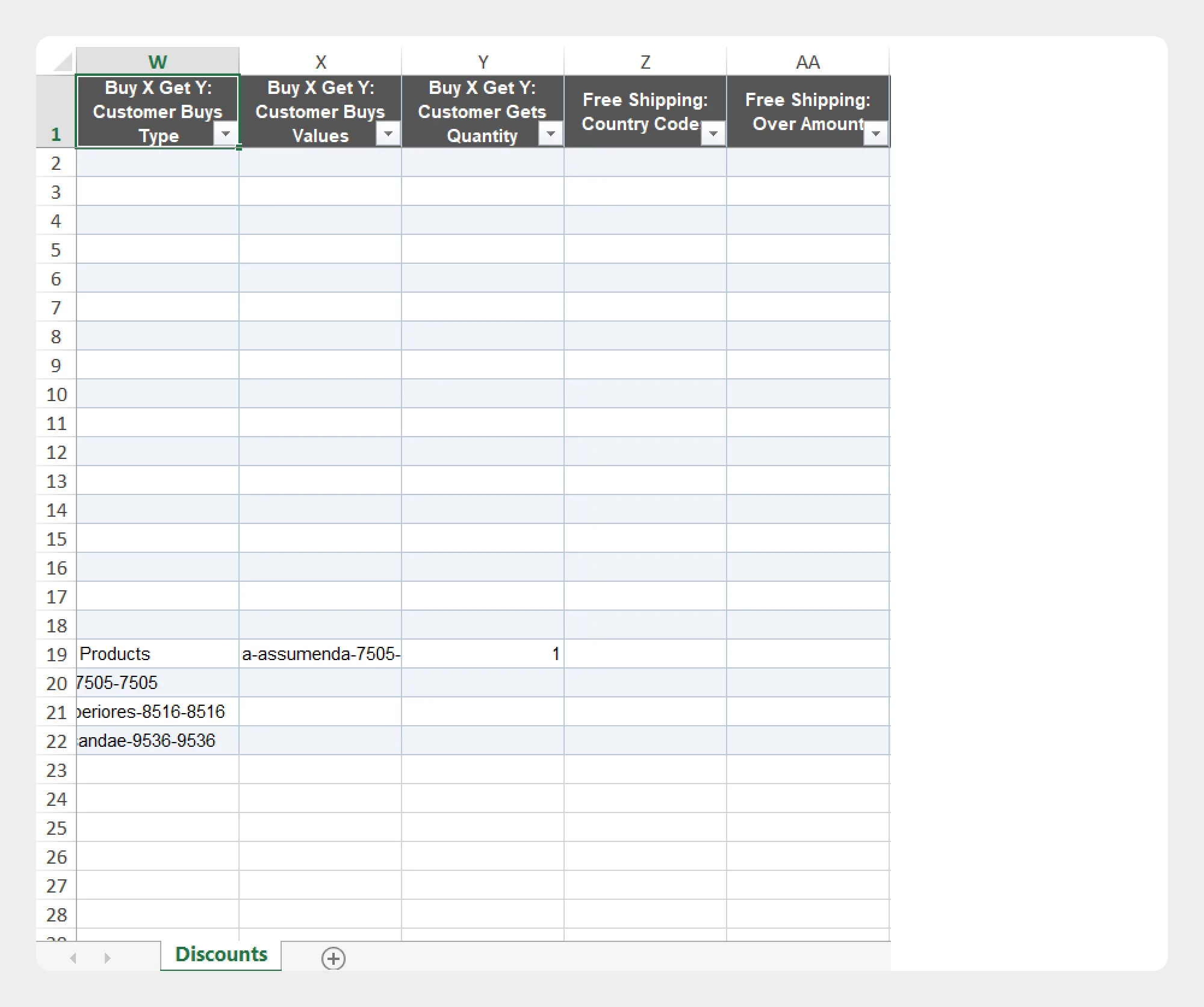
| Column | Description | Allowed Values / Examples |
|---|---|---|
| Buy X Get Y: Customer Buys Type | Defines the type of item or resource the customer must purchase for a Buy X Get Y discount. | Supported Shopify applicability type |
| Buy X Get Y: Customer Buys Values | Specifies the products, collections, or other supported values that qualify as the customer purchase. | IDs / Values |
| Buy X Get Y: Customer Gets Quantity | Defines the quantity the customer receives under the Buy X Get Y discount. | Number — 1 |
| Free Shipping: Country Codes | Defines the countries where the free-shipping discount applies. | ISO country codes — US, CA, GB |
| Free Shipping: Over Amount | Defines the minimum order amount required for a free-shipping discount when applicable. | Number — 50.00 |
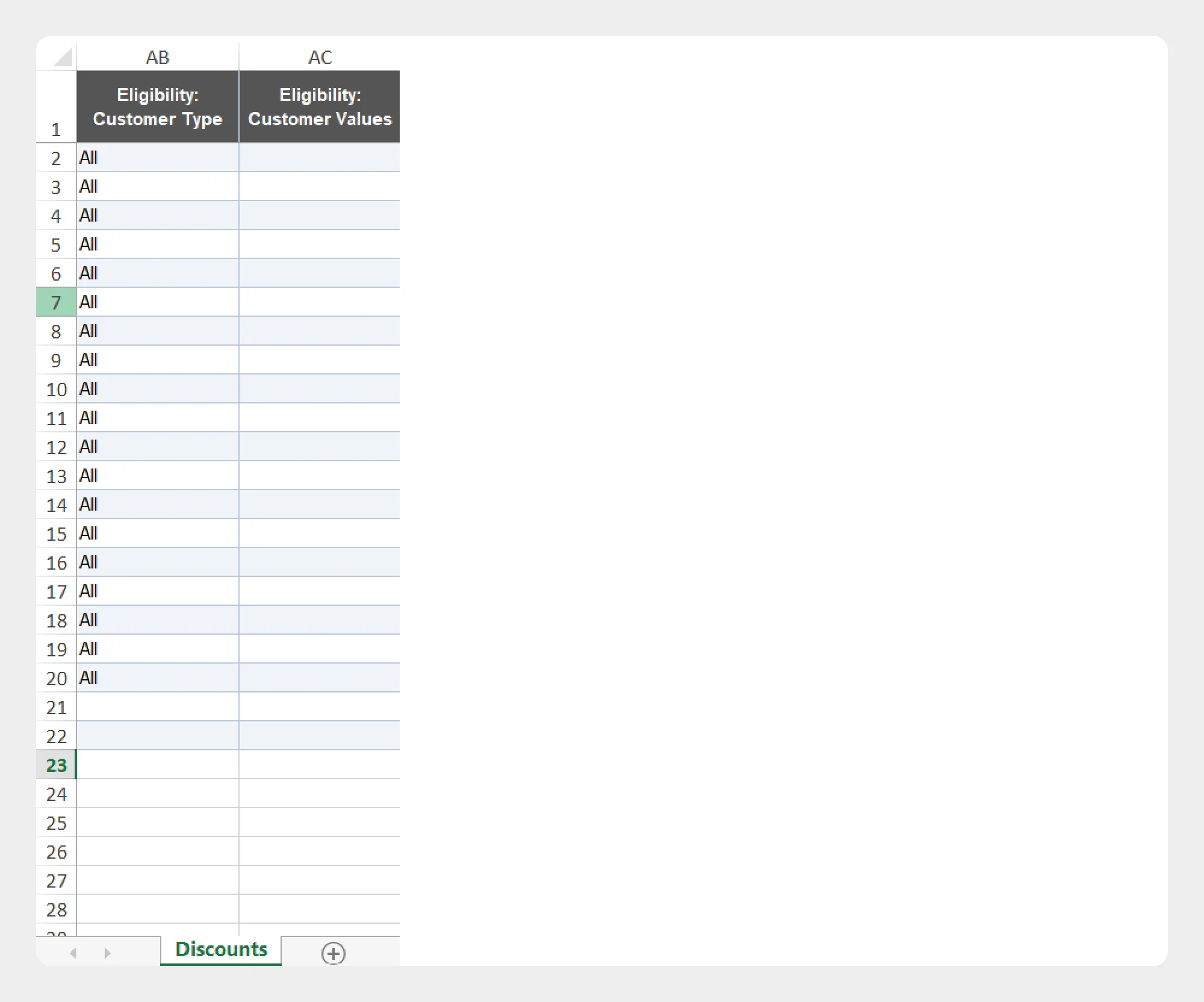
3. Eligibility
The Eligibility group defines which customers are eligible to use the discount.
| Column | Description | Allowed Values / Examples |
|---|---|---|
| Eligibility: Customer Type | Defines the type of customers eligible for the discount. | Supported Shopify customer eligibility type |
| Eligibility: Customer Values | Contains the customer IDs, segments, or other supported values associated with the selected eligibility type. | IDs / Values |
Make sure the values in Eligibility: Customer Values correspond to the customer eligibility type selected in Eligibility: Customer Type.
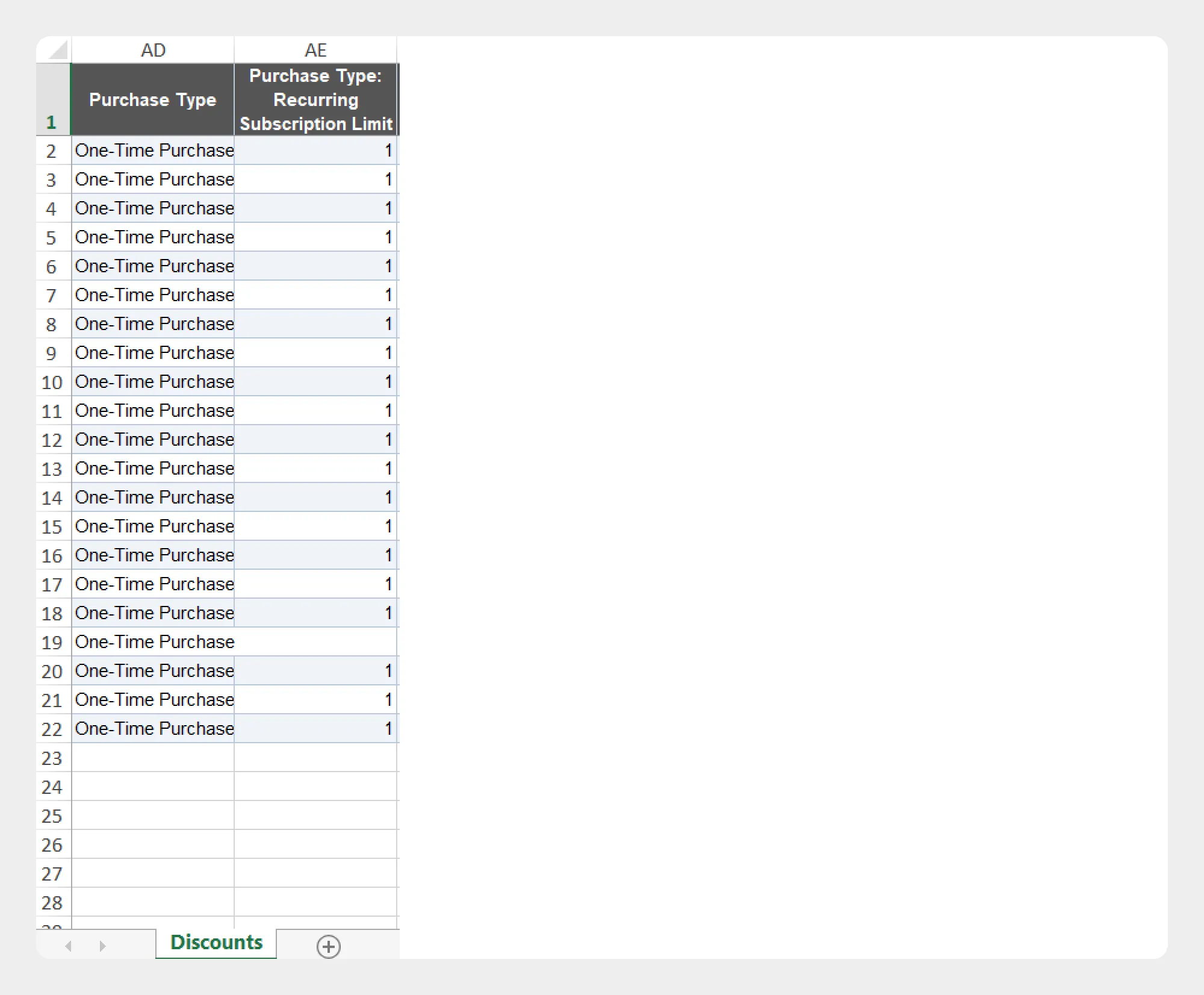
4. Purchase Type
The Purchase Type group contains information related to how the discount applies to purchases, including subscription-related settings.
| Column | Description | Allowed Values / Examples |
|---|---|---|
| Purchase Type | Defines the type of purchase to which the discount applies. | Supported Shopify purchase type |
| Purchase Type: Recurring Subscription Limit | Defines the number of recurring subscription orders to which the discount can apply when applicable. | Number — 3 |
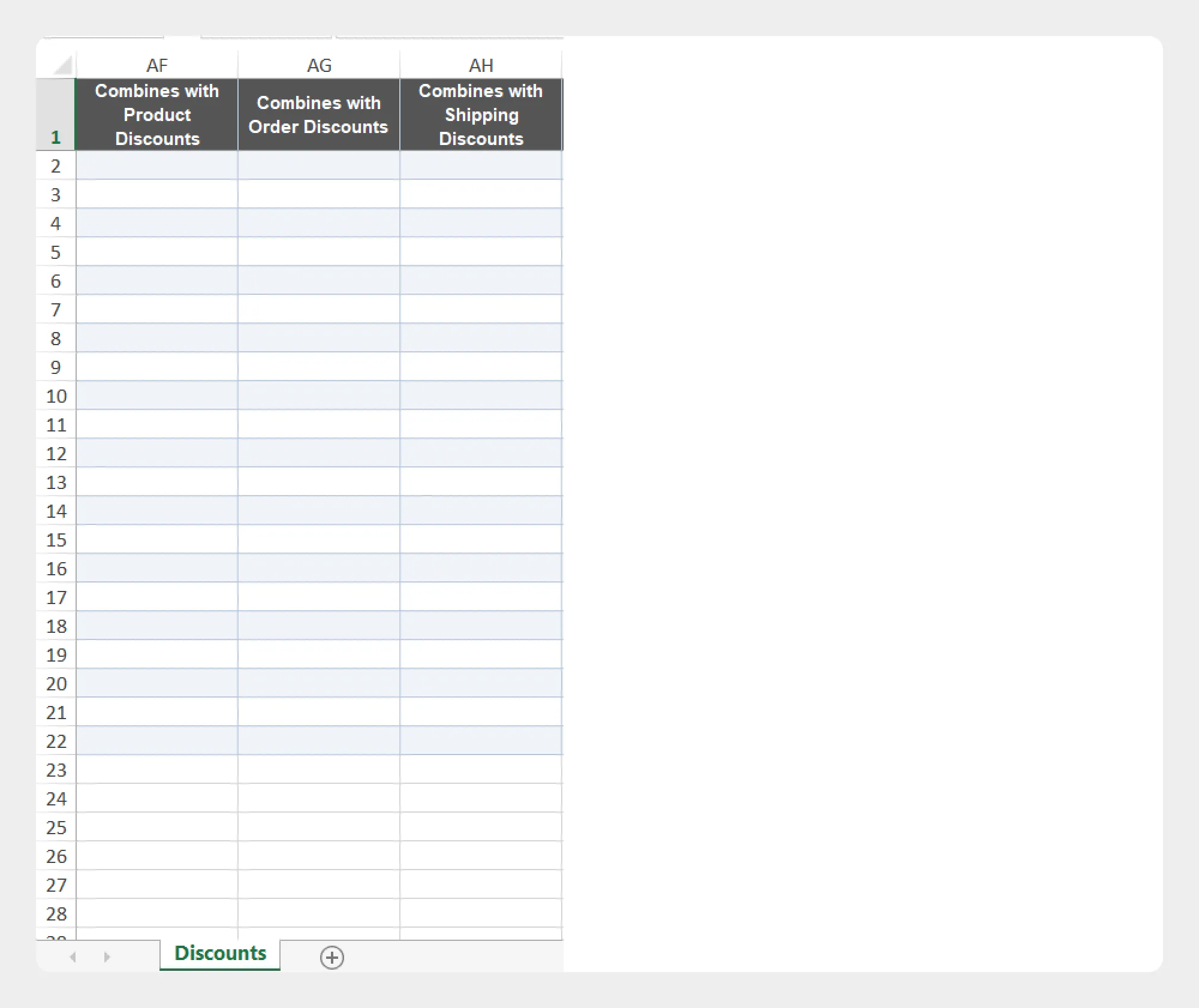
5. Combinations
The Combinations group defines whether the discount can be combined with other types of Shopify discounts.
| Column | Description | Allowed Values / Examples |
|---|---|---|
| Combines with Product Discounts | Defines whether the discount can be combined with product discounts. | Yes / No |
| Combines with Order Discounts | Defines whether the discount can be combined with order discounts. | Yes / No |
| Combines with Shipping Discounts | Defines whether the discount can be combined with shipping discounts. | Yes / No |
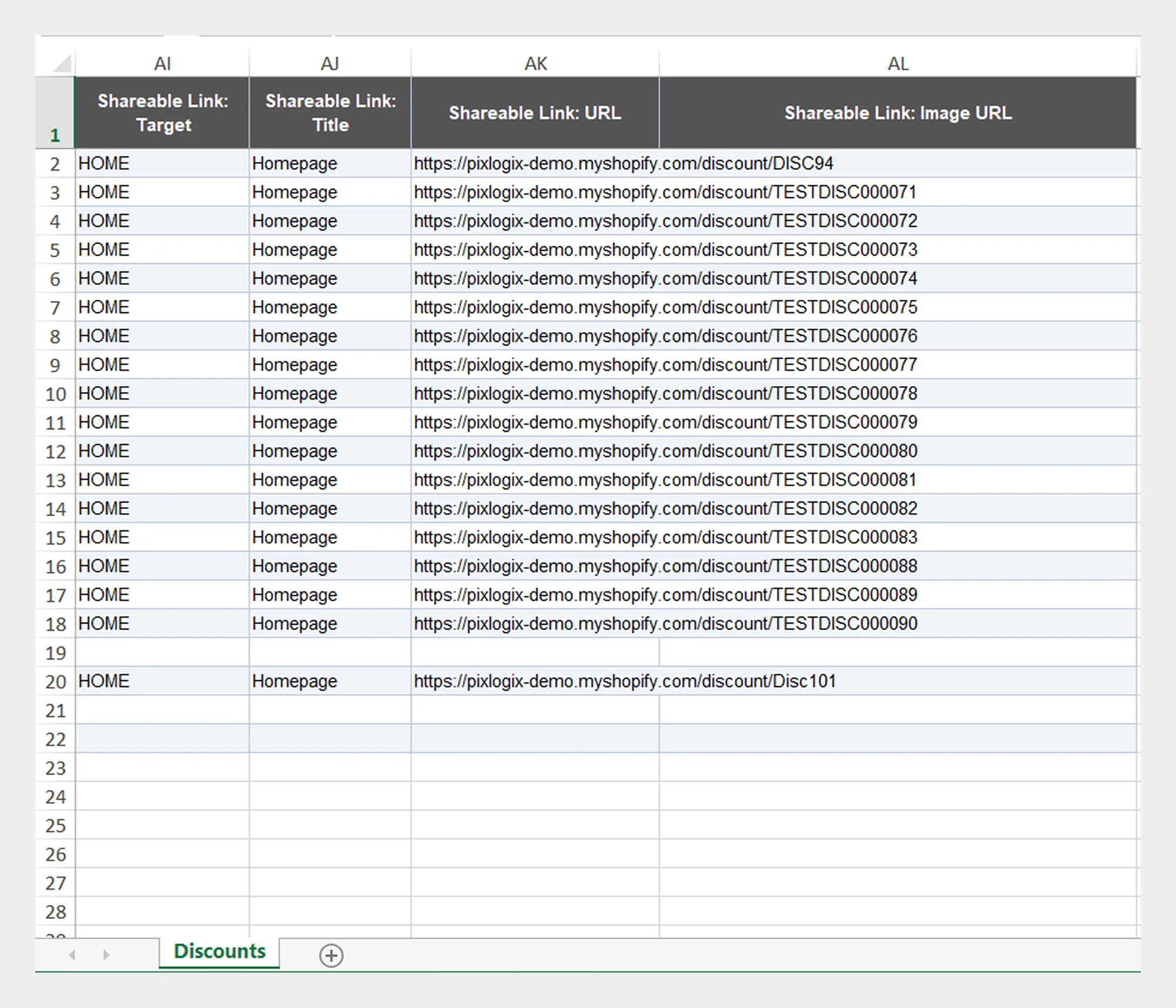
6. Shareable Links
The Shareable Links group contains information used to configure and manage shareable discount links.
| Column | Description | Allowed Values / Examples |
|---|---|---|
| Shareable Link: Target | Defines the destination or target associated with the shareable discount link. | URL / Supported target |
| Shareable Link: Title | Title associated with the shareable link. | Text — Summer Sale |
| Shareable Link: URL | URL of the shareable discount link. | URL |
| Shareable Link: Image URL | URL of the image associated with the shareable discount link. | Public image URL |
Preparing a Discount Import File
When preparing a Discount import file:
- Download the Discount Demo CSV/XLSX file, if available.
- Review the Discount Template Documentation.
- Keep the supported column names unchanged.
- Enter values according to the expected format for each field.
- Make sure related fields are configured consistently.
- Save the file as CSV or XLSX.
- Upload the file to Migrato or provide a publicly accessible file URL.
- Select the required Discount import operation.
- Review the import configuration before starting the job.
Fields that depend on a particular discount type should only be populated when that discount configuration requires them. For example, Buy X Get Y-specific fields should be reviewed together with the corresponding discount type.
Preparing Discount Data for Export
Migrato allows you to select the Discount fields you want to include when exporting discount data.
To prepare a Discount export:
- Open Migrato from your Shopify Admin.
- Go to Export.
- Select Discounts.
- Select the required Discount columns.
- Apply filters if you want to export only specific discounts.
- Review the selected fields and filters.
- Start the export.
- Download the generated CSV/XLSX file when the export is complete.
An exported Discount file can also be useful as a reference when preparing a new import file because it shows the structure and values used by your Shopify store.
Important Notes
-
Use the exact column names provided by the Migrato Discount template.
-
Do not rename template columns unless the Migrato import workflow specifically supports custom mapping.
-
Use the appropriate format for dates, numbers, IDs, URLs, and Boolean values.
-
Review discount-specific fields carefully before importing.
-
Make sure customer eligibility values correspond to the selected eligibility type.
-
Make sure Buy X Get Y fields are configured consistently with the selected discount type.
-
Review combination settings before importing discounts.
-
Test the import with a small dataset before processing a large Discount file.
-
Always review the import results and error information after the job is completed.
 Free plan forever