 Our first app, Migrato, is live on the Shopify App Store

Filter Smart Collections
How to Filter Smart Collections for Export
Follow these steps to export Smart Collections based on specific conditions.
Step 1: Open Smart Collection Export
- Open Shopify Admin.
- Go to Apps → Migrato.
- Open the Export section.
- Select Smart Collections as the entity you want to export.
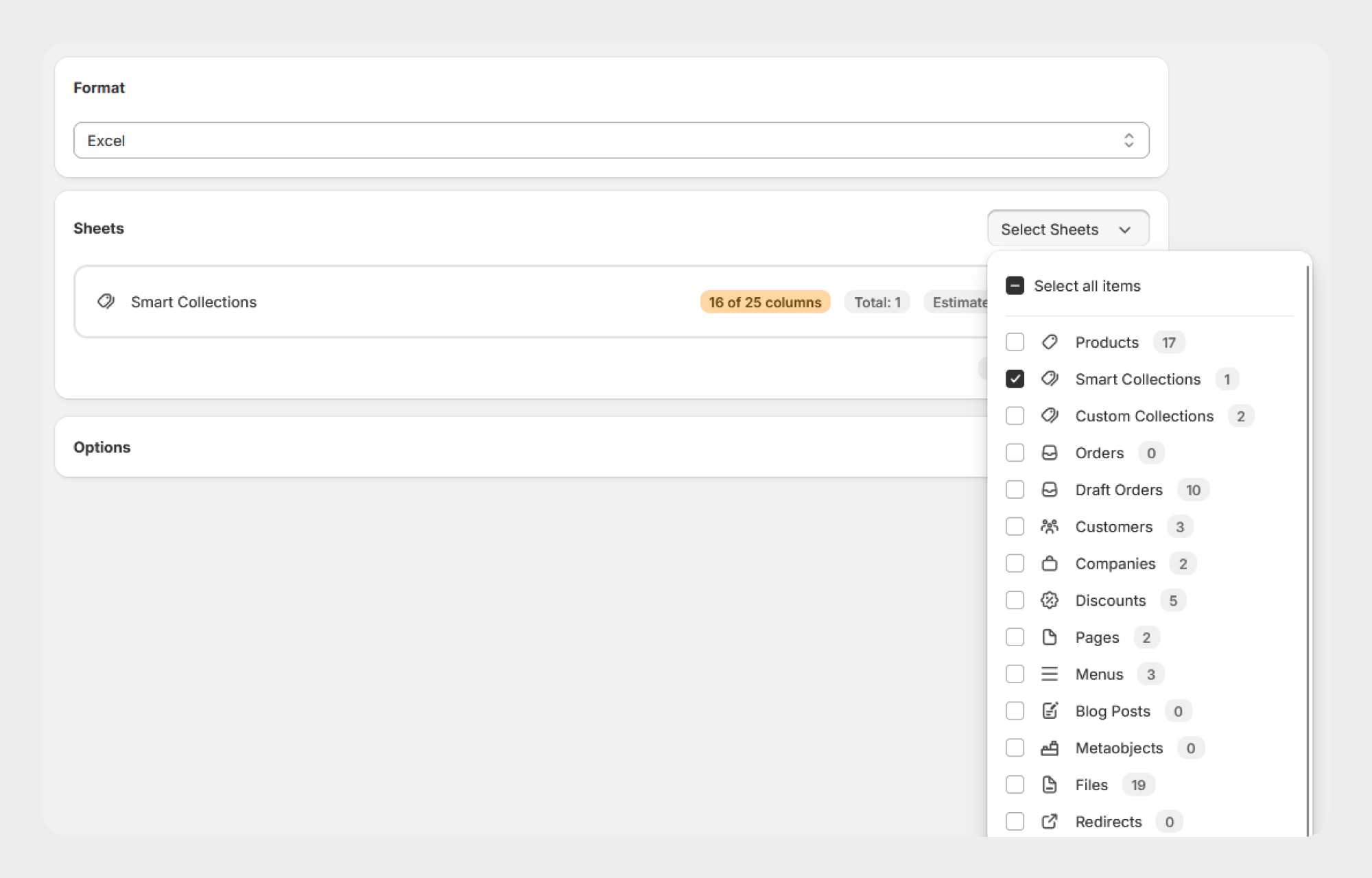
Step 2: Select Smart Collection Fields
Select the Smart Collection fields and information you want to include in the export file.
You can select the required fields based on your export requirements.
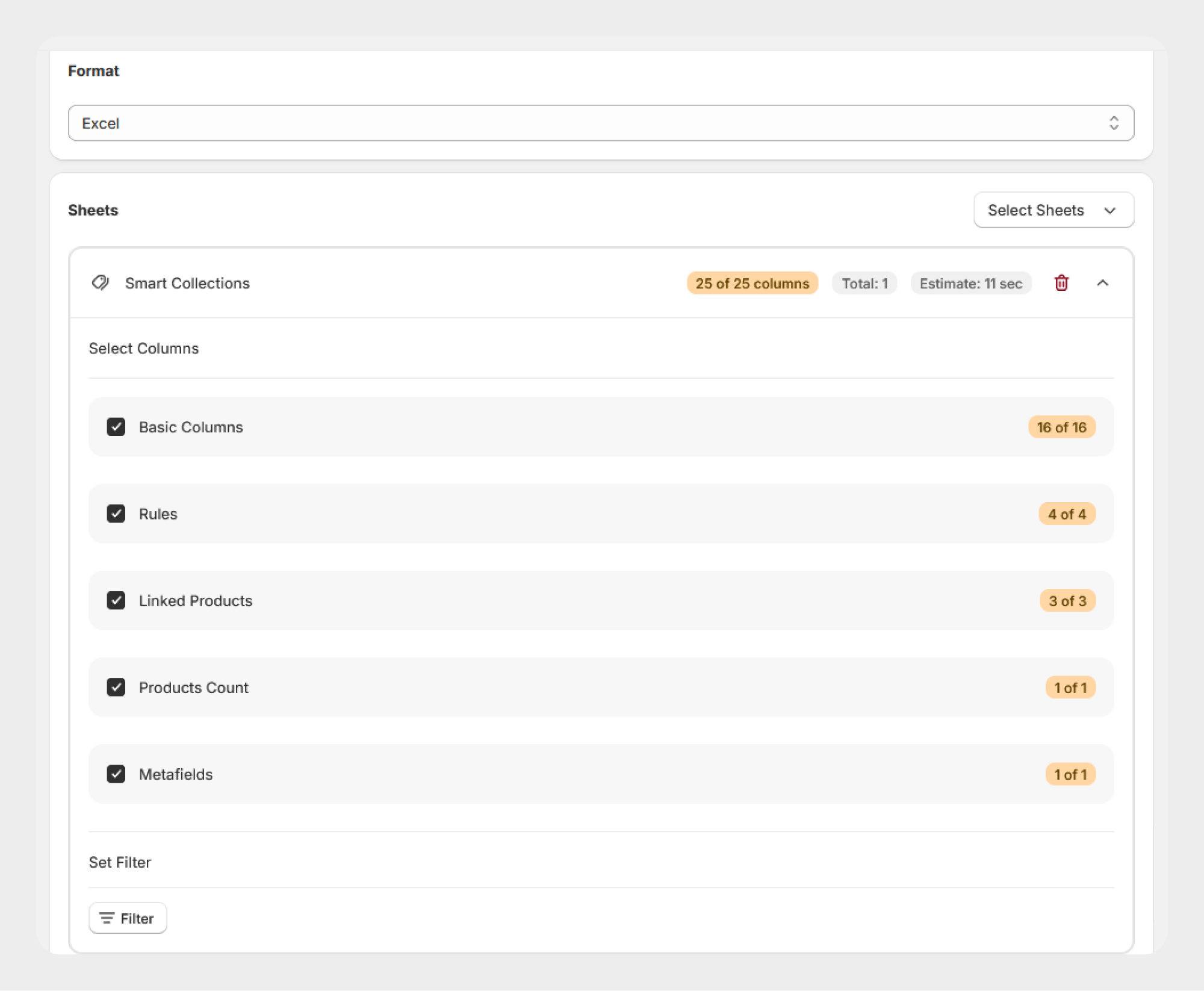
Step 3: Add Smart Collection Filters
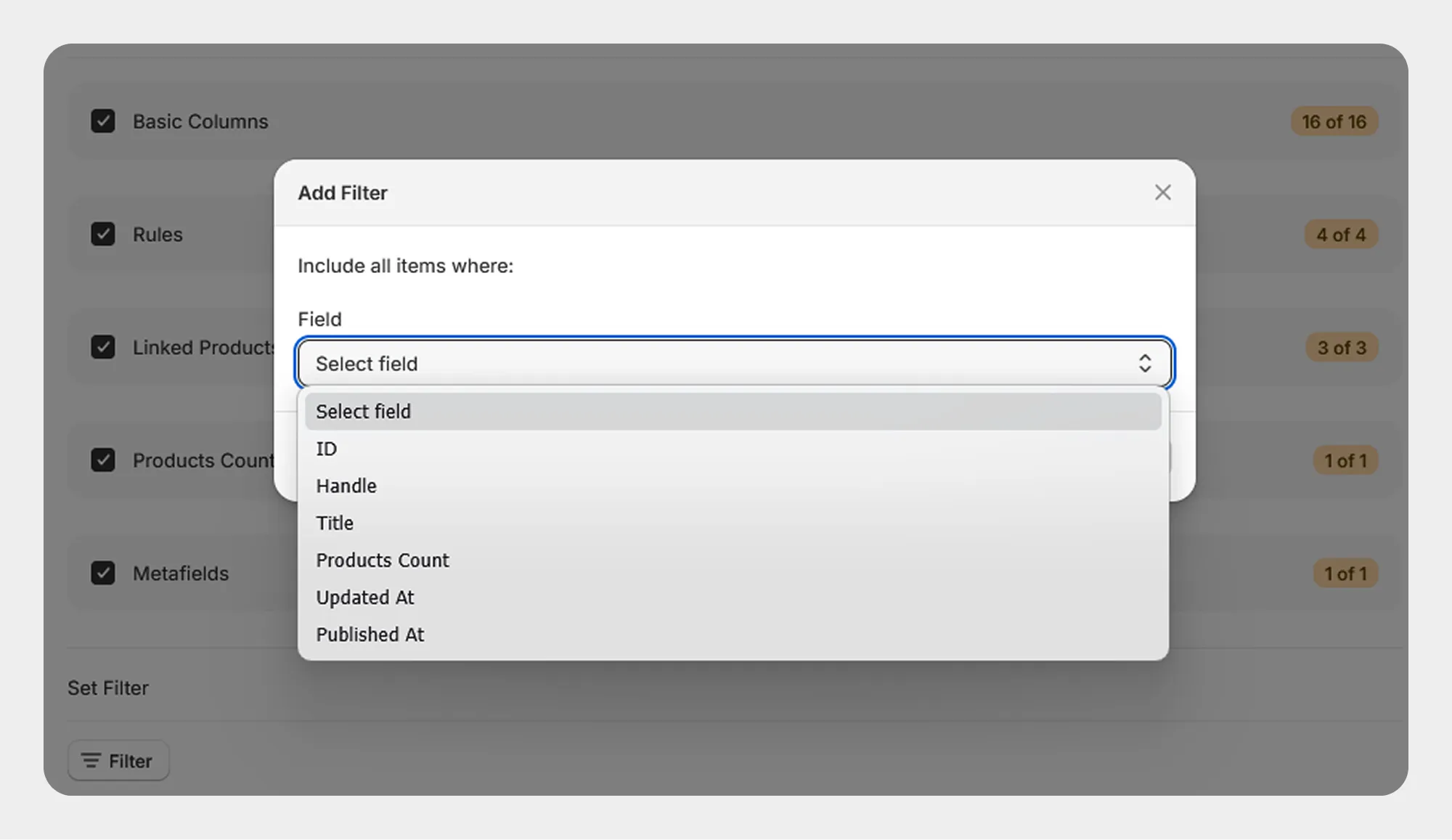
Open the Filters section and click Add New Filter.
- Select the Smart Collection field you want to filter.
- Select the required condition available for the selected field.
- Enter or select the value.
- Add additional filters if required.
The current Smart Collection Filter dropdown provides the following fields:
-
 ID
-
Handle
-
Title
-
Products Count
-
Updated At
-
Published At
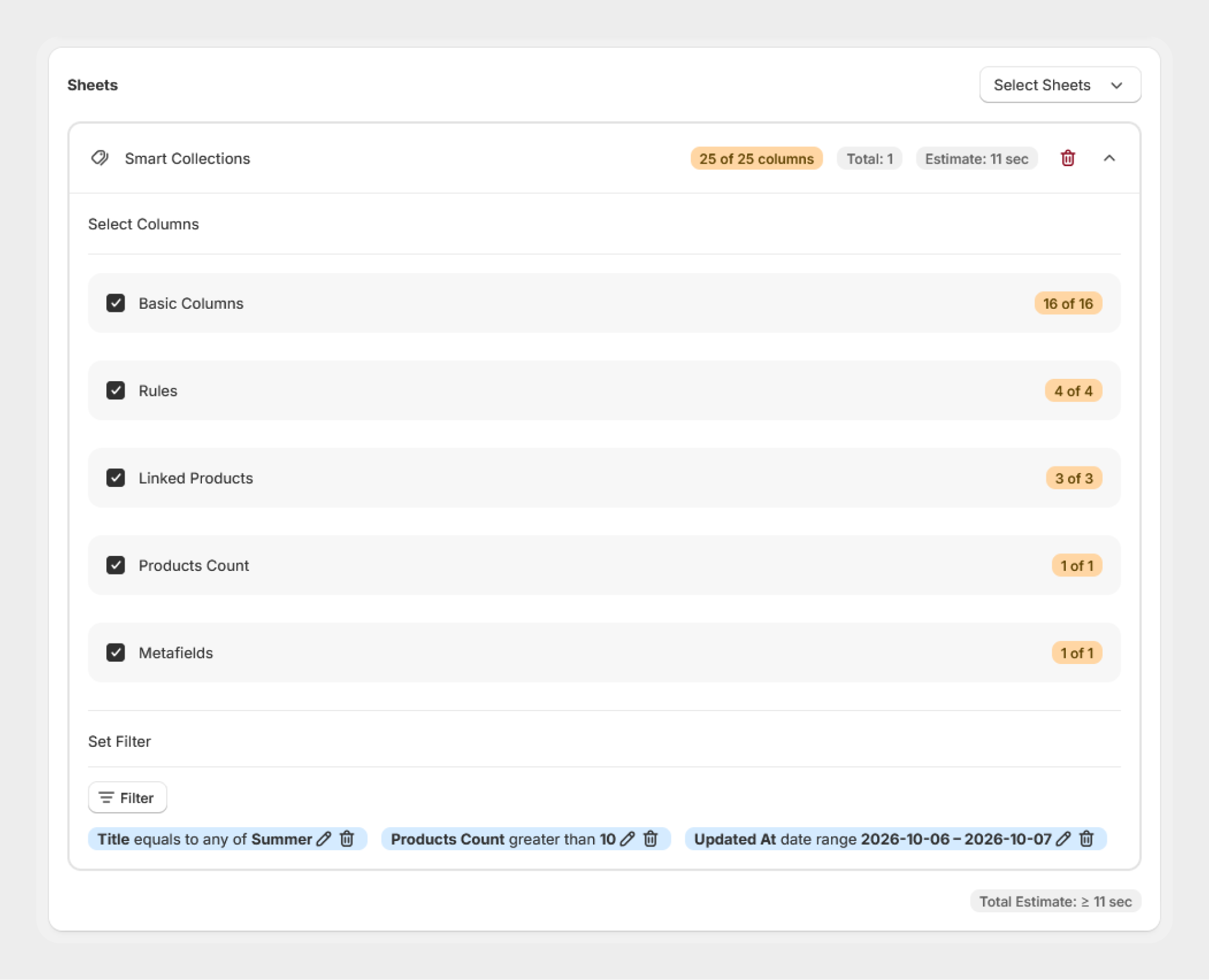
Step 4: Review the Filters
Review all the selected filter conditions before starting the export.
For example, you can create an export using filters such as:
-
Title contains "Summer"
-
Products Count greater than 10
-
Updated At within the required date range
This allows you to export only the Smart Collections matching the selected criteria.
Step 5: Start the Export
Once the filters have been configured:
- Review the selected fields.
- Review the filter conditions.
- Confirm the export settings.
- Start the export.
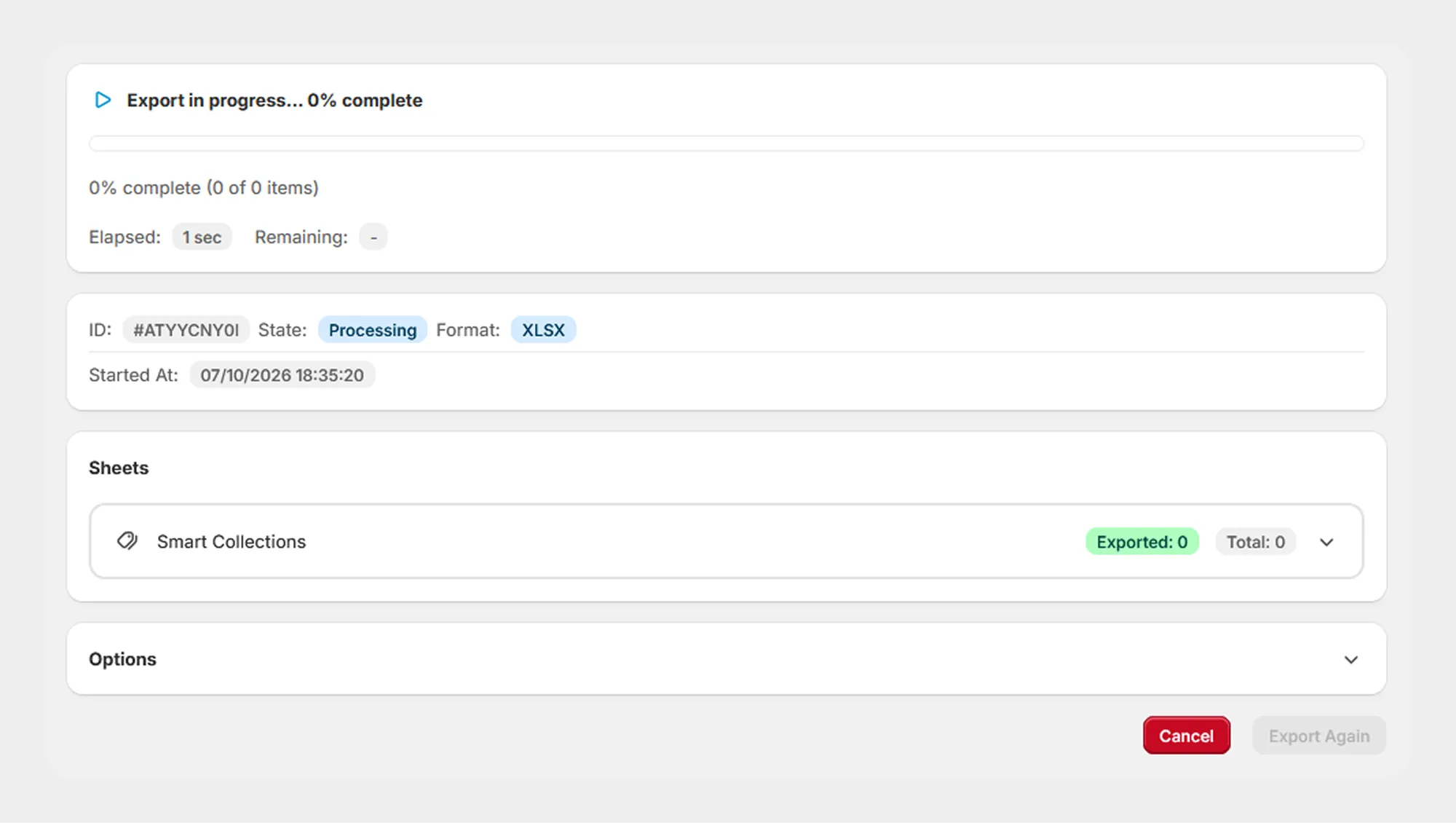
Migrato will process the export based on the selected Smart Collection filter conditions.
Available Smart Collection Filters
The available filters depend on the Smart Collection fields supported by Migrato.
| Filter | Description | Available Conditions |
|---|---|---|
| ID | Filter Smart Collections using their Shopify Smart Collection ID. | Equals to any of; Not equal to any of |
| Handle | Filter Smart Collections based on their URL-friendly handle. | Equals to any of; Not equal to any of; Contains any; Contains none |
| Title | Filter Smart Collections based on their title. | Equals to any of; Not equal to any of; Contains any; Contains none |
| Products Count | Filter Smart Collections based on the number of products associated with the collection. | Equals; Less than; Less than or equal to; Greater than; Greater than or equal to; Between |
| Updated At | Filter Smart Collections based on the date and time when they were last updated. | On or after; On or before; Date range; Relative date |
| Published At | Filter Smart Collections based on the date and time when they were published. | On or after; On or before; Date range; Relative date |
Note: The exact conditions available for each filter are determined by the current Migrato Filter configuration. The Shopify Smart Collection API separately defines the rule relations used inside a Smart Collection, which are different from Migrato's export filters.
Filter Conditions
Migrato provides different conditions depending on the selected Smart Collection filter field.
Text-Based Conditions
Text-based conditions can be used with fields such as Handle and Title.
| Condition | Description |
|---|---|
| Equals to any of | Exports Smart Collections where the selected field matches any of the specified values. |
| Not equal to any of | Exports Smart Collections where the selected field does not match any of the specified values. |
| Contains any | Exports Smart Collections where the selected field contains any of the specified values. |
| Contains none | Exports Smart Collections where the selected field does not contain any of the specified values. |
Date-Based Conditions
Date-based conditions can be used with Updated At and Published At.
| Condition | Description |
|---|---|
| On or after | Exports Smart Collections updated or published on or after the selected date. |
| On or before | Exports Smart Collections updated or published on or before the selected date. |
| Date range | Exports Smart Collections whose relevant date falls within the selected date range. |
| Relative date | Exports Smart Collections based on a relative time period, such as the last few days, weeks, or months. |
Numeric Conditions
Numeric conditions can be used with Products Count.
| Condition | Description |
|---|---|
| Equals | Exports Smart Collections where the product count exactly matches the specified value. |
| Less than | Exports Smart Collections where the product count is lower than the specified value. |
| Less than or equal to | Exports Smart Collections where the product count is lower than or equal to the specified value. |
| Greater than | Exports Smart Collections where the product count is higher than the specified value. |
| Greater than or equal to | Exports Smart Collections where the product count is higher than or equal to the specified value. |
| Between | Exports Smart Collections where the product count falls between the specified minimum and maximum values. |
ID Conditions
ID filtering can be used to select specific Smart Collections by their Shopify IDs.
| Condition | Description |
|---|---|
| Equals to any of | Exports Smart Collections whose Shopify ID matches any of the specified IDs. |
| Not equal to any of | Exports Smart Collections whose Shopify ID does not match any of the specified IDs. |
Smart Collections Filter Examples
You can use Smart Collection filters to export only the collections that match specific criteria.
The following examples demonstrate common ways to filter Smart Collections.
Example 1: Filter by Smart Collection ID
Use the ID filter when you want to export specific Smart Collections.
Filter:
-
Field: ID
-
Condition: Equals to any of
-
Value:
1234567890, 9876543210
This exports only the Smart Collections whose Shopify IDs match the specified values.
Example 2: Filter by Handle
Use the Handle filter to export Smart Collections based on their URL-friendly handle.
Filter:
-
Field: Handle
-
Condition: Contains any
-
Value:
summer
This exports Smart Collections whose handles contain the specified value.
Example matching handles:
-
summer-collection -
summer-sale -
mens-summer-products
Example 3: Filter by Title
Use the Title filter to export Smart Collections based on their collection title.
Filter:
-
Field: Title
-
Condition: Contains any
-
Value:
Sale
This exports Smart Collections whose titles contain the specified value.
Example matching titles:
-
Summer Sale -
Winter Sale -
Clearance Sale
Example 4: Filter by Products Count
Use the Products Count filter when you want to export Smart Collections based on the number of products associated with them.
Filter:
-
Field: Products Count
-
Condition: Greater than
-
Value:
50
This exports Smart Collections containing more than 50 products.
Example 5: Filter by Updated Date
Use the Updated At filter to export Smart Collections that were updated during a specific period.
Filter:
-
Field: Updated At
-
Condition: On or after
-
Value:
2026-01-01
This exports Smart Collections updated on or after January 1, 2026.
Example 6: Filter by Published Date
Use the Published At filter to export Smart Collections based on when they were published.
Filter:
-
Field: Published At
-
Condition: On or after
-
Value:
2026-01-01
This exports Smart Collections published on or after January 1, 2026.
Using Multiple Filters
Migrato allows you to apply multiple filters to create a more targeted Smart Collection export.
You can add multiple filters by clicking Add New Filter and configuring each filter separately.
For example, you can create an export using the following filters:
| Filter | Condition | Value |
|---|---|---|
| Title | Contains any | Summer |
| Products Count | Greater than | 20 |
| Updated At | On or after | 2026-01-01 |
With these filters applied, Migrato will export Smart Collections that match the configured criteria.
Example: Export Large Summer Collections
Suppose you want to export Smart Collections that:
-
Have "Summer" in the title.
-
Contain more than 20 products.
-
Were updated on or after January 1, 2026.
Configure the filters as follows:
Filter 1
-
Field: Title
-
Condition: Contains any
-
Value:
Summer
Filter 2
-
Field: Products Count
-
Condition: Greater than
-
Value:
20
Filter 3
-
Field: Updated At
-
Condition: On or after
-
Value:
2026-01-01
Migrato will use the configured filters to narrow the export to the Smart Collections matching the selected criteria.
Tip: Use multiple filters when you need a more specific export. Review all filter fields, conditions, and values before starting the export to make sure the required Smart Collections are included.
 Install Migrato free
 Free plan forever