 Our first app, Migrato, is live on the Shopify App Store

Filter Draft Orders
Migrato allows you to export specific Shopify draft orders by applying filters before starting an export. This is especially useful when your store contains a large draft orders catalog and you only need to export products that meet specific criteria.
You can combine multiple filters to create a targeted Draft Order export based on available Draft Order fields such as ID, creation date, update date, tags, status, customer tax exemption, and line-item information.
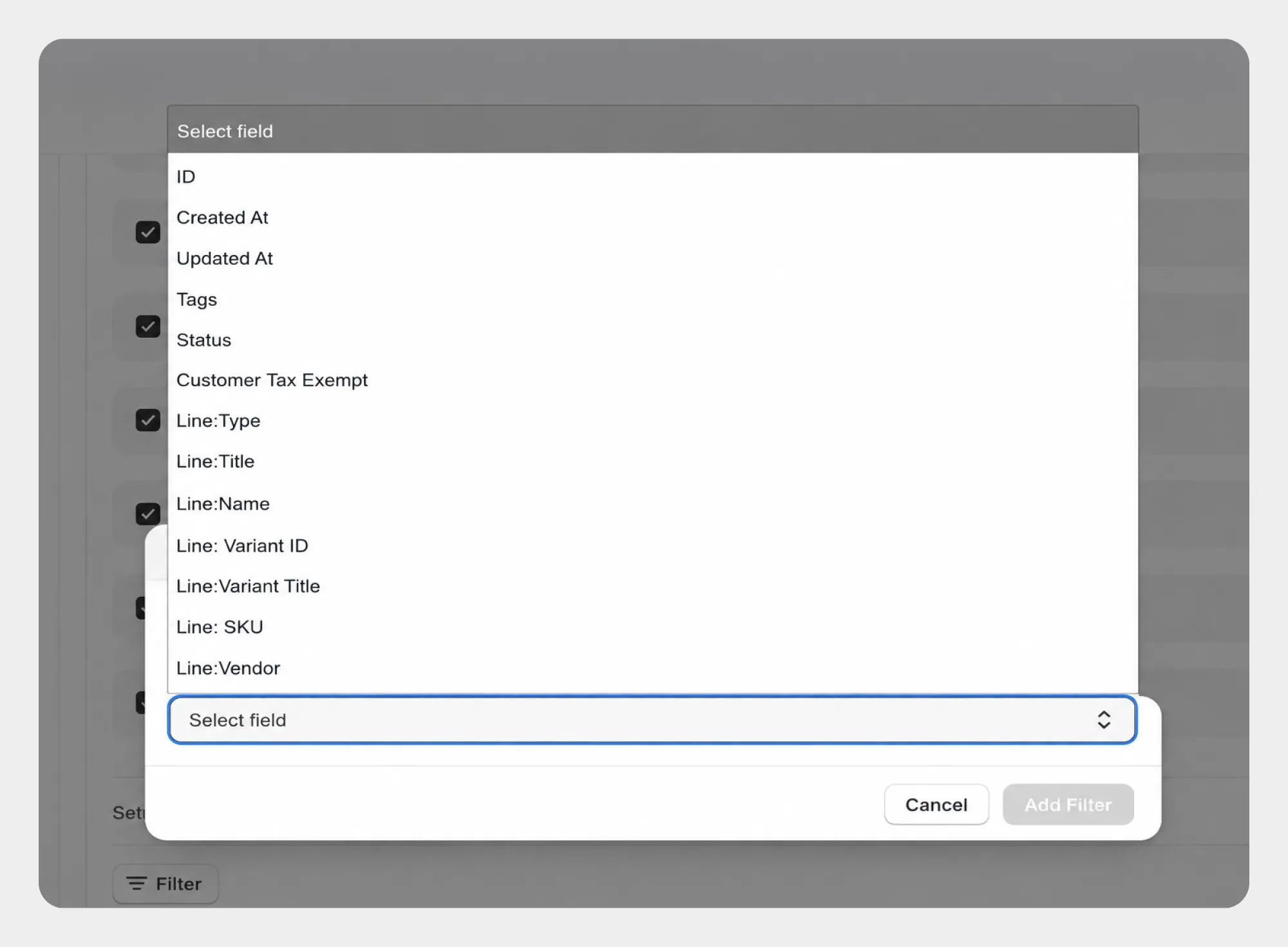
How to Filter Draft Orders for Export
Follow these steps to export draft orders based on specific conditions.
Step 1: Open Draft Order Export
- Open Shopify Admin.
- Go to Apps → Migrato.
- Open the Export section.
- Select Draft Orders as the entity you want to export.
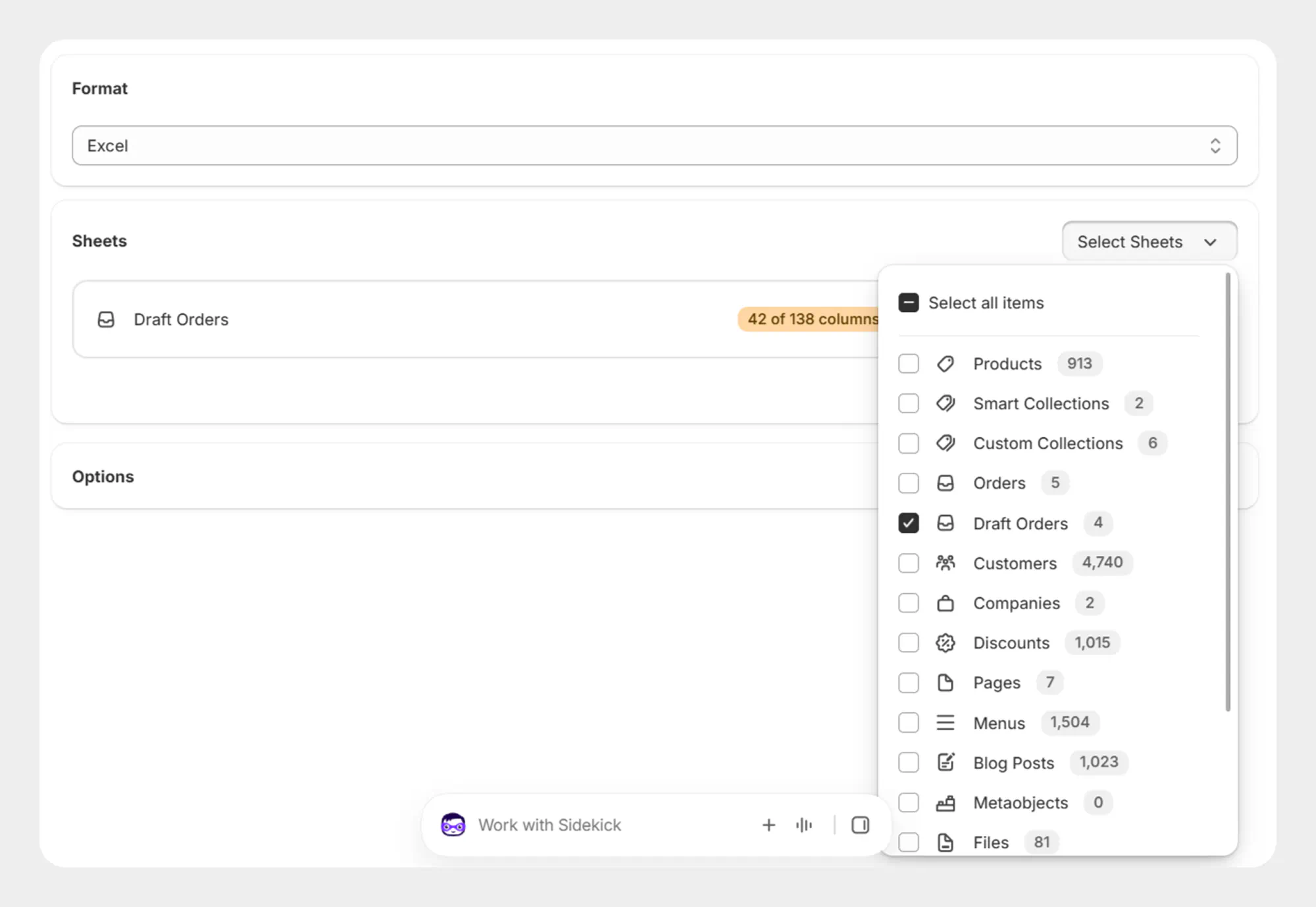
Step 2: Select Draft Orders Fields
Select the draft orders fields and information you want to include in the export file.
You can select the required fields based on your export requirements.
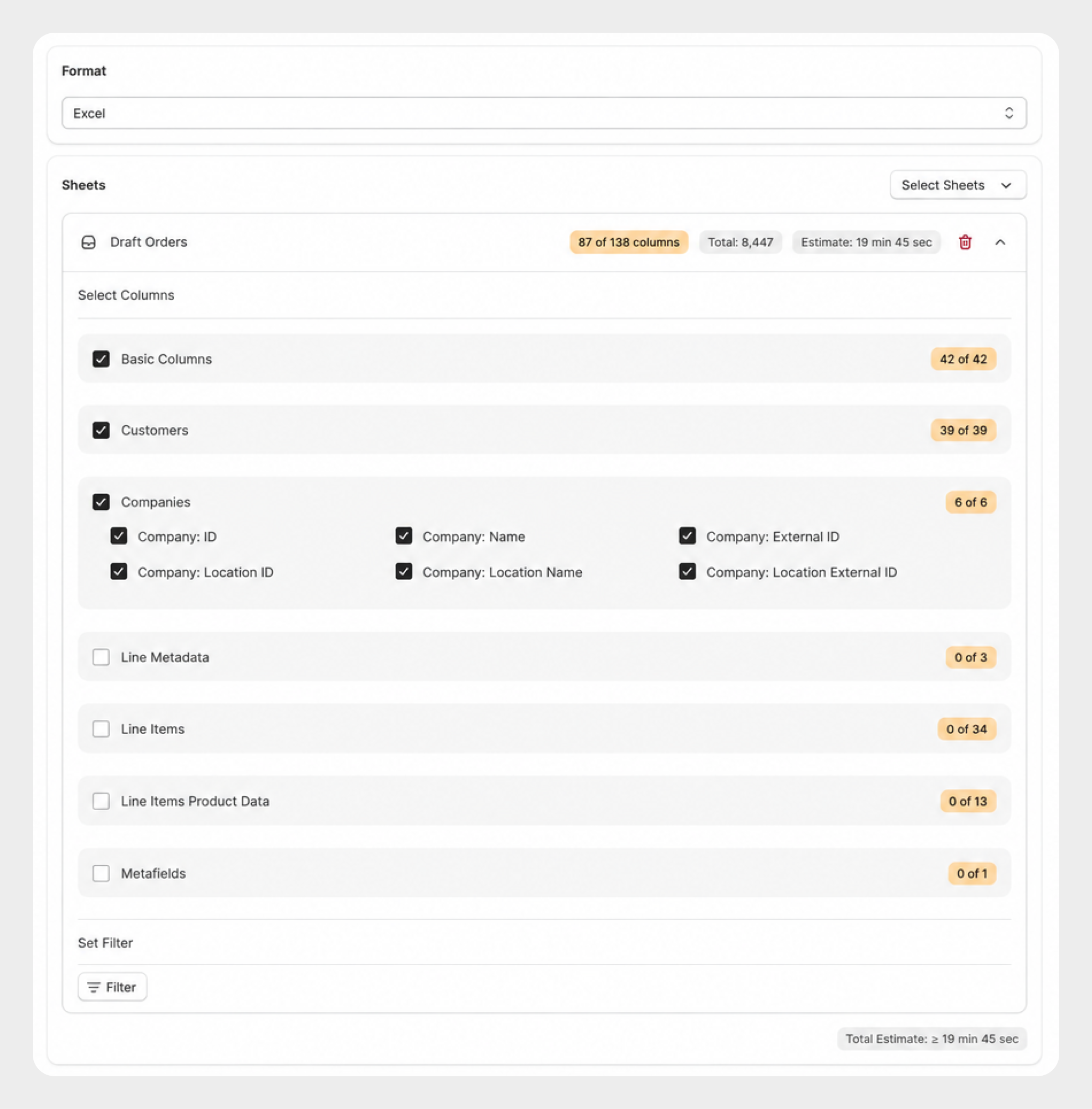
Step 3: Add Draft Order Filters
Open the Filters section and click Add New Filter.
- Select the Draft Order field you want to filter.
- Select the appropriate condition available for the selected field
- Enter or select the required value
- Add additional filters if required.
Step 4: Review the Filters
Review all the selected filter conditions before starting the export.
For example, you can create an export using:
-
 Status = Open
-
Tags = wholesale
-
Line: Vendor = Vendor A
This allows you to export only the draft orders matching the selected criteria.
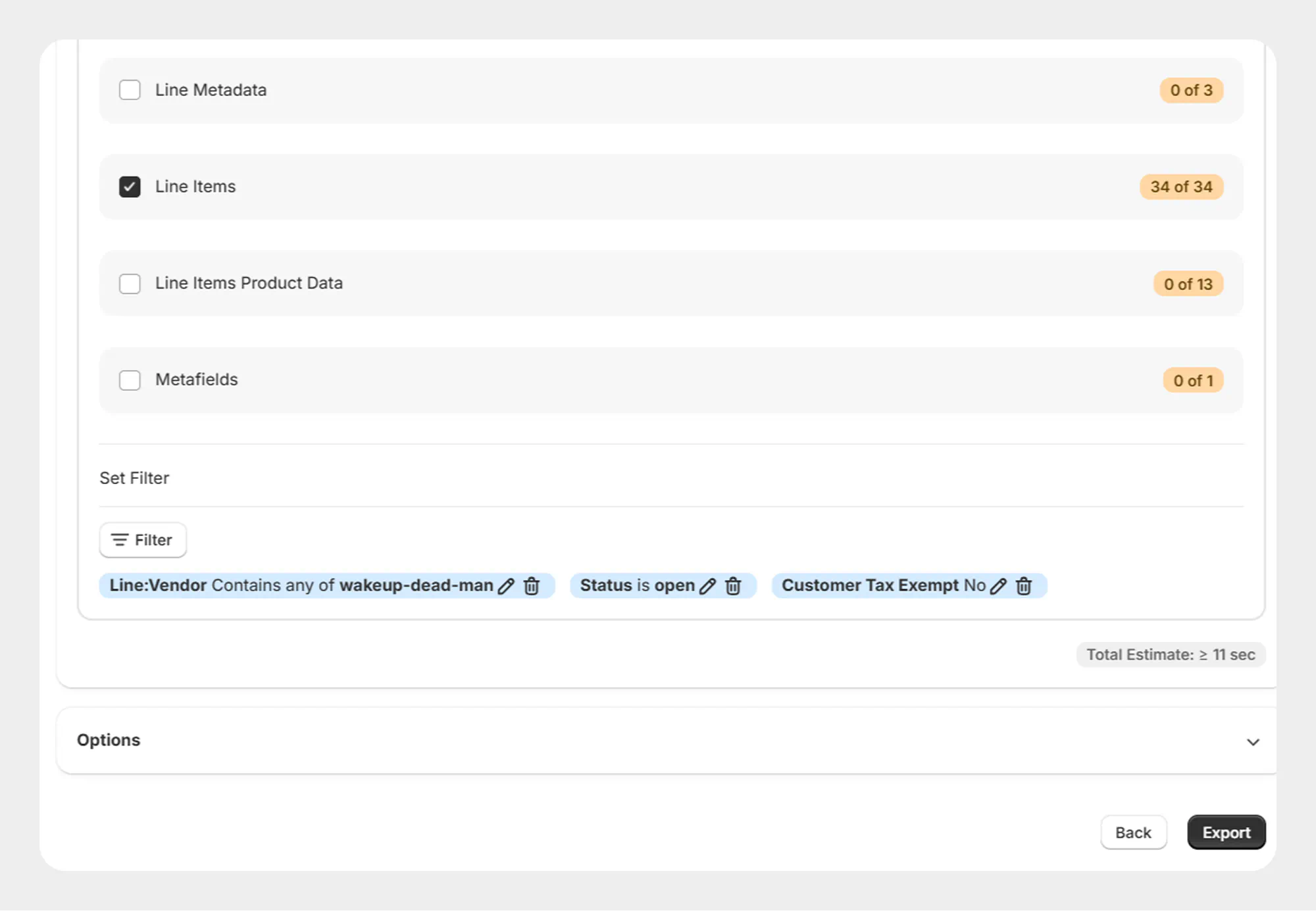
Step 5: Start the Export
Once the filters have been configured:
- Review the selected fields.
- Review the filter conditions.
- Confirm the export settings.
- Start the export.
Migrato will process the export based on the selected filter conditions.
Available Draft Orders Filters
| Filter | Description | Available Conditions |
|---|---|---|
| ID | Filter draft orders using their Shopify product ID. Multiple IDs can be entered where supported. | Equals to any of; Not equal to any of |
| Created At | Filter draft orders based on when they were created. | On or after; On or before; Date range; Relative date |
| Updated At | Filters Draft Orders based on the date and time when they were last updated. | On or after; On or before; Date range; Relative date |
| Tags | Filters Draft Orders based on their assigned tags. | Equals to any of; Not equal to any of; Contains any; Contains none |
| Status | Filters Draft Orders based on their current status. | Open; Invoice Sent; Completed; Cancelled |
| Customer Tax Exempt | Filters Draft Orders based on whether the associated customer is tax exempt. | Yes; No |
| Line: Type | Filters Draft Orders based on the type of line item. | Equals to any of; Not equal to any of |
| Line: Title | Filters Draft Orders based on the title of a line item. | Equals to any of; Contains any; Contains none |
| Line: Name | Filters Draft Orders based on the name of a line item. | Equals to any of; Contains any; Contains none |
| Line: Variant ID | Filters Draft Orders based on the Shopify variant ID associated with a line item | Equals to any of; Not equal to any of |
| Line: Variant Title | Filters Draft Orders based on the variant title of a line item. | Equals to any of; Contains any; Contains none |
| Line: SKU | Filters Draft Orders based on the SKU of a line item. | Equals to any of; Contains any; Contains none |
| Line: Vendor | Filters Draft Orders based on the vendor associated with a line item. | Equals to any of; Not equal to any of; Contains any; Contains none |
Note: The exact filters and conditions available in your Migrato account may vary depending on the current app version and supported Shopify data fields.
Filter Conditions
Migrato provides different conditions depending on the selected product field.
Text-Based Conditions
| Condition | Description |
|---|---|
| Equals to any of | Exports draft orders where the selected field matches any of the specified values. |
| Not equal to any of | Exports draft orders where the selected field does not match any of the specified values. |
| Contains any | Exports draft orders where the selected field contains any of the specified values. |
| Contains none | Exports draft orders where the selected field does not contain any of the specified values. |
| Contains | Exports Draft Orders where the selected field contains the specified text. |
| Does not contain | Exports Draft Orders where the selected field does not contain the specified text |
Date-Based Conditions
| Condition | Description |
|---|---|
| On or after | Exports Draft Orders created or updated on or after the selected date. |
| On or before | Exports Draft Orders created or updated on or before the selected date |
| Date range | Exports Draft Orders whose relevant date falls within the selected date range |
| Relative date | Exports Draft Orders based on a relative time period, such as the last few days, weeks, or months. |
Status Conditions
| Condition | Description |
|---|---|
| Open | Exports Draft Orders with an Open status |
| Invoice Sent | Exports Draft Orders where the invoice has been sent |
| Completed | Exports Draft Orders with a Completed status. |
| Cancelled | Exports Draft Orders with a Cancelled status. |
Boolean Conditions
| Description | Condition |
|---|---|
| Yes | Exports Draft Orders where the selected setting is enabled or true |
| No | Exports Draft Orders where the selected setting is disabled or false |
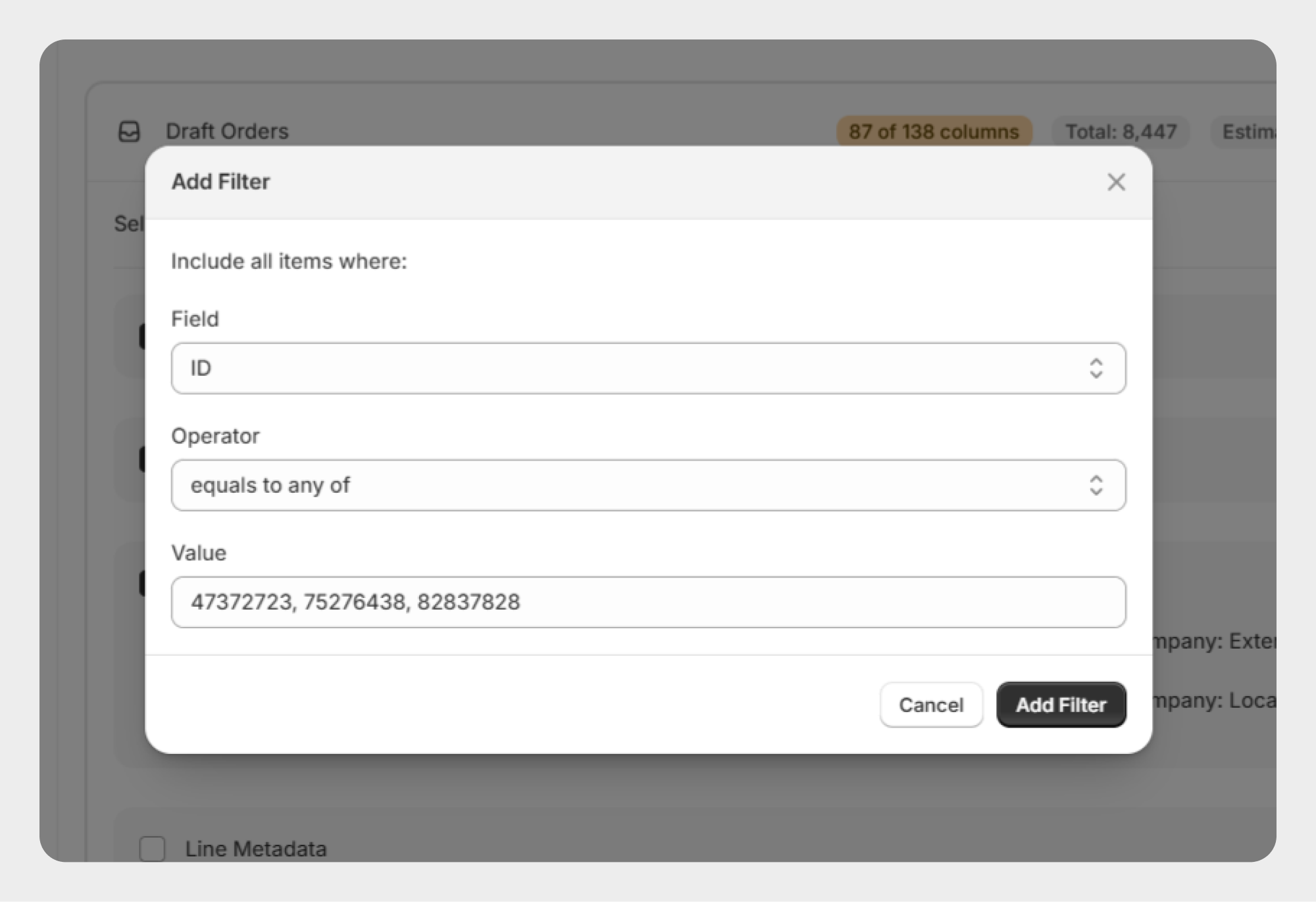
Example 1: Export Products by Draft Order ID
To export specific draft orders, use the ID filter.
Select:
ID → Equals to any of
Enter the required draft order IDs.
For example:
47372723, 75276438, 82837828
Migrato will export draft orders matching the specified draft order IDs.
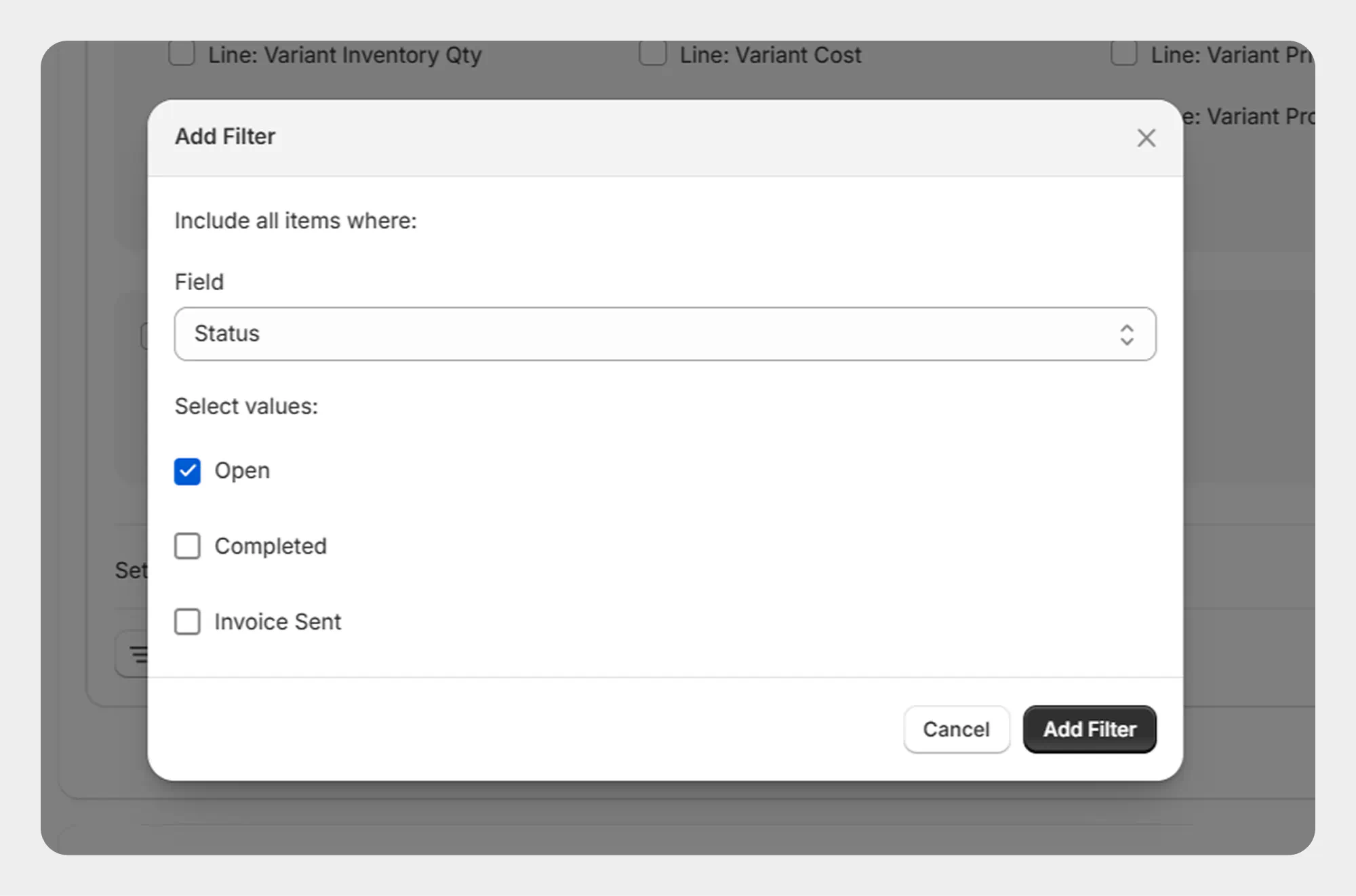
Example 2: Export Draft Orders by Status
You can export Draft Orders based on their status.
For example:
Status → Open
Migrato will export Draft Orders that currently have an Open status.
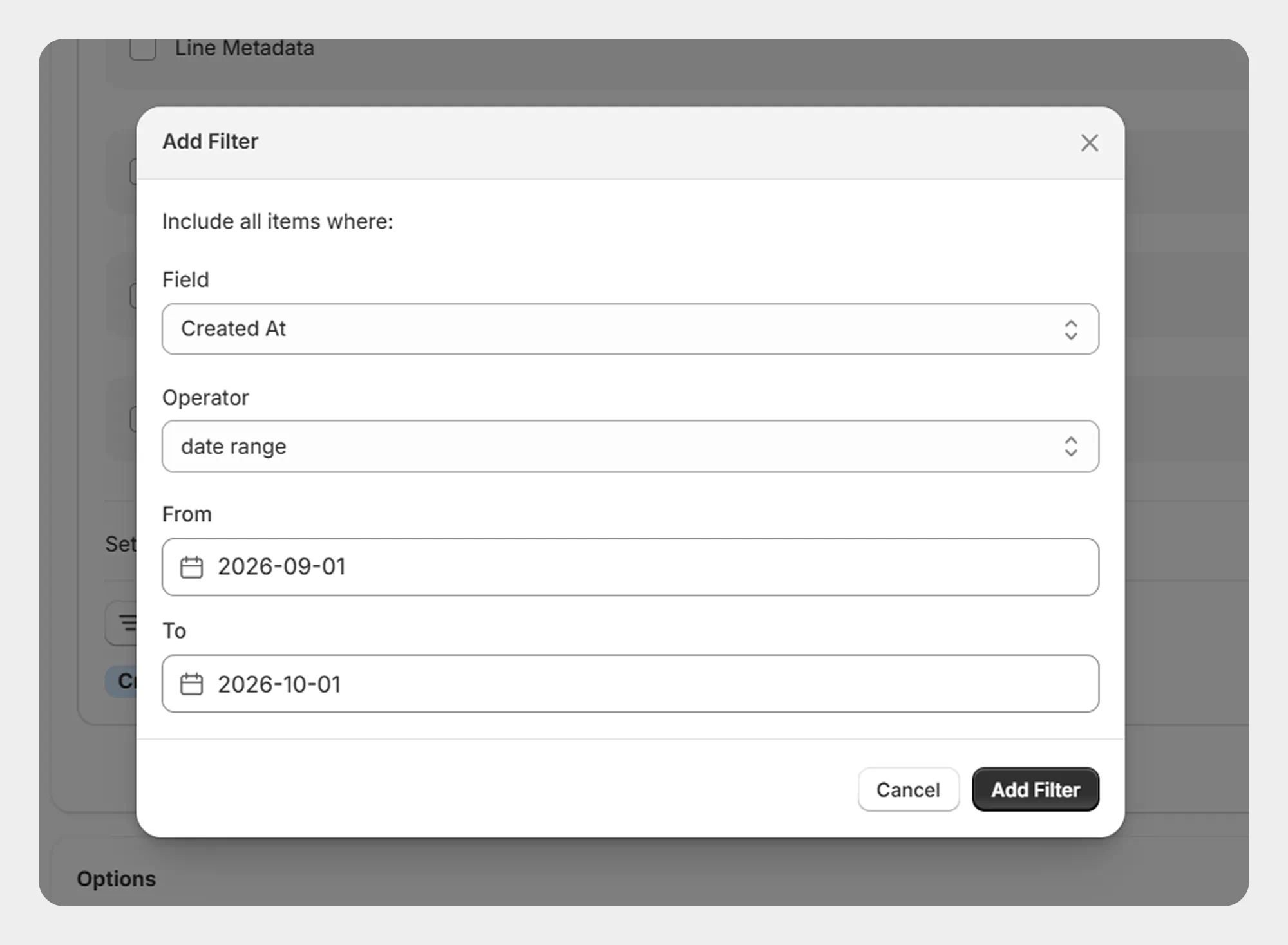
Example 3: Export Draft Orders Created Within a Date Range
To export Draft Orders created during a specific period:
Created At → Date Range
For example:
September 01, 2026 → October 01, 2026
Migrato will export Draft Orders created within the selected date range.
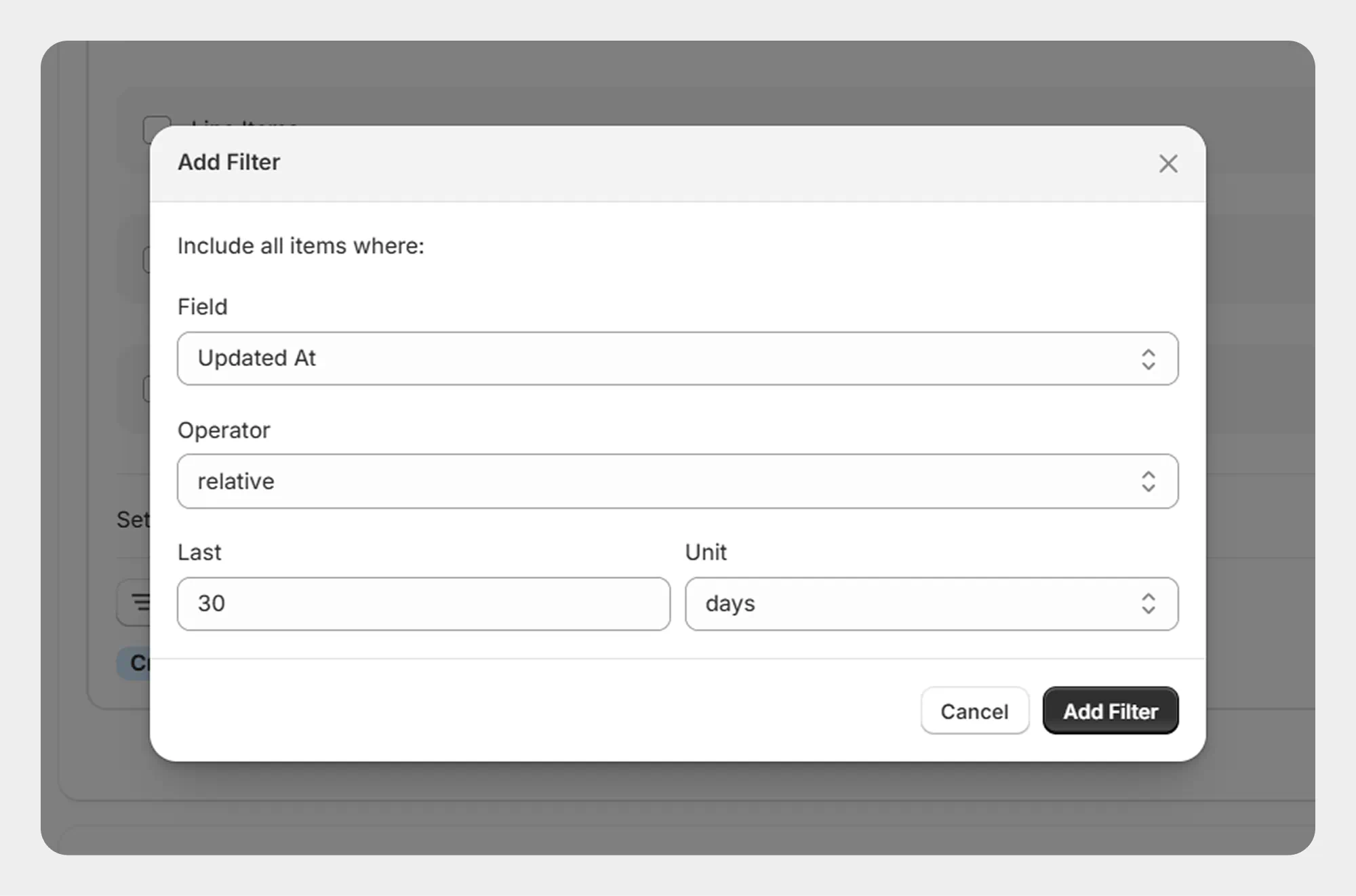
Example 4: Export Recently Updated Draft Orders
You can use a relative date filter to export recently updated Draft Orders
For example:
Updated At → Relative Date → Last 30 Days
Migrato will export products matching the selected vendors.
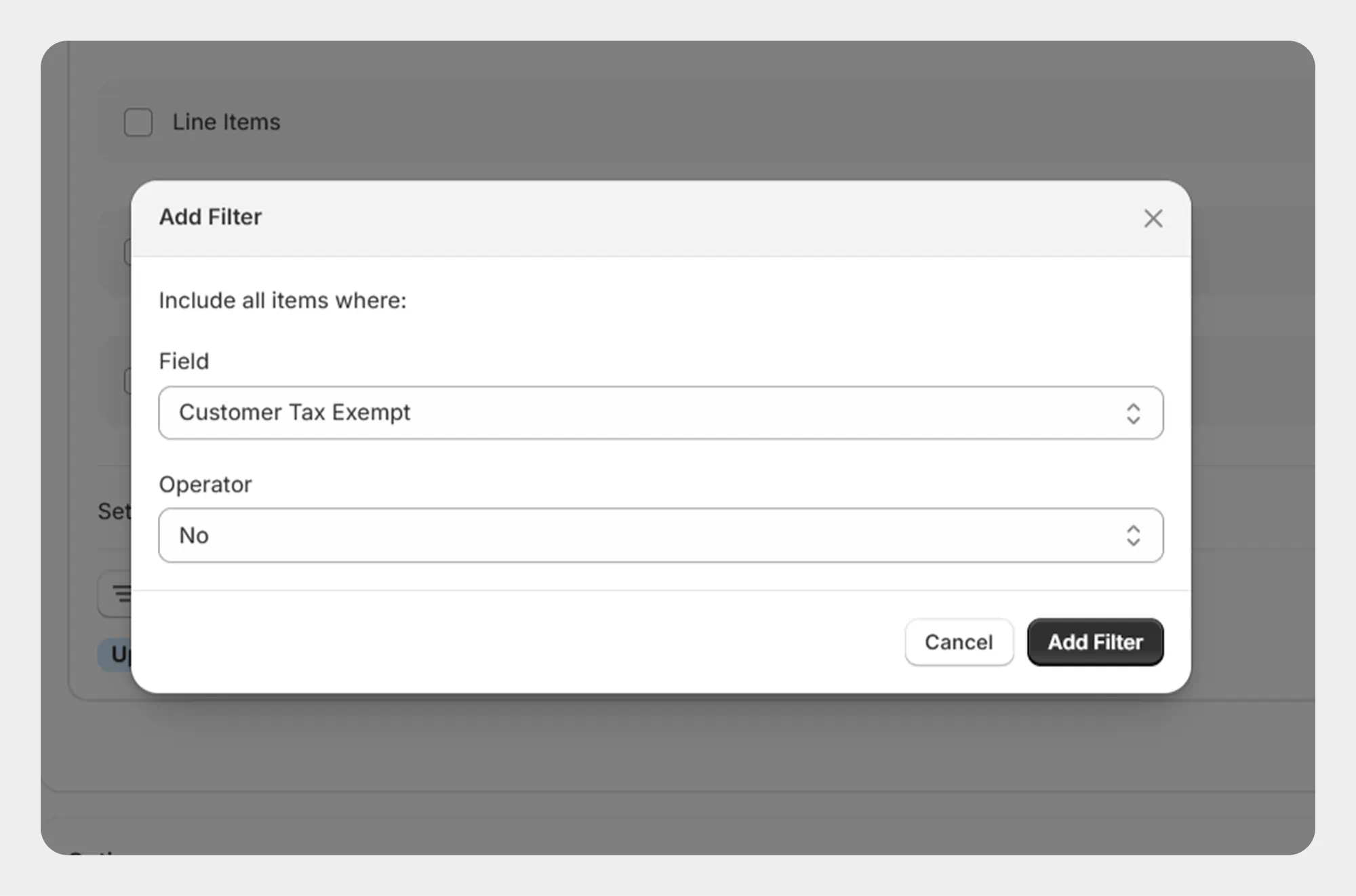
Example 5: Export Draft Orders by Customer Tax Status
You can filter Draft Orders based on whether the associated customer is tax exempt.
For example:
Customer Tax Exempt → No
Migrato will export Draft Orders associated with customers marked as tax exempt.
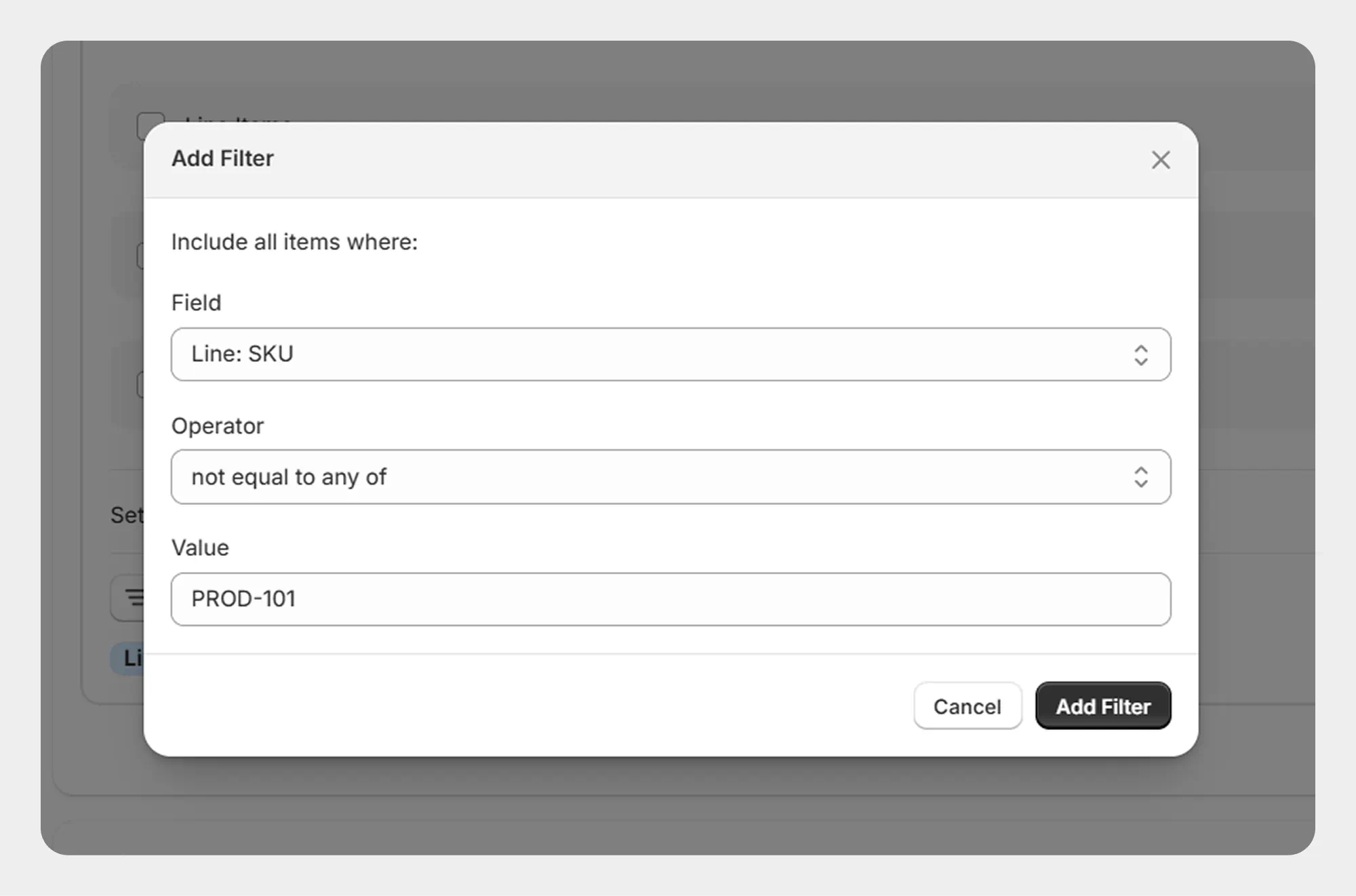
Example 6: Export Draft Orders by Line Item SKU
You can filter Draft Orders based on the SKU of their line items.
For example:
Line: SKU → not equals any → TSHIRT
Migrato will export Draft Orders that contain line items matching the specified SKU condition.
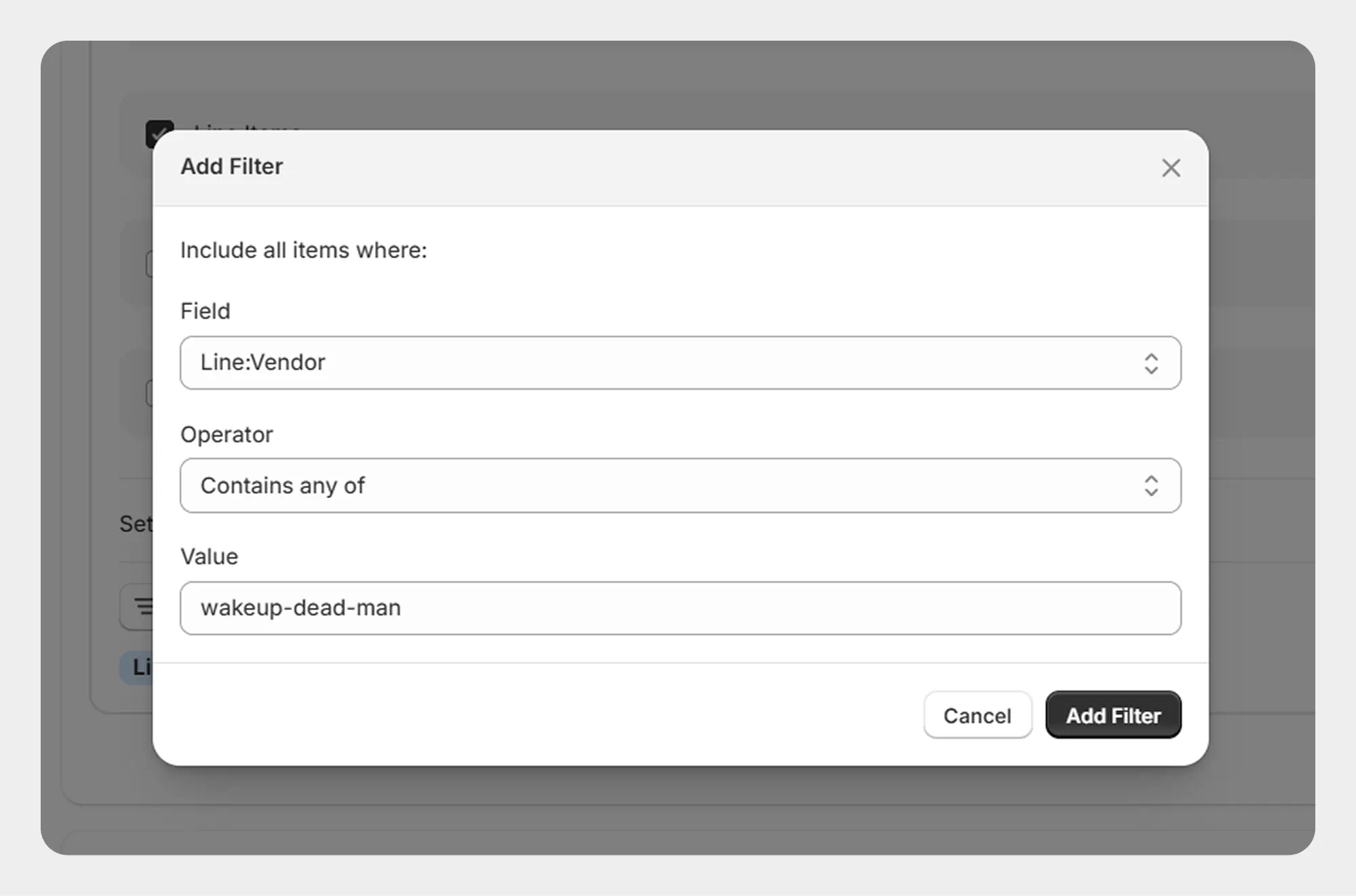
Example 7: Export Draft Orders by Vendor
You can filter Draft Orders based on the vendor associated with their line items.
For example:
Line: Vendor → Contains to any of → Vendor A
Migrato will export Draft Orders containing line items associated with the selected vendor.
Using Multiple Filters
Migrato allows you to add multiple filters to create a more targeted Draft Order export.
For example, you can combine:
Status = Open
Customer Tax Exempt = No
Line: Vendor = Vendor A
This allows you to export only Draft Orders that match all the selected criteria
Tip: When using multiple filters, review each condition carefully before starting the export to ensure the resulting Draft Order dataset matches your requirements
 Install Migrato free
 Free plan forever