 Our first app, Migrato, is live on the Shopify App Store

Quick Start
A tour of every area of Migrato – what each section does and where to find it. 7 min read
 Updated 9 October 2026
 Applies to Migrato on all plans
1. Major features
-
 Import, export, update, delete, replace and merge Shopify data
-
Support for CSV and XLSX files
-
Bulk management of Products, Customers, Orders, Collections, Discounts, Pages, Blogs, Menus and more
-
FTP/SFTP-based data import and export, and import using a public URL
-
Scheduled import and export jobs
-
Filters for selecting specific data
-
Data validation and error tracking
-
Job history and activity monitoring
-
Store-to-store data migration and entity-level bulk operations
Migrato provides a simple and centralised way to import, export, update, delete, replace, merge and migrate Shopify store data. The app supports CSV and XLSX files, FTP/SFTP connections, scheduled jobs, filters, validation and job history, so you can manage Shopify data efficiently without manually editing individual records.
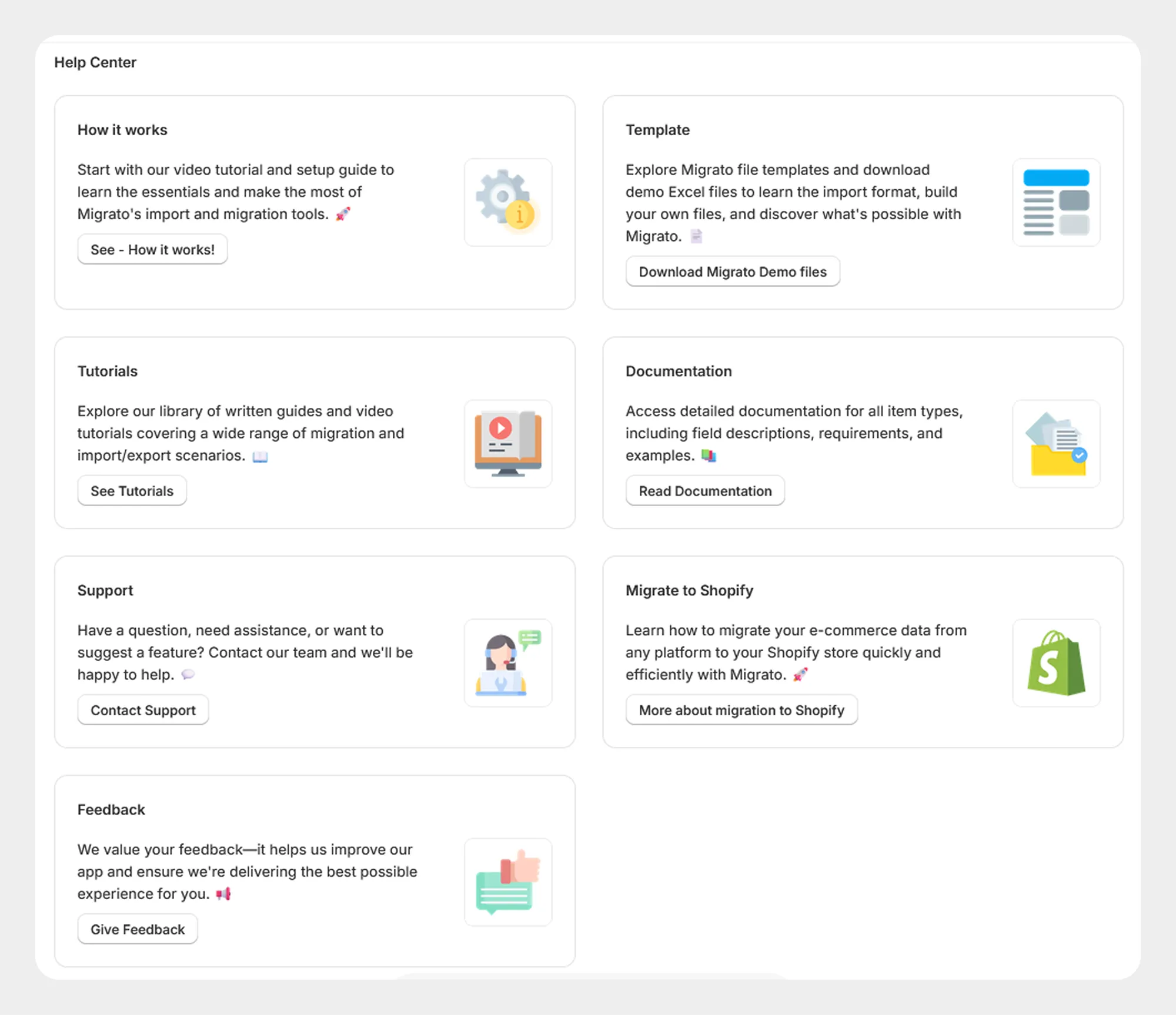
After installing Migrato, open Shopify Admin → Apps → Migrato. You are taken to the Migrato home page, where every feature below is reached from the navigation menu.
2. Dashboard
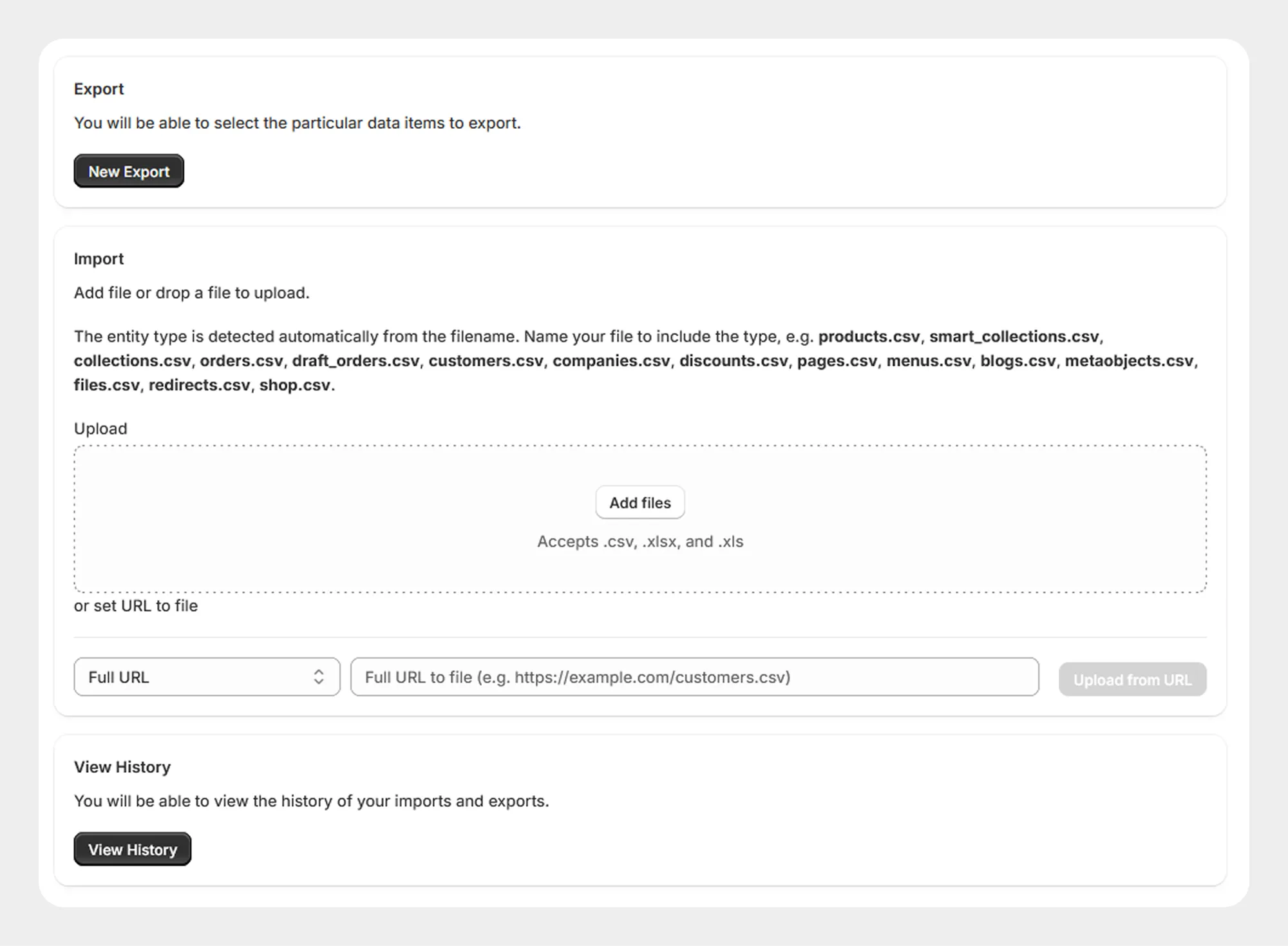
The Dashboard section provides access to the main import and export functionality. From here, you can select the Shopify data you want to manage and start an import or export operation.
3. Import
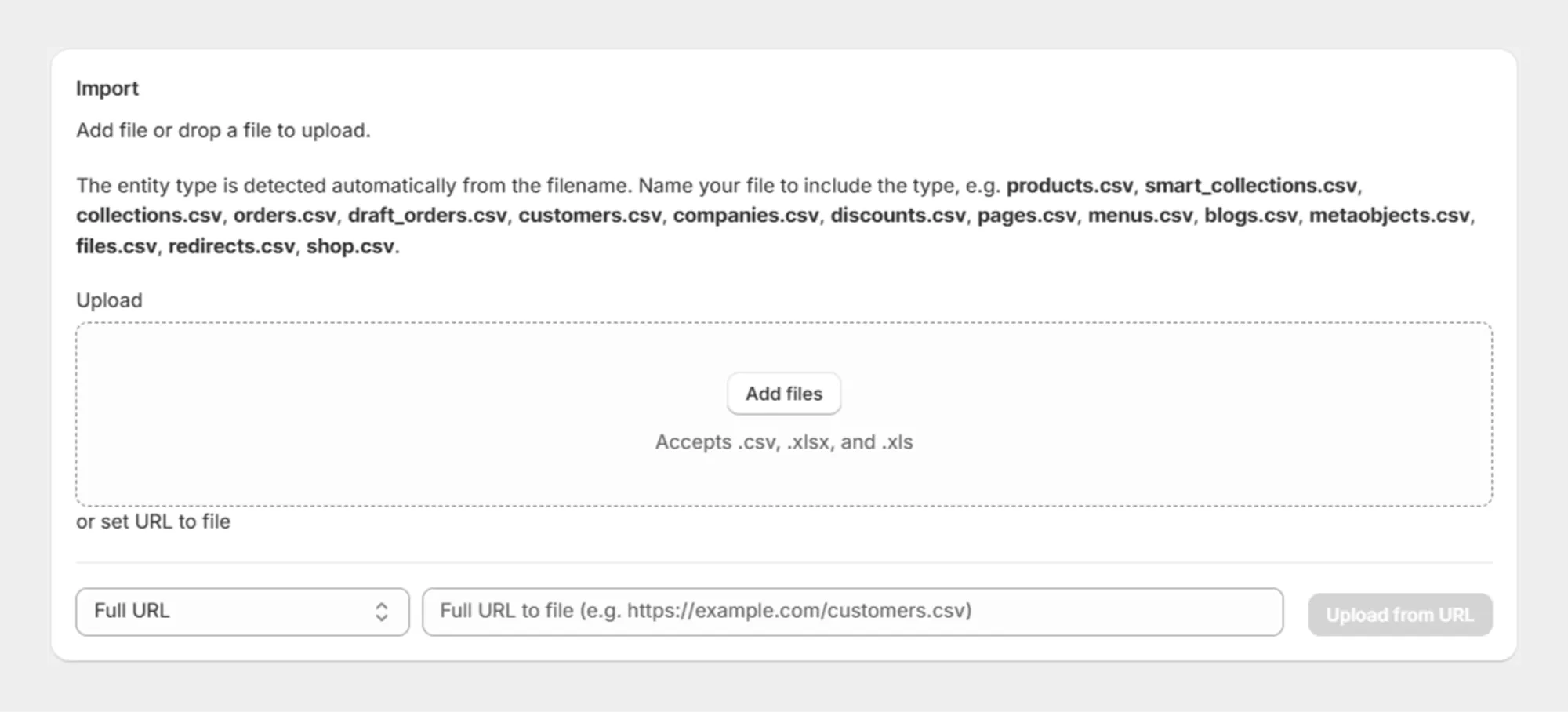
The Import section lets you upload and import Shopify data using CSV or XLSX files. You can use supported import operations to create, update, delete, replace or merge data.
4. Export
The Export section lets you export Shopify store data to CSV or XLSX files. You can select the required data and, where available, apply filters to export only the records you need.
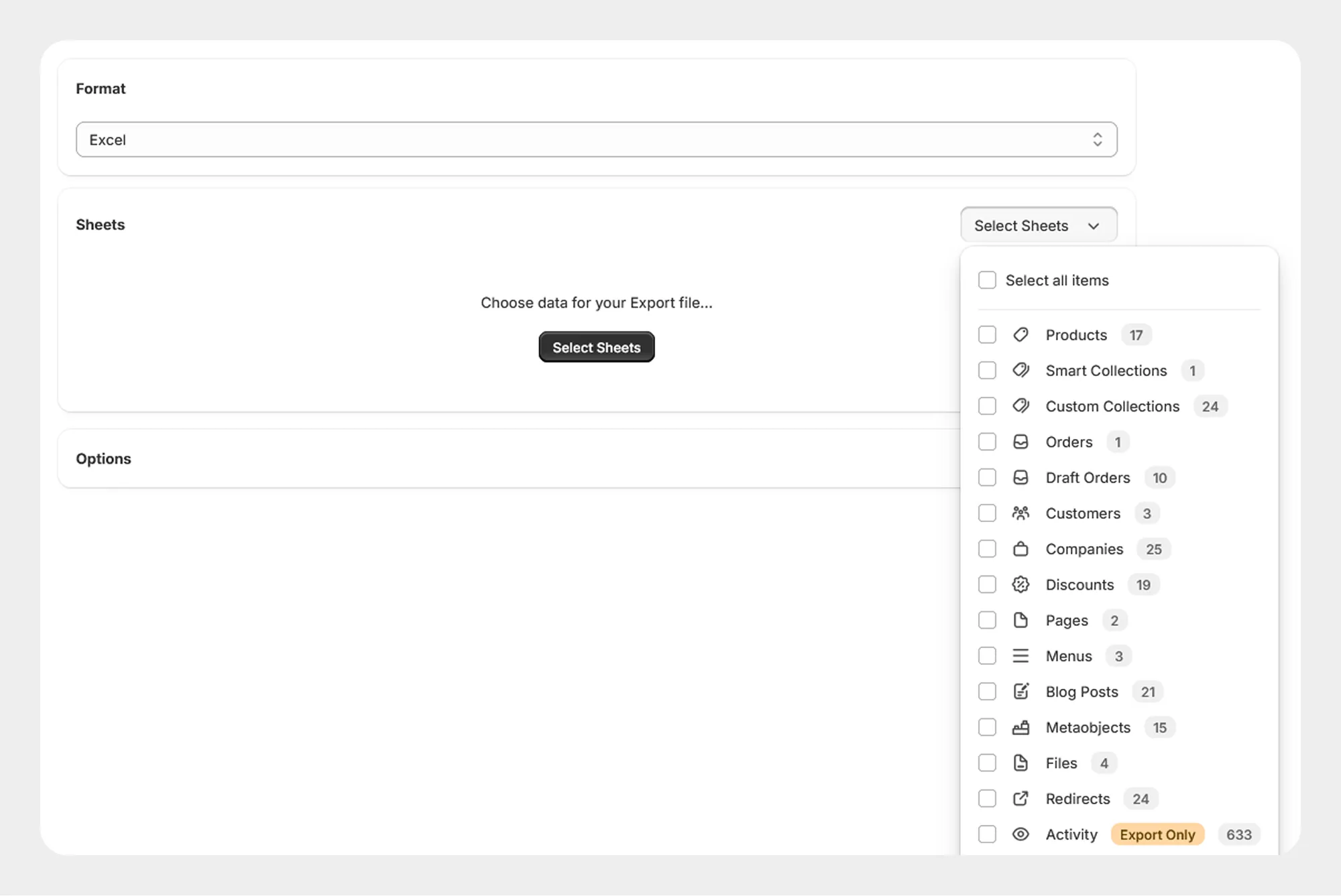
Resources supported for import and export:
| Resource | Import | Export |
|---|---|---|
| Products | Yes | Yes |
| Customers | Yes | Yes |
| Orders | Yes | Yes |
| Draft Orders | Yes | Yes |
| Smart Collections | Yes | Yes |
| Custom Collections | Yes | Yes |
| Discounts | Yes | Yes |
| Metaobjects | Yes | Yes |
| Pages | Yes | Yes |
| Blogs | Yes | Yes |
| Menus | Yes | Yes |
| Redirects | Yes | Yes |
| Files | Yes | Yes |
| Companies | Yes | Yes |
| Shop | Yes | Yes |
| Activity | - | Yes |
| Payout | - | Yes |
Both appear in the export list only, so they can be exported but not imported.
5. FTP/SFTP
Migrato lets you connect to a third-party FTP or SFTP server for file-based data transfers. This is useful when you need to regularly exchange Shopify data with suppliers, ERP systems, warehouses or other external systems. You can use FTP/SFTP connections with supported import and export workflows and scheduled jobs.
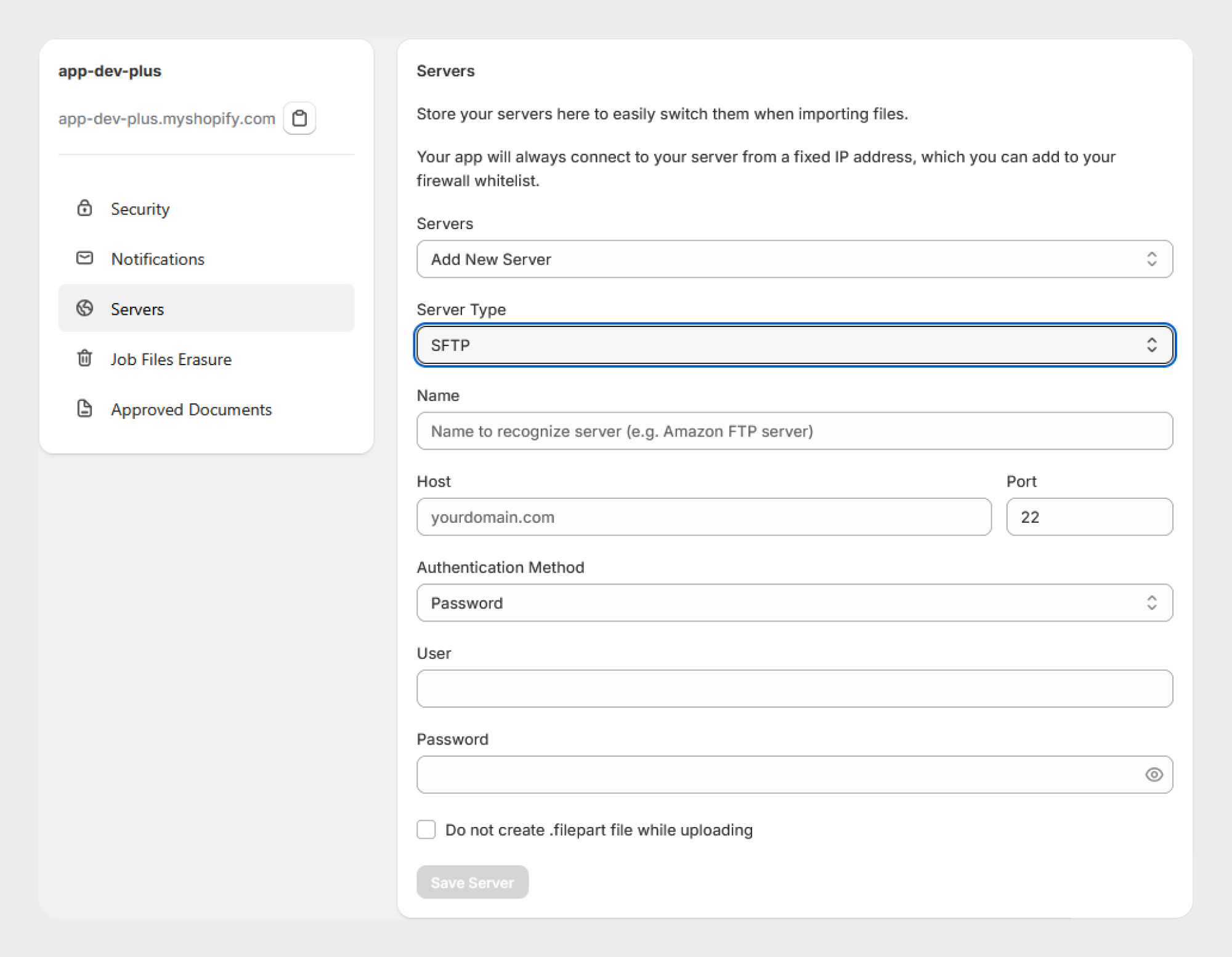
6. Filters
For supported resources, Migrato provides filtering options so you can select only the data you need to import or export. For example, you can work with a specific group of products, customers, orders or other supported resources instead of processing the entire dataset.
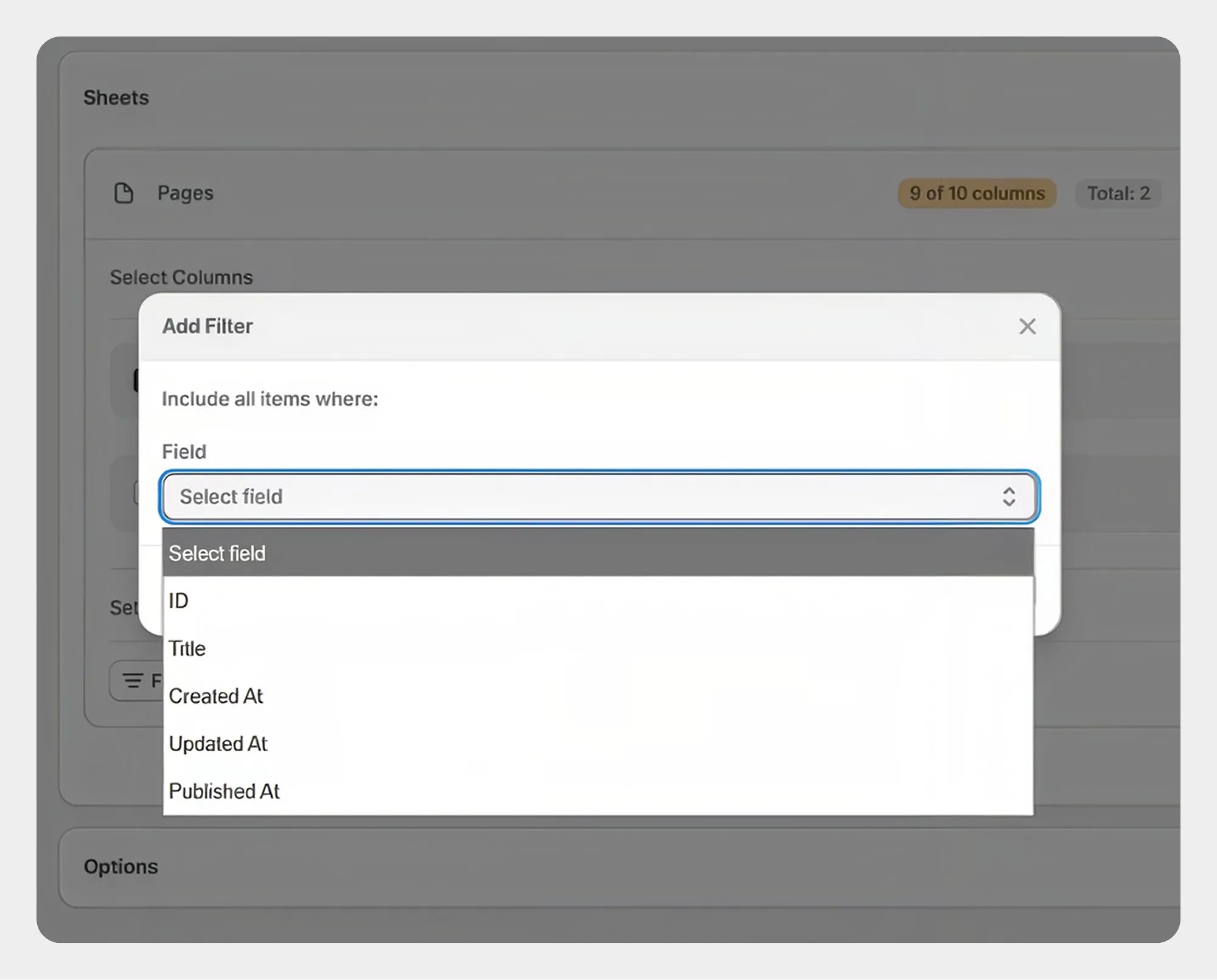
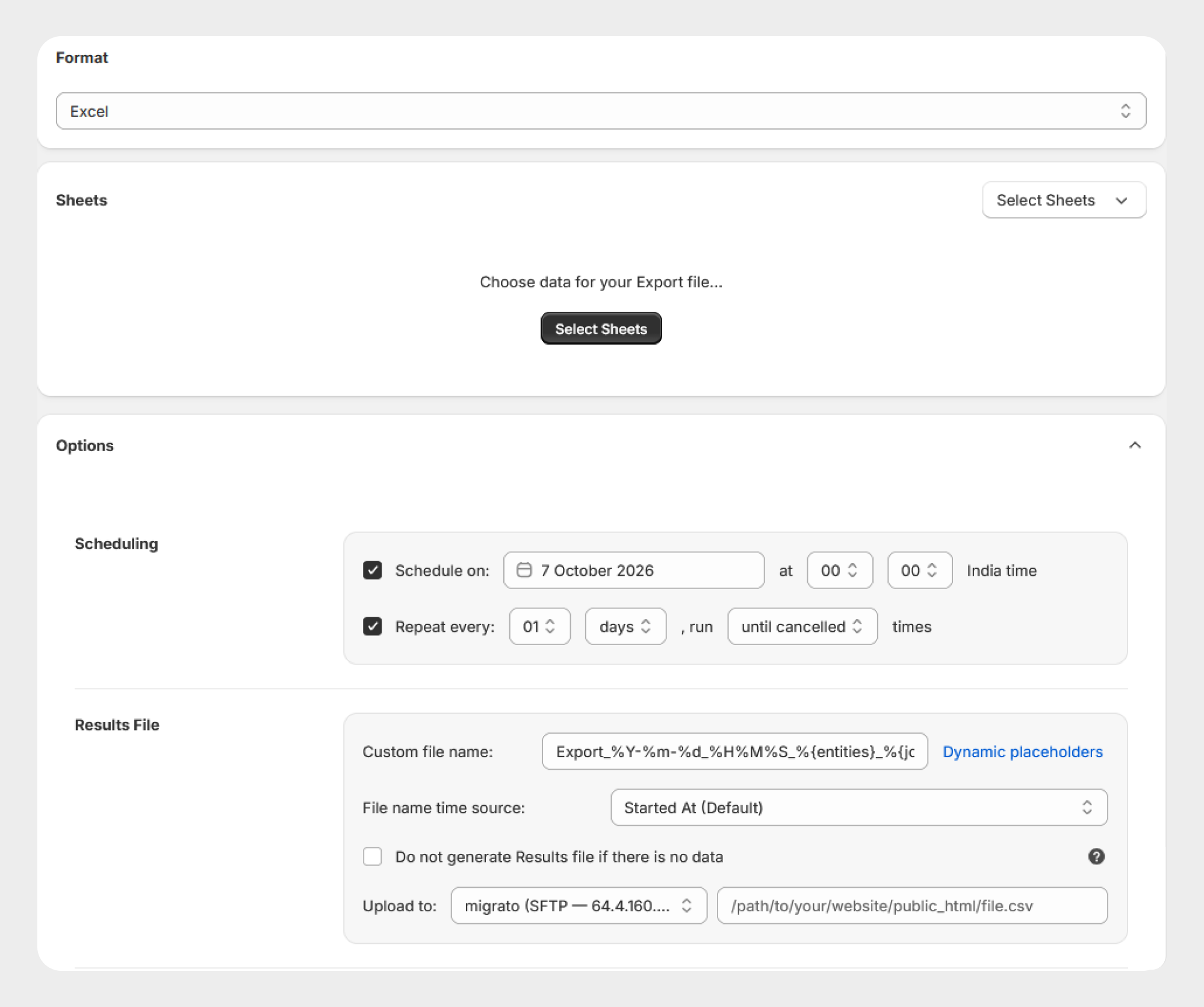
7. Scheduled jobs
The Scheduled Jobs section lets you create and manage recurring import and export operations. You can schedule supported jobs to run automatically at the required time or interval. This is useful for:
-
Inventory synchronisation
-
Supplier data updates
-
Recurring product imports
-
Regular data exports
-
Automated data transfers
8. Job history
The History section lets you review previously completed and processed import and export jobs, so you can monitor the status and results of your data operations.
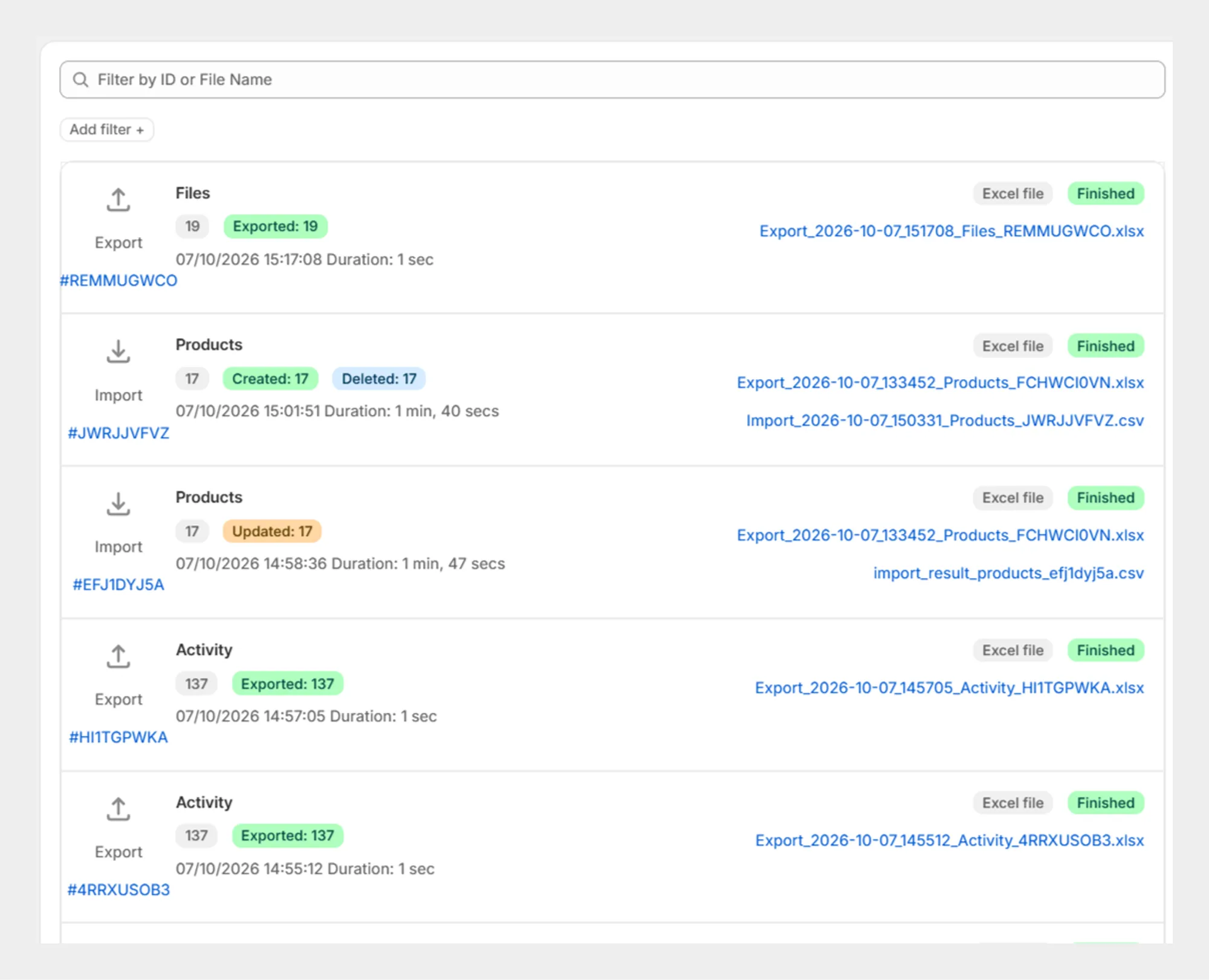
Depending on the operation, job information may include:
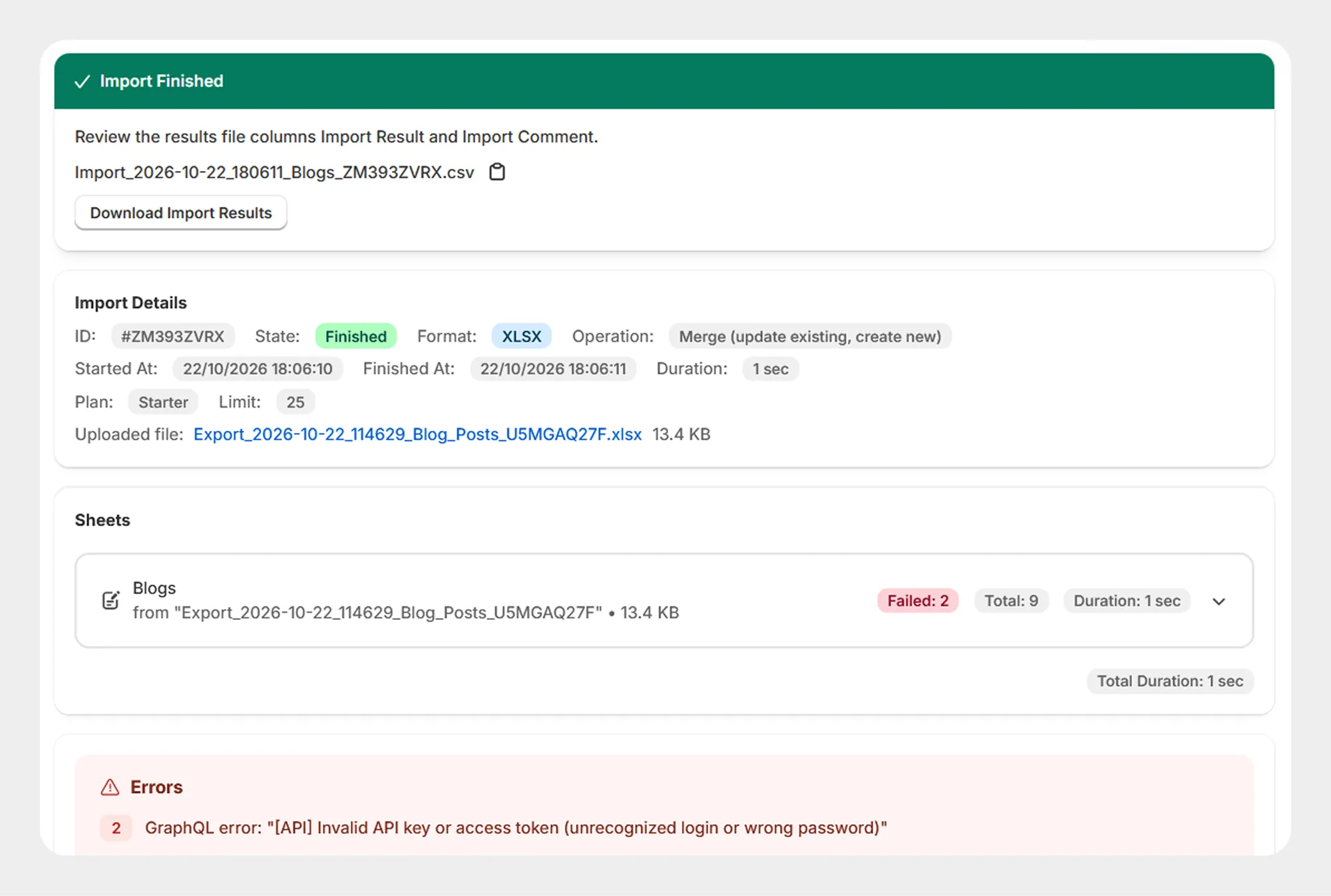
9. Validation and error tracking
Migrato validates data during the import process and provides error information when records cannot be processed successfully. This helps you identify and correct data issues before or after processing.
10. Settings
The Settings section provides access to the app's configuration and management options. Depending on the Migrato version and plan, settings may include options related to:
-
General app configuration and file processing
-
FTP/SFTP connections
-
Scheduled jobs and job history
-
Saved presets and other application preferences
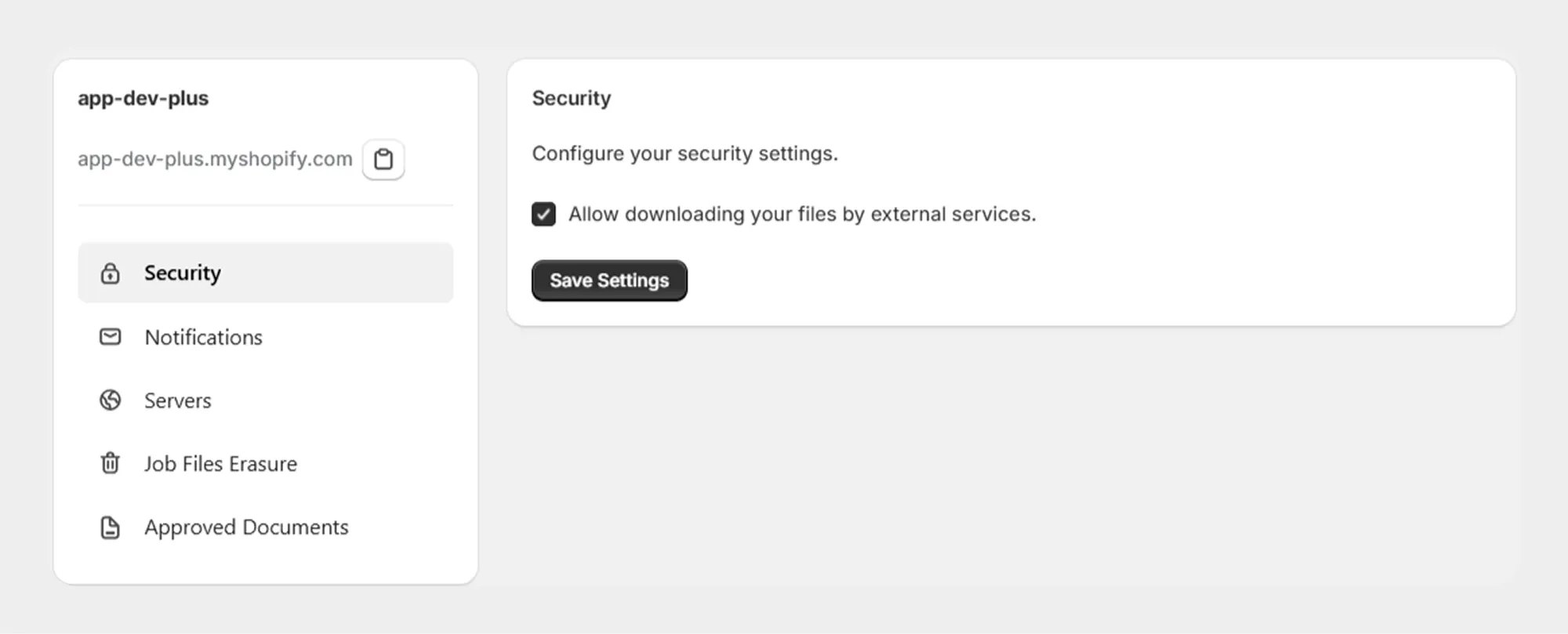
The features and options available in Migrato may vary depending on the Shopify store, selected resource and subscription plan.
What to read next
 Demo CSV filesSample files and template documentation for each data type.
 Import Shopify dataPrepare, validate and run your import step by step.
 Scheduled jobsAutomate recurring imports and exports.
 Best practicesTest first, keep a backup and verify the results.
 Free plan forever